
Gateway Manager
The Gateway Manager is a tool to configure gateway options in a Load Balancing scenario.
Install Thinfinity VirtualUI as a Gateway Role and look for the Thinfinity VirtualUI Gateway shortcut in the Start Menu.
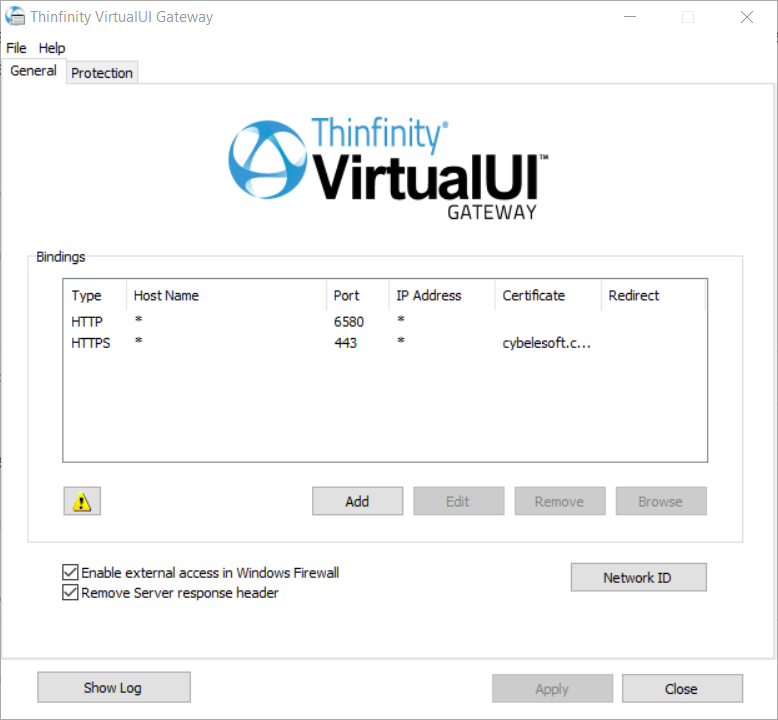
Its main menu has two sub-menus:
File Menu
The File Menu is composed of the following options.
| Option | Description |
|---|---|
| Show Log | Display the Thinfinity VirtualUI Gateway logs. |
| Language | Select the language you want Thinfinity VirtualUI to use. |
| Apply | Select to save any change done on the system Settings. |
| Close | Select this option to exit Thinfinity VirtualUI Gateway Manager. |
Help Menu
The Help Menu is composed of the following options.
| Option | Description |
|---|---|
| About Thinfinity VirtualUI | Select About to see the application version and build number. |
In the main part of the manager, you will find the following options.
| Option | Description |
|---|---|
| Bindings | A list of the gateway’s ports that a user can connect to in order to access this server’s resources. |
| Add | Add a new binding to the Gateway Bindings. |
| Edit | Edit the selected binding |
| Remove | Remove a binding Bindings list. |
| Navigate | Navigates to the selected binding. |
| Enable external access in Windows Firewall | Adds the currently configured bindings on the Windows Firewall exception list. This is mandatory for certain Windows Firewall configurations. |
| Network ID | The network ID identifies this installation. Thinfinity Remote Desktop Servers that want to share their resources through one or more Gateways must match their Network ID. Select this button to see and/or change the Network ID. The default value is a random string but you can change it to something more descriptive. |
| Show Log | Select to open the file with the Thinfinity VirtualUI log. |
Always remember to select Apply in order to save the changes.