
Playing a Recorded Session
A recorded session consists of two files with the same base name: a .dat file with the session data and an .idx index file. You can play them back with the VirtualUI Player, or from your own application using the SDK.
Playing a Session with the VirtualUI Player
The VirtualUI Player is a desktop tool that replays the recorded session through the VirtualUI runtime, reproducing the application exactly as the user saw it.
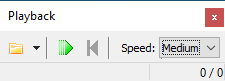
The Player toolbar offers these controls.
| Control | Description |
|---|---|
| Open | Select the session file to play. |
| Play / Stop | Start or stop the playback. |
| Step | Advance the playback one step at a time. |
| Reset | Return to the beginning of the session. |
| Speed | Choose the playback speed: normal (recorded timing), medium, or fast. |
| Tracks | Pick a specific track to play, or all of them. |
The status bar shows the current position and the total step count.
Command-Line Switches
You can also run the Player unattended, passing the session file as the first argument:
Thinfinity.VirtualUI.Player.exe "C:\Sessions\VirtualUISession.idx" -fast -autoclose
| Switch | Description |
|---|---|
-silent |
Play without showing the toolbar. |
-normal |
Play at the recorded timing. |
-medium |
Play at medium speed. |
-fast |
Play as fast as possible. |
-speed <ms> |
Set a fixed delay between steps, in milliseconds. |
-autoclose |
Close the Player when the playback ends. |
Playing a Session in the Browser
The Player is itself a VirtualUI-enabled application, so you can watch a playback in the browser: register Thinfinity.VirtualUI.Player.exe as an application profile, passing the session file — and optionally -silent — as arguments. The replayed session renders in the browser exactly as a live session does.
Playing a Session from Your Application
The same VirtualUI.Recorder component used for recording also plays sessions. Set the Filename property to the session’s base name and call the Play() method, passing the range to play:
VirtualUI.Recorder.Filename := 'C:\Sessions\VirtualUISession';
VirtualUI.Recorder.Play(0, VirtualUI.Recorder.Count - 1);
Use the Tracks collection to enumerate the recorded tracks, and Position and Count to follow the progress. The OnRecorderChanged event fires when the playback status changes, so your application can react to start, pause, and completion.