
Managing the SSL Certificate
An SSL certificate is an effective way to secure a website against unauthorized interception of data. At its simplest, an SSL Certificate is used to identify the website and encrypt all data flowing to and from the Certificate holder’s web site. This makes all exchanges between the site and its visitors 100 percent private.
Access the SSL certificates configuration by selecting New when you are editing the Binding and the Protocol used is HTTPS:
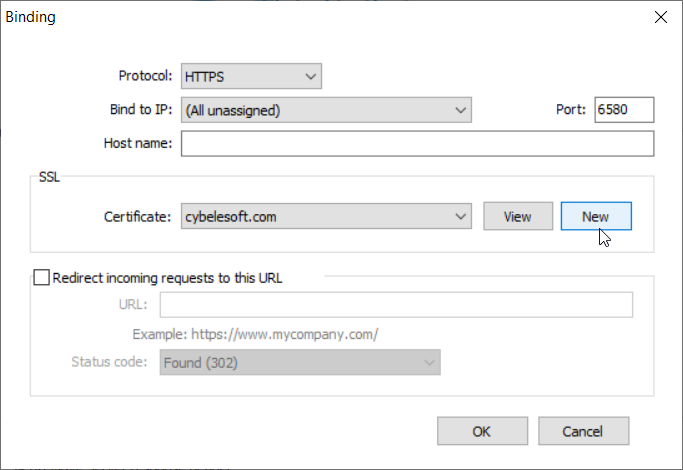
A valid SSL certificate is included with the Thinfinity VirtualUI Server installation. This allows you to encrypt all communications with the product’s default certificate. However, browsers will typically show a security warning. Your communications are encrypted, but the browser notices the name on the certificate is not your company’s. You may want to create your own certificate to identify your company and avoid this.
Create your own SSL certificate using one of two methods:
Once you already have your certificate files, go to the Thinfinity VirtualUI Server Settings General tab and select Manage Certificate.
On this screen you should inform the location of the certificate files, as follows:
- Certificate File: Inform the path to the certificate file.
- CA File: If the certificate is issued by an unknown CA, you should fill in the pathname to the CA certificate.
- Private Key: You should inform the pathname to the certificate private key file.
- Pass Phrase: Inform the password that was used, if any, when the private key was generated.
The path names can be absolute (C:\MyCertPath\UserThisCert.pem) or relative to the path where Thinfinity VirtualUI Server is installed (\cert\UserThisCert.perm).