
How to Install and Use the Printer Agent
With the new versions of Thinfinity Remote Desktop (v5.0) and Thinfinity VirtualUI (v3.0), you will be able to take advantage of our new Printer Agent. This will allow you to send your print jobs directly to your local(s) printer(s).
Bear in mind this feature will only be available for the Enterprise editions. Now, let’s get started!
Installing the Printer Agent
Download the printer agent setup from Thinfinity Virtual Channels Agent Setup.
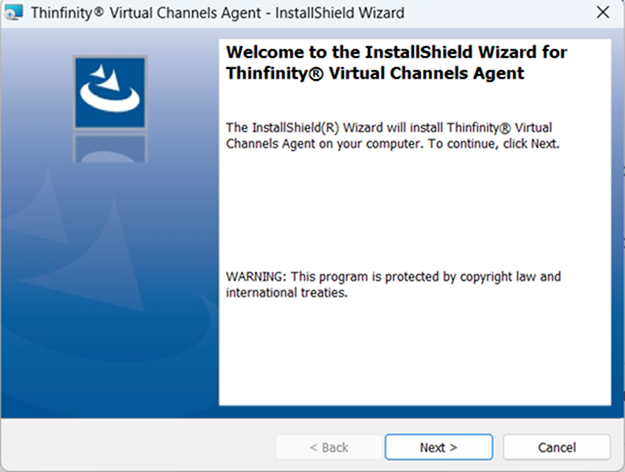
Run the setup. In the Welcome screen select Next.
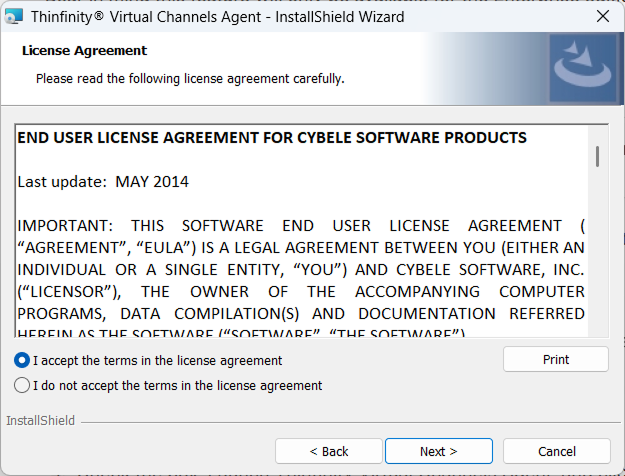
Check I accept the terms in the license agreement and select Next.
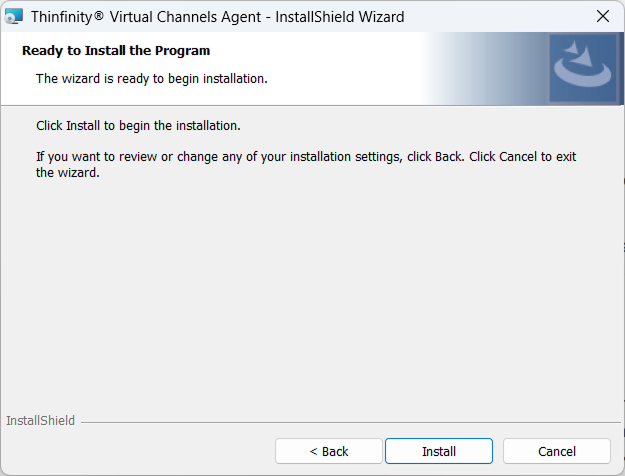
Select Install.
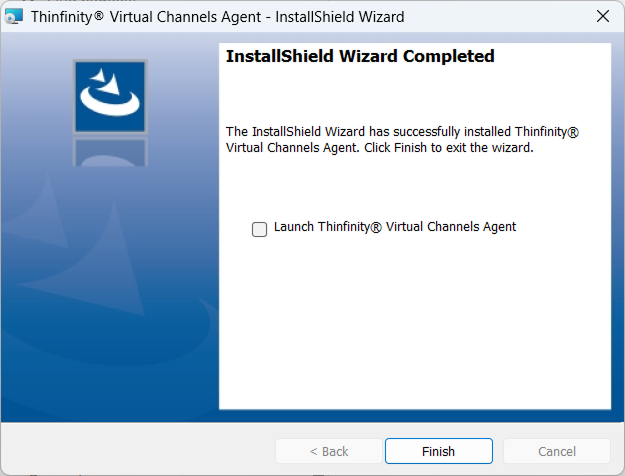
Check Launch Thinfinity Virtual Channels Agent and select Finish.
The agent will appear as a small icon in your system tray. Right-click it and select Setup Printer to configure your printer(s).
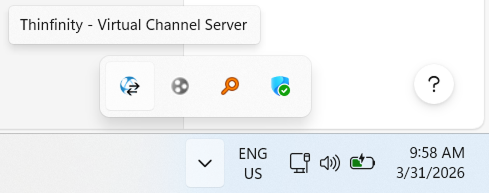
The agent should look similar to this:
Using the Printer Agent
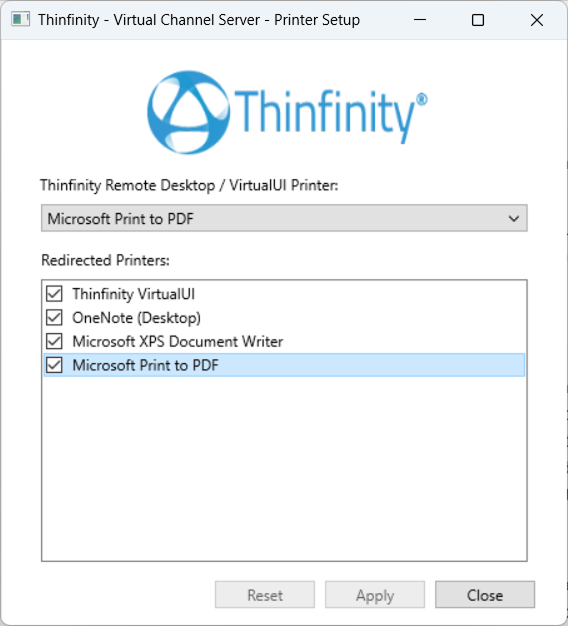
There are two different sections in the agent: a combo-box to choose a printer, and a checkbox list that will show all your available printers.
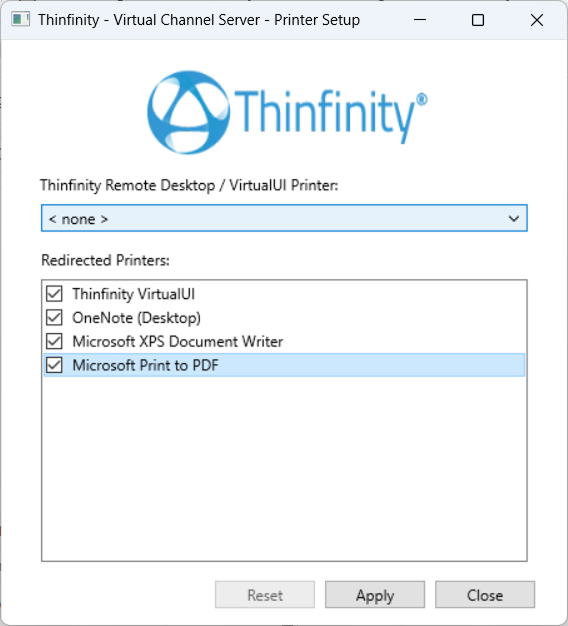
In the combo-box you will select the default printer you want the “Thinfinity Remote Desktop Printer / Thinfinity VirtualUI Printer” to send the job to. If you leave this combo-box blank, as below, it will send the job to the normal remote printer, which will create a PDF and print to the browser.
The redirected printers box will let you select which other printers you wish to have available on the “remote desktop/application”. Below there’s a practical example to understand this better:
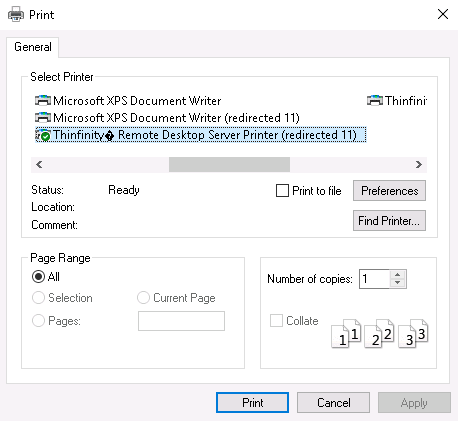
In the screenshot above you can see a few printers that show ‘(redirected)’ on its name. These printers are the ones you have ‘checked’ in the ‘Redirected Printers’ box.
If you send the print job to “Thinfinity Remote Desktop Server Printer” (or Thinfinity VirtualUI Printer) as shown in the screenshot below, the job will go to your local ‘Microsoft Print to PDF’ (the printer you chose in the combo-box):
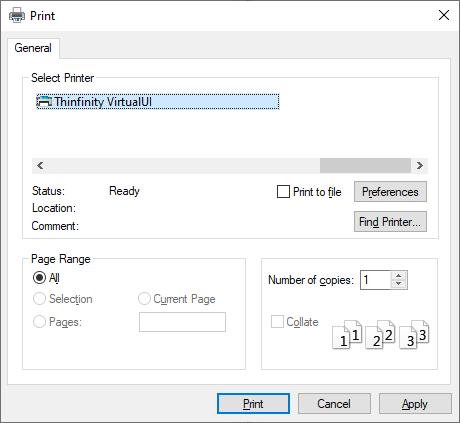
You will still be able to choose a different local printer if you wish (the ones allowed in the ‘Redirected Printers’ box).
Keep in mind, you can also leave all the printers disabled in the ‘Redirected Printers’ box and just select the default printer from the combo. This will still send the job to that printer.