
Reverse Proxy Profile
A Reverse Proxy profile publishes an internal web application through Thinfinity VirtualUI: users reach the back-end site through the server, with the same authentication and permission controls as any other profile.
To create one, go to the Applications tab, select Add and choose Reverse Proxy.
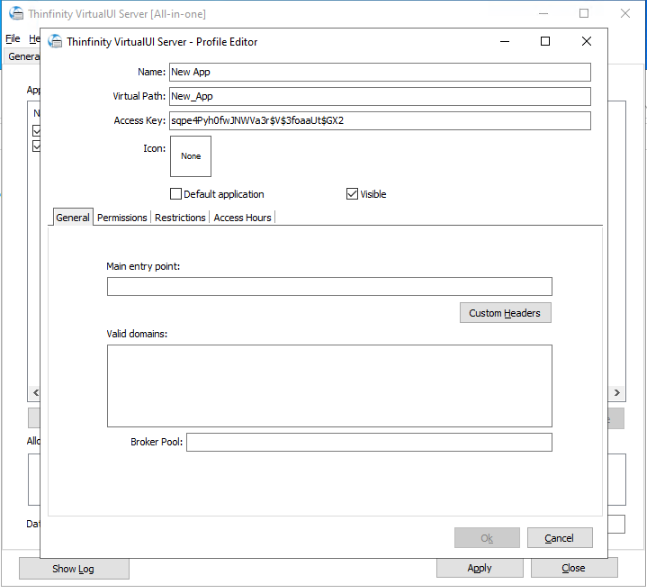
The editor offers the General, Permissions, Restrictions, and Access Hours tabs. All but General work as in an application profile.
Info
When anonymous access is disabled in the Permissions tab, an Authentication Methods tab appears, where you choose the authentication methods that apply to this profile.
General
| Option | Description |
|---|---|
| Main entry point | The address of the back-end web application to publish. Accepts an http://, https://, or file:// URL. |
| Custom Headers | The name of a file holding custom HTTP headers to add to the proxied traffic. Enter the file name only; the file must be in the installation or database folder. |
| Valid domains | The domains that belong to the proxied site, one per line. They are matched against the hosts in the proxied pages to rewrite links and apply the content security policy. When left empty, an entry is derived from the main entry point. |
| Broker Pool | The broker pool that handles this profile’s sessions. |