
Compiling and Testing a Delphi Application
Follow these steps to integrate a Delphi VCL application with Thinfinity VirtualUI:
Open Delphi and open the application’s project.
Add the VirtualUI_AutoRun unit to the Uses clause of the project source file. This unit will typically be located in the C:\Program Files (x86)\Thinfinity\VirtualUI\dev\Delphi folder.
program MyApp;
uses
    Windows,
    Forms,
    VirtualUI_AutoRun,
    MyApp.Main in MyApp.Main.pas' {Form1};
{$R *.res}
begin
    Application.Initialize;
    Application.CreateForm(TForm1, Form1);
    Application.Run;
end.
Compile the program and run it in debug mode. You will see this message:
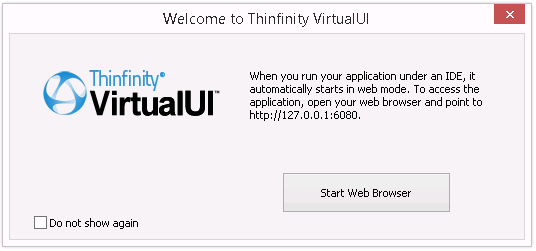
If you select Start Web Browser, a web browser will open pointing to the application. The application will also open in desktop mode.
Alternatively, choose to not show the message and observe on the Windows tray bar that the Thinfinity VirtualUI Development Server icon will appear.
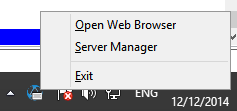
Right-click on the icon, and then select Open Web Browser. A web browser window will open and your application will be running inside.
Note: When you run your application under an IDE, it automatically starts in web mode. To access the application, open your web browser and point to http://127.0.0.1:6080
Select Server Manager to access the Development Server Manager.