
Creating File System Redirections
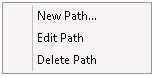
In order to add a path in the Virtualization Editor, right-click on the main area of the screen and choose New Path.
This will bring up the ‘Edit Directory’ dialog.
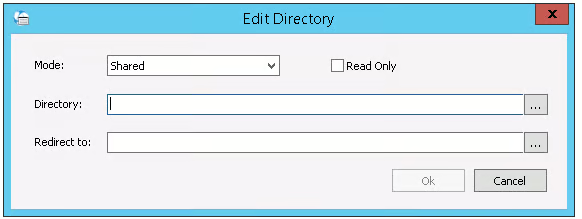
| Field | Description |
|---|---|
| Mode | Choose ‘Shared’ if you want this mapping to apply to all users. Choose ‘Private’ if you only want this mapping to apply to a single user. |
| Read Only | Only available for Shared Mode. Check this option to make the mapped directory read only for the user. |
| Directory | Choose the directory you want to show. |
| Redirect to | Choose the physical path where the directory contents will be stored during the user session. |
Paths can also be expressed using the environment variables defined in Windows:
%public%, %home%, %documents%, etc
For example, you can redirect %userprofile% to %userprofile%\users as a private redirection; “user1”’s files will therefore be stored in c:\users\username\users*user1*
Or you can map c:\temp to %userprofiles%\temp as a shared redirection.
Editing Paths
In order to edit a path, right-click on it and choose Edit Path.
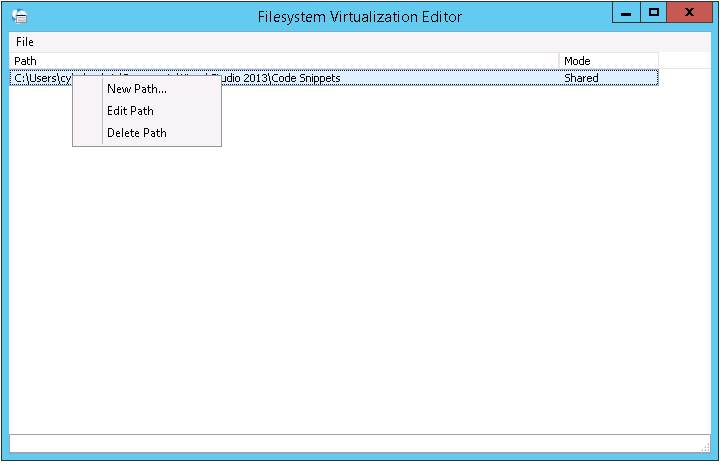
You will then be able to edit the path in the ‘Edit Directory’ dialog.
Deleting Paths
In order to delete a path, right-click on it and choose Delete Path.