
Sessions
Thinfinity VirtualUI requires at least one interactive Windows session to run applications. By default it uses the console session, sharing it among all connected users. In the Sessions tab of the Server Manager you configure how applications are distributed into sessions and which Windows accounts they run under.
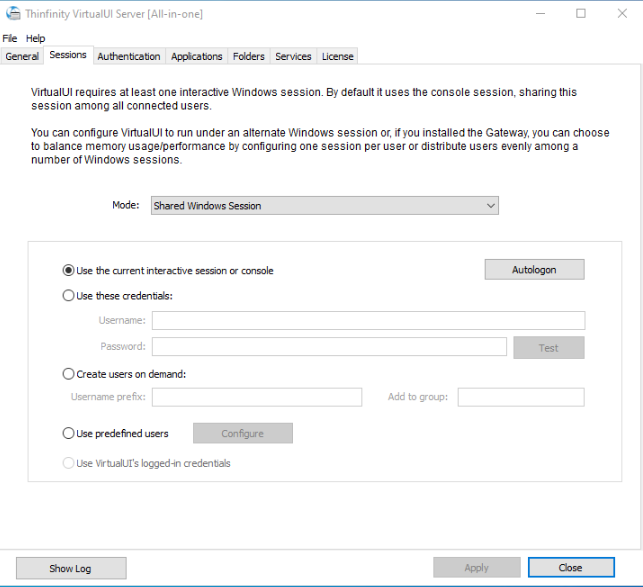
Available Modes
| Option | Description |
|---|---|
| Shared Windows Session | Run multiple applications in the same RDS session. |
| One Browser per Windows Session | Run applications on individual RDS sessions. This improves isolation and performance, at a higher resource cost. |
You can also check Allow running third-party applications to let Thinfinity VirtualUI run applications directly under a Windows interactive session.
Allow running third-party applications is available only in the Enterprise edition.
Session Account Options
Choose which Windows accounts the sessions run under.
| Option | Description |
|---|---|
| Use the current interactive session or console | Run applications under the current interactive or console session. Use the Autologon button to configure automatic login of a user to the Windows session. |
| Create users on demand | Create temporary Windows users automatically as sessions are needed. Set a Username prefix for the generated accounts and, optionally, a group to add them to in Add to group. |
| Use predefined users | Run sessions under a fixed set of Windows accounts. Select Configure to define the list — see Defining the Users List. |
| Use VirtualUI’s logged-in credentials | Run applications under the credentials of the authenticated end user. |
| Use these credentials | Run applications under one specific Windows account. Enter the Username and Password, and select Test to verify them. |
Create users on demand is available only in the Enterprise edition.
Defining the Users List
When you select Use predefined users, the Users list dialog offers two ways to define the accounts:
- Custom users list — Build the list explicitly. Use Add to enter users one by one, Import to load them from a file, Set password to store their credentials, and Test to verify each account.
- Users with prefix — Generate the list from a common prefix and a number range. Enter the Users prefix, the amount of users, and the shared Password.
Session Management
When sessions run under on-demand, predefined, or specific-account users, the Session Management panel controls when the Windows sessions are created.
| Option | Description |
|---|---|
| On-demand | Create each session when a user opens an application. This is the default. |
| Start with service start | Pre-launch the sessions as soon as the service starts, so they are ready before users connect. May require a computer restart. |
| Sessions | The number of sessions to pre-launch. |
| Shared users | The number of users that can run applications in the same session. The default is 1 — one session per user. |
| Agent Pool | The tag that identifies the agent pool these sessions belong to. |
Pre-launched sessions reduce the time users wait when opening an application, since the Windows session is already prepared. The maximum number of applications the server can run in this mode is the number of sessions multiplied by the shared users.
Changes to pool definitions terminate all related sessions and disconnect their users.
Always remember to select Apply in order to save the changes and restart the Thinfinity VirtualUI services.