
Passkeys Authentication Method Settings
The Passkeys method lets users sign in with a passkey — a WebAuthn (FIDO2) credential stored on their device or security key — instead of a password.
To add it, go to the Authentication tab, select Add and choose Passkeys.
Like every authentication method, the editor starts with the common fields: Name, Virtual Path, and an optional 2FA Method.
General
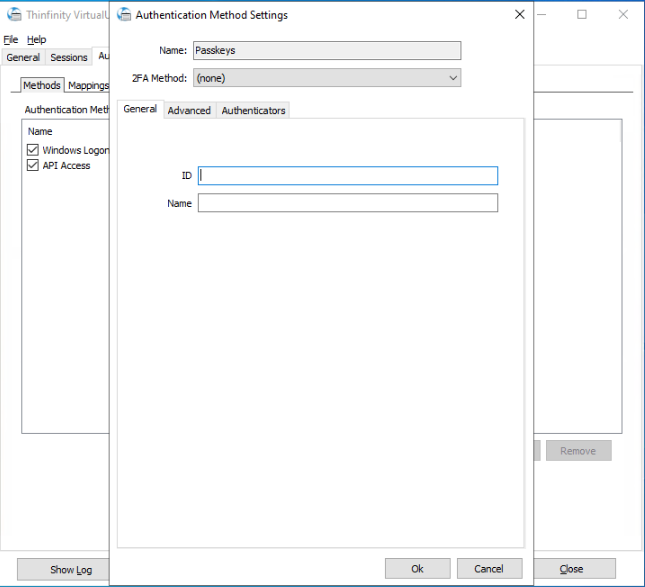
| Option | Description |
|---|---|
| ID | The relying party ID — the domain the passkeys are bound to. |
| Name | The relying party name shown to the user during registration. |
Advanced
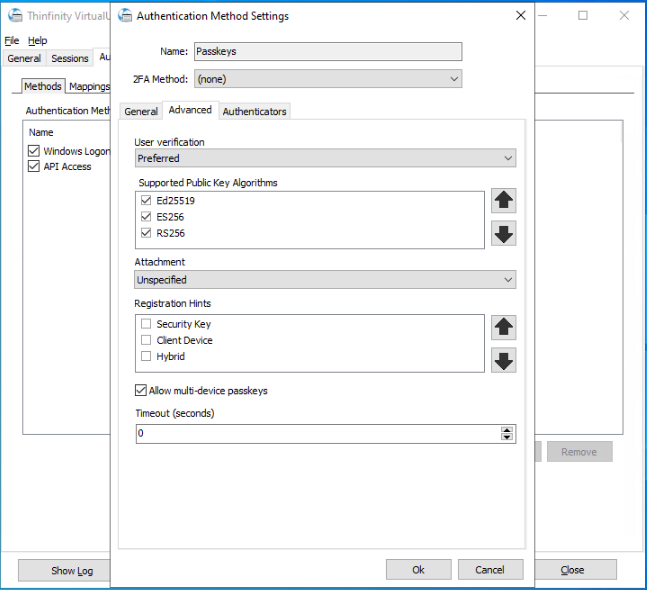
| Option | Description |
|---|---|
| User verification | Whether the authenticator must verify the user (with a PIN or biometrics): Required, Preferred, or Discouraged. The default is Preferred. |
| Supported Public Key Algorithms | The signature algorithms accepted, in order of preference. Use the arrows to reorder them. |
| Attachment | The kind of authenticator to use: Unspecified, Platform (built into the device), or Cross Platform (such as a USB security key). |
| Registration Hints | Hints passed to the browser about the preferred registration flow. Use the arrows to reorder them. |
| Allow multi-device passkeys | Accept passkeys that sync across the user’s devices. |
| Timeout (seconds) | How long the browser waits for the user to complete the operation. |
Authenticators
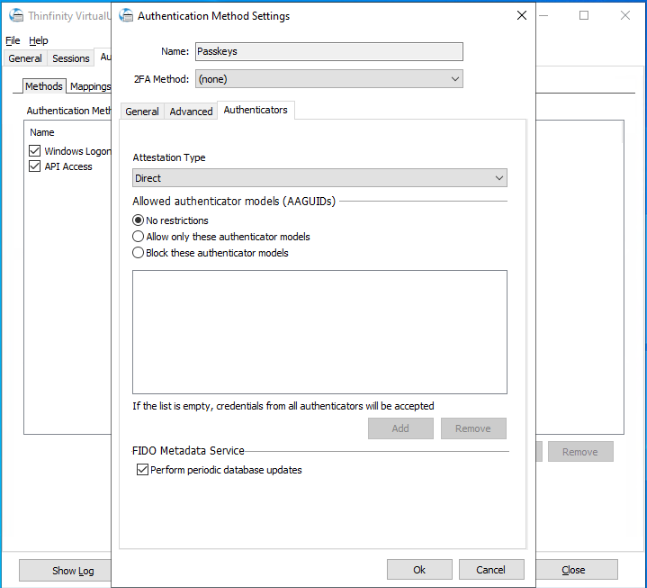
| Option | Description |
|---|---|
| Attestation Type | The attestation requested during registration: None, Indirect, or Direct. |
| Restrictions | Restrict which authenticator models are accepted: No restrictions, Allow only these authenticator models, or Block these authenticator models. |
| Allowed authenticator models (AAGUIDs) | The list of authenticator models the restriction applies to. If the list is empty, credentials from all authenticators are accepted. |
| Perform periodic database updates | Keep the FIDO Metadata Service database up to date to validate authenticator models. |