
Enabling Multiple RDS Accounts
Load Balancing is no longer available in Thinfinity VirtualUI. This capability is now provided exclusively by Thinfinity Workspace — see Load Balancing and Failover in the Thinfinity Workspace manual for details.
In order to enable multiple RDS accounts, go to the ‘Sessions’ tab and select the “One Browser per Windows session” option:
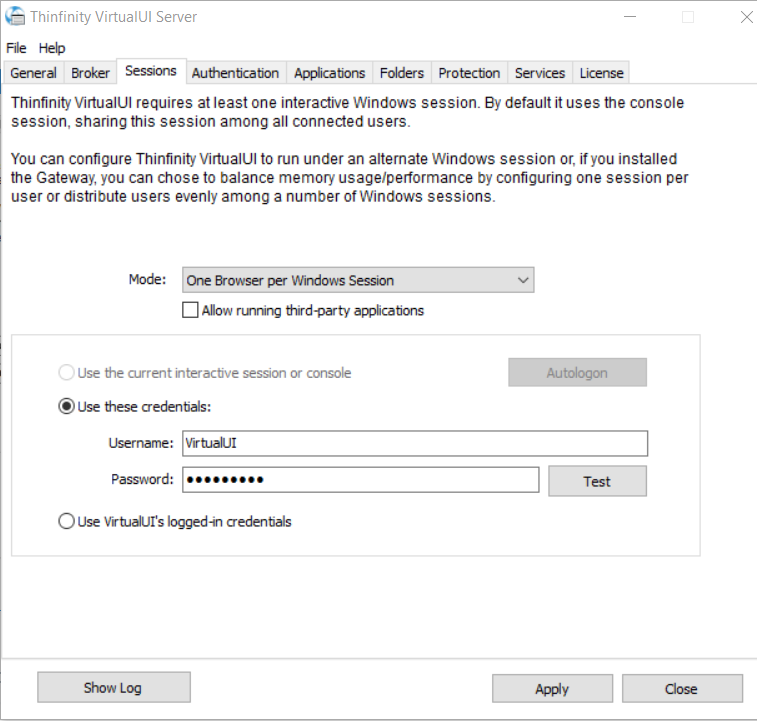
One Browser per Session options
| Options | Description |
|---|---|
| Allow running third-party applications | Check this option to enable Thinfinity VirtualUI to run directly under a Windows Interactive session. |
| Use these credentials | Check this option to enable Thinfinity VirtualUI to run under a specific Windows account. |
| User name | Enter the username for the Remote Desktop Services session you want Thinfinity VirtualUI to run applications under. |
| Password | Enter the password for the Remote Desktop Services session you want Thinfinity VirtualUI to run applications under. |
| Test | Test the credentials entered to verify that the username and password are correct and can access RDS. |
| Use VirtualUI’s logged-in credentials | Check this option to enable Thinfinity VirtualUI to run under the logged in User’s credentials. |
The accounts must have administrator permissions or should have access to the following:
FileSystem:
C:\ProgramData\Cybele Software\Thinfinity\VirtualUIC:\Users\Public\Documents\Cybele Software\Thinfinity\VirtualUI
RDP Access to the machine is also required for the configured accounts to properly work.
Starting from 2.5.30.0, VirtualUI includes two different types of session handling modes. These options are only available if you select the “Run under this account” option.
In order to use this feature, Thinfinity VirtualUI must be installed in a Windows Server where the Remote Desktop Session Host (RD Session Host) role service is installed.