
Create an Access Profile for a VDI/DaaS Model
This article walks through creating a Thinfinity® Workspace Access Profile that connects users to instances provisioned from a VDI/DaaS model in Cloud Manager. For the Managed VMs path, see Create an Access Profile for Managed VMs. For an overview of how Access Profiles integrate with Cloud Manager, see Access Profiles and Cloud Manager.
Prerequisites
- A VDI/DaaS Model exists in Cloud Manager with at least one deployed or auto-provisioned instance. See VDI/DaaS Models.
- Cloud provider credentials are configured. See Credentials.
- You have permissions to create Access Profiles in Thinfinity Workspace.
Procedure
The Access Profile creation wizard launches directly from the VDI/DaaS model in Cloud Manager, with the model pre-selected. The wizard advances through seven steps.
Open the Wizard
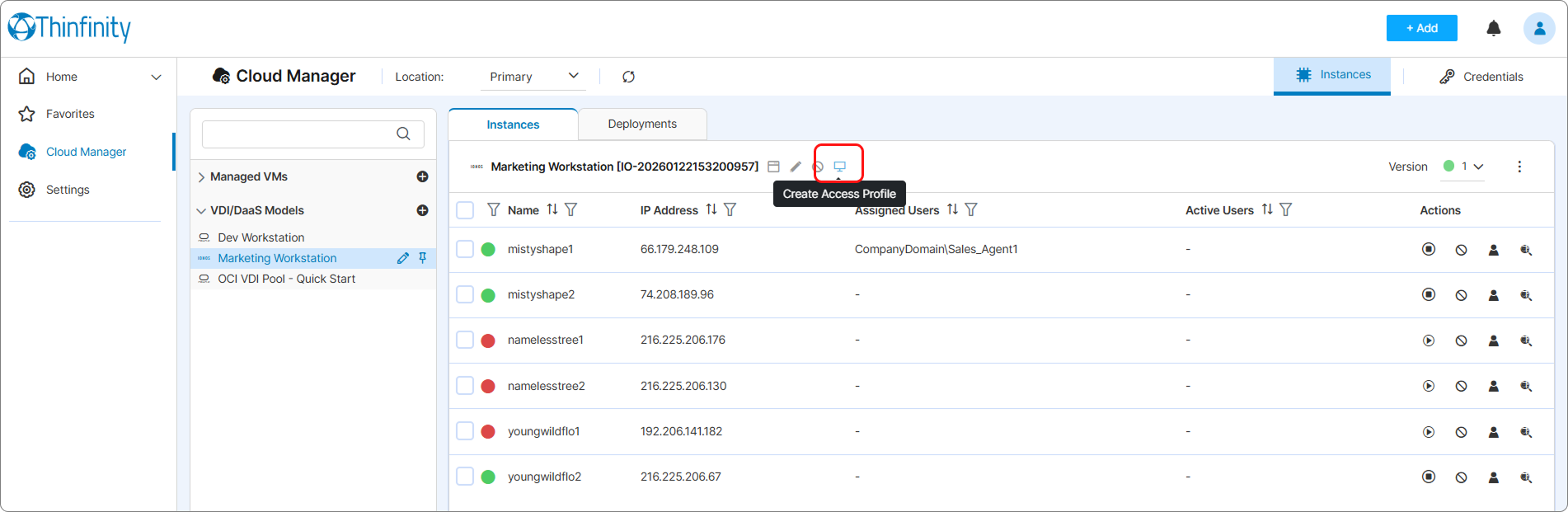
In the left tree, expand VDI/DaaS Models and click the target model. In the header above the Instances table, click the Create Access Profile icon. The wizard opens with the model already selected.
Choose the Access Profile Type
Select the protocol the profile will use then click Next.
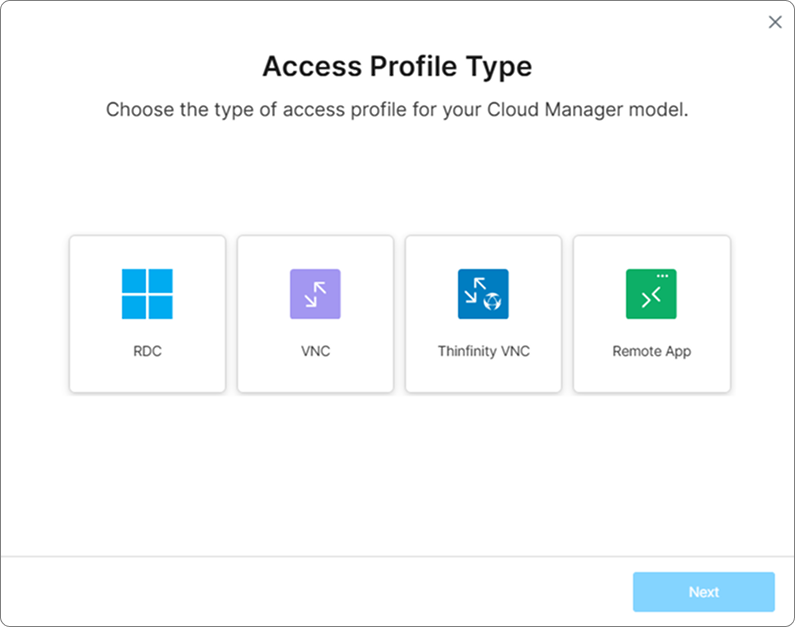
| Type | Connection |
|---|---|
| RDC | Remote Desktop Protocol (RDP). |
| VNC | Standard VNC. |
| Thinfinity VNC | Thinfinity’s VNC implementation. |
| Remote App | Application-only remoting rather than full desktop. |
The remaining steps describe the RDC path. The other protocols follow the same wizard structure but expose protocol-specific fields. See Access Profiles in the Thinfinity Workspace product manual for those protocols’ specifics.
Set Up the Connection
This step binds the Access Profile to the VDI/DaaS model and configures session behavior.
The VDI/DaaS Models dropdown and the model picker beside it are pre-filled from the launch context — the model you opened the wizard from is already selected.
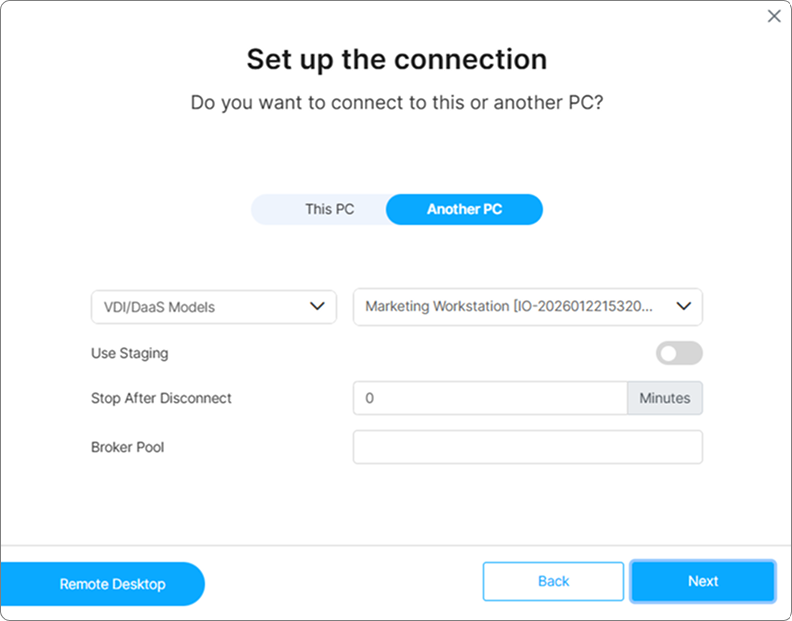
Configure the remaining fields as needed then click Next.
| Field | Description |
|---|---|
| Use Staging | When enabled, the Access Profile targets the model’s Staging stage instead of Production. Use Staging for pre-production validation profiles; leave it disabled for live user-facing profiles. |
| Stop After Disconnect | Minutes of idle time after disconnect before the assigned instance is automatically stopped. |
| Broker Pool | When the Thinfinity Workspace deployment uses a broker pool, the pool ID that should serve this profile. Leave empty for deployments without a broker pool. |
Authentication
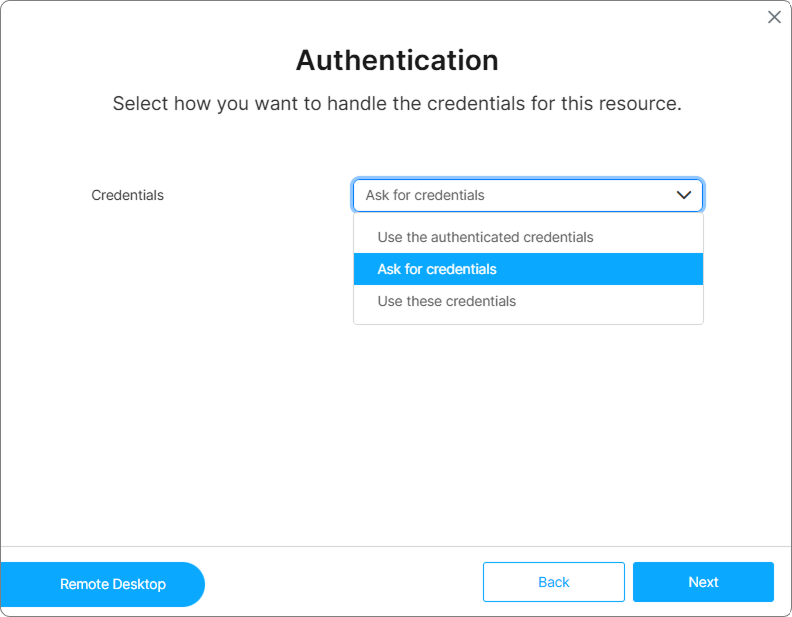
Choose how user credentials are handled when the session is established then click Next.
| Option | Effect |
|---|---|
| Use the authenticated credentials | Forwards the user’s Thinfinity Workspace credentials to the assigned instance. |
| Ask for credentials | Prompts the user for credentials at connection time. |
| Use these credentials | Uses a fixed credential pair supplied in the wizard. Selecting this reveals input fields for the username and password. |
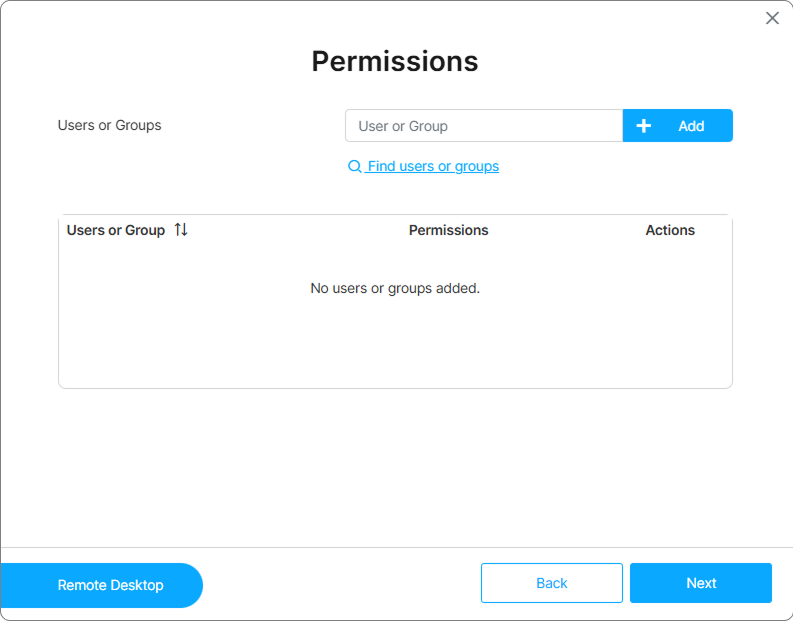
Permissions
Grant access to the users or groups who should be able to use this Access Profile. At least one user or group is required — clicking Next with an empty list shows an error.
To add a user or group, type the name in the search field and click Add. Repeat for each entry.
How those users are matched to instances at session time depends on the model’s pooling and assignment configuration — see What Happens at Connection Time below.
Click Next.
Name the Access Profile
Enter a name for the profile and, optionally, customize the icon shown in the user’s Workspace home view. The name is what users see when they look for the profile in Workspace.
Click Next.
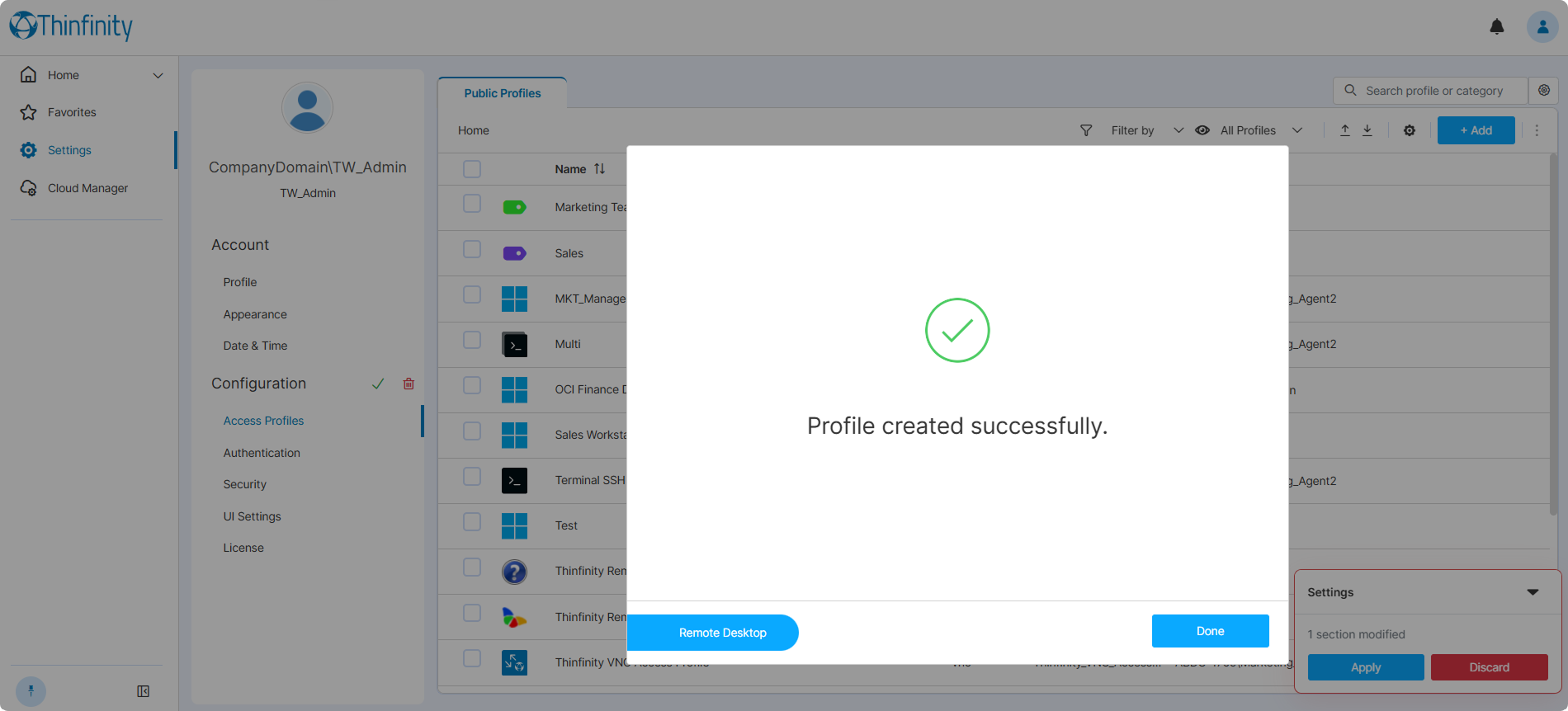
Confirm and Apply
The wizard confirms creation with a success message. Click Done to close the wizard.
A Settings notification appears in the bottom-right of the screen indicating one section has been modified. Click Apply to commit the changes — the profile becomes live for the assigned users at this point.
Configuring Resource Reservation
Resource Reservation is configured in the Access Profile editor after the profile has been created. It is not part of the creation wizard. To enable booking-based access for the profile, open the profile in the Workspace Access Profiles editor and configure the Resource Reservation section. See Resource Reservation for details.
What Happens at Connection Time
When a user opens this Access Profile from Thinfinity Workspace:
- Workspace looks up the linked VDI/DaaS model.
- Cloud Manager routes the session according to the model’s pooling and assignment configuration:
- If the user is pinned to a specific instance via Manually Assign an Instance to a User, the broker routes the session to that instance — pinning overrides the model’s routing settings.
- Otherwise, when Allow Pool Mode = ON, the broker picks an available instance from the pool following the chosen Pool Mode (Breadth First or Depth First). Allow Dynamic Assignment is disabled in this case and its value is ignored.
- Otherwise, when Allow Pool Mode = OFF and Allow Dynamic Assignment = ON, the broker assigns the user a dedicated instance on first connection and remembers the binding for subsequent sessions.
- Otherwise, when Allow Pool Mode = OFF and Allow Dynamic Assignment = OFF, the user must be pre-bound to an instance via the Manage Users dialog; users without a binding receive a connection error.
- If the selected instance is powered off, Cloud Manager powers it on (when on-demand provisioning is allowed).
- Workspace establishes the session via the protocol selected in Step 2 of the wizard, using the model’s Connection Mode (Public IP, Private IP, or Agent Id) set during model creation.
- The user receives the desktop or application.
Troubleshooting
If users report connection errors after the Access Profile is created, see Access Profile Errors for common causes and resolutions.
See Also