
Connect a Managed VM
This article uses Oracle Cloud Infrastructure (OCI) as the example provider. The same Managed VM workflow applies to all supported VM-based providers — AWS (EC2), Microsoft Azure, Google Cloud Platform, IONOS Cloud, VMware (ESXi and Horizon), Microsoft Hyper-V, Proxmox VE, Oracle KVM (oVirt / OLVM), and Verge.IO. Provider-specific differences (credential fields, shape and instance type names, network parameters) are noted where they apply.
Kubernetes models follow a different flow — to run an isolated browser on a cluster, see Track C — Deploy Remote Browser Isolation. For a side-by-side mapping of provider concepts, see Provider Concepts Map.
What You’ll Build
By the end of this track, an existing OCI Compute instance will be registered in Thinfinity® Cloud Manager, exposed to an end user through an Access Profile, and reachable via the Thinfinity® Workspace dashboard.
Prerequisites
In addition to the common prerequisites:
- A running OCI Compute instance with a public IP address assigned.
- The instance has RDP (port 3389) or a supported remote display protocol enabled and reachable from the internet.
This track uses Public IP as the connection mode. The OCI instance must be reachable on its public IP from the Thinfinity Workspace Gateway. If your environment does not allow public IP access, use Agent ID connection mode instead — see Provisioning and Pooling Options.
Open Cloud Manager
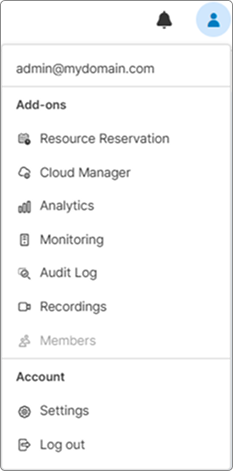
Log in to Thinfinity Workspace as an administrator, click the profile icon, and then click Cloud Manager in the right sidebar.
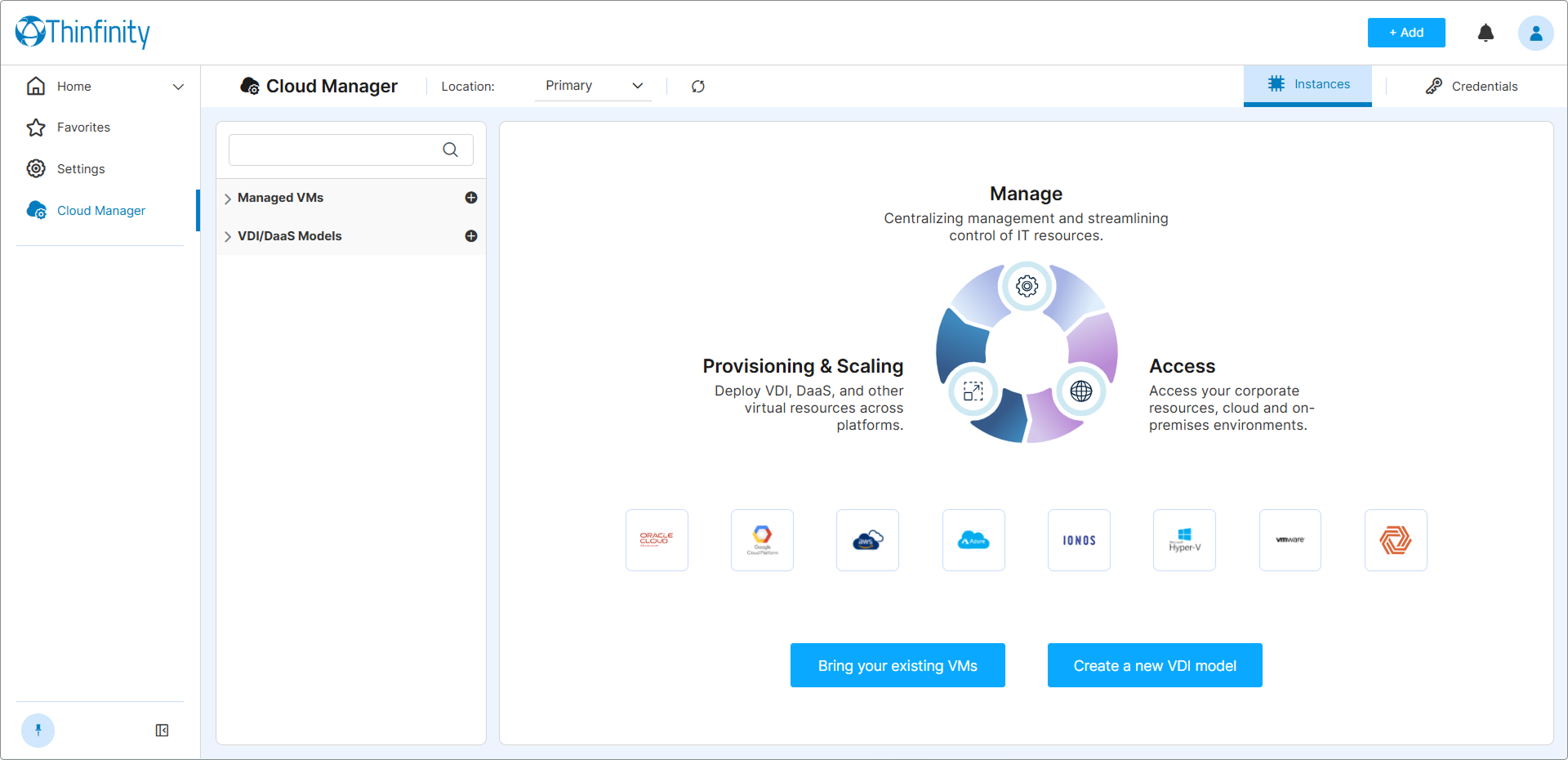
Cloud Manager opens.
Add OCI Credentials
Cloud Manager needs OCI API Key credentials to communicate with your Oracle Cloud account. If you have already saved a valid OCI credential set in Cloud Manager (for example, from a previous Quick Start track or from earlier configuration work), skip to Step 3.
Otherwise, register your credentials now:
- From the top right of the screen, select Credentials.
- Click + New from the top right of the screen to open the credential form.
- Select Oracle Cloud as the provider.
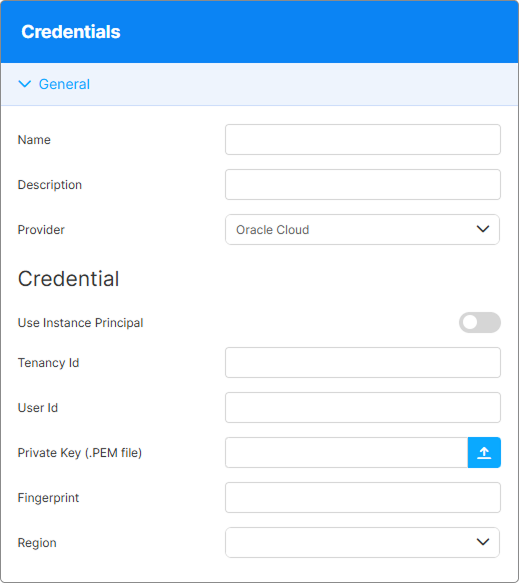
- Leave Use Instance Principal off — this Quick Start uses API Key authentication, which works in every deployment topology. Instance Principal is an alternative for Thinfinity Workspace servers that run on an OCI Compute instance — see Oracle Cloud Credentials → Option B.
- Fill in the following fields.
| Field | Value |
|---|---|
| Tenancy ID | Your OCI tenancy OCID (ocid1.tenancy.oc1..aaaa...). |
| User ID | The OCID of the IAM user Cloud Manager will authenticate as. |
| Private Key (.PEM file) | Upload the .pem private key file generated when you created the API Key in the OCI Console. |
| Fingerprint | The MD5 fingerprint of the API Signing Key (format: xx:xx:xx:xx:...). |
| Region | The OCI region where your Compute instance is located (e.g., us-ashburn-1). |
- Click Save. Cloud Manager validates the credentials immediately and adds the entry to the Credentials list with a Valid status badge. If the badge instead shows Invalid, the most common causes are a mismatched fingerprint or the wrong private key file — see the linked guide below for the full error reference.
For the full guide on generating these credentials in the OCI Console — including tenancy and user OCID lookup, API Key generation, and troubleshooting an Invalid credential status — see Oracle Cloud Credentials.
Register the Existing VM
With credentials in place, you can now bring your existing OCI Compute instance under Cloud Manager management.
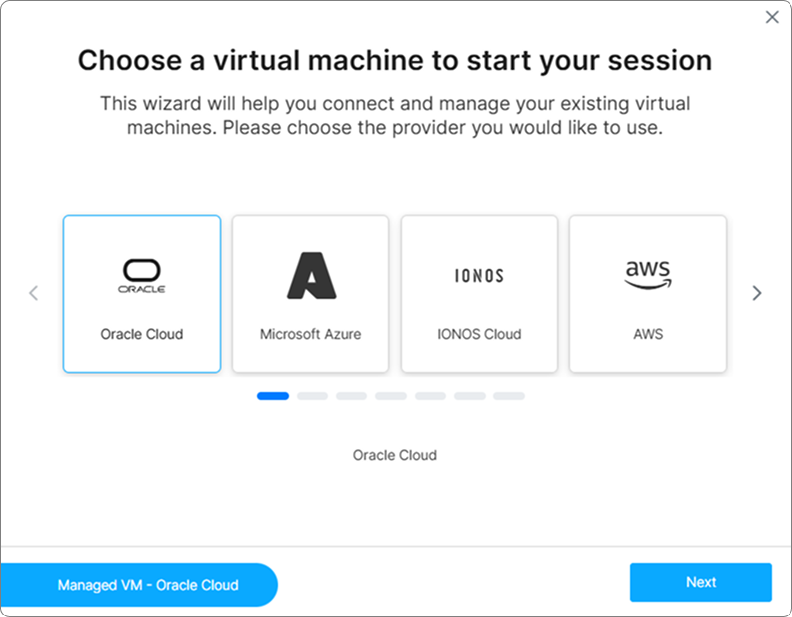
In the left navigation panel, expand the Managed VMs section and click the + Add button next to the section header. The Managed VM Configuration Wizard opens.
Provider selection step
Select the provider where your VM is hosted. For our example, choose Oracle Cloud and click Next.
Authentication step
Existing option is selected by default, choose the OCI credentials set you created in Step 2 then click Next.
Search parameters step
- In the Compartment Path field enter the name of the compartment where the VM lives.
- In the Instance pattern field, enter the complete name or part of the instance name to filter the results. Leave it blank to list all instances available in the selected compartment.
- Click Next.
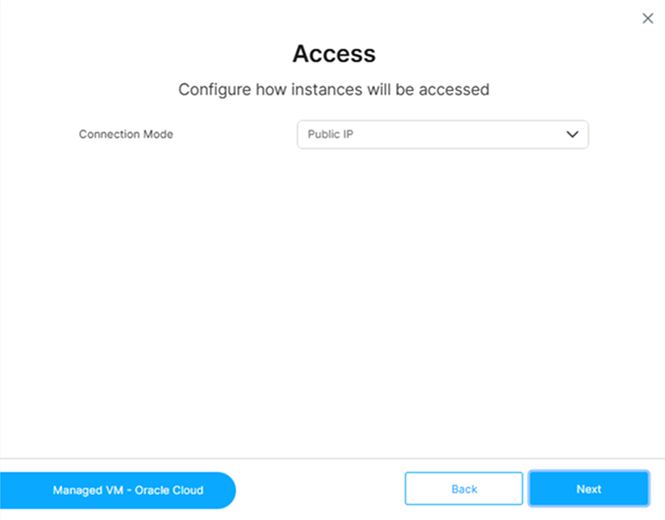
Access step
Leave the default Connection Mode as Public IP and click Next.
Power options step
Enable On Demand to allow Cloud Manager to start the VM automatically when a user requests a session then click Next.
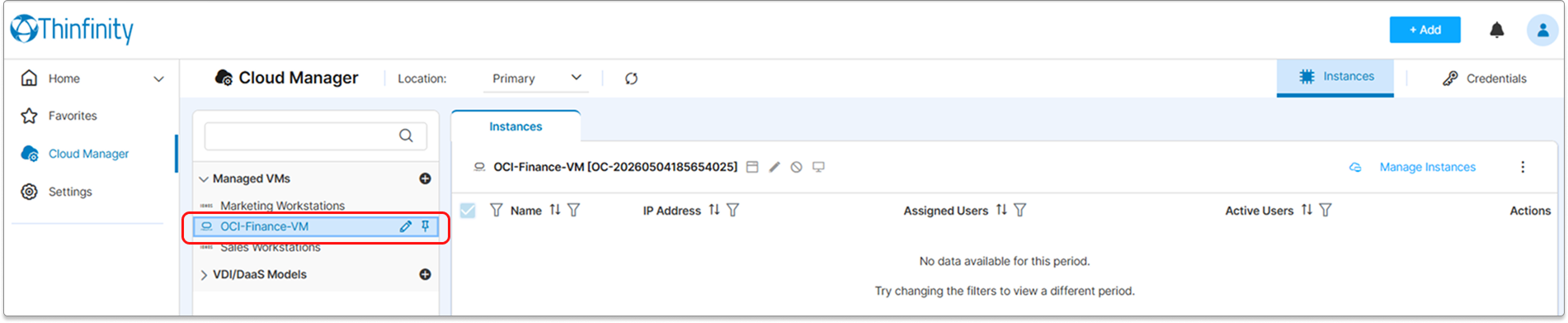
Name step
Enter a descriptive Name for this connection (for example, OCI-Finance-VM) and click Finish.
Select the Instance to Manage
The wizard has created the provider connection. Now you have to select the specific OCI instance you want to bring under management.
- In the Managed VMs tab, select the connection you just created.
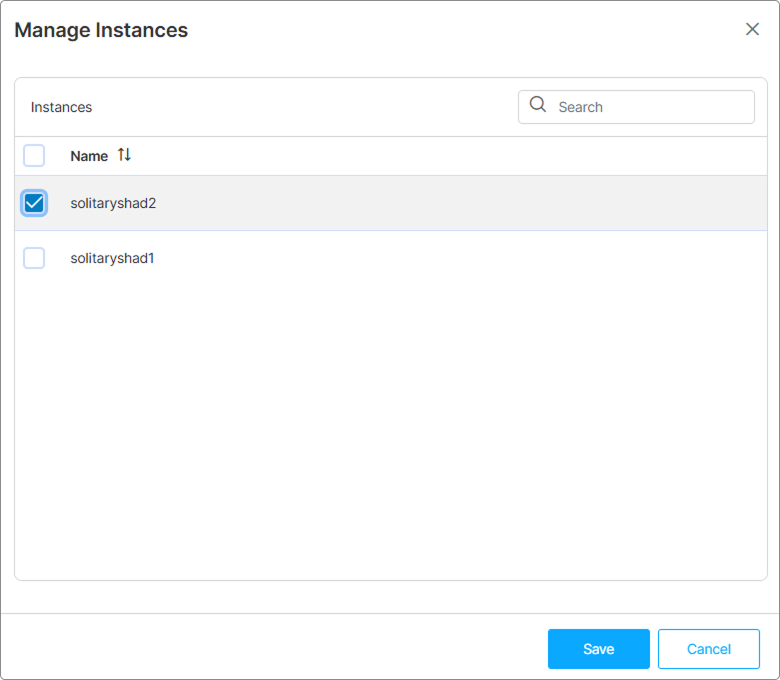
- Click Manage Instances at the top right of Instances tab.
- In the Instances Manager window, check the OCI Compute instance you want to manage.
- Click Save.
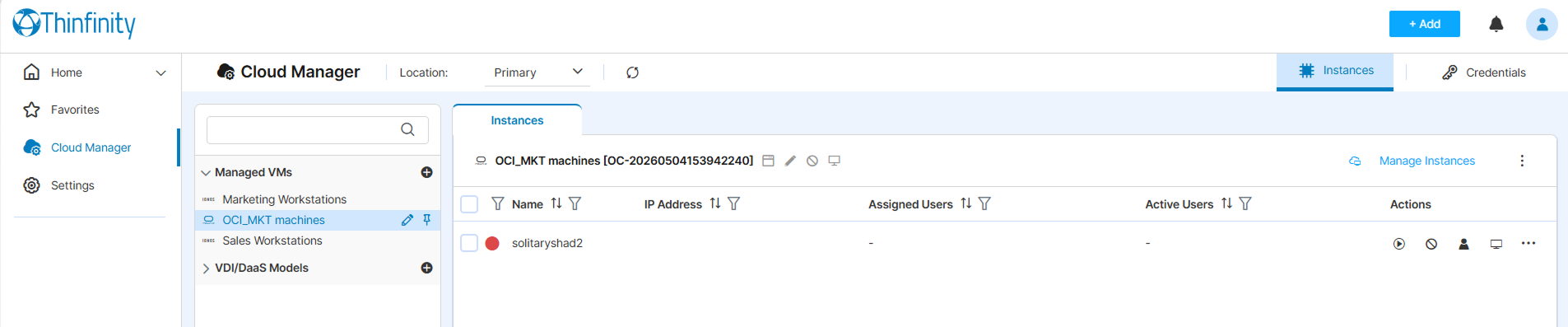
The instance appears in the Instances tab with its current status.
This Quick Start registers a single VM, but Cloud Manager lets a single connection manage multiple VMs from the same provider account. To bring more VMs under management later, return to Manage Instances for this connection and check the additional VMs you want to include.
Create an Access Profile
An Access Profile makes the instance visible and launchable in the Thinfinity® Workspace portal for end users.
- From the Instances tab, select the instance then from the options available to the right for it, click New Profile to launch the Access Profile wizard.
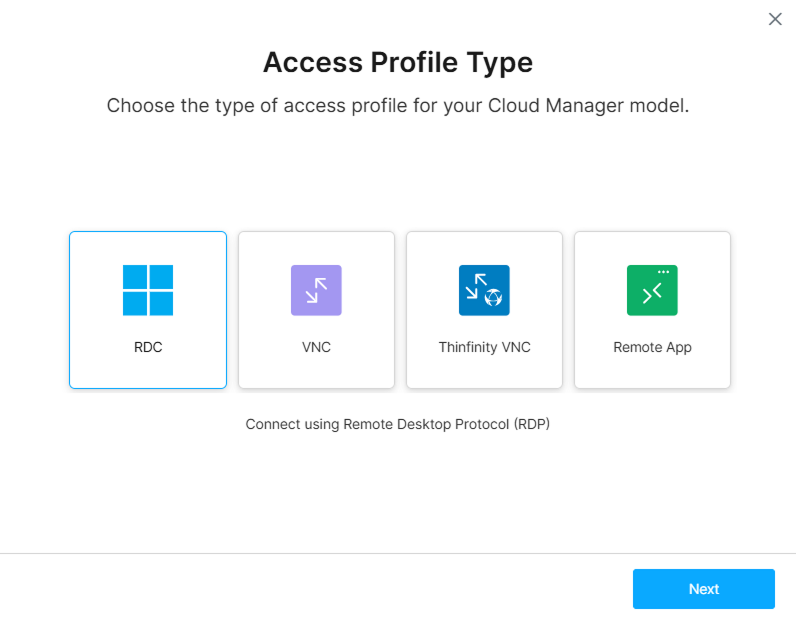
- In the first step of the wizard select the type of Access Profile you want to create for your instance. For our example, choose RDC then click Next.
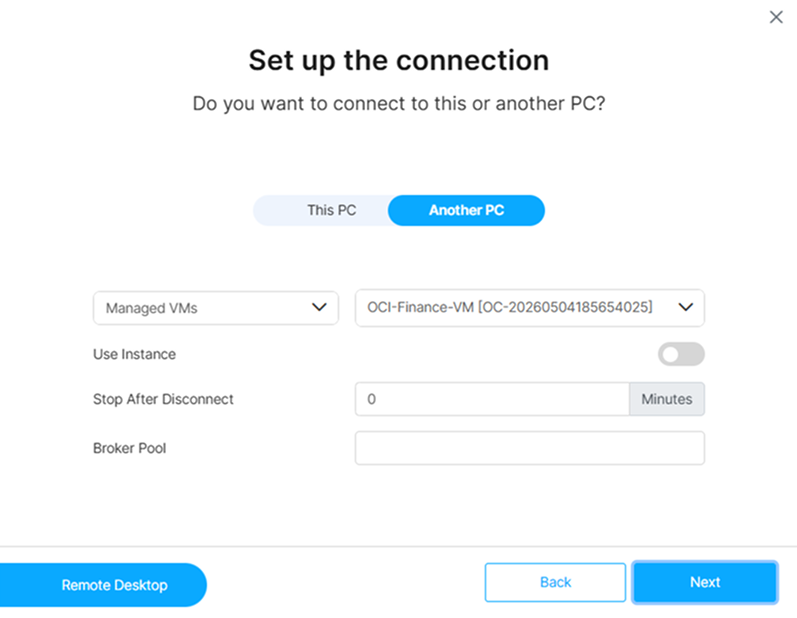
- In Set up the Connection step:
- Confirm the name of the selected instance is displayed in the Available Instances field.
- Set Stop after disconnect to
5(minutes) to keep the VM running briefly after the user disconnects. This grace period prevents the VM from powering down immediately when the user closes their session, which is useful if they need to reconnect quickly. Tune the value to your workload — shorter delays (1–2 minutes) minimize idle compute cost; longer delays (10–15 minutes) keep the VM ready for users who reconnect frequently. Click Next when done.
- In Authentication Options leave the default option, Ask for new credentials (the user will enter their Windows or Linux credentials at session start), and click Next.
- In Permissions, add the user or group that should have access to this profile then click Next.
- Enter a Name for the profile (for example,
OCI Finance Desktop), and then click Next. A confirmation message is displayed, click Done to leave the wizard.
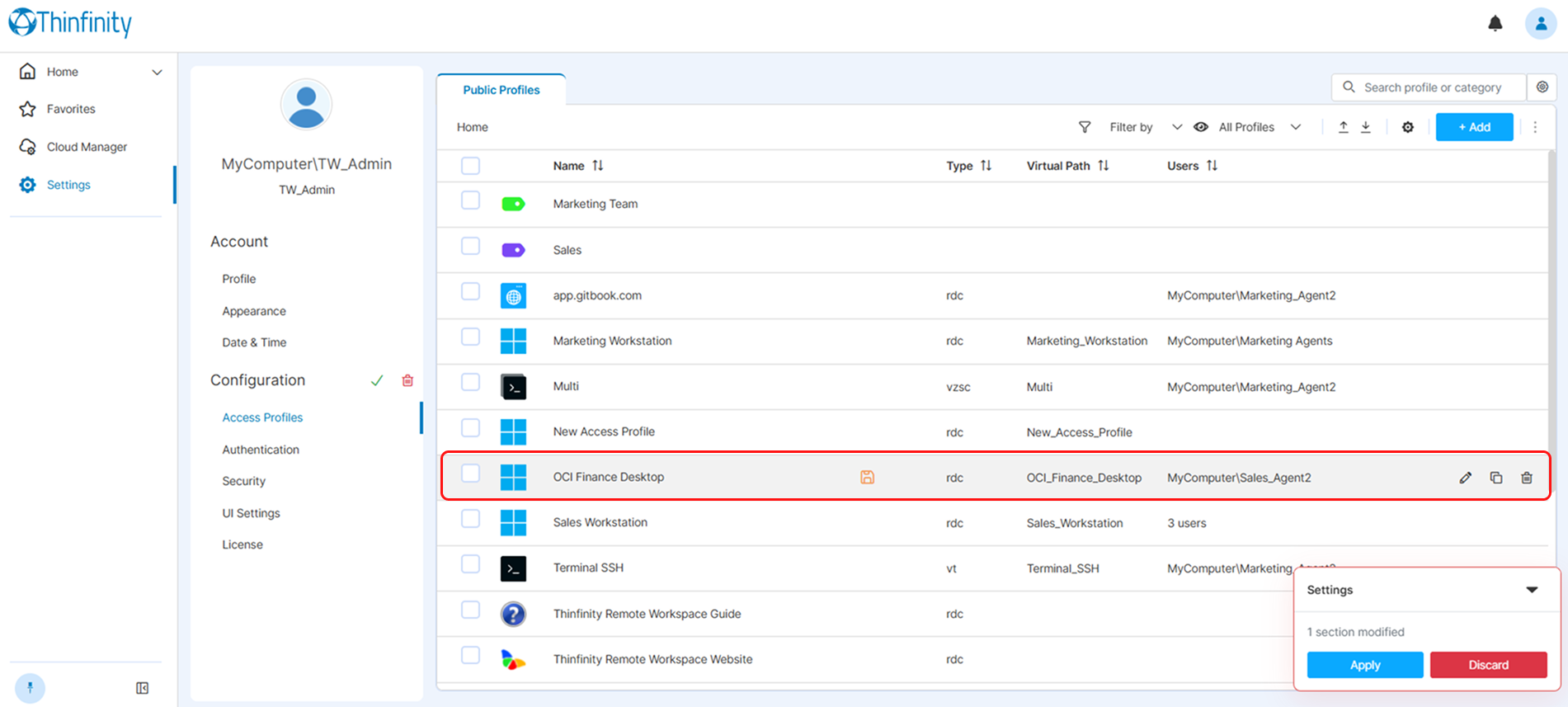
You will be presented with the Public Profiles tab where all Access Profiles created in this installation are available.
- Check that the new Access Profile appears in the list then make sure to click Apply. The profile is not active and users will not see it in the portal until you click Apply.
Test the Connection
- Open the Thinfinity Workspace portal in a new browser tab (or in a different browser as the target end user).
- Log in with the credentials of the user you granted access to in Step 5.
- Locate the OCI Finance Desktop tile on the portal home screen.
- Click the tile and enter the VM credentials when prompted.
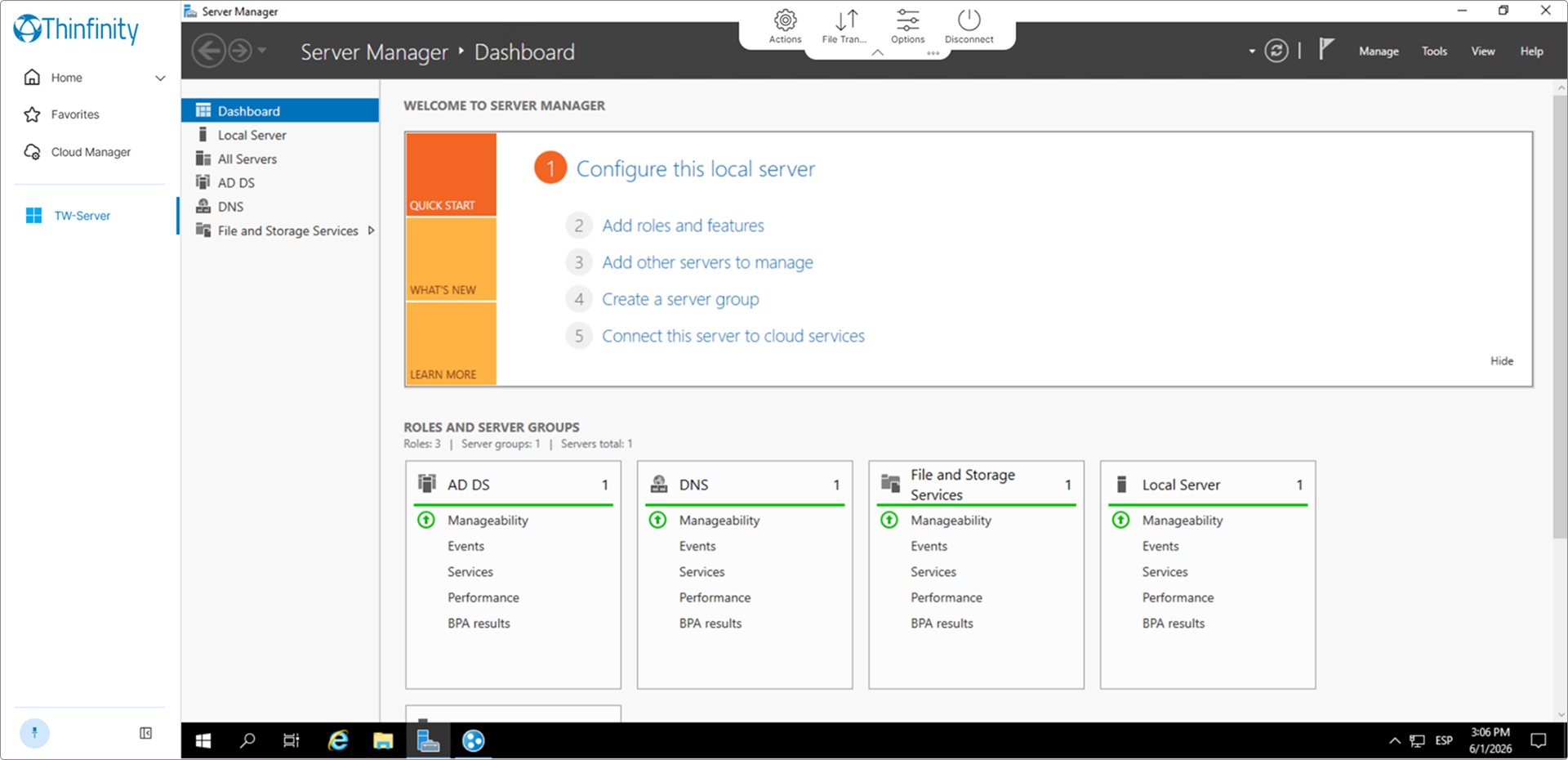
The remote session opens in the browser. Track A is complete.
What’s Next
- Manually Assign an Instance to a User — pin a specific VM to a specific user for dedicated access
- VM Actions Reference — start, stop, enable, and disable the VM from Cloud Manager