
Power and Scheduling Settings
Power and scheduling settings control when instances for a model power on and power off.
The full set of settings lives in the model editor’s Power tab. The model creation wizard captures the subset of these settings required to create a working model, in its Power step. Any setting not surfaced by the wizard takes its default value at creation and can be adjusted afterwards in the editor.
For session-based pools with Allow Pool Mode enabled, an advanced policy called Staged Power On/Off keeps a configurable baseline of instances powered on, batches additional power-ons as occupancy rises, and powers idle VMs back off after a delay. See Staged Power On/Off.
Power Modes
The editor’s Power tab exposes a Mode dropdown with three values: On Demand, Scheduled, and Both. In the wizard’s Power step, the same setting is split across an On Demand toggle and a Start/Stop Ranges schedule list — toggle on with no schedule equals On Demand; toggle off with a schedule equals Scheduled; toggle on with a schedule equals Both.
On Demand
In On Demand mode, instances stay running for a configurable idle period after the last user disconnects, then power off automatically. A user connecting to a powered-off instance triggers a power-on before the session is handed off.
Stop after disconnect: Number of minutes an instance remains running after the last active session ends before Cloud Manager powers it off. Setting 0 disables the automatic post-disconnect power-off entirely — the instance keeps running until it is stopped by another mechanism (a scheduled stop time, Staged Power On/Off, or a manual action). To enable automatic shutdown, set a positive value in minutes.
— it means “never shut down on disconnect.” Instances stay powered on indefinitely after the last session ends. To enable post-disconnect shutdown, set a positive value in minutes.
Scheduled
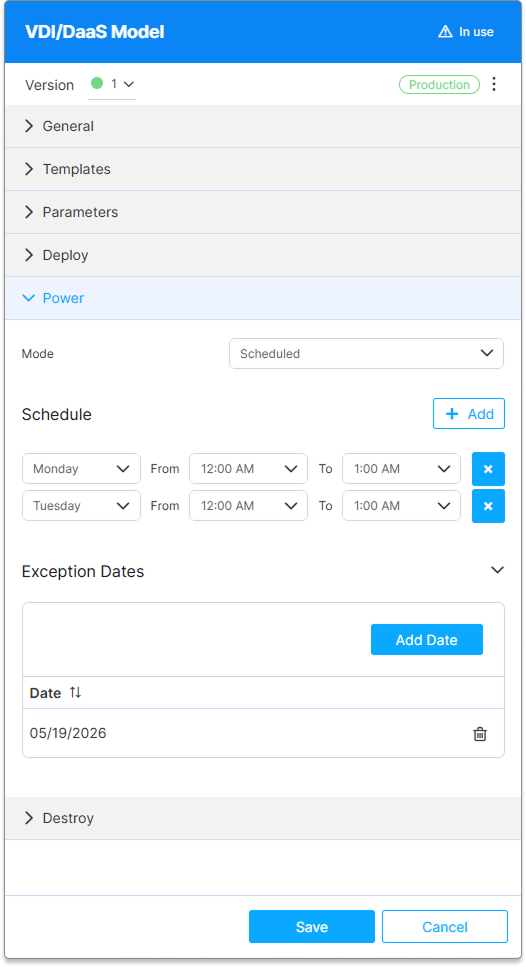
In Scheduled mode, instances power on and off at scheduled times, independent of whether users are connected. This is best suited for environments with predictable, uniform demand windows.
| Field | Description |
|---|---|
| Days | The day or days of the week the schedule applies to. Multiple entries can cover different day groups (for example, Mon–Fri and Sat separately). |
| Start time | Time at which Cloud Manager powers on instances in this model’s pool. |
| Stop time | Time at which Cloud Manager powers off instances in this model’s pool. |
You can also add exception dates — specific calendar dates on which the schedule does not apply (for example, a public holiday).
When a Stop time is reached, Cloud Manager powers off only instances that have no connected users. Instances that still have active sessions stay running past the scheduled Stop time to avoid terminating live work — this is intentional soft-stop behavior. The scheduled stop is deferred, not cancelled: it stays pending and takes effect as soon as the last user disconnects. A forced power-off that disconnects active users and shuts the instance down anyway is on the roadmap; this reference will document the switch when it ships.
Two further conditions keep a scheduled stop from running. An instance started after the scheduled Stop time — on demand, or by hand — is left running, and unlike the active-session case that stop is not carried over: the schedule entry counts as spent for the day. And when pooling is enabled, if the users currently connected already require every instance the model is allowed to run, Cloud Manager skips the model’s scheduled power actions for that cycle.
Both
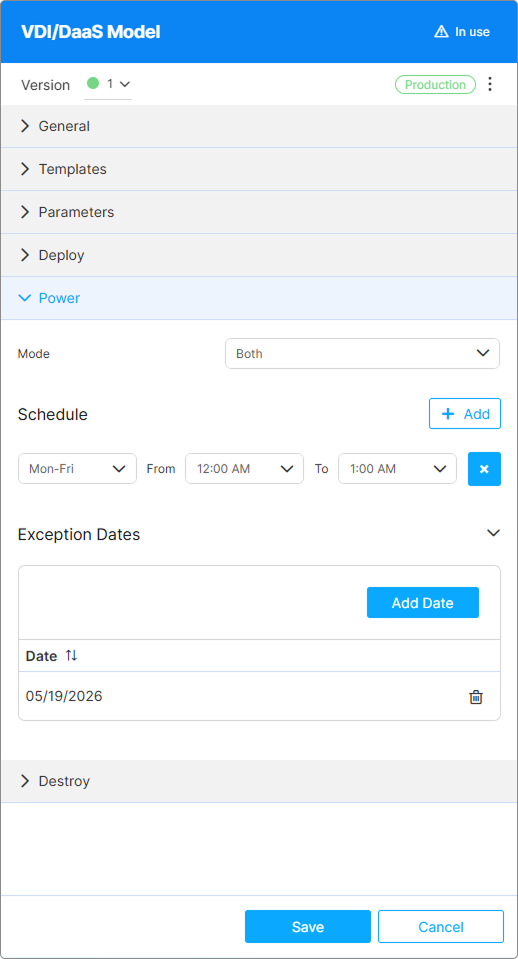
Both mode combines On Demand and Scheduled in a single policy: instances are powered on proactively at scheduled times, and powered off automatically after the Stop after disconnect interval once users disconnect. This is the recommended configuration for most production deployments.
The key interaction: after the last user disconnects from an instance, the Stop after disconnect countdown takes precedence over the scheduled Stop time. The instance powers off when the countdown elapses, rather than waiting for the scheduled window to end. The soft-stop described above applies here as well: an instance that still has connected users when the Stop time arrives keeps running, and the deferred stop takes effect once they disconnect. Outside the scheduled window, on-demand connections still work — a user connecting after hours triggers a cold start if no instances are running.
Provider Availability
Power and scheduling settings — and Staged Power On/Off — work on all supported providers and on-premises hypervisors. On-premises environments are subject to host capacity and clone-time constraints that limit how aggressively a batch power-on can bring new instances online during demand spikes. Plan the Max Instances value (configured in Provisioning and Pooling Options) accordingly.
Editing Power Settings After Creation
To open the model editor, click the edit icon on the model in the left tree.
Changes to power settings take effect for new power events. Instances that are already running are not immediately affected when the power mode or schedule changes — the new configuration applies from the next power event onward.
What’s Next
- Staged Power On/Off — Configure the advanced pool-sizing policy that batches power-on and consolidates idle VMs
- Destroy Settings — Define when instances are permanently removed from the provider
- Deploy an Instance — Start deploying instances once the model is fully configured
See Also
- Model Settings Reference
- Provisioning and Pooling Options — Deployment trigger, instance count settings, and Pool Mode (which gates Staged Power On/Off availability)
- Pooling Strategies — How pool mode affects the cost impact of power settings
- Instance States and Lifecycle