
Deploy a VDI Pool
This article uses Oracle Cloud Infrastructure (OCI) as the example provider. The same workflow applies to other VM-based providers — AWS (EC2), Microsoft Azure, Google Cloud Platform, IONOS Cloud, VMware (ESXi and Horizon), Microsoft Hyper-V, Proxmox VE, Oracle KVM (oVirt / OLVM), and Verge.IO. Provider-specific differences (credential fields, shape and instance type names, network parameters) are noted where they apply. Kubernetes models follow a different flow — to run an isolated browser on a cluster, see Track C — Deploy Remote Browser Isolation.
This Quick Start uses the General Purpose built-in blueprint that Cloud Manager ships for Oracle Cloud — the fastest path to a working pool. The wizard pre-fills sensible defaults and only asks for environment-specific values. If you need full control over the provisioned infrastructure, the Custom Terraform flow covers .tf file upload and schema.json-driven Parameters. Cloud Manager also ships two other OCI built-ins for different workload profiles: Demanding Workflows (Optimized 3 Flex shapes) and Graphic Performance (GPU shapes) — see Create a Model Using a Built-in Blueprint.
By the end of this track, you will have a functioning on-demand VDI pool backed by Oracle Cloud Infrastructure (OCI): a VDI/DaaS model based on the General Purpose built-in (E Flex shape family), a session-based pool with scheduled provisioning, an Access Profile granting user access, and a validated end-to-end connection.
Prerequisites
In addition to the common prerequisites:
- An OCI account with sufficient Compute quota in the target region for at least 2 VM instances of the E Flex shape. Check current quota in OCI Console > Governance > Limits, Quotas and Usage.
- A virtual cloud network (VCN) and subnet available in the target OCI region, configured to allow inbound RDP (port 3389) from the Thinfinity® Workspace Gateway IP.
Open Cloud Manager
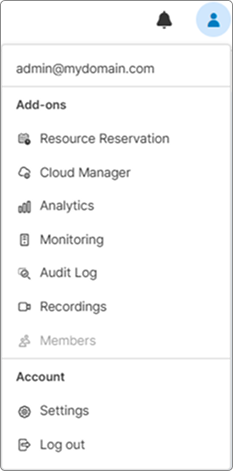
Log in to Thinfinity Workspace as an administrator, click the profile icon, and then click Cloud Manager in the right sidebar.
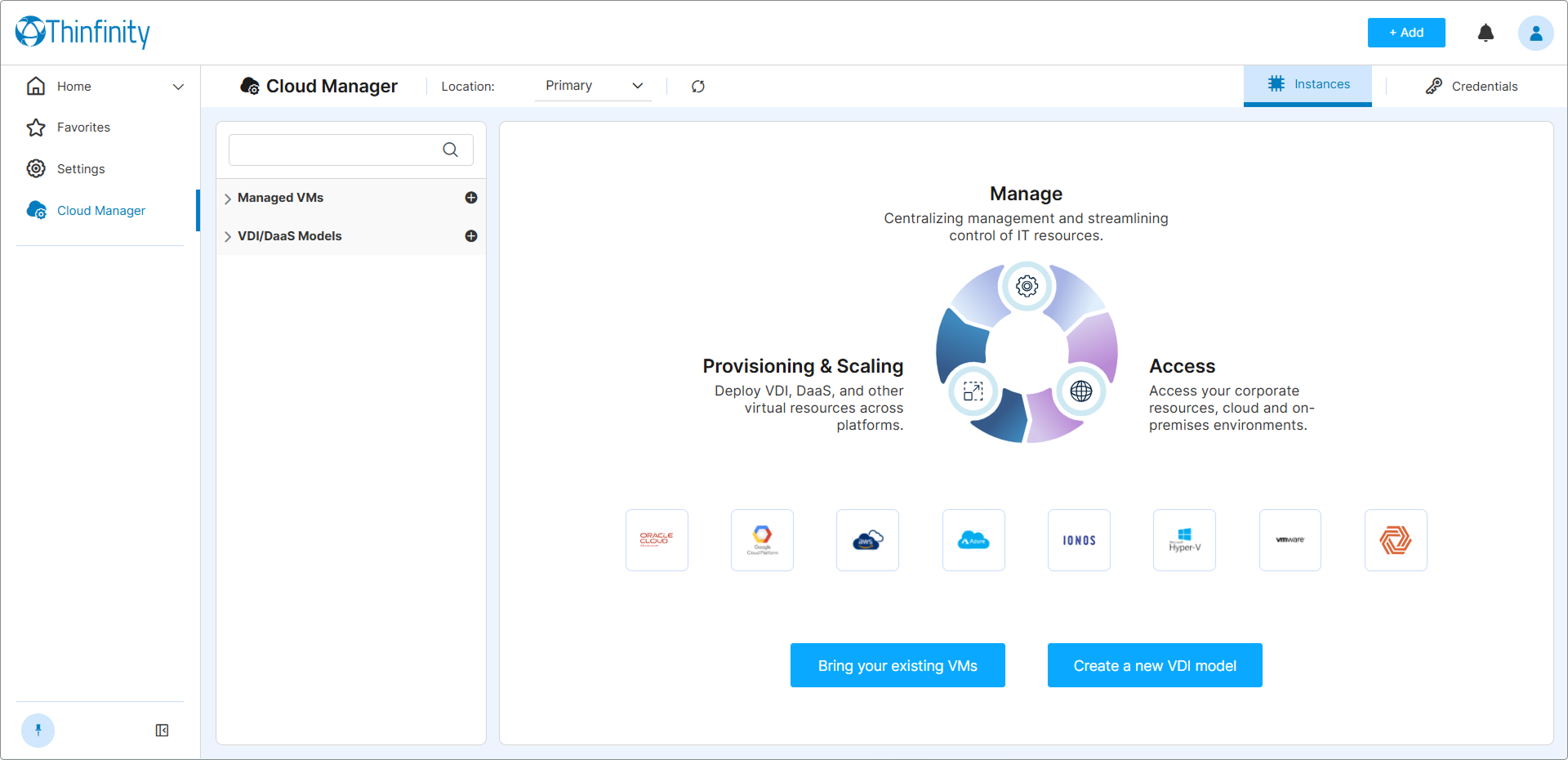
Cloud Manager opens.
Add OCI Credentials
Cloud Manager needs OCI API Key credentials to communicate with your Oracle Cloud account. If you have already saved a valid OCI credential set in Cloud Manager (for example, from a previous Quick Start track or from earlier configuration work), skip to Step 3.
Otherwise, register your credentials now:
- From the top right of the screen, select Credentials.
- Click + New from the top right of the screen to open the credential form.
- Select Oracle Cloud as the provider.
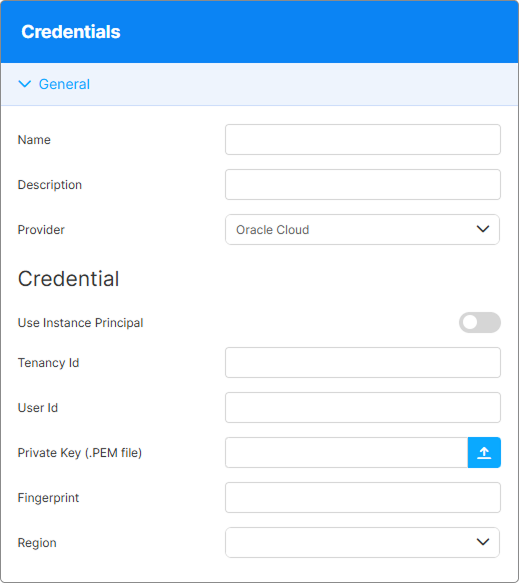
- Leave Use Instance Principal off — this Quick Start uses API Key authentication, which works in every deployment topology. Instance Principal is an alternative for Thinfinity Workspace servers that run on an OCI Compute instance — see Oracle Cloud Credentials → Option B.
- Fill in the following fields.
| Field | Value |
|---|---|
| Tenancy ID | Your OCI tenancy OCID (ocid1.tenancy.oc1..aaaa...). |
| User ID | The OCID of the IAM user Cloud Manager will authenticate as. |
| Private Key (.PEM file) | Upload the .pem private key file generated when you created the API Key in the OCI Console. |
| Fingerprint | The MD5 fingerprint of the API Signing Key (format: xx:xx:xx:xx:...). |
| Region | The OCI region where your Compute instance is located (e.g., us-ashburn-1). |
- Click Save. Cloud Manager validates the credentials immediately and adds the entry to the Credentials list with a Valid status badge. If the badge instead shows Invalid, the most common causes are a mismatched fingerprint or the wrong private key file — see the linked guide below for the full error reference.
For the full guide on generating these credentials in the OCI Console — including tenancy and user OCID lookup, API Key generation, and troubleshooting an Invalid credential status — see Oracle Cloud Credentials.
Create the VDI/DaaS Model
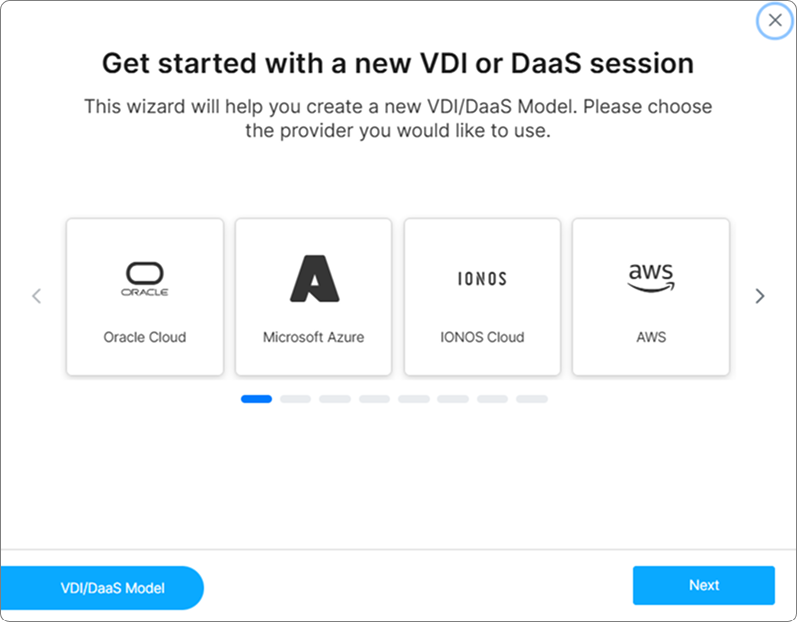
In the left navigation panel, expand the VDI/DaaS Models section and click the + button next to the section header. The Model Creation Wizard opens.
Provider step
Select Oracle Cloud and click Next.
Model Selector step
The Model Selector lists OCI’s three built-in blueprints — General Purpose (E Flex), Demanding Workflows (Optimized 3 Flex), and Graphic Performance (GPU) — plus a Custom option. For this Quick Start, select General Purpose. Click Next.
Credentials step
Select Existing and choose the OCI credential set you created in Step 2. Click Next.
Parameters step
The General Purpose built-in pre-fills sensible defaults across the Parameters step. For this Quick Start, you only need to set these fields:
| Field | Value |
|---|---|
| Compartment Name | The name of the OCI compartment where instances will be deployed. |
| Admin username | Local administrator username. |
| Admin password | Local administrator password for the provisioned VMs. Must be at least 12 characters and contain both letters and numbers. |
Leave all other fields at their defaults and click Next.
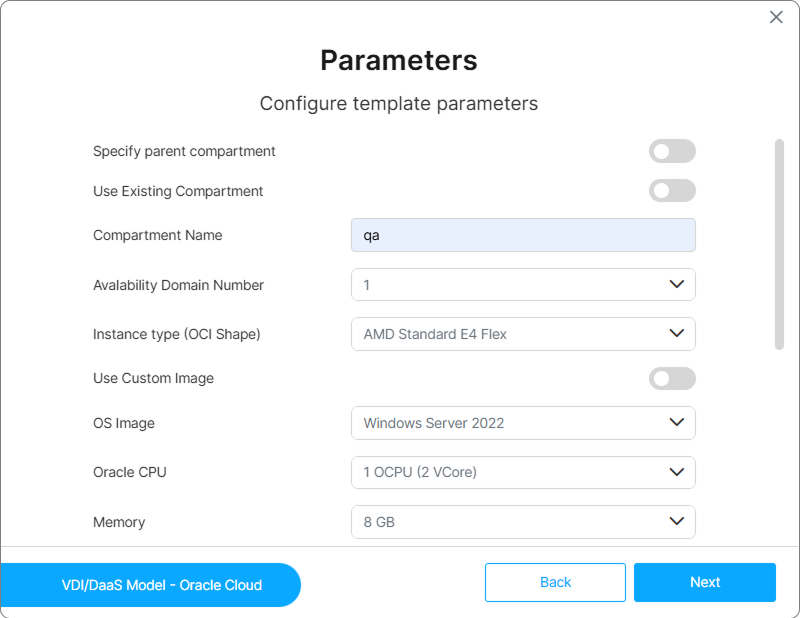
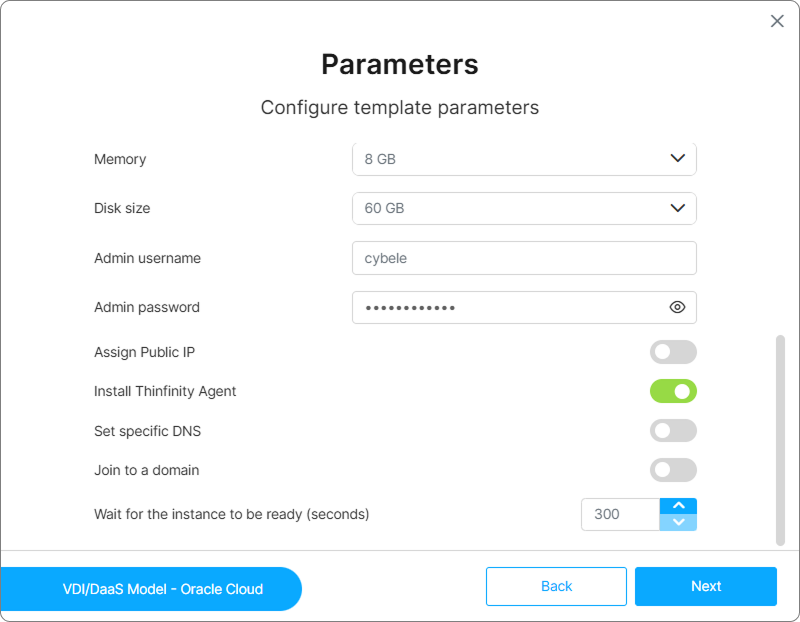
The defaults provision a Windows Server 2022 instance on an AMD Standard E4 Flex shape with 1 OCPU, 8 GB RAM, and a 60 GB disk, with the Thinfinity Workspace Virtualization Agent installed automatically at first boot. To customize the shape, OS image, compartment scoping, networking (public IP, DNS, domain join), or agent installation behavior, see Oracle Cloud (OCI) — General Settings.
Access step
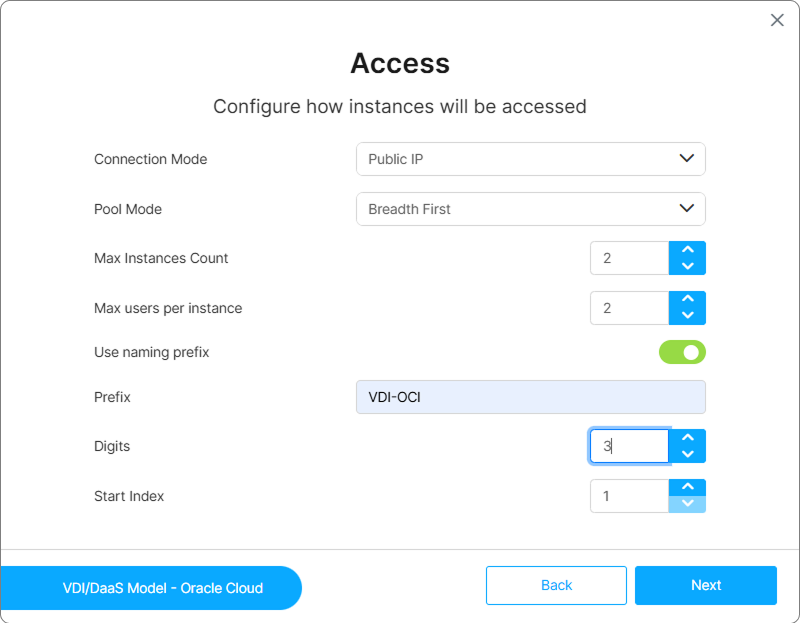
- Leave the default Connection Mode set to Public IP.
- Set Pool Mode to Breadth First. Additional fields appear.
- Set Max Instances Count to
2and Max users per instance to2. - Enable Use naming prefix, then set Prefix to
VDI-OCI, Digits to3, and Start Index to1(instances will be namedVDI-OCI001,VDI-OCI002, etc.). - Click Next.
Deployment step
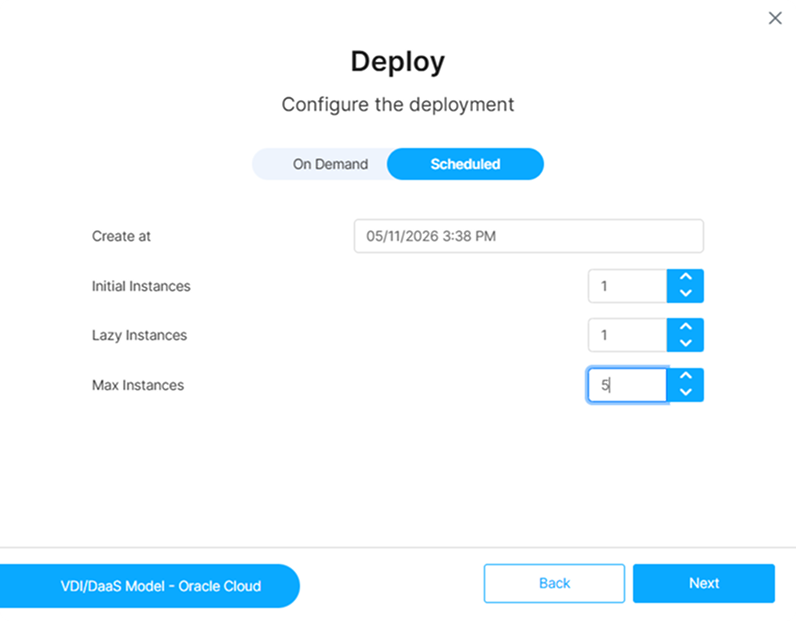
- By default, the deployment trigger is set to On Demand. Change to Scheduled and configure the instance counts:
- Set Initial Instances to
1. - Set Lazy Instances to
1. - Set Max Instances to
5.
- Set Initial Instances to
- Click Next.
Power settings step
Leave the default options and click Next.
Destroy settings step
By default, the Destroy mode is set to Never, click Next to continue.
In production, scheduled Power and Destroy policies help control resource cost — see Power and Scheduling Settings.
Save step
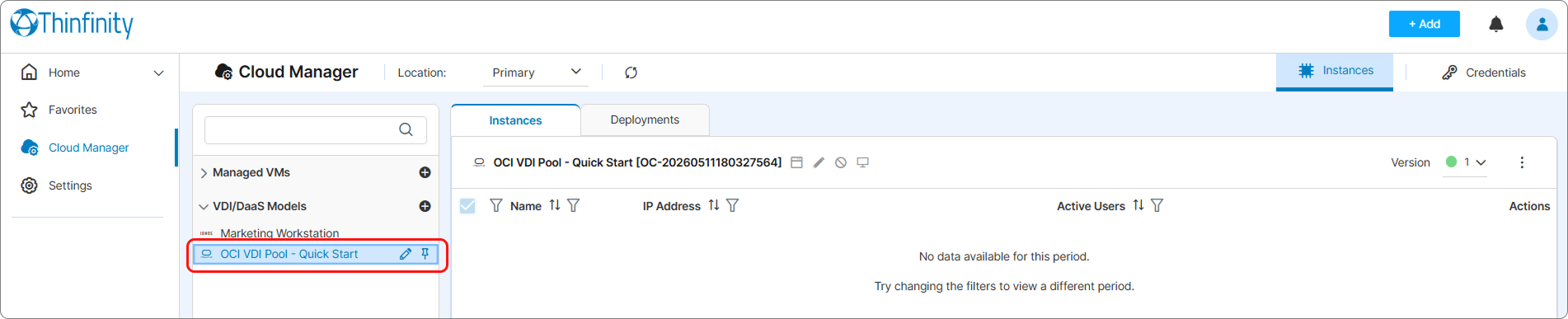
Enter OCI VDI Pool — Quick Start as the model Name and click Save.
The model appears in the VDI/DaaS Models tab.
Deploy the First Instance
With the model configured, trigger the first deployment to verify the pool provisions correctly.
- Select the model in the left navigation panel, then click the Deployments tab next to Instances.
- Click the Deploy button (plus icon) in the model header above the table.
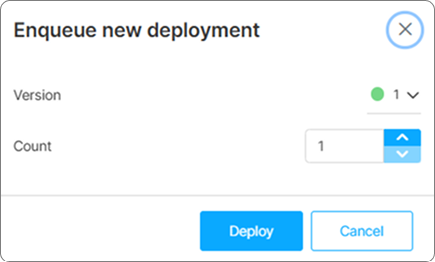
- In the Enqueue new deployment dialog:
- Version:
1(Production) - Count:
1
- Version:
- Click Deploy.
The Deployments tab shows the deployment in progress. The Message column streams the latest Terraform status in real time.
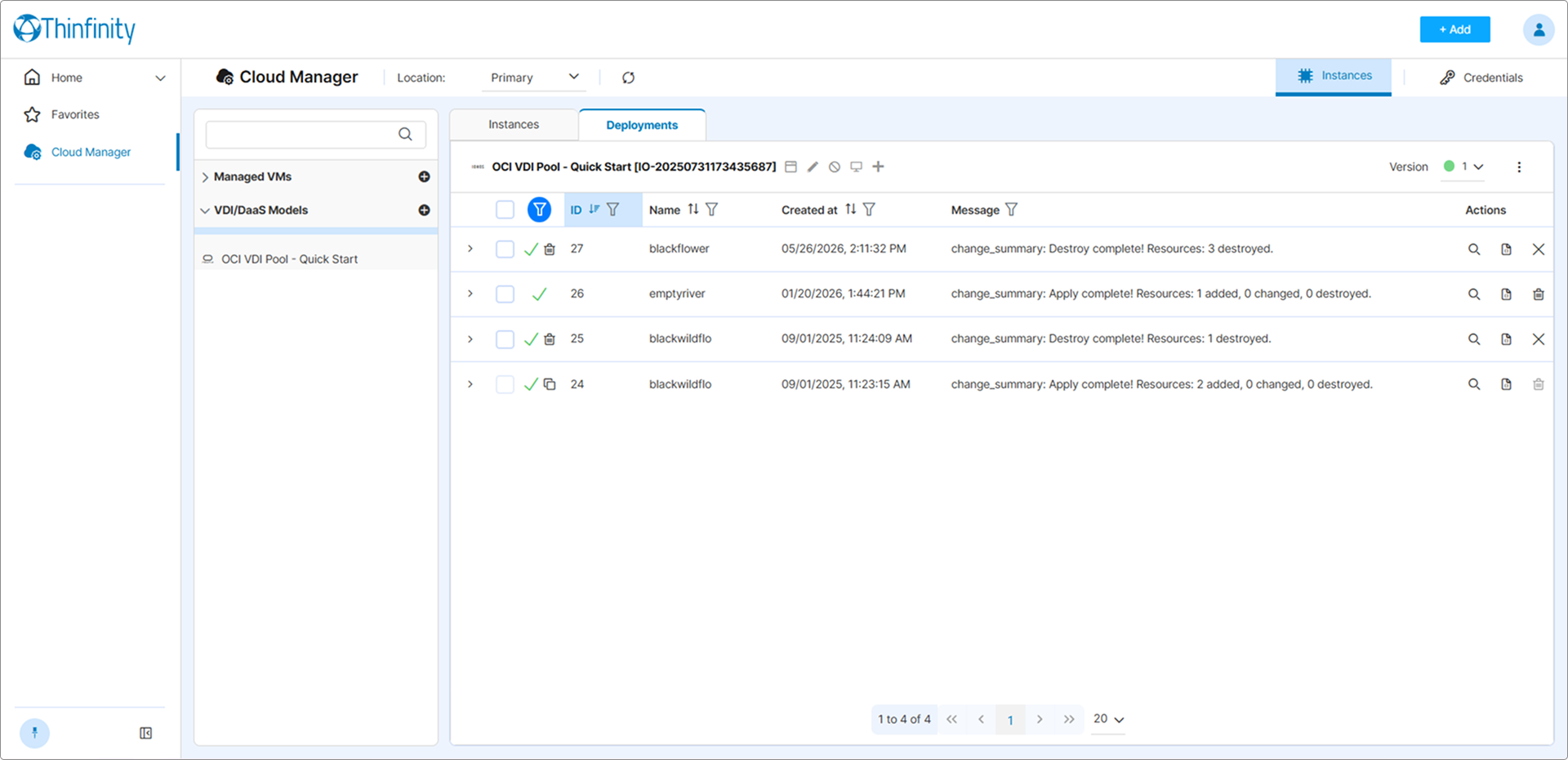
Wait for the status to change to Success (typically 3–7 minutes for an OCI Compute instance). Once the deployment completes, the instance appears in the Instances tab with an On or Off status icon.

If the deployment transitions to Error, review the error in the Message column. Common causes are insufficient OCI quota, an invalid subnet OCID, or an OS image that is not accessible from the credential account. See Provisioning Failures.
Create an Access Profile
-
In the Instances tab, click the Create Access Profile action in the model header above the table to launch the Access Profile wizard.
-
In the first step of the wizard select the type of Access Profile you want to create for your VDI pool. For our example, choose RDC then click Next.
-
In Connection Details:
- Confirm the Model Name shows
OCI VDI Pool — Quick Start. - Leave Use Staging disabled (this profile targets the Production version).
- Set Stop after disconnect to
5(minutes) to keep the VM running briefly after the user disconnects, so reconnects don’t trigger a full power-on. Tune to your workload — shorter delays minimize idle compute cost; longer delays keep the VM ready for frequent reconnects.
Click Next.
- Confirm the Model Name shows
-
In Authentication Options, select Ask for new credentials and then Next.
-
In Permissions, add the user or group that should have access to the new Access Profile, click Next.
-
Enter a Name for the profile (for example,
OCI VDI — General). Click Next when done.
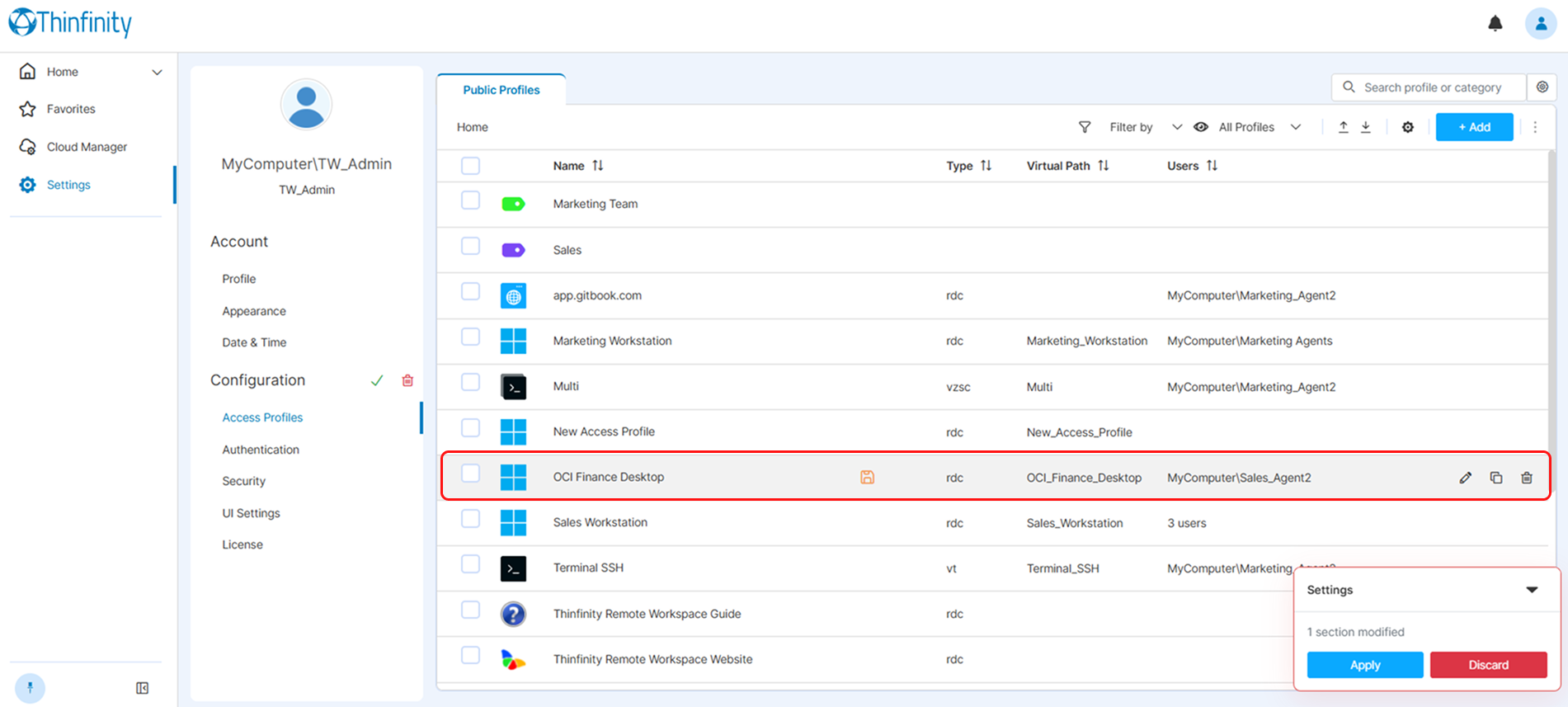
The wizard redirects you to the list of Access Profiles available in the installation: Settings > Configuration > Access Profiles.
- Confirm the new Access Profile appears in the list.
- Click Apply.
Connect as an End User
- Open the Thinfinity Workspace portal in a new browser tab (or as the target end user).
- Log in with the credentials of the user you granted access to in Step 6.
- Locate the OCI VDI — General tile on the portal home screen.
- Click the tile and enter the VM credentials when prompted.
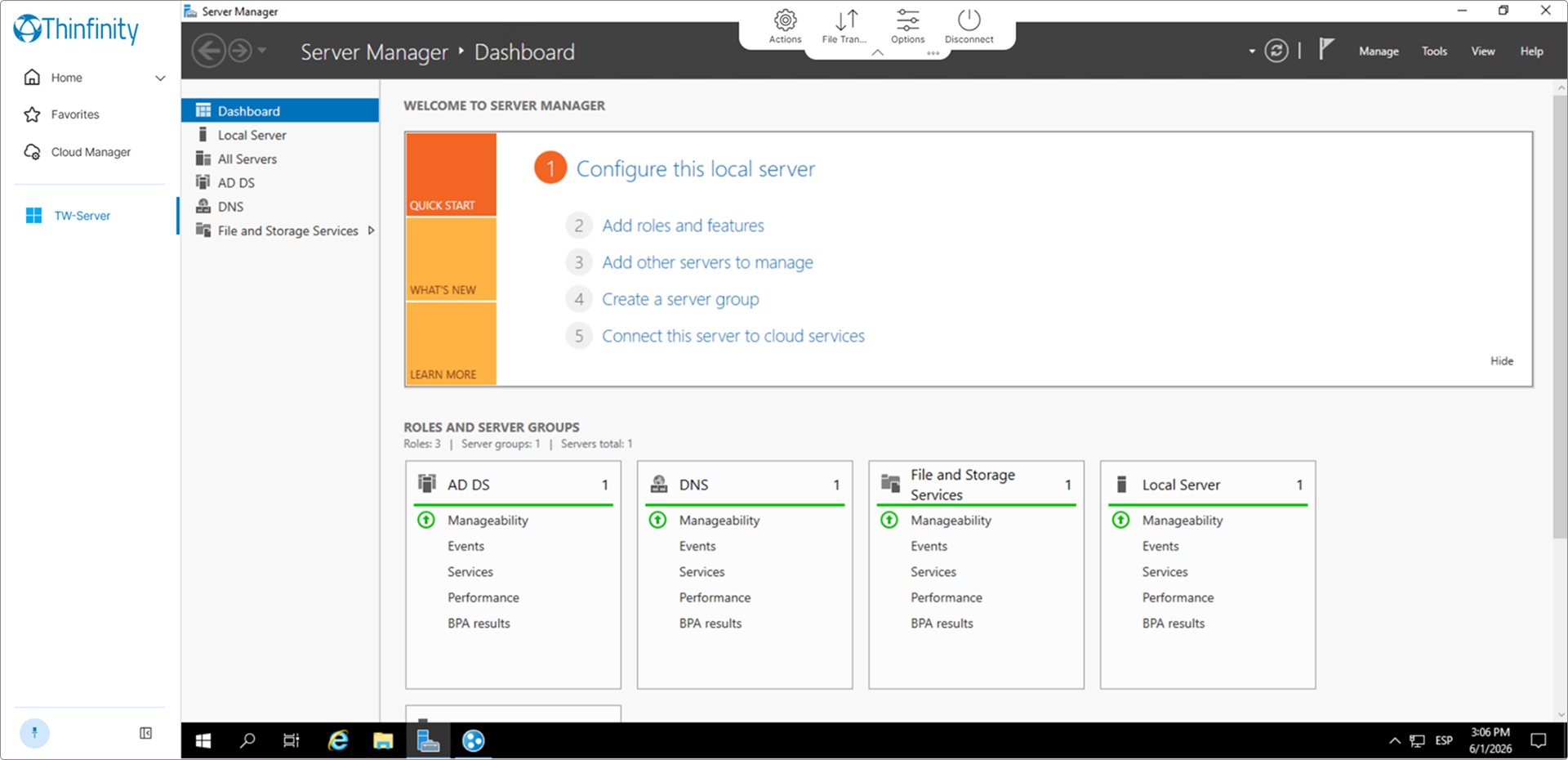
Cloud Manager assigns the available instance from the pool. If the instance is powered off, Cloud Manager powers it on before handing off the session (this may add 30–90 seconds to the first connection).
The remote session opens in the browser. Track B is complete.
What’s Next
- Model Settings Reference — explore the full range of model configuration options
- Model Versioning — set up Testing and Staging versions before making changes to the Production pool
- Golden Images — replace the base OS image with a pre-configured corporate image
- Power and Scheduling Settings — add a scheduled power-on window to pre-warm the pool, or enable Staged Power On/Off for cost-efficient batch power-on
- Monitoring Overview — monitor pool health and active sessions
See Also
- Choosing a Compute Path — choose the right operating mode for your environment
- Supported Providers and Hypervisors — full list of supported platforms beyond OCI
- Cloud Manager Permissions — configure granular access rights for your team
- Troubleshooting Overview — diagnose common setup and connectivity issues