
Create a Model Using a Built-in Blueprint
Built-in blueprints are provider-specific Terraform templates that ship with Cloud Manager, with their inputs surfaced as form fields in the wizard.
Our Cloud Manager ships built-in blueprints for Oracle Cloud (OCI), AWS, Microsoft Azure, Google Cloud Platform, IONOS Cloud, VMware (ESXi / Horizon), Microsoft Hyper-V, and Proxmox VE. Oracle KVM (oVirt / OLVM) and Verge.IO use custom Terraform exclusively — see Create a Model Using a Custom Terraform Template.
The walkthrough below uses OCI as the worked example. The fields you see depend on the provider and the built-in blueprint selected.
Prerequisites
- Cloud Manager is enabled. See Enable Cloud Manager.
- Cloud provider credentials are configured for your target provider. See Manage Credentials.
- For on-premises hypervisors with a built-in blueprint (VMware, Microsoft Hyper-V, and Proxmox VE), the base image the blueprint clones — a Golden Image — is prepared. See Golden Images.
- The Create on Models permission. See Cloud Manager Permissions.
Launch the Model Creation Wizard
If no models exist yet, the Welcome view appears. Click Create New to open the wizard.
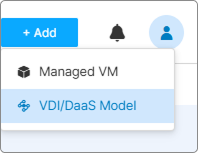
If models already exist, expand VDI/DaaS Models in the left tree and click the + Add button next to the section header.
Select a Cloud Provider
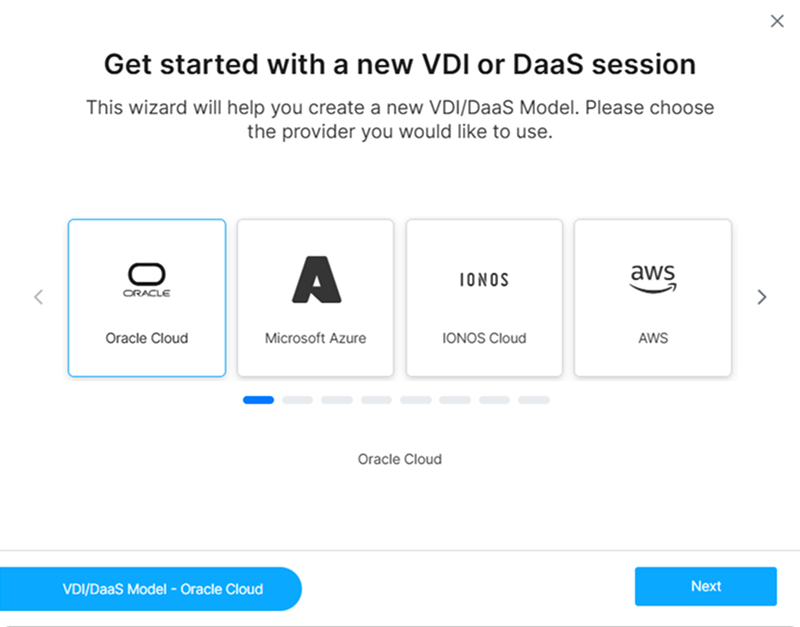
Select your target provider and click Next.
Select a Built-in Model
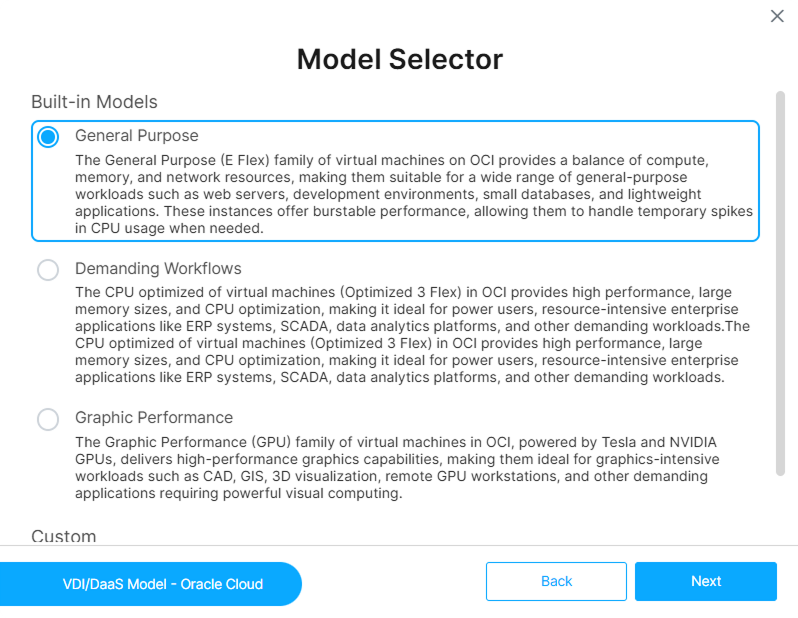
The Model Selector step shows two radio groups: Built-in Models and Custom.
- Pick a built-in entry to use a provider-specific template that ships with Cloud Manager.
- Pick Use custom configuration to supply your own Terraform template instead — this routes you through the Custom Terraform flow.
The available built-ins for each provider:
| Cloud Provider | Built-in blueprints |
|---|---|
| OCI | 3 variants: General Purpose, Demanding Workflows, Graphic Performance |
| AWS | 3 variants: General Purpose (T2), Demanding Workflows (T3), Graphic Performance (P3) |
| Microsoft Azure | 3 variants: General Purpose (BasV2), Demanding Workflows (DasV5), Graphic Performance |
| Google Cloud Platform | 3 variants: General Purpose (E2), Demanding Workflows (N2), Graphic Performance |
| IONOS Cloud | 3 variants: Cubes, vCPU Server, Dedicated Cores (Bare Metal) |
| VMware | 2 variants: General Purpose, General Purpose (Non-Persistent) |
| Microsoft Hyper-V | 1 variant: General Purpose |
| Proxmox VE | 1 variant: General Purpose |
| Verge.IO | No built-in; use Custom Terraform Templates |
| Oracle KVM | No built-in; use Custom Terraform Templates |
Select Cloud Provider Credentials
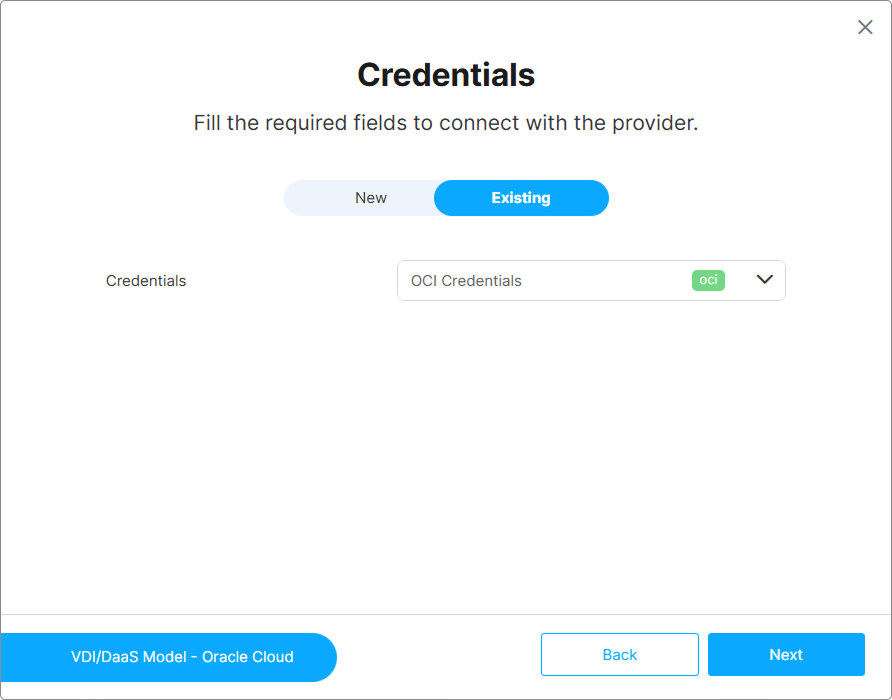
Choose how to authenticate with your cloud provider:
- New — Enter new credentials directly in the wizard. The form fields shown depend on the provider.
- Existing — Select a credential set already configured under Manage Credentials. See Manage Credentials.
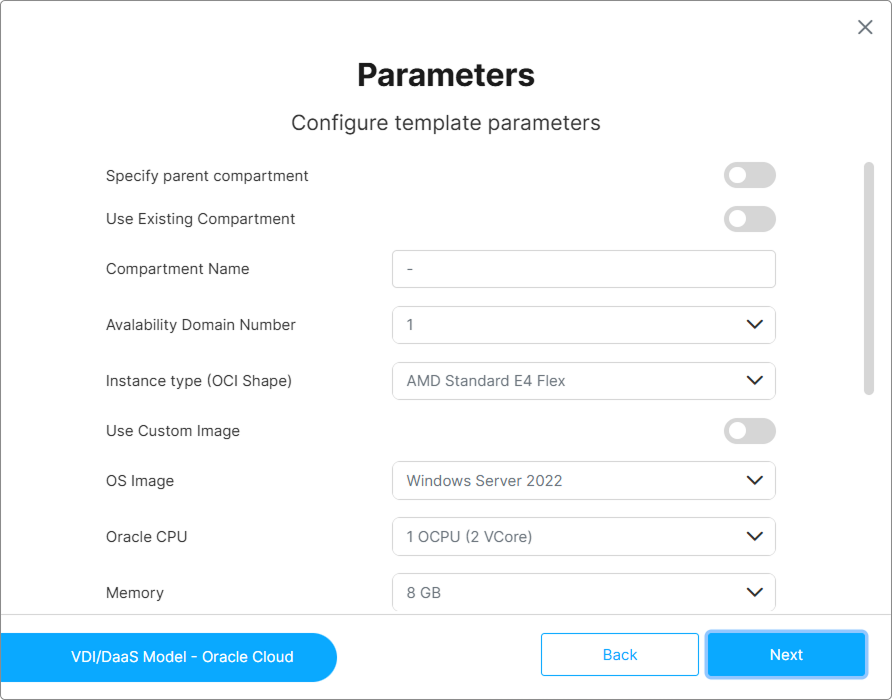
Configure Provider-Specific Parameters
The Parameters step renders configuration fields specific to the provider selected in the previous steps. The same field set applies across all built-ins for that provider — only the underlying VM shape / family changes between built-ins.
For a full reference of all provider-specific fields, see General Settings.
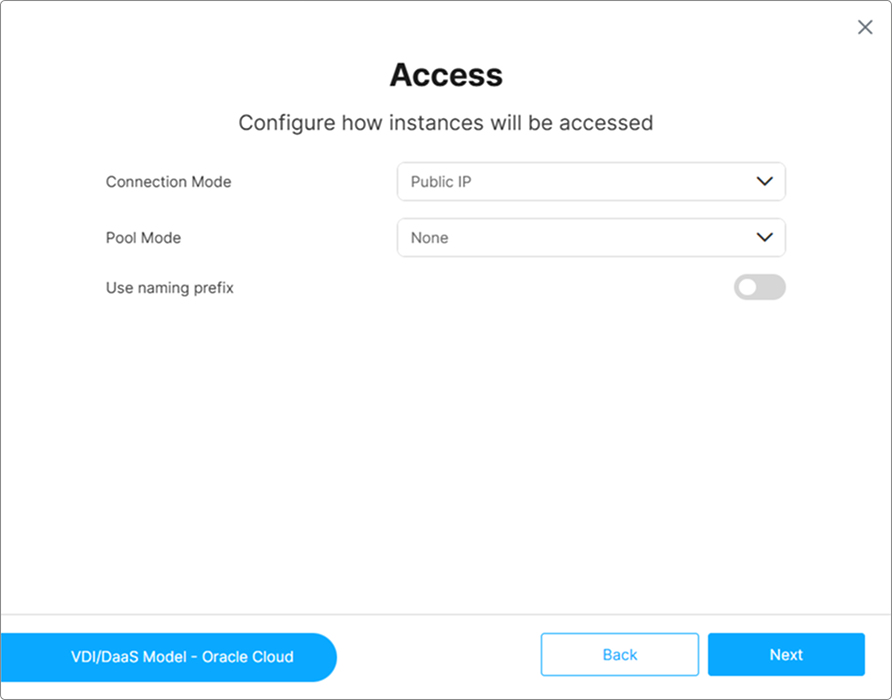
Configure Provisioning
The Provisioning step controls how instances are accessed and how connections are distributed across the pool. For a full reference of Connection Mode, Pool Mode, and Use naming prefix, see Provisioning and Pooling Options.
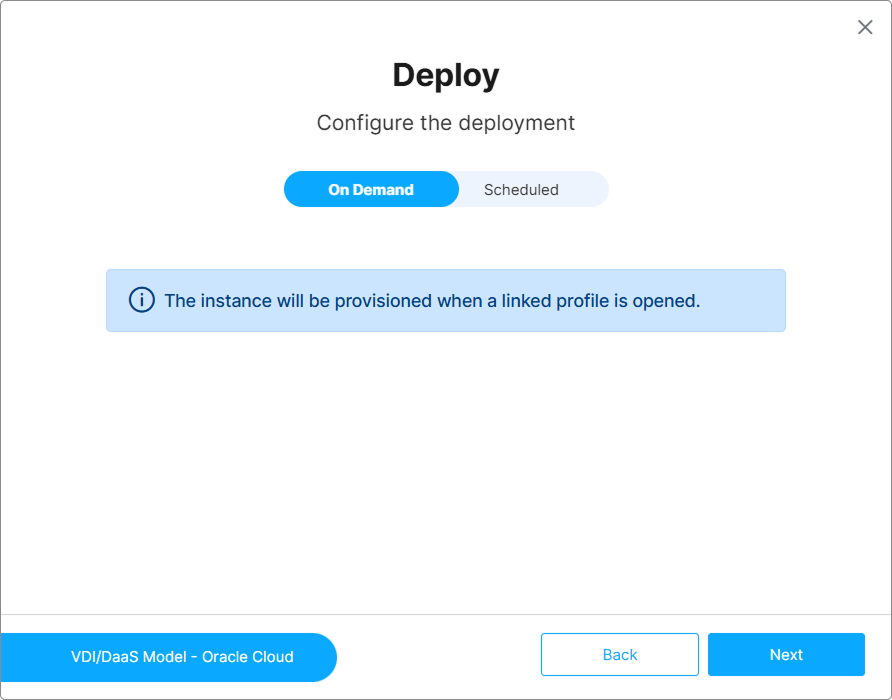
Configure Deploy
Set the Deployment Mode and instance counts for this model. Available modes are On Demand and Scheduled. For Scheduled, additional fields appear: Create At datetime, Initial Instances, Lazy Instances, and Max Instances.
For a full reference, see Provisioning and Pooling Options.
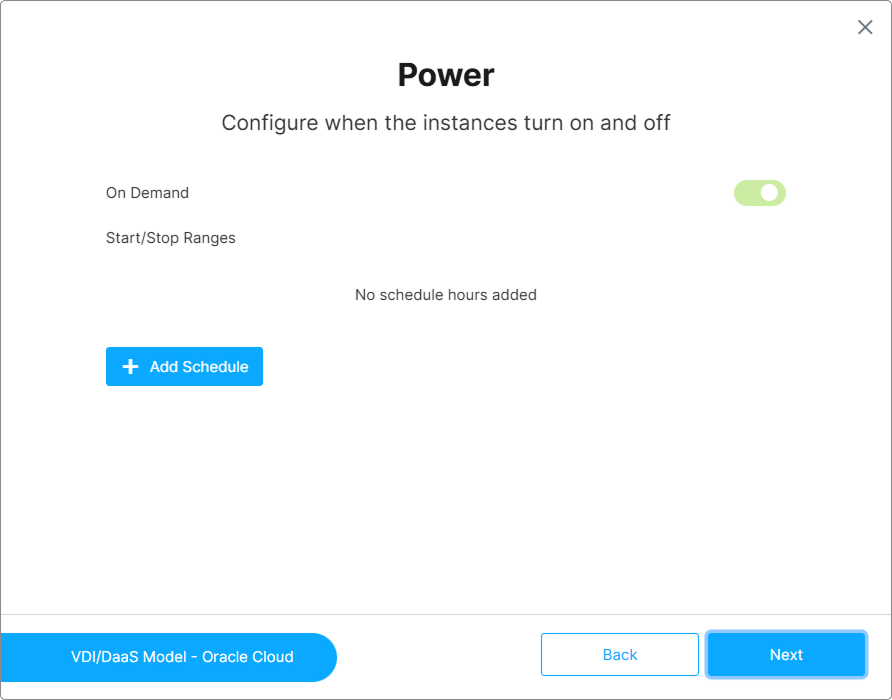
Configure Power
Configure when instances turn on and off. The wizard exposes an On Demand toggle and an Add Schedule control for defining Start/Stop Ranges:
- Toggle On Demand on with no schedule entries → On Demand mode.
- Toggle On Demand off and add schedule entries → Scheduled mode.
- Toggle On Demand on and add schedule entries → Both mode.
For a full reference, see Power and Scheduling Settings.
Configure Destroy
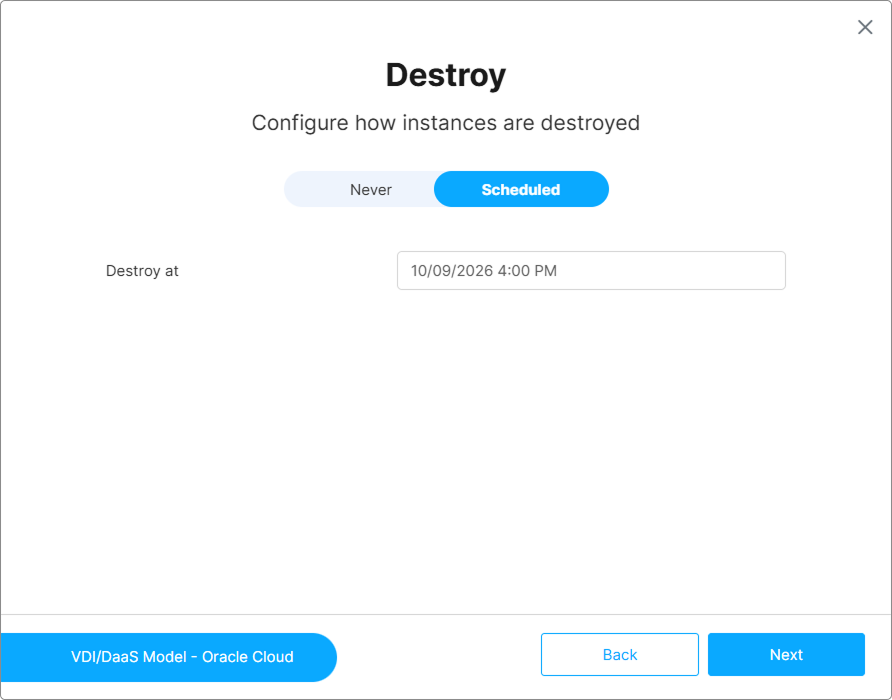
Define when instances are automatically destroyed. Choose Never to keep instances until manually detached, or Scheduled to destroy them at a specific datetime.
For a full reference, see Destroy Settings.
Save the Model
Enter a Name (required) and an optional Description. Click Save.
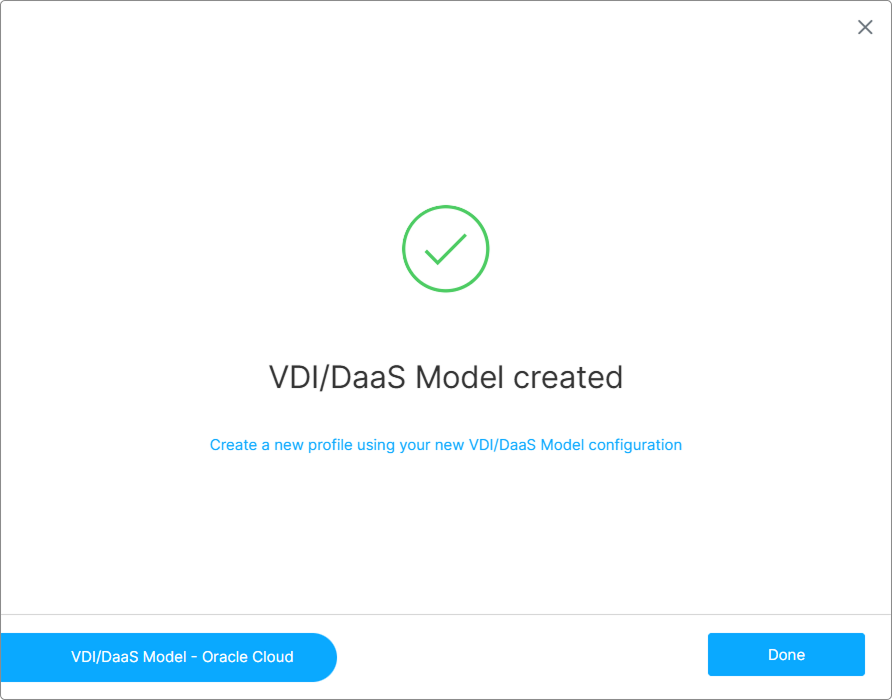
Cloud Manager displays a confirmation when the model is successfully created. The new model appears in the VDI/DaaS Models section of the left tree, and the wizard’s final screen offers a quick Create Profile link to start an Access Profile pre-filled for this model.
Editing a Model After Creation
To open the model editor, click the edit icon on the model in the left tree. The editor exposes the same settings as the wizard, organized across the General, Templates, Parameters, Deploy, Power, and Destroy tabs.
Changing settings on a model that has active deployed instances may affect running sessions. For changes that affect the underlying VM image, consider using Model Versioning to test before promoting to production. See Model Versioning.
What’s Next
- Deploy an Instance — Provision the first instance from this model
- Create an Access Profile for a VDI/DaaS Model — Grant users access to instances
- Model Versioning — Manage Testing, Staging, and Production versions of the model
- Export and Import Models — Back up or share the model configuration
See Also
- Model Settings Reference — Full index of all configurable settings
- Create a Model Using a Custom Terraform Template — Infrastructure-as-code alternative
- Kubernetes Models — Alternative creation path for pod-based deployments
- Golden Images — Required for on-premises providers