
Update a Model to Use a New Golden Image
Updating a model’s Golden Image reference does not automatically replace running instances — the new image takes effect only for instances provisioned after the model is updated. To roll out the new image to all users:
- Update the model to reference the new Golden Image.
- Optionally, use Model Versioning to test the new image in a Testing or Staging version before promoting to Production.
- Detach existing instances so that Cloud Manager re-provisions them from the new image.
Detaching existing instances is irreversible. Detach destroys the underlying VMs and removes the Cloud Manager record — any user data stored locally on those VMs is permanently lost.
Prerequisites
- A new Golden Image (snapshot or template) has been captured and is available in the hypervisor console. See Create a Golden Image.
- You have the Edit on Models permission. See Cloud Manager Permissions.
Open the Model Editor
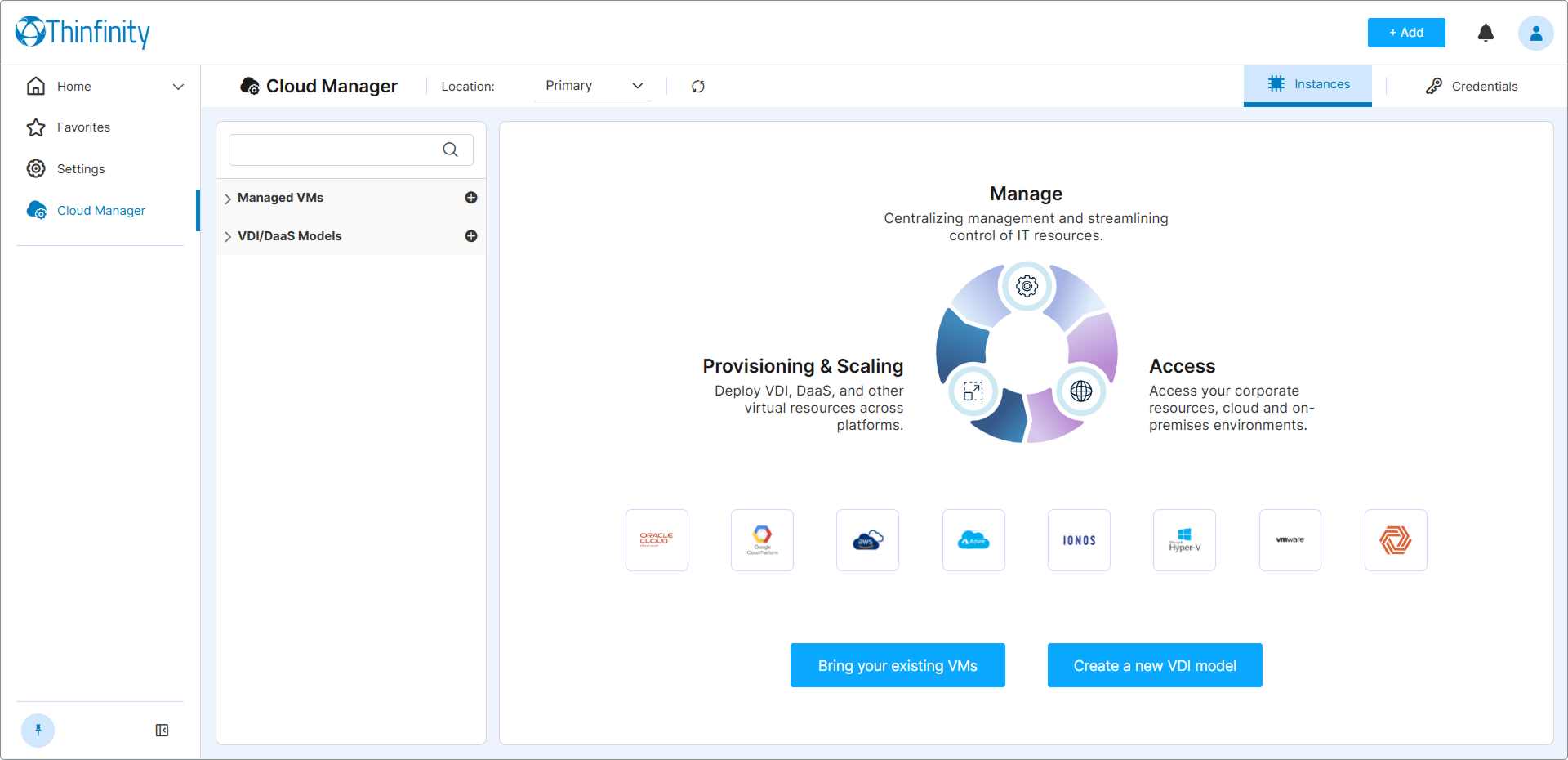
Locate the model in the left tree and click the edit icon on its row.
Update the Image Reference
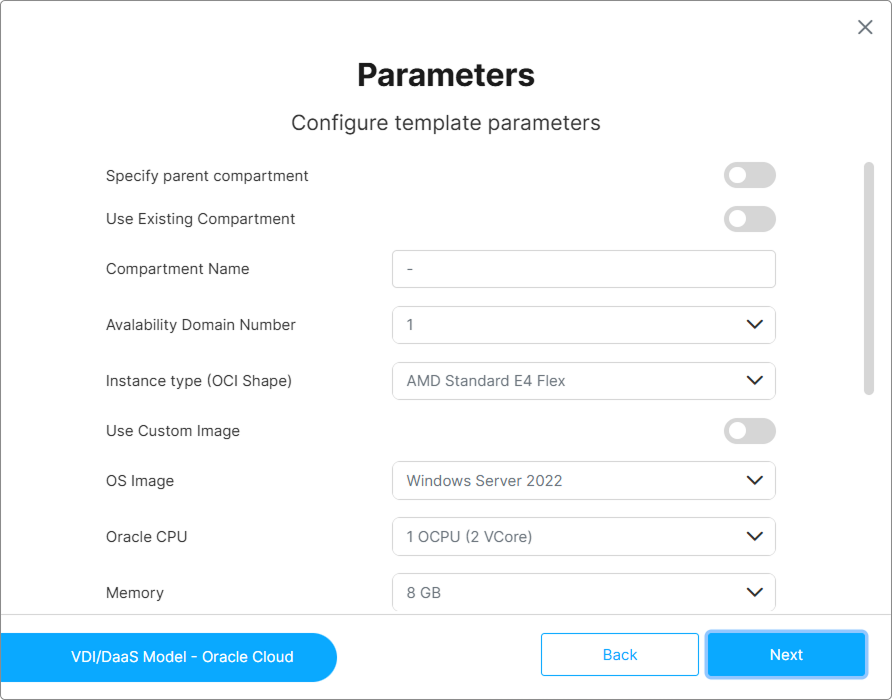
In the model editor, navigate to the Parameters tab and update the image-reference field for your provider. The field name depends on the provider — see How Cloud Manager Identifies the Image for the per-provider field names. Enter the new template, snapshot, or VHDX name and click Save.
Replace Running Instances
To replace existing instances with instances provisioned from the new Golden Image:
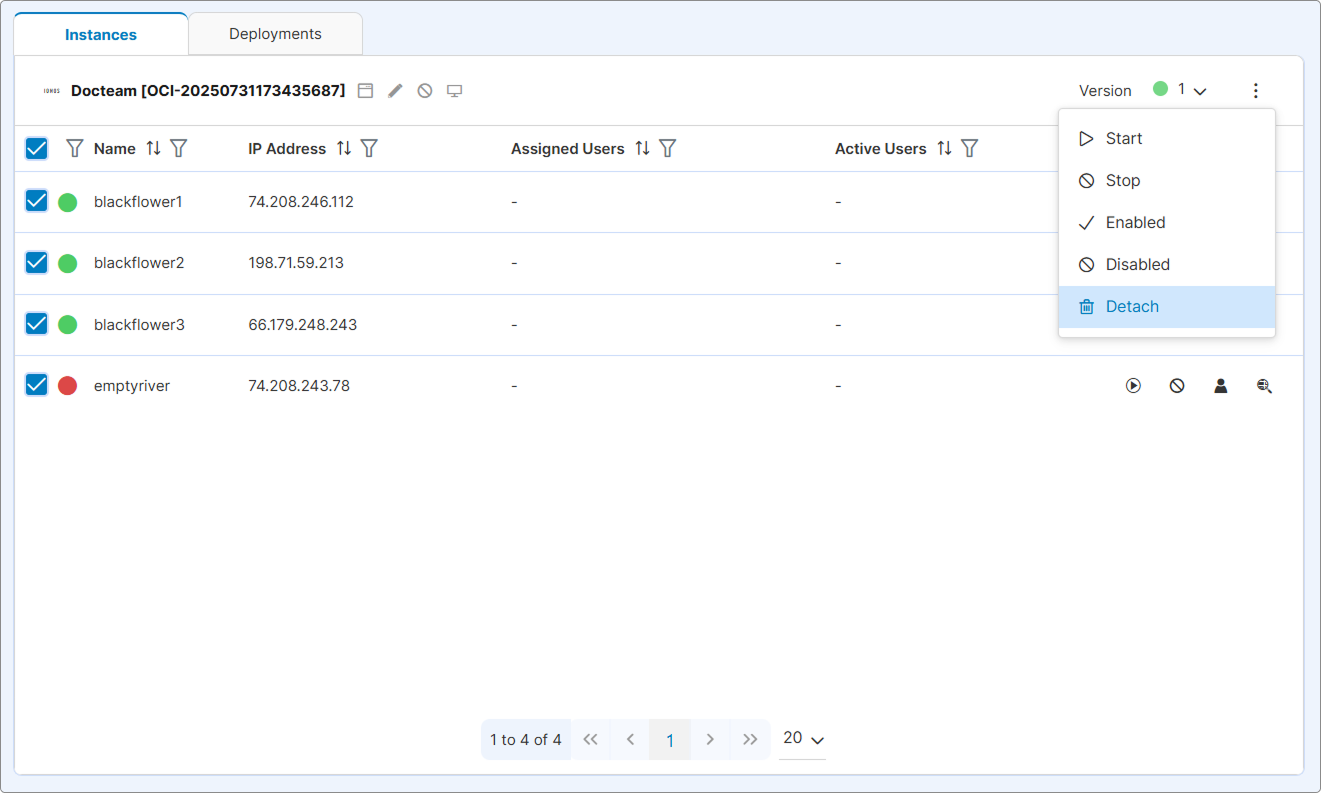
- In the model’s Instances tab, select the instances to replace using the row checkboxes.
- Click the bulk actions kebab in the table header and choose Detach.
- Cloud Manager provisions new instances from the updated model on the next user connection (On Demand) or at the next scheduled deployment.
What’s Next
- Model Versioning — Manage Testing, Staging, and Production versions
- Deploy an Instance — Provision instances from the updated model
- Manage Deployed Instances — Monitor and manage the new instances
See Also