
Connect to Existing VMs
To make existing virtual machines available in Thinfinity® Cloud Manager, you first establish a connection to the cloud provider or hypervisor where they are hosted, then select the specific VMs you want to bring under management. This process uses a guided wizard that walks you through provider selection, authentication, search filtering, connection mode, and power options.
You can select credentials you have already configured, or create new credentials directly in the wizard. For provider-specific credential details, see Credentials.
Part 1 — Configure the Connection
Launch the Managed VM Configuration Wizard
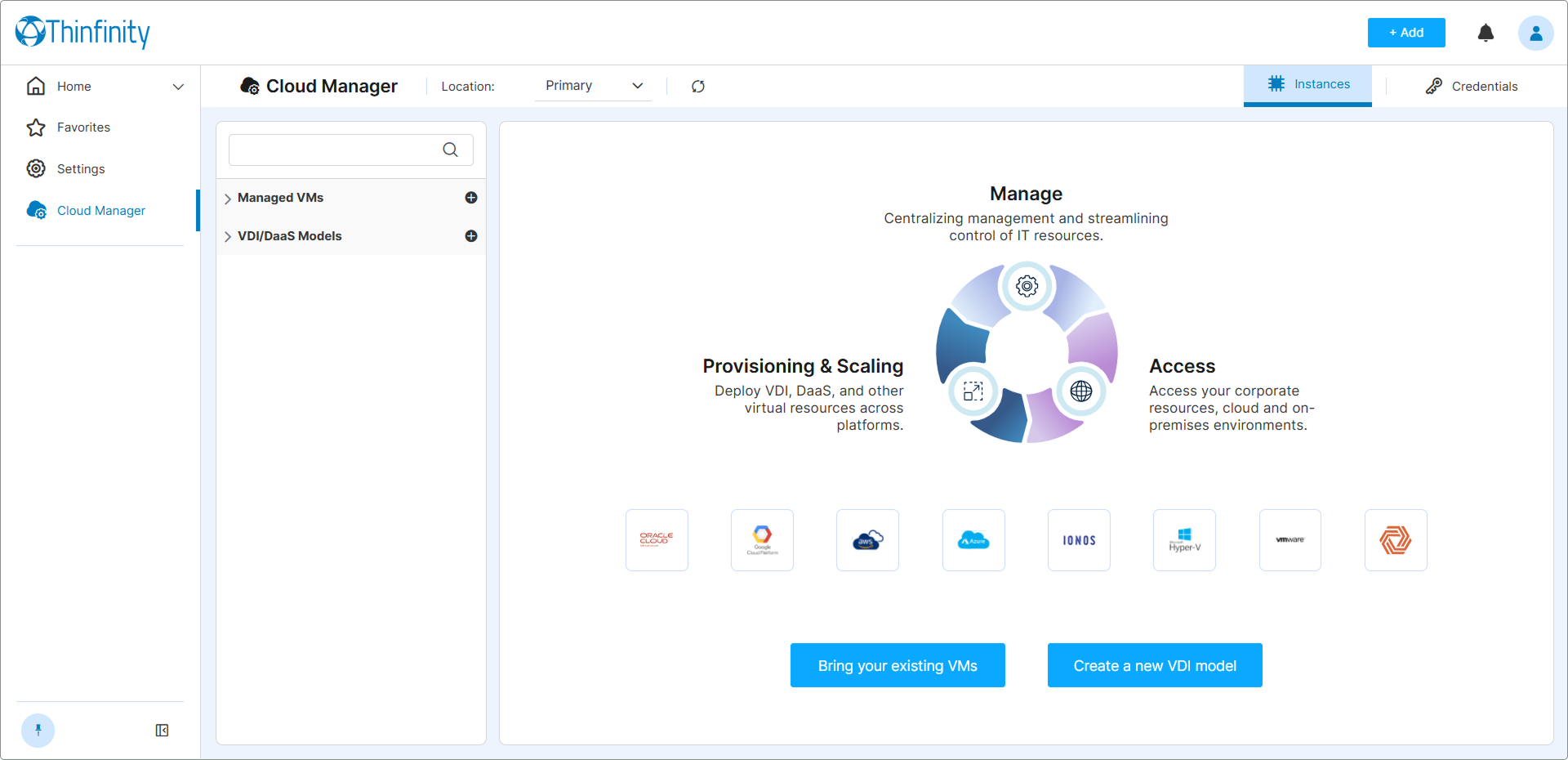
In the Cloud Manager home screen, use any of the following options:
- Click + next to Managed VMs in the left tree, or
- Click Bring your existing VMs in the lower section of the Cloud Manager home screen, or
- Click + Add > Managed VM.
Select the Provider
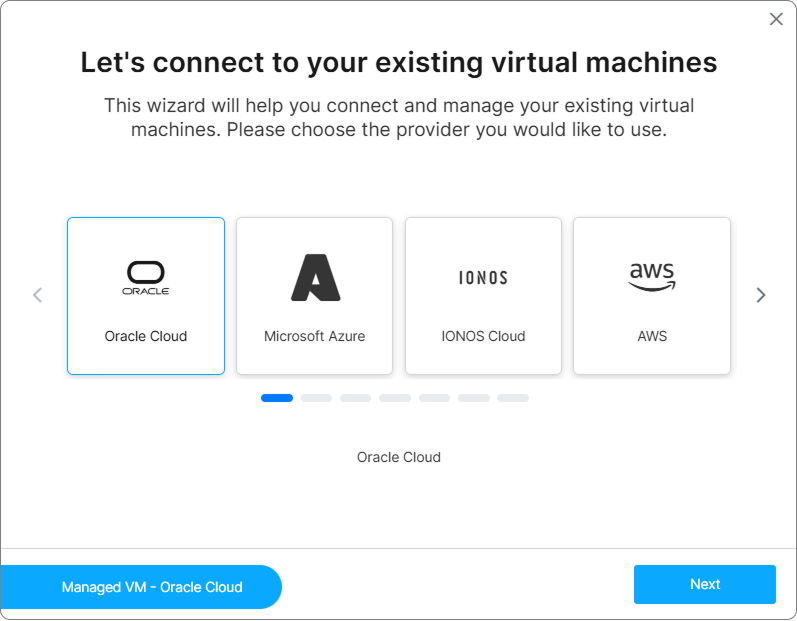
Choose the cloud provider or hypervisor where your VMs are hosted, then click Next.
Set the Authentication Credentials
In the Credentials step, select New to enter credentials for the provider connection, or Existing to choose credentials you have already configured in the Credentials tab.
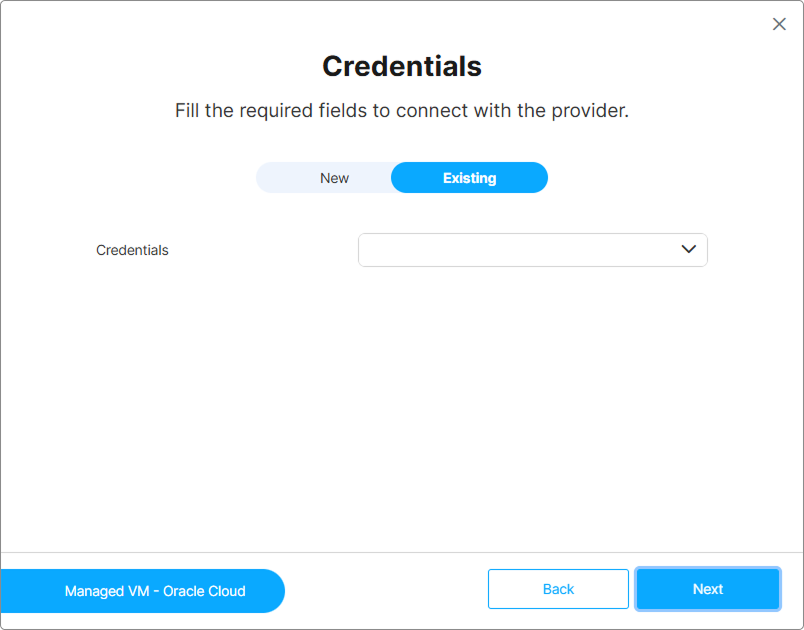
For details on configuring credentials per provider, see Credentials.
Set the Search Parameters
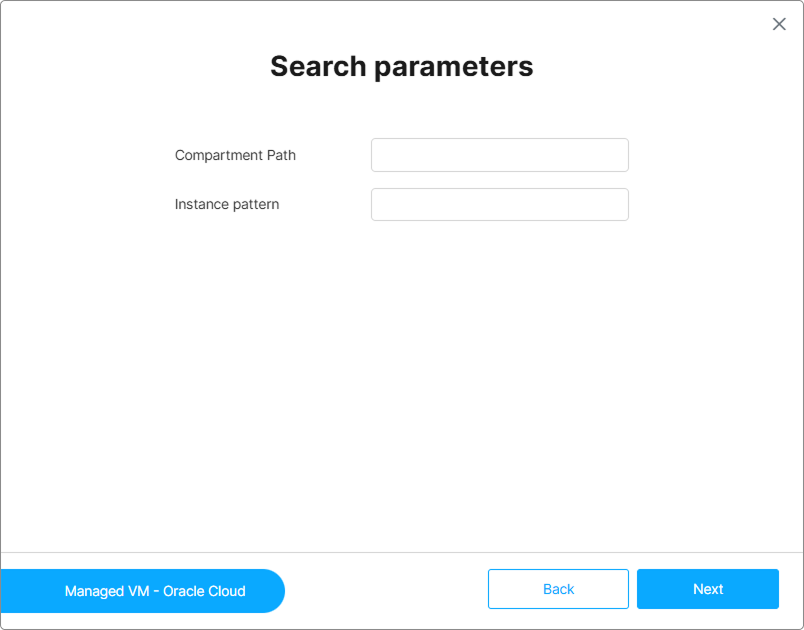
Specify the criteria Cloud Manager will use to identify and display available VMs in your environment. Use the Instance pattern field to filter VM names found in the selected datacenter.
Search parameters are cloud provider-specific and depend on the credentials entered in the previous step.
The Instance pattern matches a VM’s entire name, not just a leading portion — VMTest matches a VM named “VMTest” but not “VMTest1”. To match by prefix, end the pattern with “": "VMTest” matches “VMTest1” and any other name starting with “VMTest”. Matching is case-insensitive, so VMTest* also matches “VMTEST-B”. Within a pattern, “*” matches any number of characters and “?” matches a single character. Bracketed sets match one character — [abc] for any listed character, [a-z] or [0-9] for a range, and [!…] for any character not listed. For example, VMSIM0[2-4] matches “VMSIM02”, “VMSIM03”, and “VMSIM04”.
Set the Connection Mode
Select a Connection Mode for this Managed VM group.
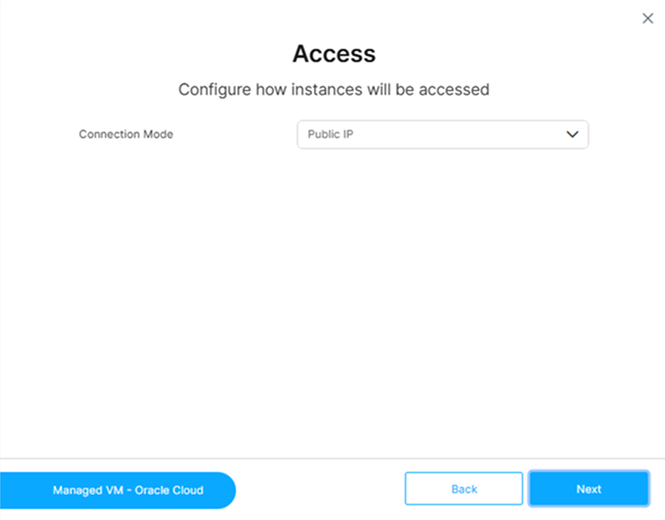
For a full description of the available options, see the Connection Mode entry in Provisioning and Pooling Options.
The Connection Mode can be reviewed or changed at any time after creation from the General section of the Managed VM editor.
Set Power Options
Determine when VMs will be available for use and when they will be shut down.
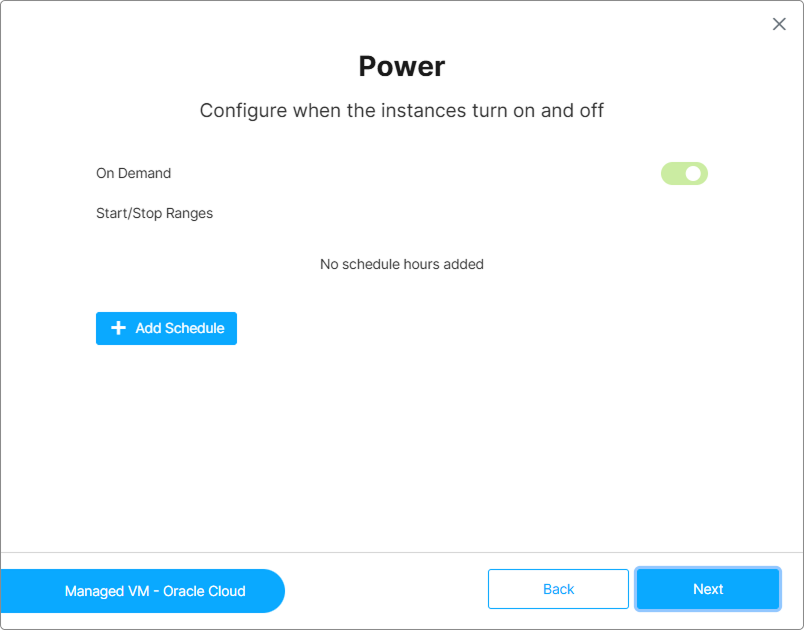
| Power Option | Description |
|---|---|
| On Demand | Starts VMs automatically when a user initiates a session. If disabled, sessions require pre-started VMs. |
| Add Schedule | Defines a time-based schedule for powering VMs on. Outside the scheduled window, VMs remain off unless On Demand is also enabled. |
Hybrid mode: If both On Demand is enabled and at least one schedule is defined, the Managed VM’s Mode is set to Both: VMs are powered on automatically during the scheduled windows and also started on demand when a user connects outside those windows. The same three modes — On Demand, Scheduled, and Both — are available from the Power tab of the Managed VM editor at any time after creation.
For a detailed reference on power and scheduling settings, see Power and Scheduling Settings.
Complete the Configuration
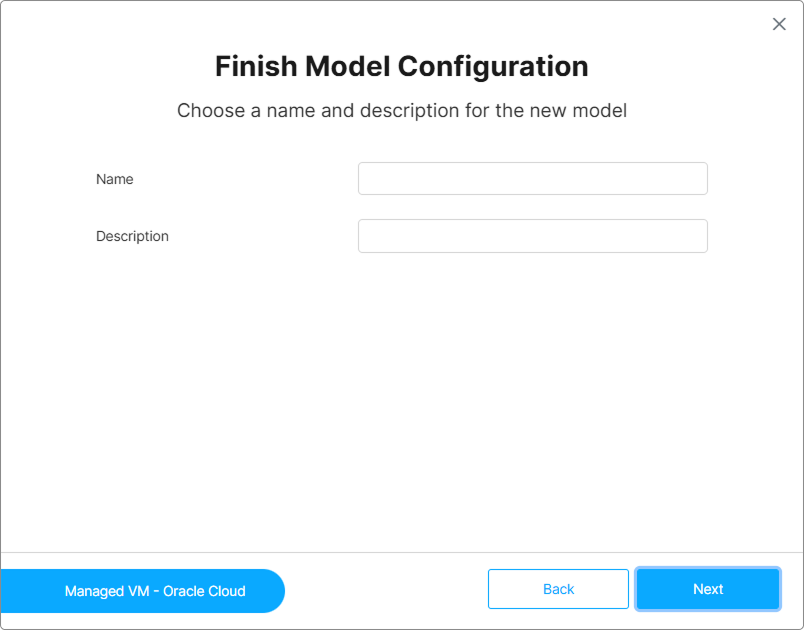
Give the Managed VM group an identifying Name and optional Description, then finish the wizard. A success message confirms that the connection was established.
Part 2 — Select the VM Instances
After configuring the connection, select the specific VMs you want to manage within Cloud Manager.
Select the Provider Connection
In the left tree, under Managed VMs, select the connection to the cloud provider where your VMs are hosted.
Open the Manage Instances Dialog
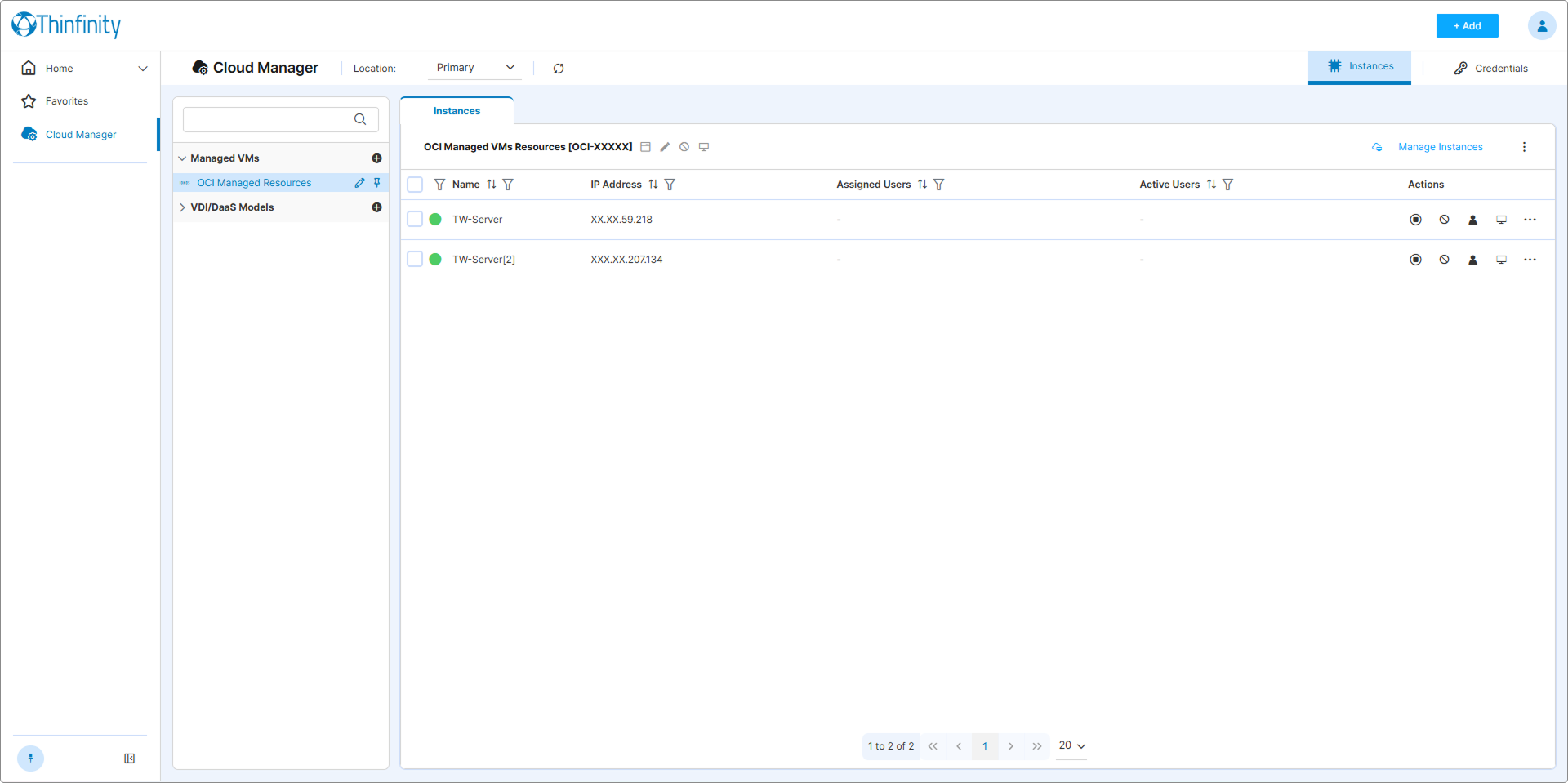
Click Manage Instances (top right in the Instances tab) to view all VMs available under the selected connection.
Select the VMs to Manage
In the Manage Instances dialog, select the VMs you want to bring under Cloud Manager control, then click Save.
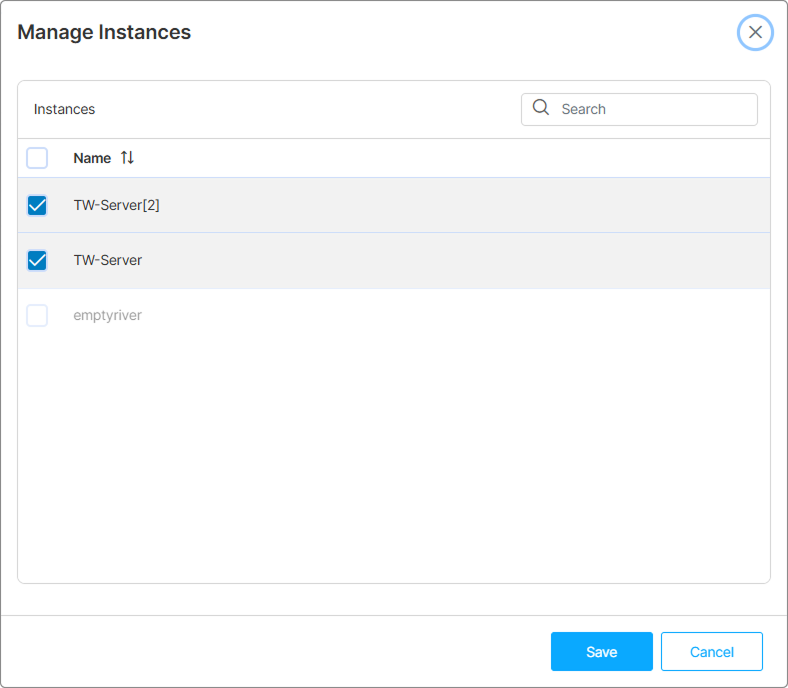
The Search field is the equivalent of the Instance pattern field from the wizard, see the callout above for details on its behaviour.
The selected VMs appear in the Instances tab with their current status and associated information, ready to be assigned and accessed.
What’s Next
- VM Actions Reference — Review available actions and status indicators for your VMs
- Create an Access Profile for Managed VMs — Grant end users access to the VMs you just connected