
Credentials
Before Thinfinity® Cloud Manager can provision, manage, or connect to virtual machines, it must have valid credentials for each target infrastructure platform. Credentials are stored securely within the Thinfinity® Workspace backend and are used for all subsequent operations against that provider — including discovering existing VMs, deploying instances, and executing power actions.
This article explains how credentials work in Cloud Manager and provides navigation to the provider-specific configuration articles.
Options and required fields vary by provider. The screenshots in this article are illustrative only — refer to the provider-specific articles linked below for exact field descriptions and requirements.
How Credentials Work in Cloud Manager
Each set of credentials in Cloud Manager authenticates a single connection to a specific provider account or hypervisor host. You can add multiple sets — for example, one per cloud account, per region, or per hypervisor cluster — and each one appears as a selectable option when you define Managed VMs or VDI/DaaS models.
Credentials are stored at the Cloud Manager level rather than per administrator. Any administrator with View permission on Credentials can see the stored credential entries (names, providers, statuses), and those with Create, Edit, or Delete permission can modify them. Secret values such as API keys, passwords, and certificates are never exposed in the UI, regardless of permission level. For the full permission model, see Cloud Manager Permissions.
Supported Providers
Cloud Providers
| Provider | How to Configure |
|---|---|
| Amazon Web Services (EC2) | AWS (EC2) |
| Google Cloud Platform | Google Cloud Platform |
| IONOS Cloud | IONOS Cloud |
| Microsoft Azure | Microsoft Azure |
| Oracle Cloud | Oracle Cloud |
On-Premises Hypervisors
| Provider | How to Configure |
|---|---|
| Microsoft Hyper-V | Microsoft Hyper-V |
| Oracle KVM (oVirt / OLVM) | Oracle KVM |
| Proxmox VE | Proxmox VE |
| Verge.IO | Verge.IO |
| VMware vSphere | VMware vSphere |
Container Platforms
| Provider | How to Configure |
|---|---|
| Kubernetes | Kubernetes |
Managing Credentials
Add a Credential Set
Navigate to Credentials
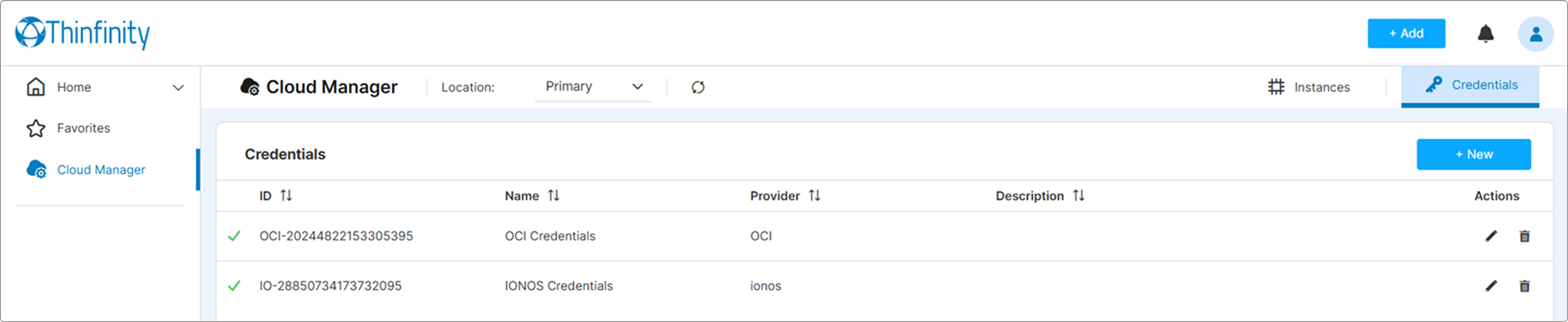
In the Cloud Manager home screen, in the top-right navigation panel, select Credentials.
Add a new credential set
Click + New to open the credential configuration form.
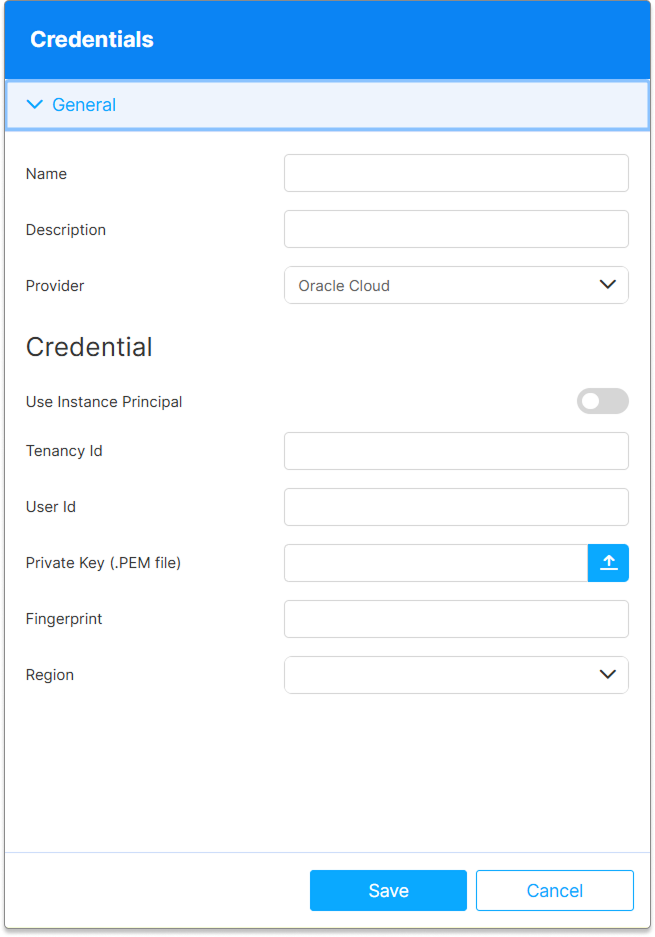
Choose your target provider from the Provider dropdown. The form will update to display the fields required for that provider, finally complete all required fields for your selected provider. Refer to the provider-specific pages in this section for field descriptions, minimum permission requirements, and configuration examples.
Add a Name and a Description, and then click Save to store the credentials. The new credential set will appear in the Credentials list and will be available for selection when configuring Managed VMs or VDI/DaaS models.
Edit a Credential Set
Existing credential sets can be edited from the Credentials list using the Edit icon in the Actions column, or by clicking anywhere on the row. The credential editor opens with the fields pre-filled.
Delete a Credential Set
To remove a credential set, use the Delete icon in the Actions column and confirm in the dialog that follows.
Deleting a credential set breaks any Managed VM connections, VDI/DaaS models, or deployed instances that rely on it. Before deleting, verify that no active resources depend on the credential set you are removing.
Credential Status
Each credential entry in the list displays a status indicator that reflects the current state of the credential record:
| Status | Meaning |
|---|---|
| New | The credential has just been created and not yet exercised by Cloud Manager against the provider. |
| Ok | The credential is valid and the most recent operation against the provider succeeded. |
| Error | An operation against the provider failed using this credential. Typical causes are an expired secret, revoked permissions, a network outage, or an incorrect field. Open the credential and verify each value, then save again to retry. |
| Deleted | The credential record has been removed. Resources that referenced it (Managed VMs, VDI/DaaS models, deployed instances) lose connectivity until reattached to a valid credential. |
Credentials are validated by Cloud Manager when they are first saved and again on every operation that uses them (provisioning, listing, power actions). A credential that worked previously may flip to Error if the underlying provider account, secret, or network connectivity changes. Re-open the credential to inspect each field and save to re-validate.
Security Considerations
- Use dedicated service accounts or API tokens with the minimum required permissions for each provider. Avoid using personal administrator accounts.
- For cloud providers, apply the principle of least privilege: grant only the permissions Cloud Manager needs to perform its operations (instance listing, start/stop, deployment, etc.). See the provider-specific pages for minimum permission sets.
- For on-premises hypervisors, prefer HTTPS/TLS connections where available. The Allow Unverified SSL and Disable TLS Verification options available for some providers should only be used on fully trusted, isolated networks.
- Credential secrets (passwords, secret keys, private keys) are stored encrypted. They are never displayed in plaintext after initial entry.
What’s Next
Now that you have at least one credential set configured, you can put it to use in one of two ways:
- Managed VMs — Bring existing virtual machines under Cloud Manager. Use this path when the VMs already exist in your provider account and you want to monitor, control, or assign them through Workspace.
- VDI/DaaS Models — Define a model that Cloud Manager uses to provision new instances on demand. Use this path when you want Cloud Manager to create and manage the lifecycle of VMs from a template.