
Deploy an Instance
Once you have created a VDI/DaaS model — using either a Built-in Blueprint or a Custom Terraform Template — you can deploy instances from it. Each deployment runs a Terraform Apply process that provisions one or more resources on your cloud provider or hypervisor according to the model’s configuration.
The following example uses OCI. Options may vary by provider.
Prerequisites
- The model must be in Active state. Inactive or errored models cannot be deployed from. See Model Settings Reference.
- The model must be a VDI/DaaS Model. For Managed VMs, see Connect to Existing VMs.
- Your cloud provider credentials must be configured and valid. See Credentials.
- You have Create and Edit permissions on Deployments. See Cloud Manager Permissions.
Open the Deployments Tab
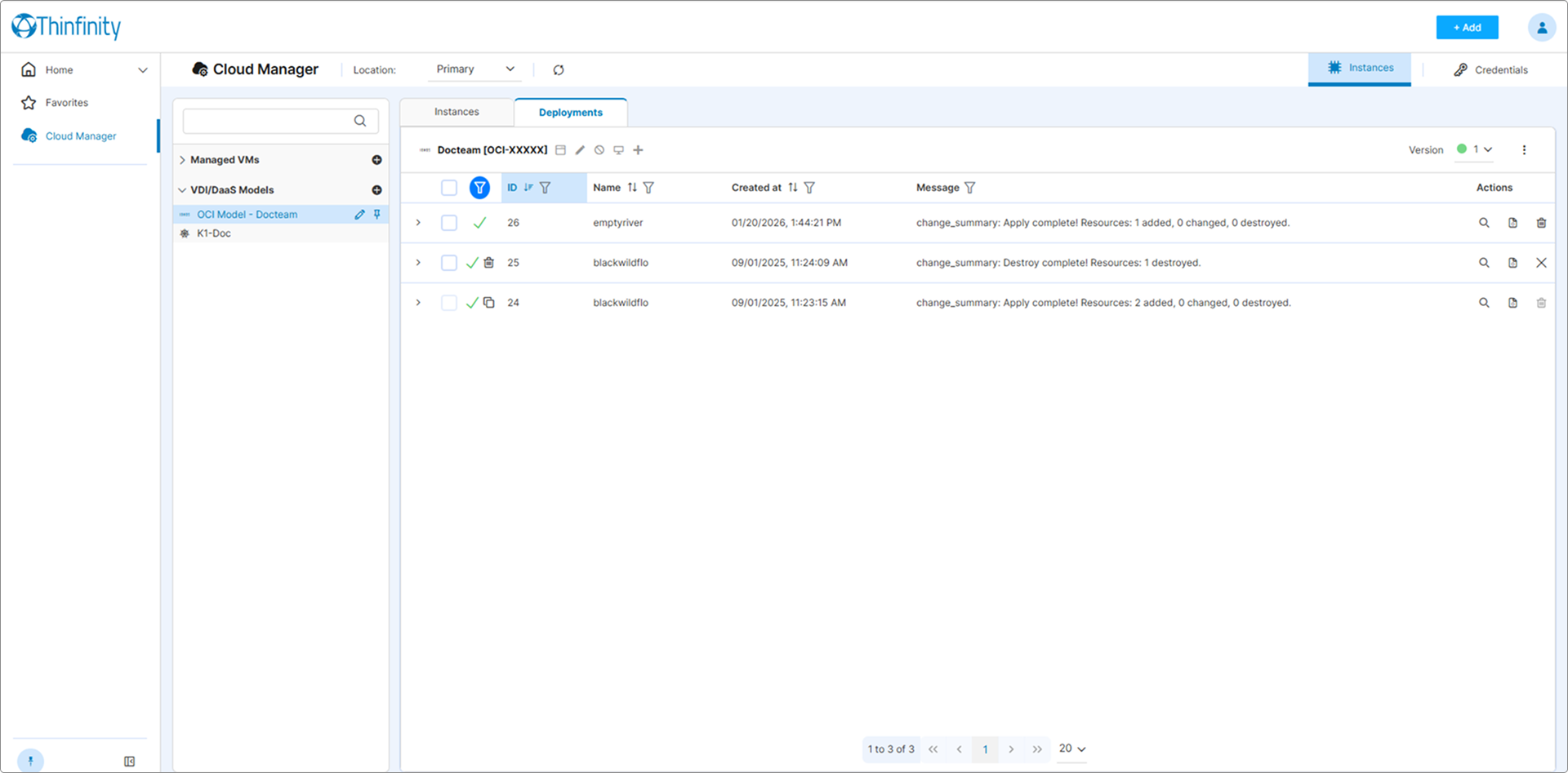
In the left tree, expand VDI/DaaS Models and click the model from which you want to deploy. Click the Deployments tab next to Instances.
Configure the Deployment Parameters
Click + button. The enqueue dialog opens. Deployments are queued and processed asynchronously by the broker.
| Field | Description |
|---|---|
| Version | The model version to use. Includes a state tag (Testing, Staging, Production). |
| Count | How many VMs to provision in this deployment run. |
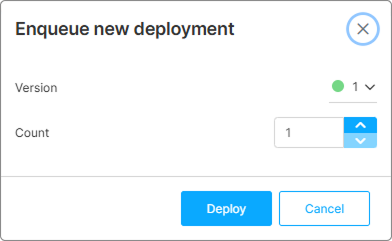
Click Deploy to confirm. The deployment is queued and begins processing.
Monitor Deployment Progress
The Deployments tab refreshes every 15 seconds while visible. Each row represents one deployment.
The status icon at the start of the row reflects the deployment’s current state — see Deployment States below. A small secondary icon next to the status indicates the action being performed (Creation or Destruction). A copy icon indicates a shared deployment.
| Column | Description |
|---|---|
| ID | Numeric identifier of the deployment. |
| Name | Deployment name (defaults to a generated identifier). |
| Created at | Timestamp of deployment creation. |
| Message | Last Terraform Apply status line for this deployment. |
Click the row expander (the ˅ icon at the left of the row) to reveal the Terraform state resources inline — every cloud resource that the deployment provisioned (VMs, network interfaces, IPs, disks, etc.). The expanded sub-table has the following columns:
| Column | Description |
|---|---|
| (icon) | Resource-type icon — varies by provider and resource (for example, a network icon for aws_vpc, an instance icon for aws_instance). |
| Name | Terraform name of the resource (the label used in the .tf file). |
| Type | Terraform resource type (for example, aws_instance, ionoscloud_datacenter, random_password). |
| Mode | Terraform resource mode (almost always managed). |
| Provider | Source Terraform provider for this resource (for example, provider["registry.terraform.io/hashicorp/aws"]). |
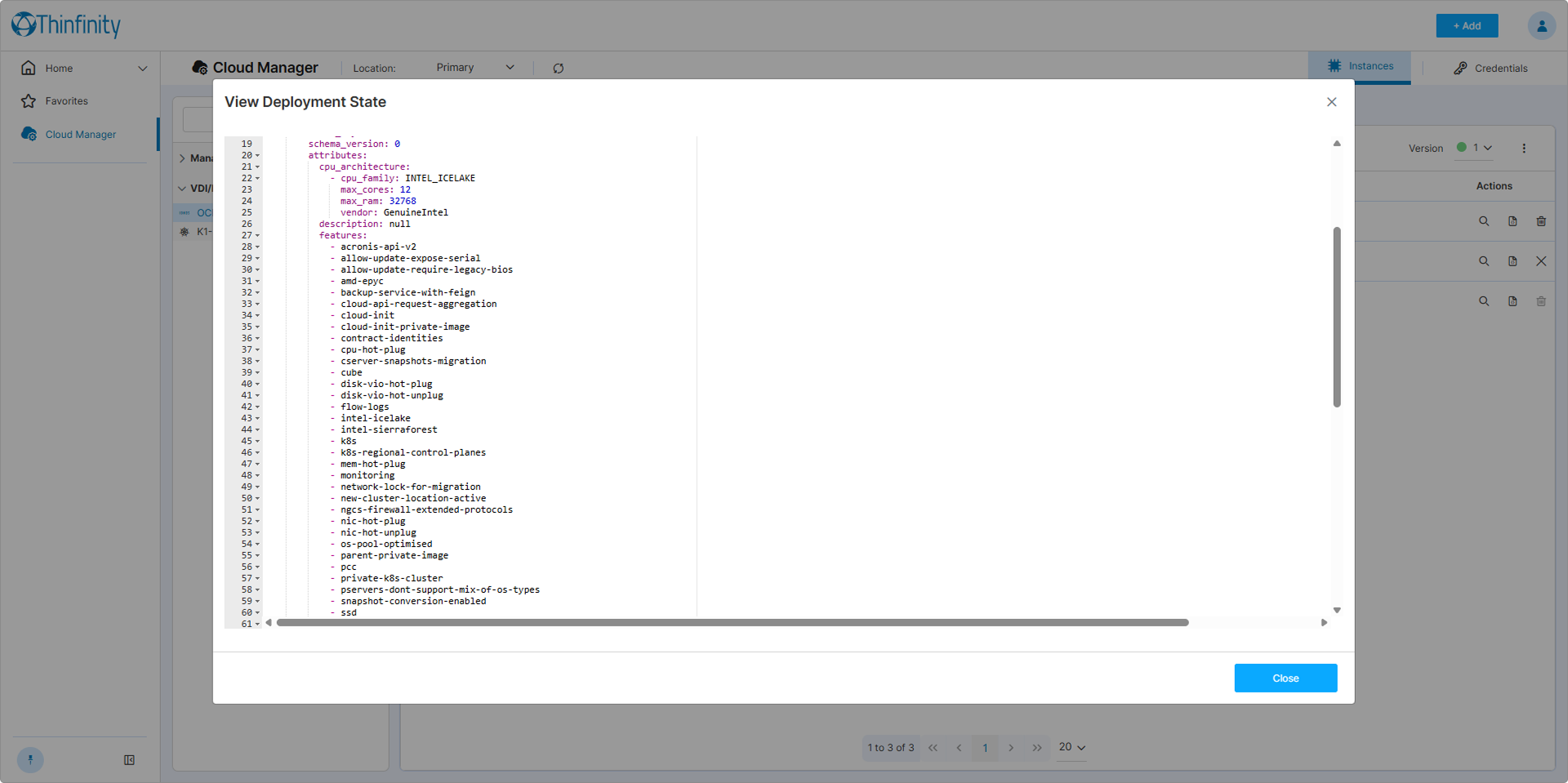
For the complete state document (including version, serial, lineage, outputs, and check_results), use the View State action — see the Per-Deployment Actions step below.
If a deployment fails, the Message column shows the error returned by Terraform or the provider; click View Log in the Actions column for the full output.
Per-Deployment Actions
Each row has three action icons in the Actions column:
| Action | Effect |
|---|---|
| View Log | Opens the full Terraform log for this deployment. |
| View State | Displays the Terraform state file in JSON. Useful for auditing the provisioned resources. |
| Destroy | Runs Terraform Destroy against the deployment’s resources and removes the deployment record once destruction completes. The action is disabled while a destroy is in progress on the same row. |
The Destroy action is disabled when the deployment is currently running (Started), already deleted (Deleted), or marked Shared (In Use) — meaning another active deployment in the same model depends on its shared resources.
To destroy several deployments at once, select rows using the row checkboxes and use the bulk actions kebab (⋮) in the table header.
It runs Terraform Destroy against the deployment, which permanently terminates all VMs provisioned by it. Confirm there are no active user sessions before destroying a deployment.
Verify Instances Are Ready
When the deployment completes successfully, the provisioned instances appear in the Instances tab with a status of Active or Inactive depending on the model’s Power and Scheduling Settings. For day-to-day operations on the deployed instances, see Manage Deployed Instances.
Deployment States
| State | Meaning |
|---|---|
| Started | Terraform Apply or Destroy is in progress (animated spinner icon). |
| Success | The operation completed successfully. |
| Error | The operation failed. See the Message column or View Log for details. |
| Deleted | The deployment was destroyed and removed. |
A second icon next to the status reflects the action that produced this state:
| Action | Meaning |
|---|---|
| Creation | The deployment was the result of a Terraform Apply (new resources). |
| Destruction | The deployment was the result of a Terraform Destroy (resources torn down). |
For the state values of individual instances after deployment, see Instance States and Lifecycle.
What’s Next
- To allow users to connect to the deployed instances, you must link them to an Access Profile. See Create an Access Profile for a VDI/DaaS Model.
- To manage instances day-to-day (start, stop, assign users), see Manage Deployed Instances.
- To assign a specific instance to a specific user manually, see Manually Assign an Instance to a User.