
Create a Model Using a Custom Terraform Template
Once your Terraform template files are ready, you can use them to create a VDI/DaaS model in Cloud Manager.
Prerequisites
- Cloud Manager is enabled. See Enable Cloud Manager.
- Cloud provider credentials are configured. See Manage Credentials.
- Your Terraform template files are ready. See Terraform Overview for the file structure and requirements.
- You have the Create on Models permission. See Cloud Manager Permissions.
Launch the Model Creation Wizard
If no models exist yet, the Welcome view appears in the right pane. Click Create New to open the wizard.
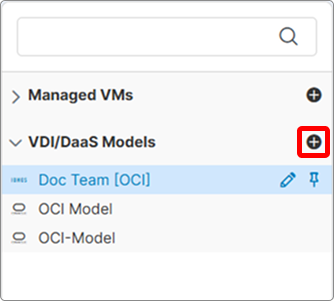
If models already exist, expand VDI/DaaS Models in the left tree and click the + Add button next to the section header.
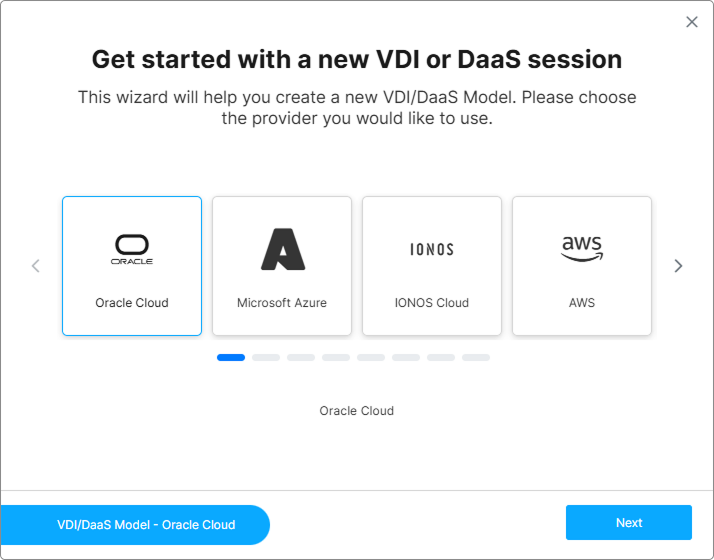
Choose a Cloud Service Provider
Select your target provider and click Next.
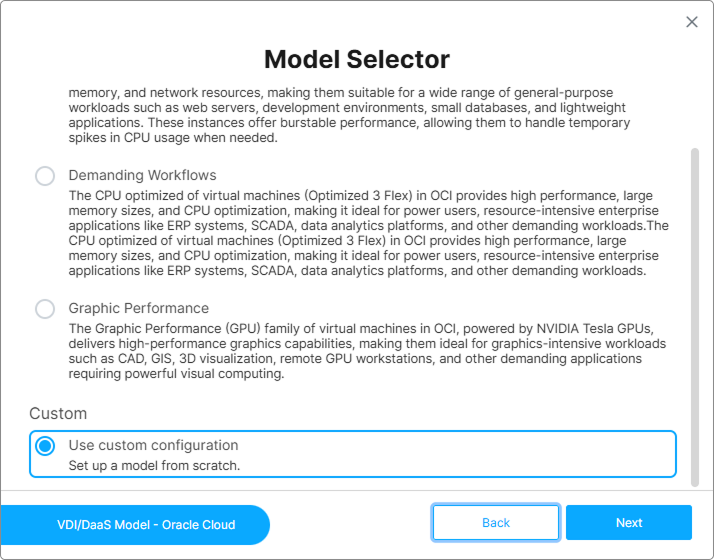
Select the Custom Configuration Option
In the Model Selector step, choose Use custom configuration.
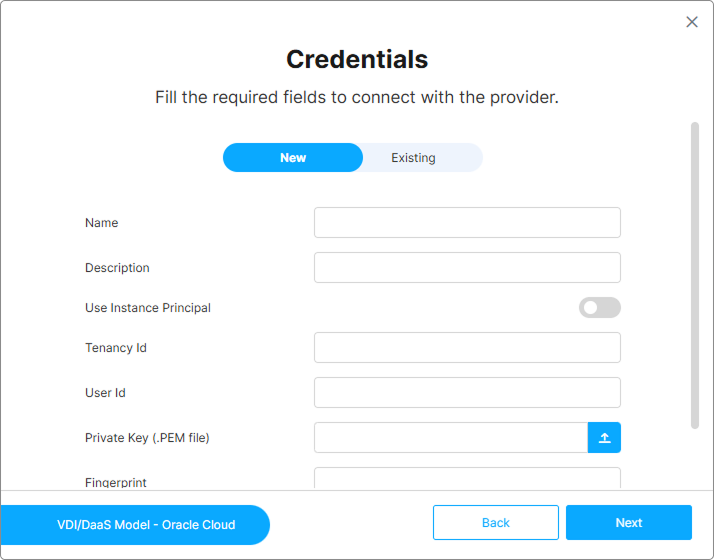
Select Cloud Provider Credentials
Choose how to authenticate with your cloud provider:
- New — Enter new credentials directly in the wizard. The form fields shown depend on the provider.
- Existing — Select a credential set already configured under Manage Credentials. See Manage Credentials.
Upload Your Terraform Template Files
The Template step has two panels:
| Panel | What goes here | Required |
|---|---|---|
| Main Template | All .tf files for the per-instance template (main.tf, variables.tf, outputs.tf), plus schema.json and uischema.json if your template exposes configurable parameters. |
Yes |
| Shared Template | .tf files that define infrastructure shared across all instances (Virtual Network, Subnet, NSG, etc.). Executes only once per deployment. |
No — only when your template uses Shared Template outputs. |
Cloud Manager packages the uploaded files into the model when you save.
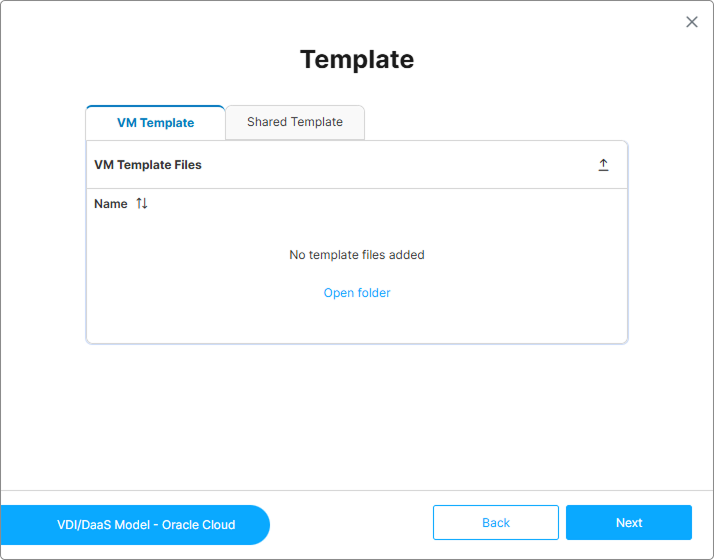
The VM resource in your Main Template must use var.vmname as the instance name (or interpolate it). Cloud Manager injects vmname at deployment time based on the model’s naming scheme — if the VM is named with a static string instead, every instance will collide on the same name. See Terraform Overview — VM Template.
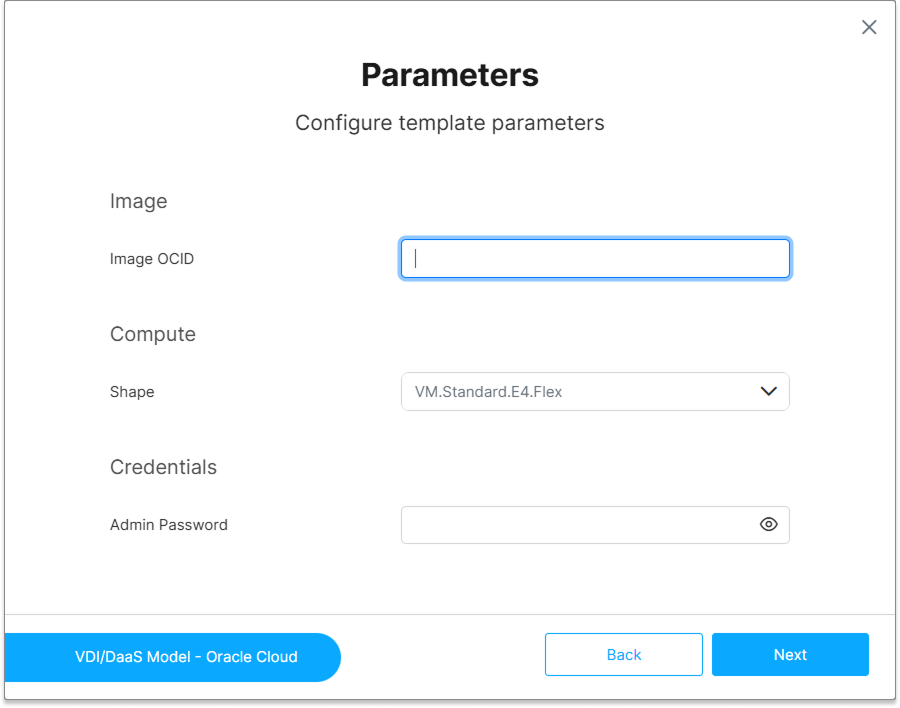
If you do not include schema.json and uischema.json in the Main Template, the Parameters step is skipped automatically. For details on authoring those files, see schema.json and uischema.json Reference.
Configure the Model Parameters
If your template includes a schema.json file, the Parameters step displays the input fields defined in that schema. These fields are provider- and template-specific — their content is determined entirely by your schema.json and uischema.json files.
Fill in the required fields and click Next.
Configure Provisioning
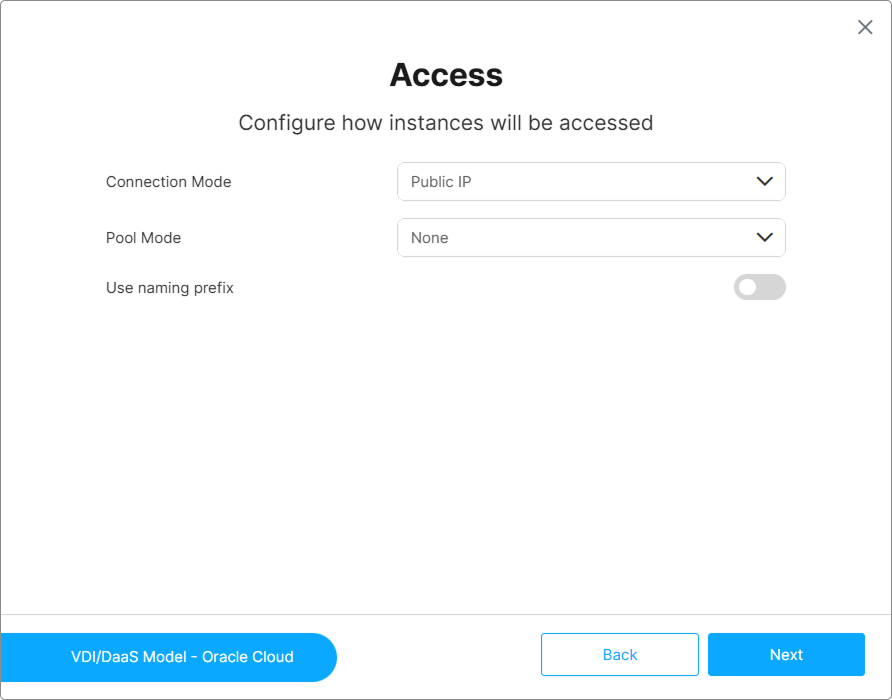
The Provisioning step controls how instances are accessed and how connections are distributed across the pool. For a full reference of Connection Mode, Pool Mode, and Use naming prefix, see Provisioning and Pooling Options.
Configure Deploy
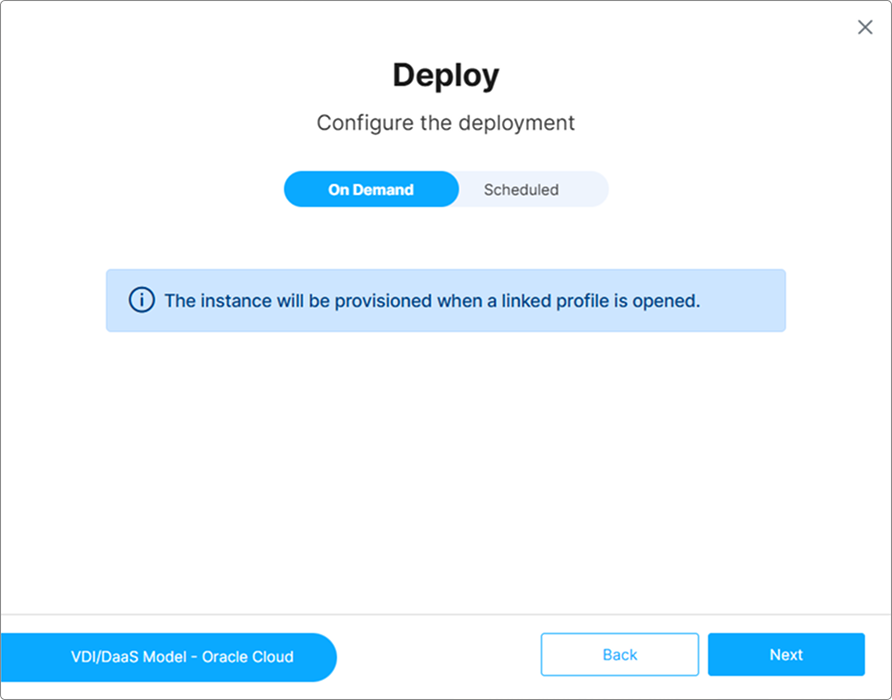
Set the Deployment Mode and instance counts for this model. Available modes are On Demand and Scheduled. For Scheduled, additional fields appear: Create At datetime, Initial Instances, Lazy Instances, and Max Instances.
For a full reference, see Provisioning and Pooling Options.
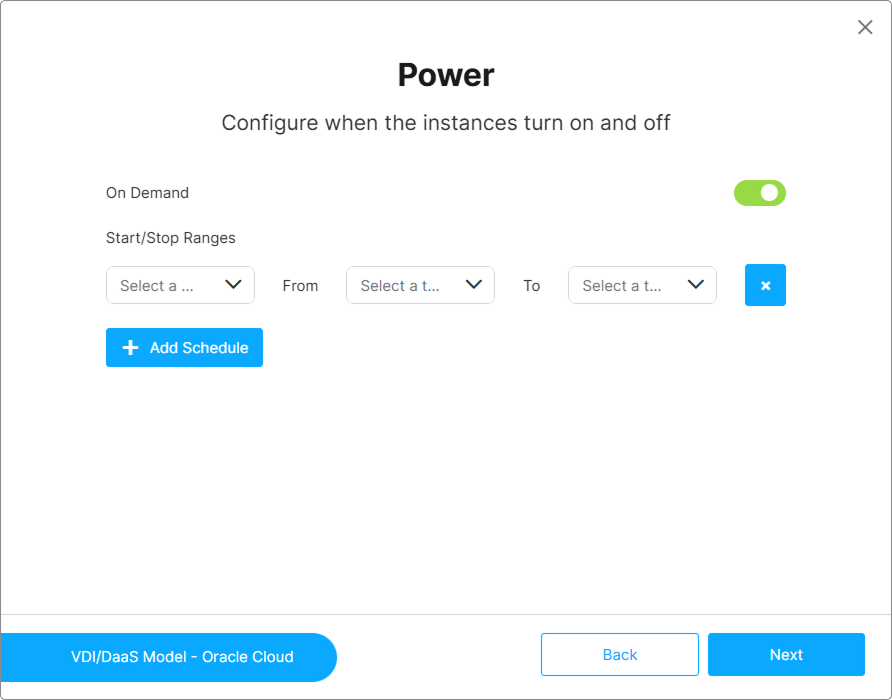
Configure Power
Configure when instances turn on and off. The wizard exposes an On Demand toggle and an Add Schedule control for defining Start/Stop Ranges:
- Toggle On Demand on with no schedule entries → On Demand mode.
- Toggle On Demand off and add schedule entries → Scheduled mode.
- Toggle On Demand on and add schedule entries → Both mode.
For a full reference, see Power and Scheduling Settings.
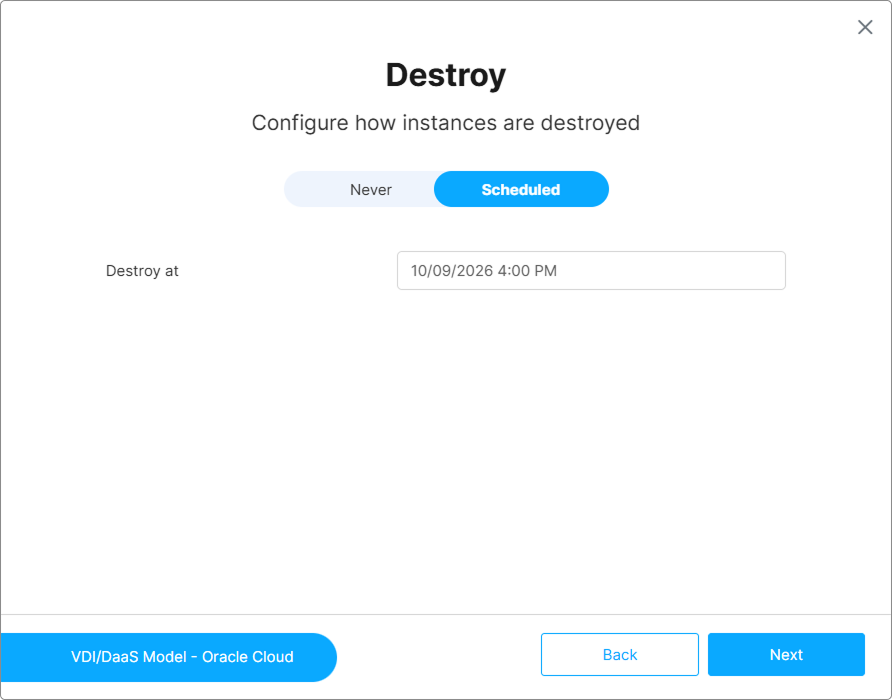
Configure Destroy
Define when instances are automatically destroyed:
- Never — Instances persist until manually detached by an administrator.
- Scheduled — Instances are automatically destroyed at the configured Destroy at datetime.
For a full reference, see Destroy Settings.
Save the Model
Enter a Name (required) and an optional Description. Click Save.
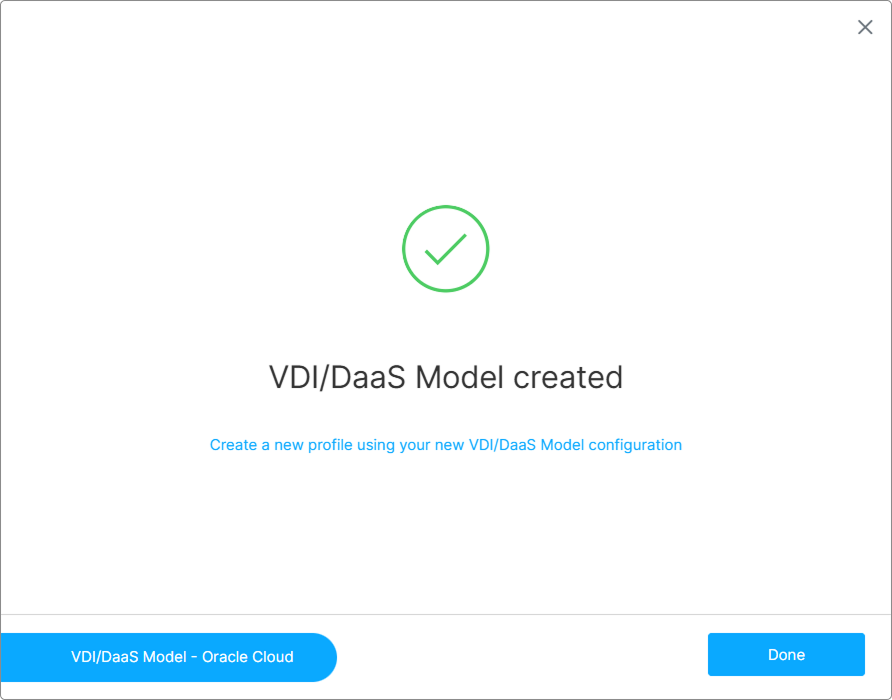
Cloud Manager displays a confirmation when the model is successfully created. The new model appears in the VDI/DaaS Models section of the left tree, and the wizard’s final screen offers a quick Create Profile link to start an Access Profile pre-filled for this model.
Editing the Template After Creation
To open the model editor, click the edit icon on the model in the left tree. The editor’s Templates tab exposes the same Main Template and Shared Template panels as the wizard.
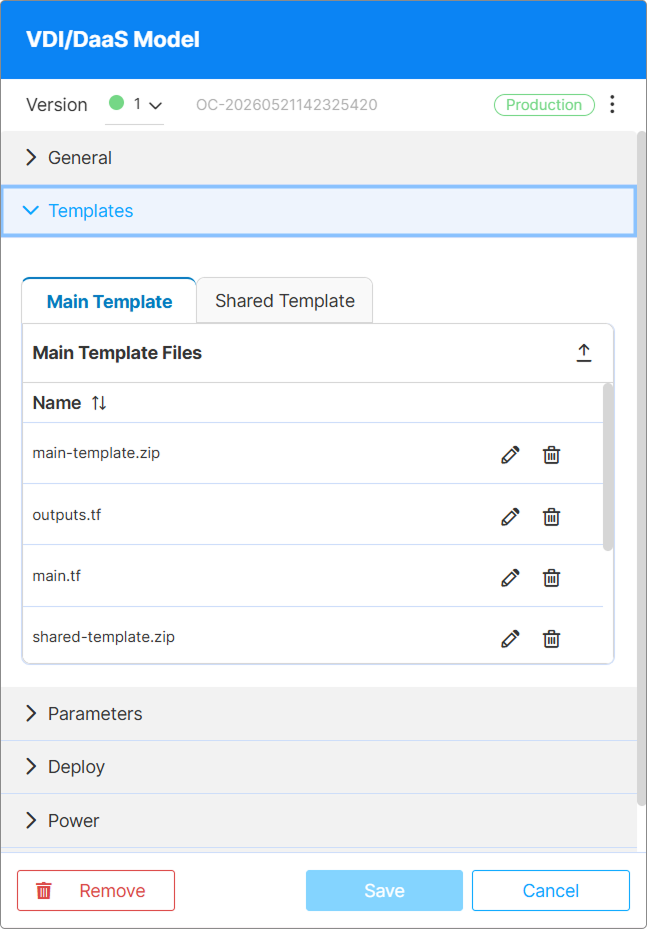
Editing the template of a model that has active deployed instances may cause inconsistencies between the running infrastructure and the updated template definition. Consider using Model Versioning to test changes in a non-production version first.
What’s Next
- schema.json and uischema.json Reference — Define the parameter fields shown in the Parameters step
- Deploy an Instance — Deploy your first instance from this model
- Model Versioning — Manage Testing, Staging, and Production versions
See Also
- Terraform Overview —
vmname, reserved variables, and Shared Template concepts - Terraform documentation portal
- Getting started with HCP Terraform
- Creating modules