
Delete a Model
Before a VDI/DaaS model can be deleted from Cloud Manager, all deployments and instances associated with it must be removed.
This operation is irreversible. The underlying cloud resources (VMs, network interfaces, disks, and related infrastructure) must be destroyed via the Deployments tab before the model record can be deleted. Any Access Profile that references this model will lose its association — users who try to use those profiles after deletion will receive an error.
Prerequisites
- The Delete on Models permission. See Cloud Manager Permissions.
- Recommended: Export the model before deleting, as a backup in case you need to recreate it.
- Identify all Access Profiles that reference this model. Update or remove those profiles before deleting the model to avoid broken connections for end users. See Access Profiles and Cloud Manager.
- If the model has multiple versions, switch to a non-Production version before attempting deletion. The Remove button is disabled when the current version is in Production state and other versions exist.
Destroy All Deployments
Locate the model in the left tree and click the Deployments tab next to the model’s Instances tab. The tab lists every Terraform deployment created from this model.
For each deployment row, click the Destroy action (the trash icon in the Actions column). Cloud Manager runs terraform destroy against the deployment’s resources and removes the deployment record once destruction completes.
To destroy several deployments at once, select rows using the row checkboxes and use the bulk actions kebab (⋮) in the table header.
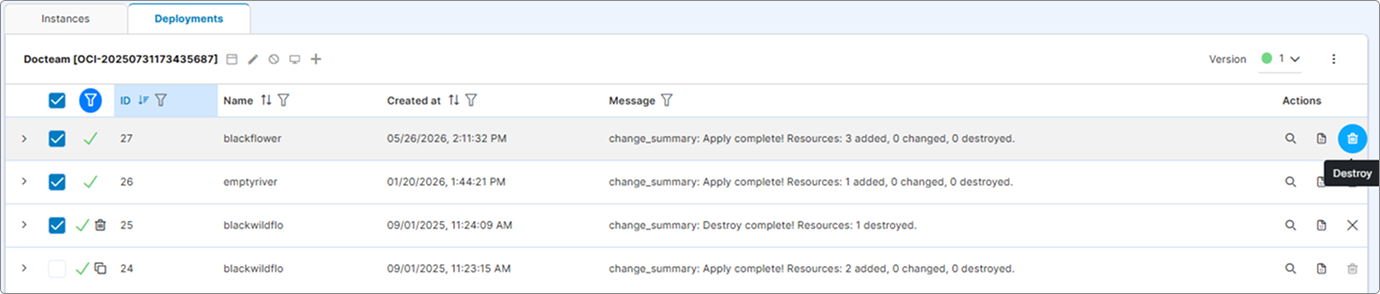
For the state transitions during destruction, see Deploy an Instance — Deployment States.
All VMs and supporting resources provisioned by a destroyed deployment are removed. Local data on those VMs is permanently lost.
Repeat until the Deployments tab is empty.
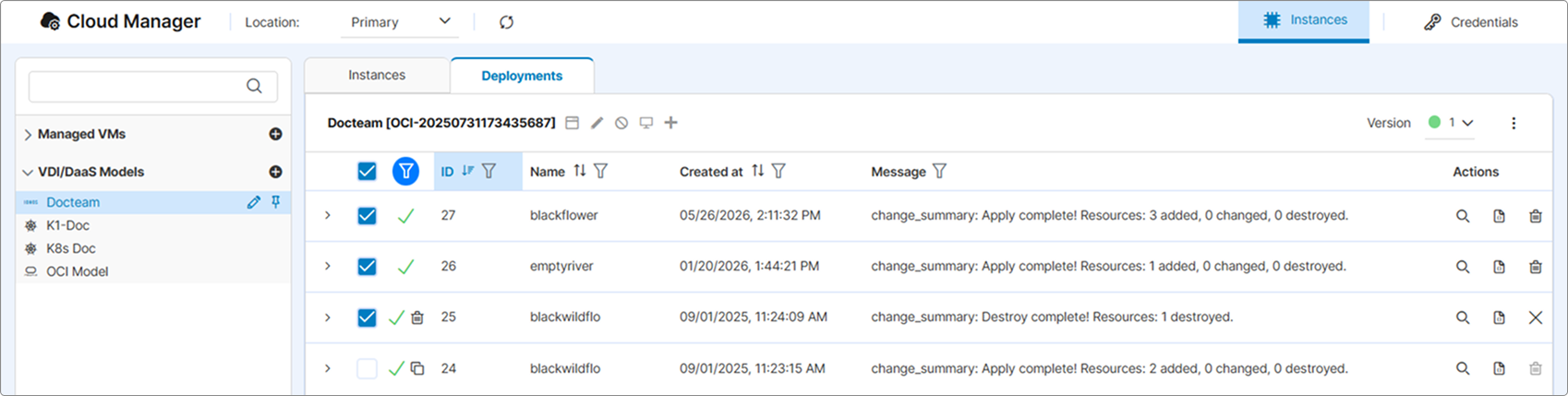
Open the Model Editor
Click the edit icon on the model’s row in the left tree (or use the edit action in the model header above the Instances/Deployments table).
Remove the Model
In the model editor’s footer, the Remove button (left side, danger style) is now enabled. Click it.
A confirmation dialog appears with the title Delete VDI/DaaS Model and the message “Are you sure you want to delete VDI/DaaS Model [<model name>]?”. Click Yes to confirm.
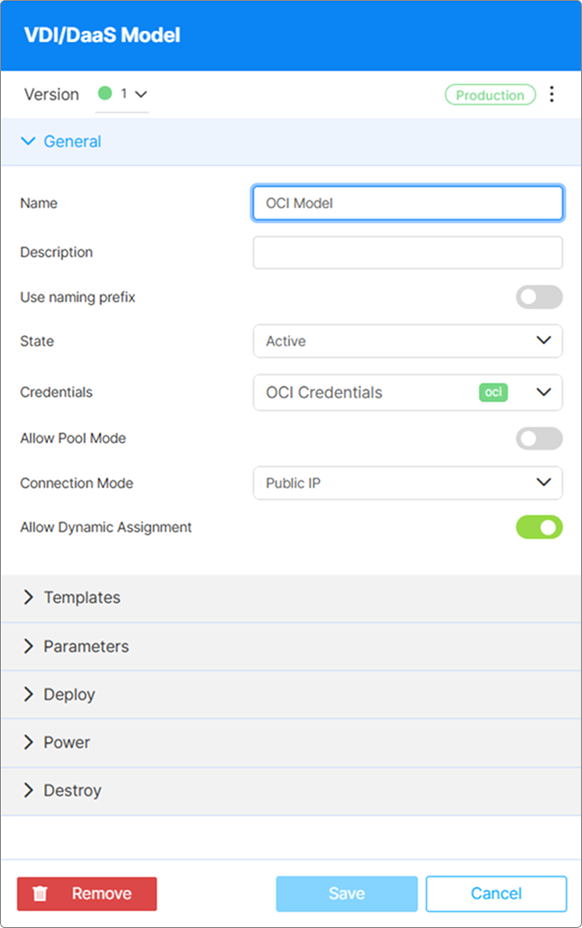
The model is permanently removed from Cloud Manager and disappears from the model tree.
If the Remove button is disabled, the model still has active deployments (complete Step 1) or the current version is Production with other versions existing (switch to a non-Production version first).
What’s Next
- VDI/DaaS Models Overview — Return to the models chapter
- Export and Import Models — Restore a model from a backup if needed
See Also
- Kubernetes Models — Pod cleanup and model deletion happen from the K8S Configuration tab and the model header
- Deploy an Instance
- Access Profiles and Cloud Manager
- Model Versioning