
Managed VMs
Managed VMs let you bring existing virtual machines — hosted in a cloud provider or an on-premises hypervisor — under the control of Thinfinity® Cloud Manager without reprovisioning or recreating them. Rather than building infrastructure from scratch through a VDI/DaaS model, you register machines that already exist in your environment, expose them to users through Access Profiles, and manage their lifecycle from a single, centralized interface.
This approach is the right fit when your organization needs to provide access to dedicated, persistent workstations where users always connect to the same machine, or when you want to make an existing VM fleet available through Thinfinity® Workspace without adopting the full model-driven VDI/DaaS workflow.
Note that this chapter covers traditional virtual machines only. To deliver session-based desktops or applications from a Kubernetes cluster (pod-per-session), use a VDI/DaaS Model in Kubernetes mode — Kubernetes is exposed as one of the wizard modes when creating a VDI/DaaS Model, not as a Managed VM.
How Managed VMs Work
When you register a VM as a Managed VM, Cloud Manager establishes a connection to the provider or hypervisor where the VM resides. The VM then appears in the Instances tab of Cloud Manager, where you can monitor its status, control its power state, assign users, and create Access Profiles.
Cloud Manager acts as a management and brokering layer — it does not alter the VM itself. The VM continues to run in your infrastructure exactly as before; Cloud Manager simply adds visibility and access control on top.
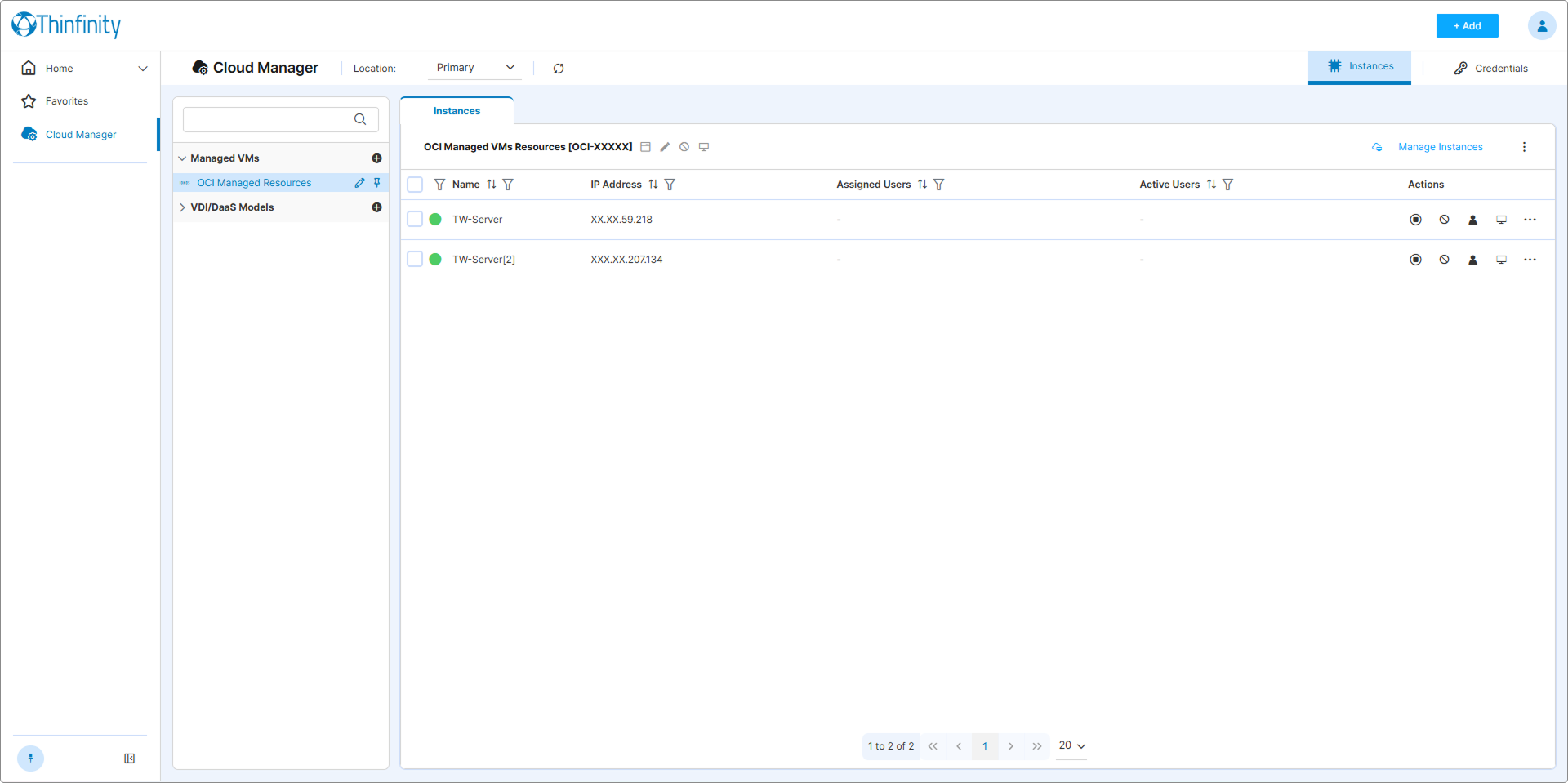
What You Can Do with Managed VMs
Once a VM is registered in Cloud Manager, you can:
- Monitor its real-time status (Active, Inactive, Activating, Disabled, Error) from the Instances tab
- Control its power state — start, stop, enable, or disable VMs individually or in bulk
- Assign users to specific VMs to enforce dedicated access
- Create Access Profiles to expose VMs to end users through Thinfinity Workspace
- View the event log for each VM to audit status changes
- Apply bulk actions across multiple VMs simultaneously
Supported Providers
Managed VMs are supported across all providers and hypervisors integrated with Cloud Manager. See Supported Providers and Hypervisors for the complete list.
Feature availability across providers — including the granularity at which Cloud Manager can directly act on each provider’s resources — varies. Provider-specific notes are documented in the per-provider credential pages and in Supported Providers and Hypervisors.
In This Section
- Connect to Existing VMs — Register your cloud or on-premises VMs with Cloud Manager
- VM Actions Reference — Status indicators, available actions, power controls, and bulk operations
- Snapshots and Restore — Capture and restore VM states (provider availability varies)
What’s Next
After connecting your VMs:
- Assign users to specific VMs — optional, for dedicated 1:1 assignment
- Create Access Profiles for Managed VMs — allow end users to connect through Thinfinity Workspace