
Staged Power On/Off
Staged Power On/Off is a fine-grained pool-sizing policy that operates within the boundaries of the chosen Power Mode. Instead of starting or stopping all instances together, it keeps a configurable baseline of instances powered on, brings additional instances online in batches as user occupancy rises, and powers idle instances back off after a delay once demand drops.
The Power Mode defines when the policy is active; Staged Power On/Off defines how many instances to keep running and how the pool grows and shrinks within that window.
To change when or how many instances Cloud Manager deploys, see the Deployment Trigger and Instance Count Settings in Provisioning and Pooling Options. Staged Power On/Off acts on the power state of instances that already exist; it does not control deployment.
Staged Power On/Off requires Allow Pool Mode to be enabled in the editor’s General tab — the section is hidden otherwise. See Allow Pool Mode for the prerequisite and the related Pool Mode configuration.
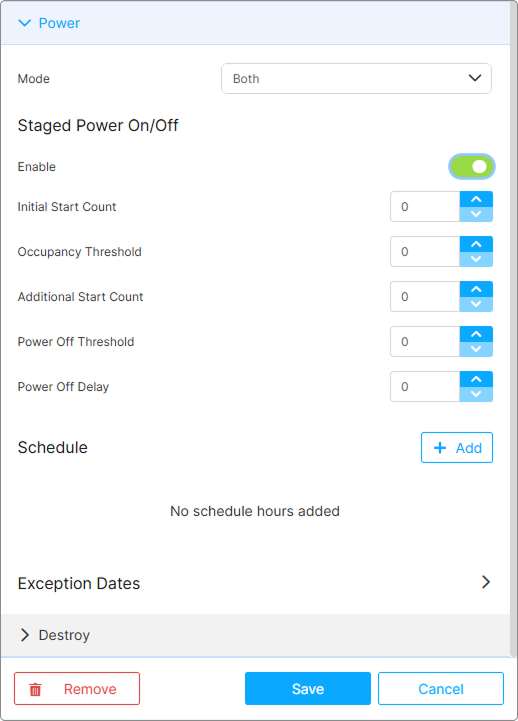
Staged Power On/Off appears in the model editor’s Power tab, gated by an Enable switch.
Field Reference
| Field | Description |
|---|---|
| Enable | Switch that activates the Staged Power On/Off policy. When off, the model uses the standard pool behavior for the selected Mode without staged batching. |
| Initial Start Count | Number of instances kept powered on as a baseline whenever the active power window is open. The pool will not be scaled below this count by Staged Power On/Off, even if all VMs are idle. Visible only when Mode is Scheduled or Both. |
| Occupancy Threshold | Per-instance fill level (in active sessions) at which Cloud Manager considers the pool “near capacity” and triggers an additional batch start. The trigger fires when the pool’s total free session slots fall to Max Users per Instance − Occupancy Threshold. Algebraically: when total active sessions reach Max Users per Instance × (active VMs − 1) + Occupancy Threshold — i.e. when all but one of the running VMs are full and the last one has reached this threshold. Must be set below Max Users per Instance, otherwise the formula degenerates and the trigger never fires before VMs refuse new sessions. |
| Additional Start Count | Number of additional VMs to power on in a single batch when the Occupancy Threshold is crossed. Cannot be set below 1; a value of 0 is silently treated as 1. |
| Power Off Threshold | “Under-utilization” signal, in active sessions per VM. Only empty VMs (zero sessions) are ever powered off by Staged Power On/Off — this threshold does not flag partially-occupied VMs for shutdown. Instead, it controls whether Cloud Manager keeps a one-VM warm buffer above the Initial Start Count baseline: if any running VM has a session count at or below this threshold (and above 0), the buffer is released and every empty VM above the baseline is powered off; otherwise one empty VM is retained as a buffer. The default of 0 means the buffer is always retained when non-empty VMs exist. |
| Power Off Delay | Time, in minutes, between the moment a VM is identified as a power-off candidate and the moment Cloud Manager actually powers it off. Provides a grace period that absorbs short-lived disconnect/reconnect cycles. |
Both Occupancy Threshold and Power Off Threshold are absolute session counts, not percentages. Max Users per Instance is configured in the editor’s General tab.
How the Power-On Logic Works
When a user attempts to connect, Cloud Manager evaluates the pool’s aggregate fill level — not per-VM counts — and decides whether to bring more instances online:
- Compute
MaxOccupancy = active VMs × Max Users per Instance(the pool’s total session capacity). - Compute
FreeSlots = MaxOccupancy − total active sessions across the pool. - If
FreeSlots ≤ Max Users per Instance − Occupancy Threshold, the trigger fires. - Cloud Manager powers on Additional Start Count more VMs, up to the model’s Max Instances Count ceiling.
When powering on a batch, Cloud Manager first cancels any pending power-off actions on stopped instances, then starts fresh stopped instances, until Additional Start Count new instances are coming online or the Max Instances Count ceiling is reached.
The trigger is pool-wide, not per-VM. With Breadth First pooling (sessions distributed evenly across VMs), the practical effect is the same as a per-VM threshold — the trigger fires roughly when every VM has reached the threshold. With Depth First pooling (sessions stack on one VM until full), the pool-wide formula means the trigger only fires when the pool as a whole approaches capacity — a single VM reaching the threshold while others are empty does not trip the trigger.
How the Power-Off Logic Works
A background check runs every 30 seconds, processing models flagged by recent session activity, and every 2 minutes performs a full re-scan of all active models:
- If the pool currently has fewer or equal active VMs than Initial Start Count, the check exits — the baseline is the floor.
- Cloud Manager counts the running VMs by usage: empty (zero sessions) and non-empty. It also checks whether any non-empty VM has a session count at or below Power Off Threshold.
- If at least one non-empty VM is at or below the threshold, all empty VMs above the baseline are released. Otherwise, one empty VM is retained as a buffer and the rest above the baseline are released.
- For each empty VM selected for release, Cloud Manager schedules a power-off action Power Off Delay minutes in the future.
- Power-off actions stop scheduling once the active VM count would drop to Initial Start Count — the floor is never crossed.
Only empty VMs are ever powered off by this routine. A partially occupied VM is never shut down by Staged Power On/Off — its sessions must end first, at which point the VM becomes empty and is eligible for the next cycle’s release.
Active Window by Power Mode
The Power Mode defines when Staged Power On/Off is active.
| Option | Active Window |
|---|---|
| On Demand | Full day. The policy is evaluated continuously by the background check and on every connect/disconnect. |
| Scheduled | Each scheduled Start–Stop entry opens a window. Outside of any scheduled window the policy is inactive. |
| Both | Full day — same as On Demand. The schedule entries drive proactive power-on at the configured times, but Staged Power On/Off itself is evaluated all day. |
With Mode: Scheduled, the Initial Start Count baseline applies inside the scheduled window only. Outside the window, instances may be powered off by the configured Stop time regardless of the Staged Power On/Off configuration.
Worked Example
A model is configured as follows:
- Allow Pool Mode: enabled
- Pool Mode: Depth First
- Max Users per Instance: 10
- Max Instances Count (General tab): 8
- Power Mode: Both
- Staged Power On/Off — Enable: on
- Initial Start Count: 2
- Occupancy Threshold: 8 (a VM with 8 or more active sessions triggers a batch start)
- Additional Start Count: 2
- Power Off Threshold: 1 (a VM with 1 or fewer active sessions becomes a candidate)
- Power Off Delay: 10
Behavior:
- Throughout the day, Cloud Manager keeps at least 2 VMs running.
- As users connect, Depth First pooling fills the first VM. Once the pool reaches 18 total active sessions (VM #1 fully loaded with 10 sessions and VM #2 with 8 — the Occupancy Threshold), Cloud Manager powers on 2 additional VMs. The pool is now 4 VMs.
- Users continue connecting and filling VMs to capacity. With 4 VMs active, the next batch fires at 38 total active sessions (three VMs full plus the fourth at 8). Each subsequent batch raises the trigger point by 10 — until the Max Instances Count ceiling of 8 is reached.
- As users disconnect, empty VMs above the Initial Start Count baseline are scheduled for power-off in 10 minutes. If any VM has dropped to Power Off Threshold (1) or below, all empty VMs above the baseline are released; otherwise one empty VM is kept as a buffer (see How the Power-Off Logic Works).
- The pool is never scaled below 2 VMs by Staged Power On/Off — even at zero active users, the baseline remains running.
Interaction with Related Settings
Pool Mode
The Pool Mode chosen in the editor’s General tab shapes how thresholds behave:
- Breadth First distributes sessions evenly, so per-VM session counts rise gradually and Occupancy Threshold trips as the pool collectively fills.
- Depth First stacks sessions on one VM at a time, so Occupancy Threshold trips sharply on the active VM and the next VM is powered on as that one fills.
Changing Pool Mode after configuring Staged Power On/Off does not reset the threshold values, but values that worked for one mode may not be appropriate for the other. Plan to retune after any change.
Max Instances Count
Max Instances Count is the upper bound on the pool. If the Occupancy Threshold keeps tripping but the pool has reached Max Instances Count, no new VMs are powered on; new sessions land on whichever VMs still have capacity, and once every VM is at Max Users per Instance, additional sessions are refused.
For details on Max Instances Count and how it differs from the per-schedule Max Instances, see Instance Count Settings.
Max Users per Instance
Max Users per Instance is the per-VM session capacity. It interacts with Staged Power On/Off in two ways:
- It is the upper ceiling that Occupancy Threshold must sit below. If Occupancy Threshold is set equal to or higher than Max Users per Instance, the threshold can never trip — the VM refuses new sessions before reaching the threshold value, and the staging logic never registers a scale-out condition.
- It determines what “full” means for a VM, which is the reference frame for Power Off Threshold.
The field defaults to 1, which makes Staged Power On/Off non-functional out of the box: with capacity of 1, any Occupancy Threshold value of 1 or higher cannot trip, and the staging logic produces no scale-out events. Set Max Users per Instance to the workload’s true per-VM ceiling before configuring the thresholds. A useful rule of thumb is to set Occupancy Threshold at roughly half to three-quarters of Max Users per Instance, leaving headroom for the staging logic to provision additional capacity before VMs start refusing sessions.
Lazy Instances
Lazy Instances is the count of warm, unassigned instances kept ready for fast handoff. It supplements Initial Start Count rather than replacing it:
- Initial Start Count is the floor for Scheduled and Both modes — Cloud Manager keeps this many VMs powered on whenever the window is open.
- Lazy Instances is a warm buffer for absorbing new sessions without waiting for a cold start.
For most workloads, configure either Initial Start Count (for Scheduled or Both modes) or Lazy Instances (for On Demand mode), not both at high values, to avoid over-provisioning warm capacity.
Stop after Disconnect
The model-level Stop after disconnect (in the editor’s Power tab, On Demand and Both modes) controls how long an instance is kept running after the last user session disconnects, before becoming a candidate for power-off.
The two delays compound: a VM does not power off until Stop after disconnect has elapsed AND the Staged Power On/Off Power Off Delay has elapsed. With Stop after disconnect = 5 minutes and Power Off Delay = 15 minutes, a VM that goes idle stays running for the full 20 minutes before powering off.
In Scheduled and Both modes, Initial Start Count powers on a baseline of VMs at the start of each scheduled window. If the previous window ended with VMs still serving briefly-disconnected sessions, the Stop after disconnect delay may keep those VMs running into the gap. The new window’s Initial Start Count is applied on top of any VMs still running from the previous cycle, not as a replacement.
Destroy Settings
Destroy Settings control when instances are removed from the pool. If Destroy → Mode = Scheduled is configured with frequent destruction, expect the pool to spend time rebuilding capacity after each destruction cycle — the Initial Start Count baseline does not protect against destruction events. Coordinate destruction schedules with low-demand periods.
Deployment Lifecycle
When a model is deployed for the first time, Staged Power On/Off does not begin operating until the deployment completes successfully. During the deployment, the pool has no instances to stage. Provisioning takes 3 to 7 minutes per instance for OCI Compute and longer for some other providers.
When the model is redeployed (rolling out a new version, a new Golden Image, or updated configuration), Staged Power On/Off continues to act on instances from the previous deployment until they are replaced. The pool may briefly contain a mix of old and new instances during the transition, all subject to the same staging logic. See Model Versioning.
If a deployment fails partway through, Staged Power On/Off acts on whatever instances were successfully created. The pool may be smaller than configured until the failed deployment is retried and completed. See Provisioning Failures.
Monitoring
Verify Staged Power On/Off operation against these patterns:
- The total number of running instances should never exceed Max Instances Count.
- During scheduled windows in Scheduled or Both modes, the count of running instances should never fall below Initial Start Count.
- Outside scheduled windows in Scheduled mode, the pool stays in whatever state it was in when the window ended — no power-on activity occurs until the next scheduled window. In Both mode, the pool falls back to On Demand behavior outside scheduled windows.
For troubleshooting Staged Power issues, see Staged Power On/Off Issues. For richer monitoring, see Monitoring Overview.
What’s Next
- Tuning Staged Power by Workload Pattern — Example configurations for common pool patterns
- Staged Power On/Off Issues — Troubleshooting common Staged Power problems
See Also
- Power and Scheduling Settings — Power Modes, Stop after disconnect, schedule entries
- Provisioning and Pooling Options — Deployment trigger, instance count settings, and Pool Mode
- Pooling Strategies — How Pool Mode affects the cost impact of power settings
- Model Settings Reference