
Cloud Manager Permissions
Cloud Manager uses a dedicated permission layer on top of the Thinfinity® Workspace RBAC model. These permissions control which operations each user or group can perform on Cloud Manager entities and are configured from either the Configuration Manager desktop application or the Web Manager — see Configuring Cloud Manager Permissions below.
If you’re not yet familiar with the underlying RBAC model — how roles are defined, assigned, and inherited — see the Access Management section of the Thinfinity Workspace product manual.
How Cloud Manager Permissions Work
Cloud Manager permissions are configured per user (or per group, via the Workspace RBAC) and enforced server-side by the Primary Broker at every API call. The frontend does not perform client-side permission gating — access is always validated on the backend.
Permissions are organized into four entities, each with an independent set of flags:
| Entity | Available Permissions |
|---|---|
| Models | View, Create, Edit, Delete |
| Instances | View, Manage |
| Credentials | View, Create, Edit, Delete |
| Deployments | View, Create, Edit, Delete |
A user has access to a Cloud Manager operation only if the required flag is set for the corresponding entity.
Permission Flags
| Flag | Applies To | What It Allows |
|---|---|---|
| View | Models, Instances, Credentials, Deployments | Read access — list and inspect resources |
| Create | Models, Credentials, Deployments | Create new resources |
| Edit | Models, Credentials, Deployments | Modify existing resources |
| Delete | Models, Credentials, Deployments | Remove resources |
| Manage | Instances only | Perform instance actions: start, stop, enable, disable, view log, manage user assignment, detach |
Minimum access requirement: a user must have both View and Manage on Instances to access Cloud Manager. Both flags are required — granting only one is not sufficient.
Entity-to-Operation Mapping
The table below maps each Cloud Manager operation to the entity and flag that controls it.
| Operation | Entity | Required Flag |
|---|---|---|
| List / view models | Models | View |
| Create a model | Models | Create |
| Edit a model | Models | Edit |
| Delete a model | Models | Delete |
| Activate / deactivate a model | Models | Edit |
| Promote model to Prod / Staging / Testing | Models | Edit |
| Create a model version | Models | Edit |
| List / view instances | Instances | View |
| Start / stop an instance | Instances | Manage |
| Enable / disable an instance | Instances | Manage |
| Assign or unassign users on an instance | Instances | Manage |
| Detach an instance | Instances | Manage |
| View instance logs | Instances | View |
| List / view credentials | Credentials | View |
| Add or update credentials | Credentials | Create / Edit |
| Delete credentials | Credentials | Delete |
| List / view deployments | Deployments | View |
| Trigger a deployment | Deployments | Create |
| View deployment logs and Terraform state | Deployments | View |
| Delete a deployment | Deployments | Delete |
| View a pod’s log or state (Kubernetes Models) | Deployments | View |
| Delete a pod (Kubernetes Models) | Deployments | Delete |
Users with only View on Credentials can list credential entries — the credential names, providers, and statuses — but never the secret values (API keys, passwords, certificates).
Configuring Cloud Manager Permissions
Granular permissions can be configured from either the Configuration Manager desktop application or the Web Manager. The two surfaces use slightly different button names, dialog titles, and field labels, but produce equivalent results; use whichever fits your workflow.
If the user will also create Access Profiles from within Cloud Manager, ensure the Manage Profiles permission is granted too.
Prerequisites
- You must be logged in as a Workspace administrator.
- The user or group you are configuring must already exist in Workspace and have Cloud Manager access granted — see Enable Cloud Manager.
Option A — From Configuration Manager
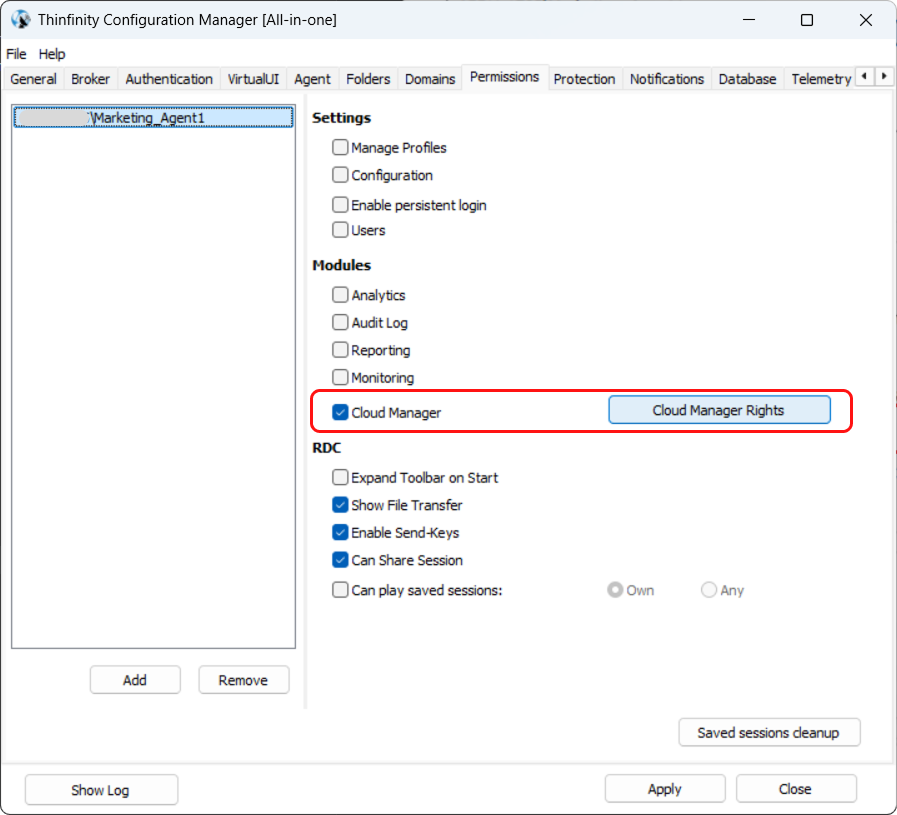
Open the Configuration Manager and navigate to the Permissions tab.
Select the user or group you want to configure.
In the Modules section, click Cloud Manager and then Cloud Manager Rights to open the configuration dialog.
In the CloudManager Access Rights dialog use the dropdown at the top of the dialog to select an entity: Models, Instances, Deployments, or Credentials then select which rights you want to grant for the selected entity. By default, all rights are enabled for all entities.
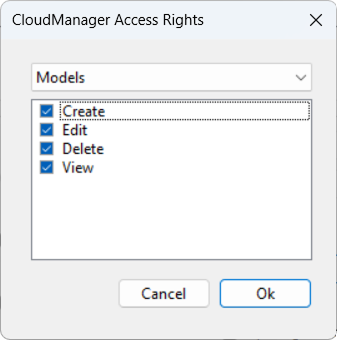
Click OK to close the dialog, then Apply to save the changes.
Option B — From Web Manager
In the Thinfinity® Workspace home page select the user profile icon to display the user menu, select Settings then navigate to Configuration > Security > User Interface Permissions.
Select the user or group you want to configure, or click +Add to add a new entry.
In the Modules section, expand Cloud Manager to reveal its four entities — Models, Instances, Deployments, and Credentials. Expand an entity to show its permissions, then use the toggles to grant each one to the selected user or group.
Repeat the sequence for each user and/or group you want to grant permissions for.
Click Save at the bottom of the General panel to save the configuration then Apply to commit the changes.
The two surfaces present slightly different UI labels — for example, Configuration Manager uses bare flag names (View, Create) while Web Manager uses the Can View, Can Create convention; the OK + Apply sequence in Configuration Manager corresponds to Apply + Save in Web Manager. The underlying permissions are identical regardless of which surface configures them.
Recommended Permissions Configuration
The configurations below are illustrative starting points for the most common administrative roles. Permissions across both layers — Cloud Manager rights and Workspace-wide permissions like Manage Profiles — can be combined in any way that fits your organization’s responsibilities. For example, an Operator role could include the Manage Profiles permission if helpdesk staff are also expected to create Access Profiles.
Full Administrator
Full control over all Cloud Manager entities. Intended for infrastructure or VDI administrators who manage the entire lifecycle.
| Entity | View | Create | Edit | Delete | Manage |
|---|---|---|---|---|---|
| Models | ✅ | ✅ | ✅ | ✅ | — |
| Instances | ✅ | — | — | — | ✅ |
| Credentials | ✅ | ✅ | ✅ | ✅ | — |
| Deployments | ✅ | ✅ | ✅ | ✅ | — |
In addition to the rights above, a Full Administrator requires the Manage Profiles permission to create Access Profiles for the Managed VMs connections and VDI/DaaS models they manage. Manage Profiles is configured separately — see Enable Cloud Manager.
Operator (Read + Instance Management)
Can monitor and operate instances but cannot modify models, credentials, or trigger deployments. Suitable for helpdesk or operations staff.
| Entity | View | Create | Edit | Delete | Manage |
|---|---|---|---|---|---|
| Models | ✅ | ❌ | ❌ | ❌ | — |
| Instances | ✅ | — | — | — | ✅ |
| Credentials | ✅ | ❌ | ❌ | ❌ | — |
| Deployments | ✅ | ❌ | ❌ | ❌ | — |
Read-Only
Can inspect the Cloud Manager configuration but cannot take any action.
| Entity | View | Create | Edit | Delete | Manage |
|---|---|---|---|---|---|
| Models | ✅ | ❌ | ❌ | ❌ | — |
| Instances | ✅ | — | — | — | ❌ |
| Credentials | ✅ | ❌ | ❌ | ❌ | — |
| Deployments | ✅ | ❌ | ❌ | ❌ | — |
See Also
- User and Access Management — base RBAC, groups, and roles (in the Thinfinity Workspace product manual)
- User Interface Permissions — UI-level feature flags that complement Cloud Manager permissions
- Enable Cloud Manager — grant Cloud Manager access to users and groups before configuring their granular permissions
- Credentials — configure cloud provider credentials after permissions are in place