
Manage Deployed Instances
After instances have been deployed from a VDI/DaaS model — or linked from an existing cloud account through a Managed VMs connection — the Instances tab in Thinfinity® Cloud Manager is where administrators monitor instance state, control power and availability, manage user assignments, and detach instances when they are no longer needed.
For the deployment workflow itself, see Deploy an Instance.
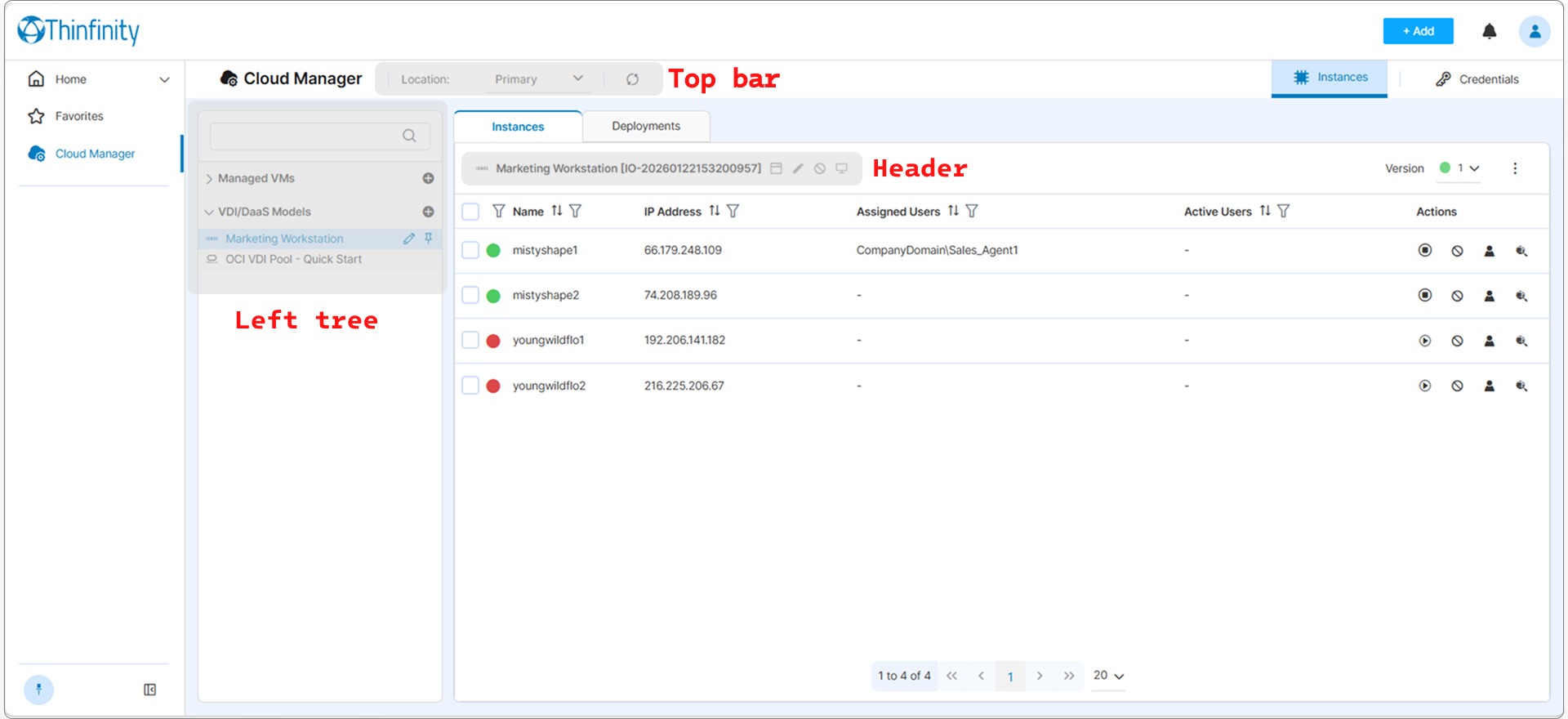
This article walks through the Instances tab in reader’s-eye order — from the top bar down to the per-row actions — describing what each region does and how to use it.
Top Bar
The top bar appears above every view in Cloud Manager. Two controls affect what the Instances tab shows: the Location selector and the Refresh button.
Location
The Location selector switches which broker’s resources populate the right-hand views — including the left tree, the instance table, and the Credentials view. In a single-broker deployment, the selector shows Primary as its only value. In a multi-broker deployment, each broker contributes one entry to the dropdown; selecting an entry switches the entire Cloud Manager view to that broker’s resources.
Location identifiers are assigned at broker installation, not within Cloud Manager. There is no per-model, per-connection, or per-Access-Profile Location field — when an Access Profile targets a model or Managed VMs connection, the broker is implicit in the selection. The Location selector is the only place in Cloud Manager where the admin switches broker context.
For the underlying multi-broker architecture, see the Thinfinity Workspace Best Practices for Production Environments section of the Workspace manual.
Refresh
The Refresh button forces an immediate full refresh of the active view. While the Instances tab is visible, the table refreshes automatically every 15 seconds, so Refresh is only needed when the wait would be inconvenient — for example, immediately after issuing a power action. A small in-table spinner indicates that a background fetch is in progress.
Left Tree
The left tree selects what populates the right-hand table — a Managed VMs connection (linked existing VMs) or a VDI/DaaS model (instances provisioned by Cloud Manager). The tree has two top-level nodes:
- Managed VMs — connections to pre-existing VMs in a cloud account. Expand the node to list each connection.
- VDI/DaaS Models — models that provision instances on demand through Terraform. Expand the node to list each VDI/DaaS model and any Kubernetes models (Kubernetes models are nested under VDI/DaaS Models despite their different lifecycle).
Click a connection or model name to load its instances into the table on the right.
The search input above the tree filters the tree by name. It does not search instance content — to narrow the instance list itself, use the per-column filters in the table (see Filtering the Table below).
Header
When you select an item in the left tree, its name and ID appear in the header at the top of the right panel, alongside a row of action icons. The set of icons differs slightly for Managed VMs and VDI/DaaS, but the bulk of the row is shared.
| Element | Scope | Description |
|---|---|---|
| Name and ID | Identifier | The display name of the selection and its internal identifier in brackets. |
| Select Columns | Table | Opens the column picker for the Instances table. See Customizing Columns below. |
| Edit | Selection | Opens the editor panel for the selected model or Managed VMs connection. See VDI/DaaS Models or Managed VMs for the editor reference. |
| Inactivate / Activate | Selection | Toggles the active state of the selected model or connection. When inactivated, the icon to the left of the name changes to a forbidden icon and the action label flips to Activate. The success toast confirms with “Activate Model” or “Deactivate Model”. Inactivating a model blocks new deployments and new instances (the deploy endpoint returns 403 “Model inactive”); existing instances are not affected and continue running with their current state. |
| Create Access Profile | Selection | Opens the Thinfinity® Workspace Access Profile wizard, pre-targeted at the selection. |
| Version (VDI/DaaS only) | Selection | Selects which version of the model the Instances tab reflects. A small colored circle indicates the version’s stage (Production, Staging, Testing). |
| Manage Instances (Managed VMs only) | Selection | Opens the dialog used to add or remove tracked VMs. See Manage Instances Dialog below. |
| Kebab (⋮) | Table | Opens the bulk-action menu for instances selected by checkbox in the table. See Bulk Selection below. |
The Select Columns and the kebab options sit in the header row visually, but operate on the Instances table below — not on the selected model or connection. All other icons in the row act on the selection itself.
The Instances Table
The table lists all instances belonging to the selected model or Managed VMs connection. It has the same column set for both, with one default-visibility difference noted below.
Default Columns
| Column | Description |
|---|---|
| (checkbox) | Multi-select for bulk actions. |
| (status icon) | Power and error state — see Status Indicator below. |
| Name | The instance display name. For Managed VMs, the name supplied at link time. For VDI/DaaS pool instances, generated from the model’s naming prefix and digit pattern. |
| IP Address | Public or private IP, depending on the Connection Mode. |
| Assigned Users | Thinfinity® Workspace users explicitly assigned to this instance. Shows a single username, or a comma-separated list (truncated to two lines with full list in tooltip) when there are multiple. Hidden by default for VDI/DaaS pool models when no instance has assignments. |
| Active Users | Thinfinity® Workspace users currently connected. Same display rules as Assigned Users. |
| Actions | Per-row action icons — see Actions below. |
Status Indicator
The leftmost column shows a status icon for each instance. The icon’s color groups the status into broad categories; the specific label shown reflects the instance’s current state. For the full set of states and the transitions between them, see Instance States and Lifecycle.
| Icon | Status Label | Meaning |
|---|---|---|
| Green circle | Active | The VM is running and accepting connections. |
| Red circle | Inactive | The VM is powered off but still provisioned. |
| Yellow circle (transient) | Activating, Inactivating, Provisioning, or Creating Image | A power or lifecycle transition is in progress. |
| Gray circle | Deleting | A Terraform Destroy is in progress; the instance and its record are being removed. |
Two overlay icons may appear on top of the status icon:
- A forbidden overlay indicates the instance has been administratively blocked from user assignment (its Record State has been set via the Disable action). The overlay tooltip reads Disable.
- An alert overlay replaces the status icon when the instance has an error. Click the alert to open the View Log dialog.
Click any status icon to open the View Log dialog for that instance.
Three distinct concepts share the Inactive / Disable / Inactivate family of labels in different places in the UI:
- Inactive (Operational Status) — the VM is powered off.
- Disable (per-row Record State action and forbidden-overlay tooltip) — the instance is administratively blocked from user assignment, regardless of its VM’s power state.
- Inactivate (header action tooltip on the selected model or Managed VMs connection; success toast reads Deactivate Model) — blocks new deployments from the parent; existing instances are unaffected.
See Instance States and Lifecycle for the full state model.
Customizing Columns
Click the Select Columns icon in the header to open the column picker. Visible columns appear as removable chips; the dropdown adds columns that are not currently visible. Changes apply immediately to the active view.
Filtering the Table
Each visible column header has a per-column filter icon and a sort indicator.
- Sort — click the column name (or its sort indicator) to sort ascending; click again to sort descending.
- Filter — click the funnel icon next to a column name to open that column’s filter. Filter behavior depends on the column type:
| Column type | Filter UI |
|---|---|
| Status column | Single-select dropdown with Any as the default. Available values mirror the Operational Status list: Active, Creating Image, Inactive, Provisioning, Activating, Inactivating, Deleting. |
| Text columns (Name, IP Address, • Assigned Users, Active Users) | Compound expression builder. A scope selector at the top (Match All / Match Any) is followed by one or more condition rows. Each condition row has an operator dropdown — Starts with, Contains, Not contains, Ends with, Equals, Not equals — and a text value input. |
To clear all column filters at once, use the Reset Filters control in the table toolbar.
Actions
Almost every action available on a single instance is also available on a multi-instance selection. The table below lists each action, its effect, when it appears in the Actions column for a row, and whether it can also be applied in bulk.
| Action | Effect | Visible per-row when | Available in bulk |
|---|---|---|---|
| Start | Power on the VM. | Status is Inactive. | Yes |
| Stop | Power off the VM. | Status is Active. | Yes |
| Enable / Enabled | Make the instance available for user assignment (clears the forbidden overlay). | The instance is currently blocked from assignment. | Yes (see label note below) |
| Disable / Disabled | Block the instance from user assignment. The status icon gains a forbidden overlay whose tooltip reads Inactive. The VM itself is not affected. | The instance is currently available for assignment. | Yes (see label note below) |
| Detach | Remove the Cloud Manager record of an instance that is in error. Detach does not destroy the VM — no Terraform Destroy runs, and any cloud resource still present must be removed from the provider console. To destroy a running VM, use Destroy on its deployment. See Deploy an Instance. | The instance has errors. | Yes, but only instances whose Record State is Error are detached. On an instance in any other state the action fails and nothing changes. |
| Manage Users | Open the user-assignment dialog for this instance. See Manually Assign an Instance to a User. | Always (with permission). | No — operates on one instance at a time. |
| Create Access Profile | Open the Thinfinity® Workspace Access Profile wizard pre-filled for this instance. | Only for instances belonging to a Managed VMs connection. | No — operates on one instance at a time. |
| View Log | Open the lifecycle log dialog for this instance. See View Log Dialog below. | Always (with permission). | No — operates on one instance at a time. |
A spinner replaces the relevant icon while a previously-issued command is still being processed.
Label note. The per-row labels for the Record State actions are imperative — Enable and Disable. The bulk-menu labels for the same actions are past-tense — Enabled and Disabled. Both refer to the same Record State transitions.
Note that Disable is not the same as Stop. A Disabled instance is hidden from user assignment but its VM may still be running and consuming cloud resources. To stop billing, also Stop the VM. Conversely, a Stopped instance is still visible to users — they will trigger a power-on when they connect (when on-demand provisioning is allowed).
Detach deletes the Cloud Manager record of an instance in error; it does not destroy the VM. Any resources the failed provisioning left in the cloud provider keep running — and keep incurring cost — after the record is gone.
The deletion is irreversible, so Cloud Manager has no record through which to reach those resources afterward. Make sure to remove them from the provider console.
To destroy the VM and its resources from Cloud Manager, use Destroy on the deployment instead.
Per-Row vs. Bulk
For a single instance, click an action icon in that row’s Actions column. Up to four icons are shown inline; remaining actions spill into a per-row kebab (⋯) menu at the end of the row.
For multiple instances:
- Select instances using the row checkboxes (or the header checkbox to select all on the current page).
- Click the kebab (⋮) at the right of the header above the table.
- Choose an action from the menu.
Bulk operations are dispatched per instance and processed asynchronously by the broker. The status icon for each affected row updates to reflect the in-progress state.
View Log Dialog
The View Log dialog opens the broker’s Audit Log filtered to the selected instance (Channel = Cloud Manager, Resource = the instance name). It shows the Audit Events for that instance — every action attempted (start, stop, enable, disable, deploy, destroy) and the resulting status, along with who triggered it and from where.
Default columns: Start, Component, Source, Activity, Actor, Peer IP, Status, Text. Click the Columns filter chip to add or remove columns; click + Add filter to apply additional filters such as Activity, Actor, or Status. Use Refresh (icon in the top-right of the Audit Events section) to reload the latest entries.
For the full reference of columns, filters, and diagnostic flows, see Instance and Deployment Logs.
If the dialog is opened on an instance that is in error state, an additional Remove Instance button appears in the footer to detach the broken instance.
Manage Instances Dialog (Managed VMs)
For Managed VMs connections only, a Manage Instances button appears in the header. It opens a dialog used to add or remove VMs tracked under the connection.
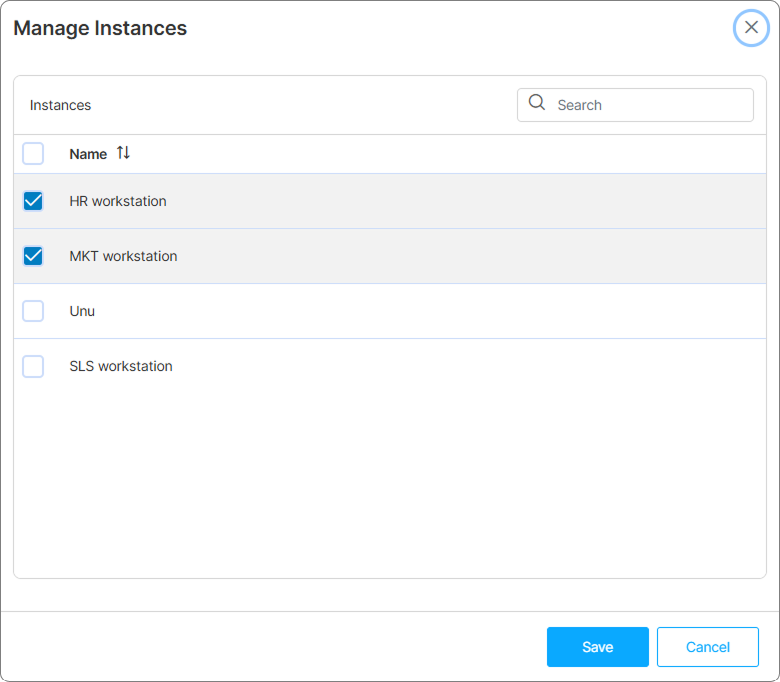
The dialog has three regions:
- Search — narrows the VM list by name.
- VM checklist — every VM available in the cloud account linked to the connection. Currently-tracked VMs are pre-checked.
- Save / Cancel — applies or discards changes.
To track an additional VM, check its row. To stop tracking a VM, uncheck its row. Click Save to apply.
This is the only way to add or remove VMs from a Managed VMs connection after creation. See Connect to Existing VMs for the broader workflow.
What’s Next
- Manually Assign an Instance to a User — Pre-assign a specific instance to a specific user.
- Instance States and Lifecycle — Understand the state values and transitions.
See Also
- Deploy an Instance
- Connect to Existing VMs — Equivalent workflow for Managed VMs.
- Power and Scheduling Settings — Model-level power policy.
- Secondary Broker — How the Location selector is configured in multi-broker deployments.