
Deploy Remote Browser Isolation
This track deploys a Remote Browser Isolation (RBI) instance using the Chrome RBI built-in Kubernetes model — a browser that runs entirely in a pod on your cluster and is streamed to the user, so untrusted web content never reaches the endpoint. Unlike Tracks A and B, it does not use a cloud provider: it connects to a Kubernetes cluster you already run, the way Track A connects to a VM you already have. For the architecture and the built-in models, see Remote Browser Isolation (RBI).
What You’ll Build
By the end of this track, a Chrome RBI Kubernetes model will be registered in Thinfinity® Cloud Manager, exposed to a user through an RBI Access Profile created directly from the model, and reachable as an isolated browser session from the Thinfinity® Workspace portal.
Prerequisites
In addition to the common prerequisites:
- An existing Kubernetes cluster whose API server is reachable from the Thinfinity Workspace server over outbound HTTPS.
- A service account on that cluster with an RBAC role that allows managing pods, services, and leases (
coordination.k8s.io) in the namespace where browser pods will run, plus the account’s bearer token. See Kubernetes Credentials.
This track does not require a cloud provider account. Where Tracks A and B use Oracle Cloud, Track C uses your Kubernetes cluster.
Open Cloud Manager
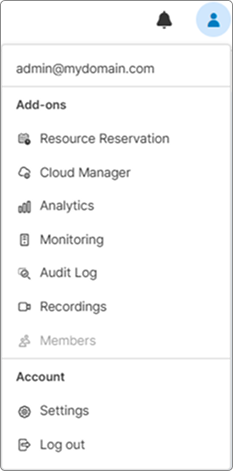
Log in to Thinfinity Workspace as an administrator, click the profile icon, and then click Cloud Manager in the right sidebar.
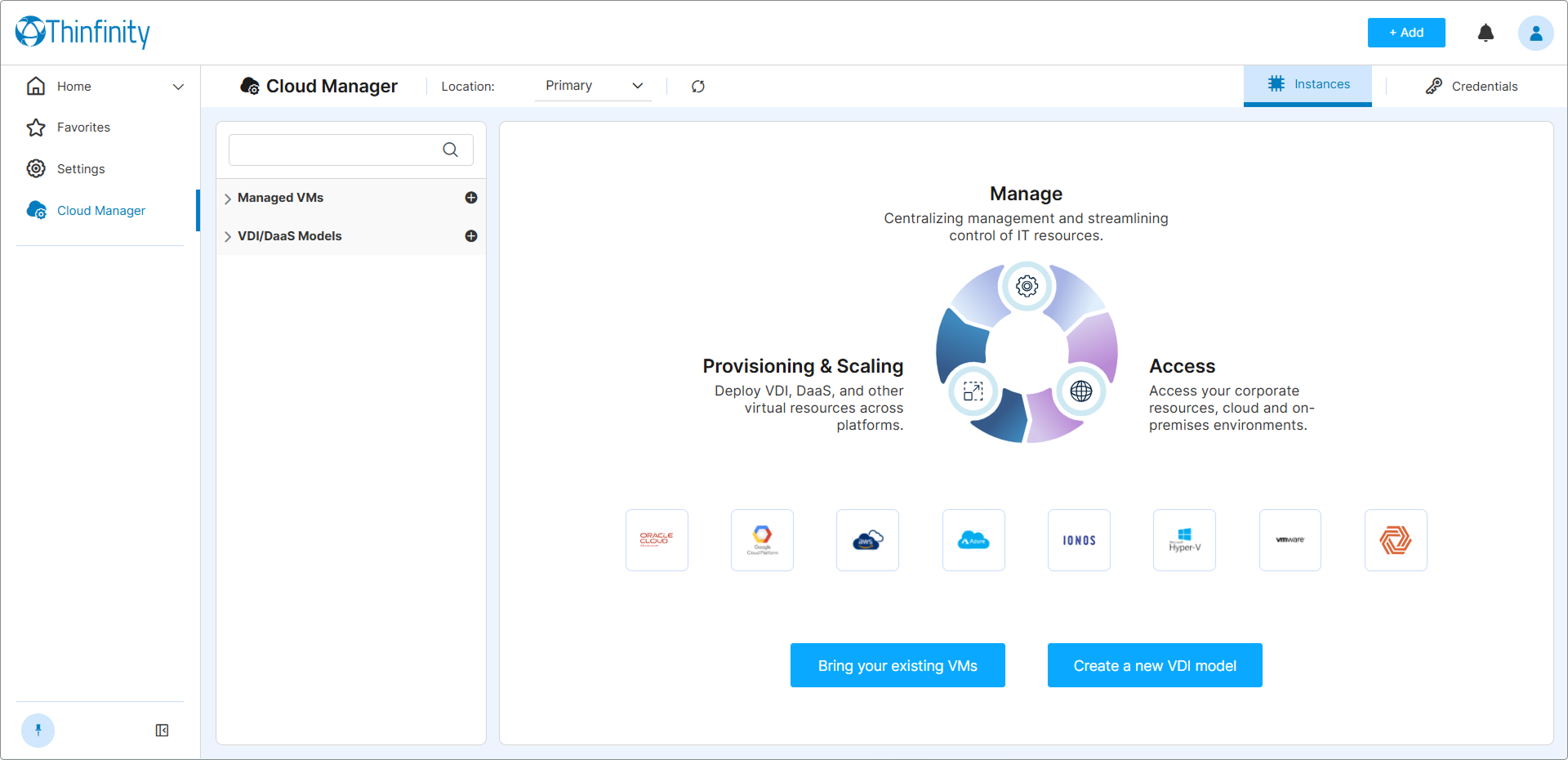
Cloud Manager opens.
Add Kubernetes Credentials
Cloud Manager reaches your cluster over an outbound connection using the cluster’s API URL and a bearer token. If you already have a valid K8S credential saved, skip to Step 3.
- From the top right, select Credentials.
- Click + New to open the credential form.
- Select K8S as the provider.
- Fill in the fields:
| Field | Value |
|---|---|
| Kubernetes API URL | The cluster API server endpoint, including scheme and port — for example, https://10.0.0.10:6443. |
| Token | The service account bearer token Cloud Manager authenticates with. |
- Click Save. The credential is added with an Ok status.
For the certificate fields, the in-cluster configuration case, and the full RBAC and network requirements, see Kubernetes Credentials.
Create the Chrome RBI Model
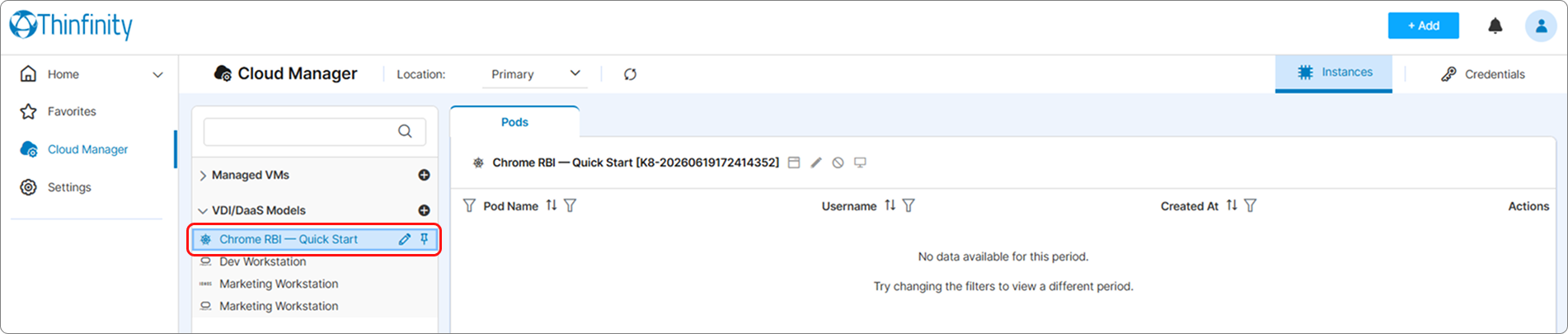
In the left tree, expand VDI/DaaS Models and click the + button next to the section header. The model creation wizard opens.
- Provider — Select K8S and click Next.
- Model Selector — Under Built-in Models, select Chrome RBI and click Next.
- Credentials — Select the Kubernetes credential from Step 2 and click Next.
- Save — Enter a Name (for example,
Chrome RBI - Quick Start) and click Save.
The model appears under VDI/DaaS Models in the left tree. Pods are created on demand when users connect, and removed after the model’s Destroy after idle period (10 minutes by default).
Create the RBI Access Profile
Create the access profile straight from the model you just made — Cloud Manager carries the model into the wizard, so you don’t select it by hand.
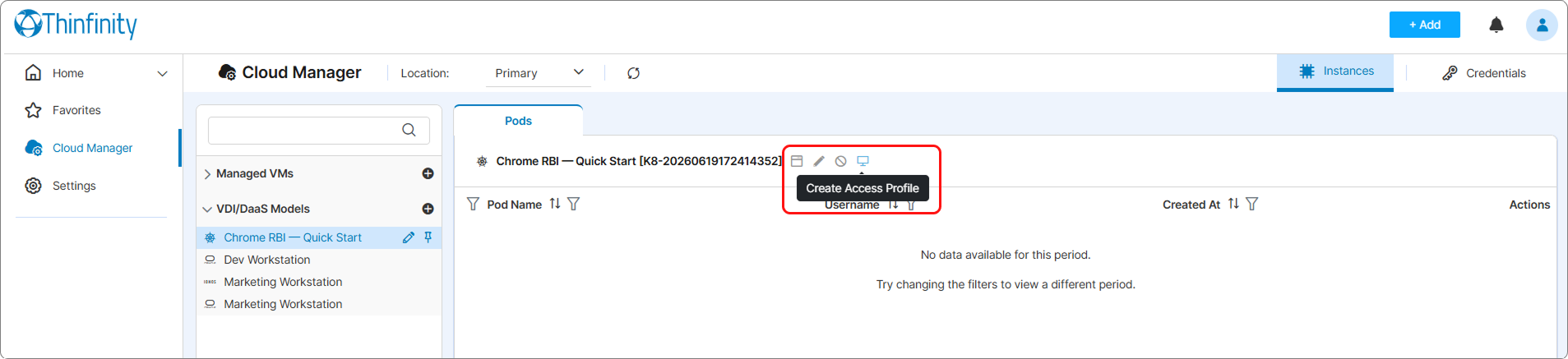
- In the left tree, select your Chrome RBI - Quick Start model. Its Pods panel opens on the right, with a toolbar next to the model name.
- In that toolbar, click Create Access Profile.
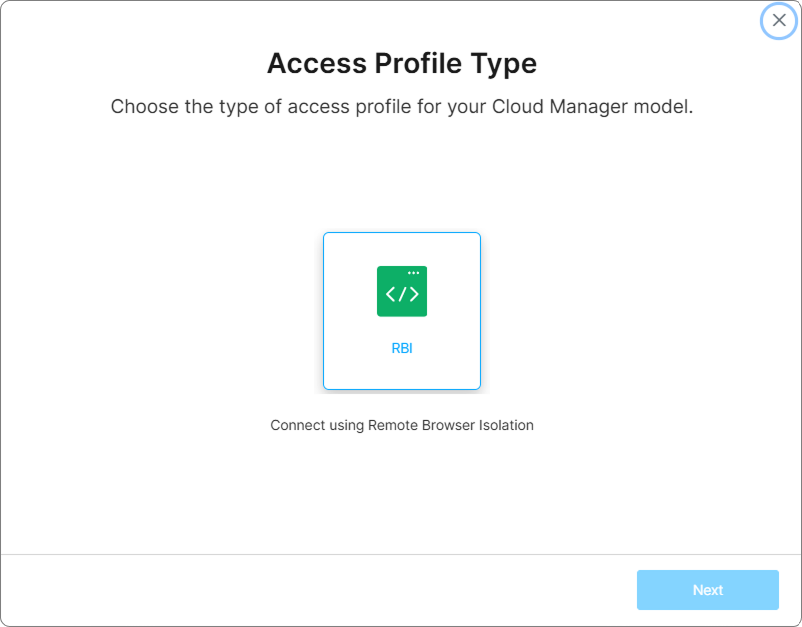
- The access-profile wizard opens at Access Profile Type, with RBI already selected. Click Next.
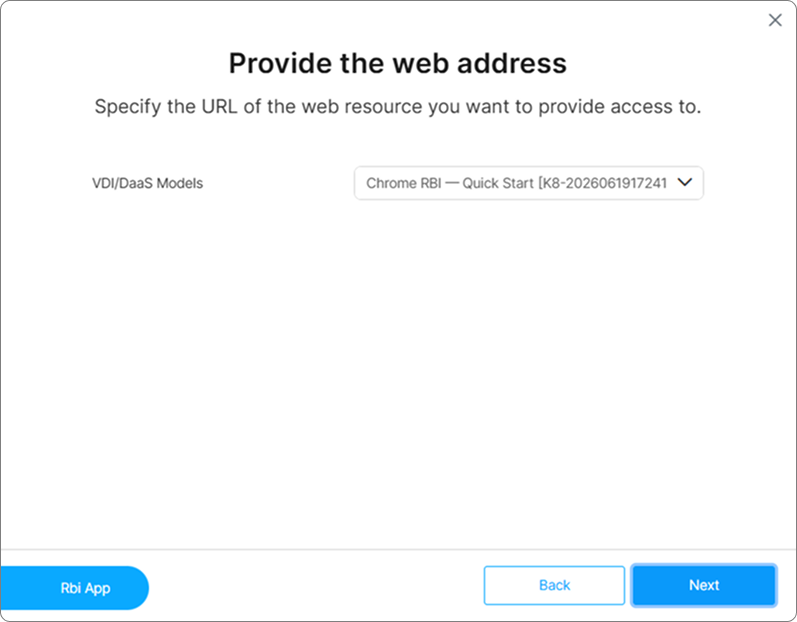
- On Provide the web address, the VDI/DaaS Models dropdown is already set to your Chrome RBI model. Click Next.
- In Permissions, add the user or group that should have access: enter it in the User or Group field and click Add, or use Find users or groups. Click Next.
- In Access profile name, enter a Name for the connection (for example,
Isolated Browser). A Profile preview shows the RBI tile. Click Next. - When the wizard reports the profile was created, click Done.
- A pending-change notice appears (Settings — 1 section modified). Click Apply to publish the profile. Users do not see it in the portal until you apply.
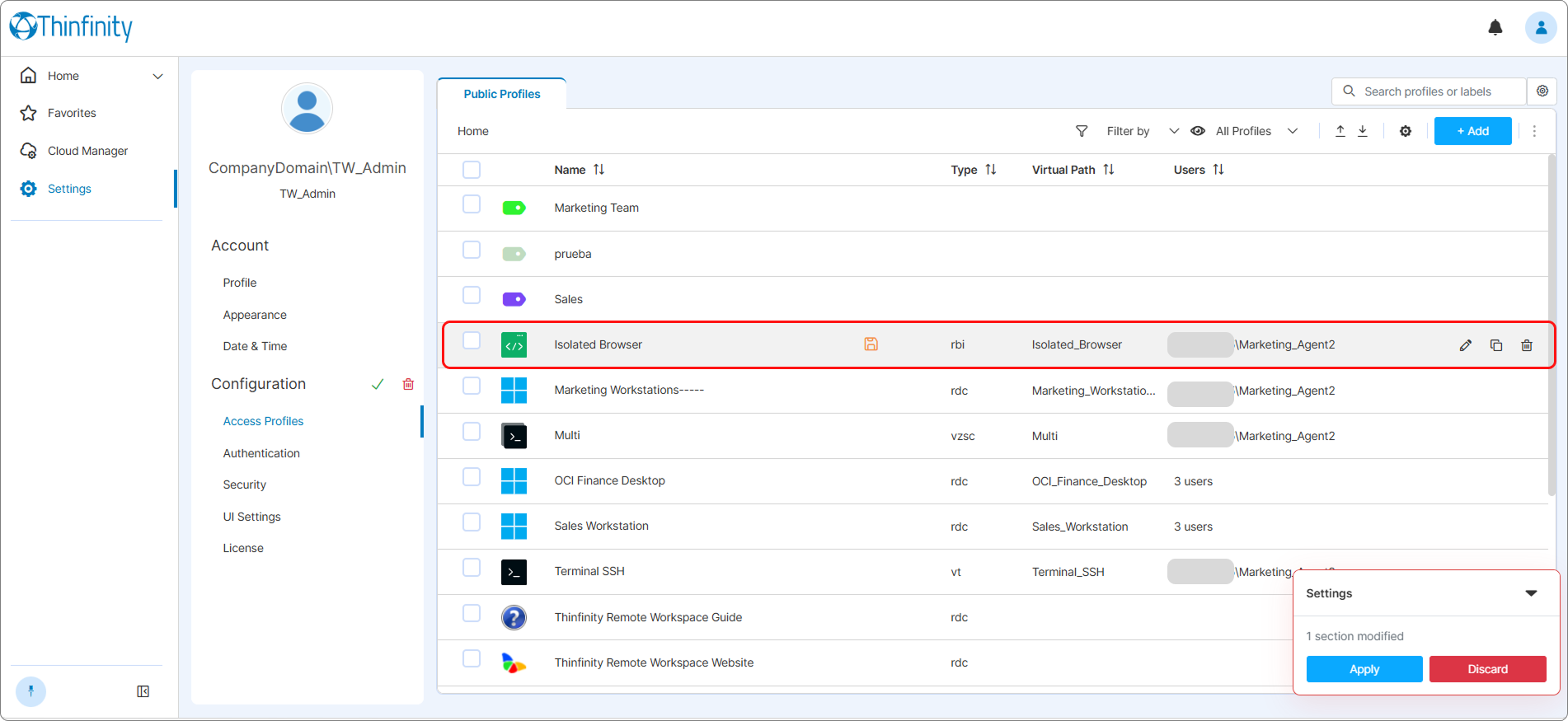
The session controls are not part of the creation wizard. To adjust the isolated session — clipboard, audio, file transfer, or display quality — open the profile from the Public Profiles list and set the controls under Resources (Clipboard Sync, Audio, File Uploads) and Display (Quality, High DPI). For what each control does, see Remote Browser Isolation (RBI).
Open the Isolated Browser
- Open the Thinfinity Workspace portal in a new tab, or have the target user sign in.
- Log in as the user you granted access to in Step 4.
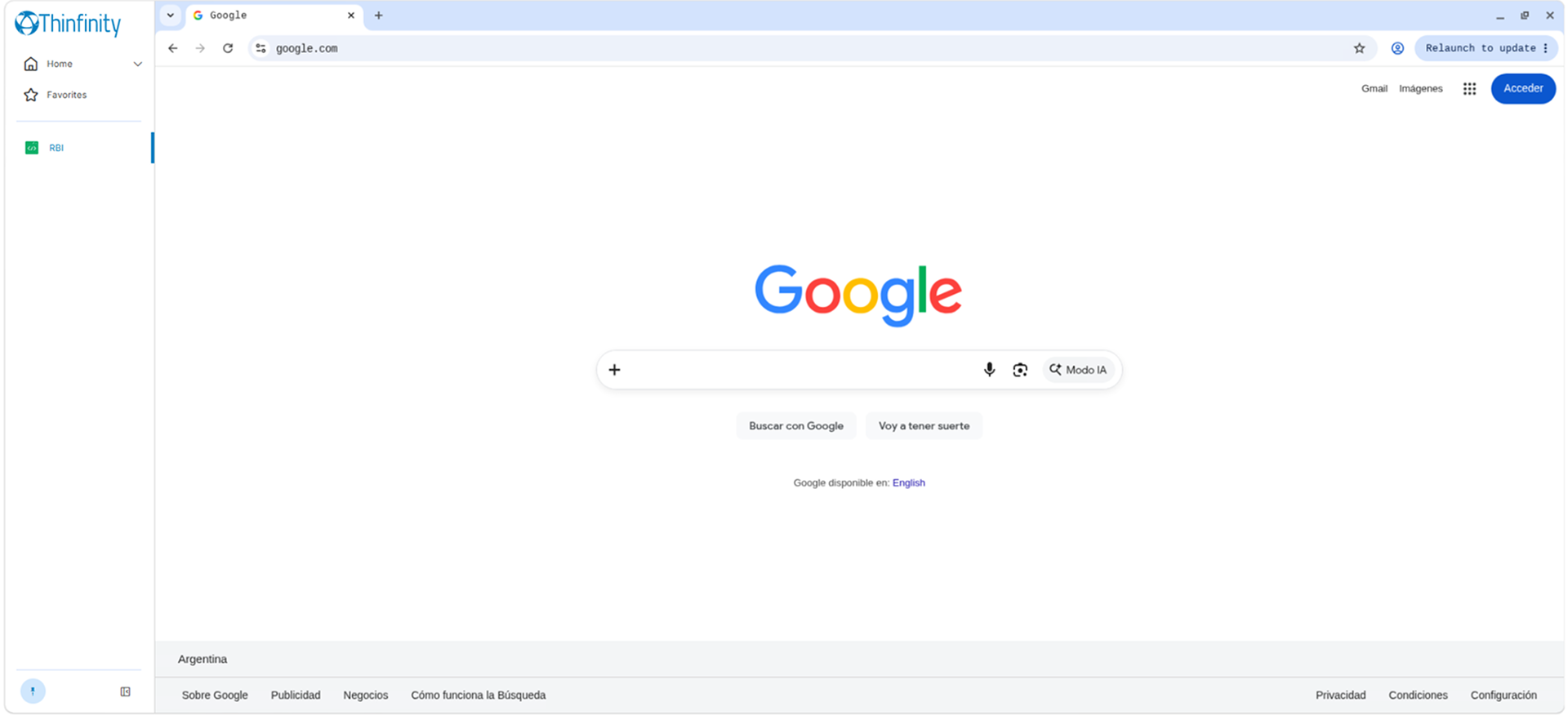
- Locate the Isolated Browser tile and click it.
Cloud Manager creates a pod on the cluster on demand and streams the isolated Chrome session into the browser tab. The first connection may take a few seconds while the pod starts. When the user closes the session and the idle period elapses, the pod is destroyed automatically. Track C is complete.
What’s Next
- Remote Browser Isolation (RBI) — the architecture, the three built-in models, and the session features.
- Kubernetes Models — build a model from a custom pod manifest, and monitor pods from the Pods tab.
- Kubernetes Credentials — certificate options, in-cluster configuration, and RBAC requirements.