
Export and Import Models
Thinfinity® Cloud Manager allows administrators to export VDI/DaaS models to a portable .vdimodel file and import them into the same or a different environment. This is the primary mechanism for backing up model configurations, migrating them across environments, and sharing standardized setups across teams.
Why Export or Import a Model
A model encapsulates all the configuration parameters that define a VDI/DaaS deployment — cloud provider, blueprint or Terraform template, provisioning settings, power policy, and destroy behavior. Exporting and importing models enables:
- Backup and recovery — Export a model before making changes or promoting versions so it can be restored if needed. This is particularly important before any version promotion that overwrites an existing version.
- Migration — Transfer models between Cloud Manager environments or data centers without rebuilding from scratch.
- Cloning — Quickly create new models based on proven, validated configurations.
- Standardization — Share a single validated model definition across teams, departments, or deployments.
Exporting a Model
Exporting creates a .vdimodel file that captures the full model configuration at the time of export — including settings, policies, and template references.
Open the Model Editor
In Thinfinity® Workspace, open the Cloud Manager add-on. Locate the model in the left tree and click the edit icon on its row to open the model editor.
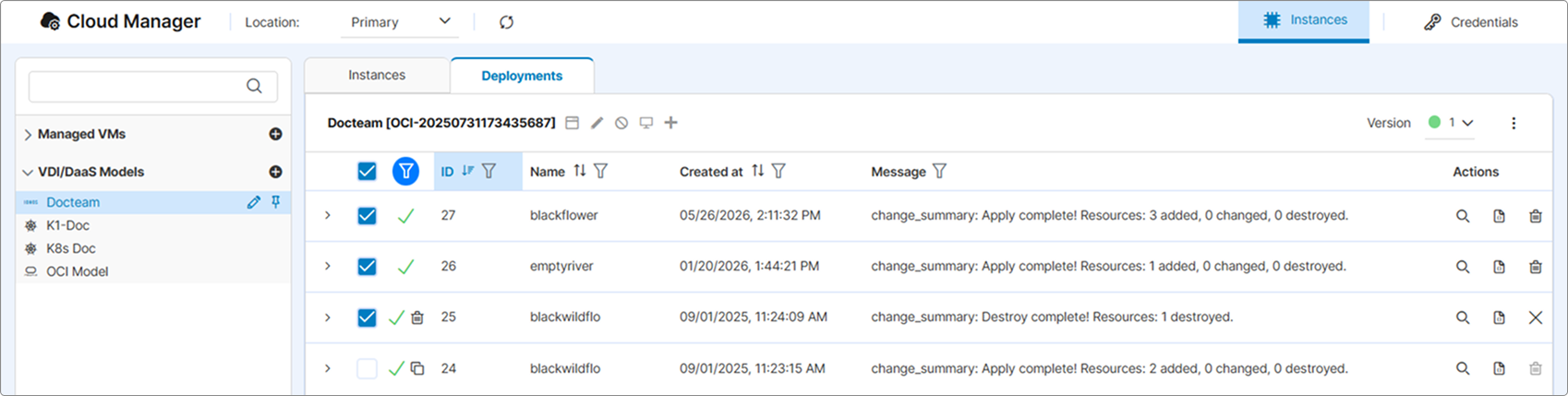
Export the Model
In the model editor’s top toolbar, make sure the version you want to export is selected (use the version selector to switch versions if needed). Then click the ⋮ kebab menu next to the version’s state tag and select Export Built-In.
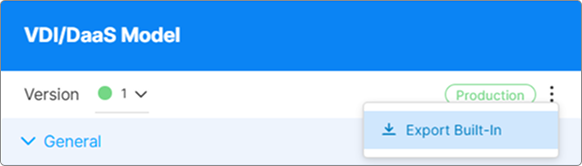
Cloud Manager downloads the model as a .vdimodel file to your local machine.
The Export Built-In action is available on any version of the model regardless of state (Testing / Staging / Production). The exported .vdimodel file captures the model configuration, not the underlying cloud resources or deployed instances. Exporting a model does not affect running instances or the live Production version.
Importing a Model
Importing makes a previously exported .vdimodel file available as a selectable option in the model creation wizard.
Obtain the Model File
Ensure you have the .vdimodel file available on your local machine or accessible from the server. This file may come from a previous export, a backup archive, or be provided by your IT department.
Copy the File to the Model Storage Directory
Copy the .vdimodel file to the following directory on the server where Thinfinity Workspace is installed.
C:\ProgramData\Cybele Software\Thinfinity\Workspace\DB
This is the directory Cloud Manager scans when listing available models for import in the model creation wizard. Place the file directly in this folder. Do not place it in a subfolder.
Launch the Model Creation Wizard
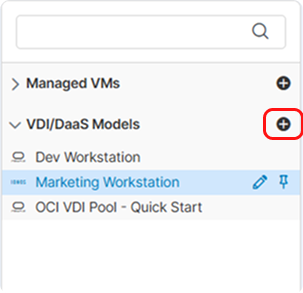
In the Cloud Manager add-on, expand VDI/DaaS Models in the left tree and click the + Add button next to the section header. (If no models exist yet, the Welcome view appears with a Create New button that opens the same wizard.)
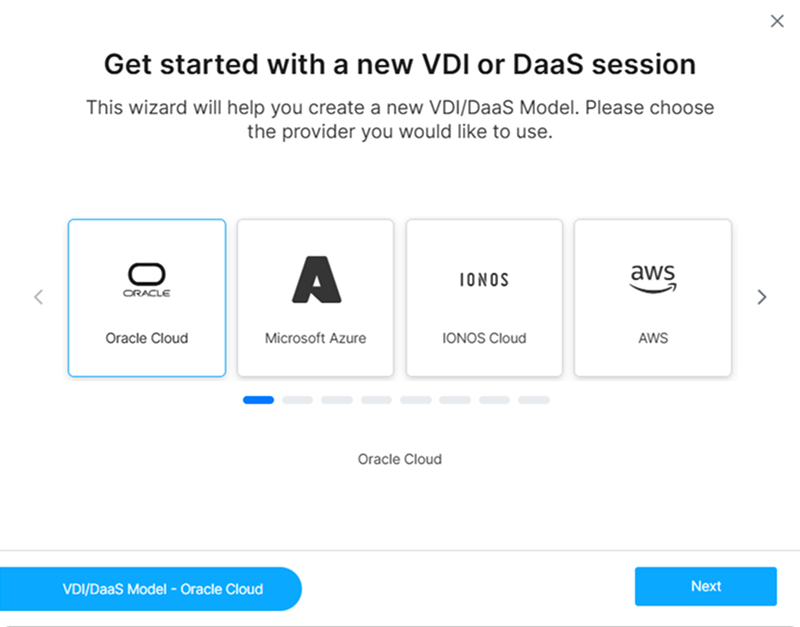
Choose a Cloud Service Provider
Select the cloud provider that matches the exported model and click Next.
Select the Model to Import
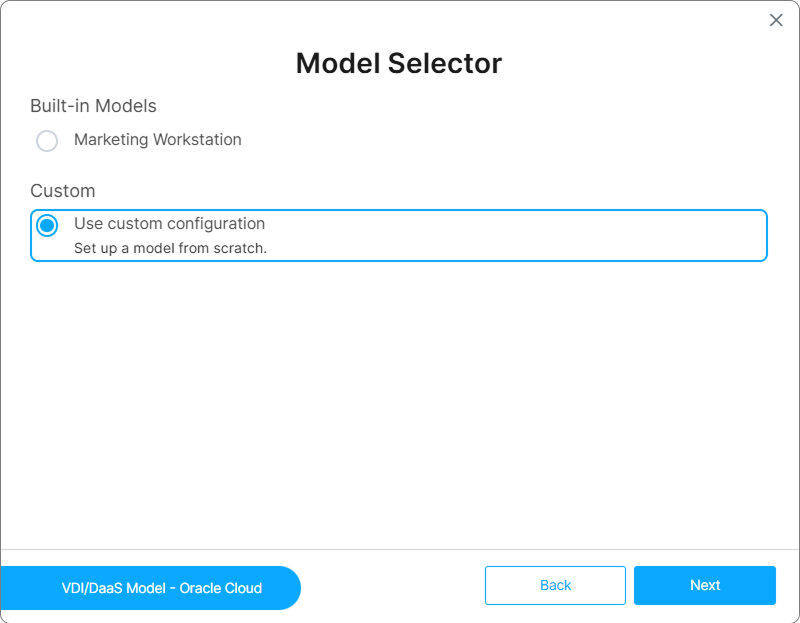
After selecting the provider, the Model Selector lists the available entries showing the .vdimodel file you copied in Step 2. Select it to import.
Complete the Wizard
Follow the remaining wizard steps. Review and update credentials and settings as needed to ensure they are valid for the target environment — credential IDs and provider-specific parameters may differ between environments.
Best Practices
- Use descriptive file names. Include the model name, version, and export date in the filename (for example,
desktop-model_prod_2026-03-05.vdimodel). This avoids confusion when restoring from a backlog of exports. - Export before every promotion. Always export the current Production version before promoting a new version. See Update a Model’s Version.
- Test before deploying. After importing a model into a new environment, deploy and validate it in a non-production context before making it Production.
- Document configurations. Maintain notes on what changed between exported versions to streamline future troubleshooting and audits.
What’s Next
- Model Versioning — Use export as a backup step in the version promotion workflow
- Delete a Model — Remove a model and all its associated resources
- Deploy an Instance — Deploy instances from an imported model
See Also