
Manually Assign an Instance to a User
The Manage Users dialog in Thinfinity® Cloud Manager lets you bind one or more Thinfinity® Workspace users to a specific instance. Once bound, the broker prefers that instance when routing those users’ sessions. Multiple users can be bound to the same instance — useful for a small team that must always land on the same machine.
This article covers when manual pinning is the right choice and how it interacts with Pool Mode and Dynamic Assignment. For pool behavior in the absence of pinning, see Provisioning and Pooling Options and Pooling Strategies.
For Kubernetes models, user assignment is governed by Kubernetes scheduling and pod identity rather than by the Manage Users dialog.
When Manual Pinning Makes Sense
Manual pinning is the right choice when:
- A user requires a persistent local environment — locally installed apps, local data, or persistent customizations.
- A user has license entitlements bound to a specific machine identity.
- Compliance or audit requirements mandate per-user, per-machine traceability.
- A specific VM has hardware characteristics (GPU passthrough, attached storage) that only certain users should consume.
How pinning behaves depends on the instance source:
| Context | Pinning behavior |
|---|---|
| Managed VMs | 1:1 by design. The Manage Users dialog is the primary access control. |
| VDI/DaaS Model (any configuration of • Allow Pool Mode and Allow Dynamic Assignment) | The pinned user is routed to their bound instance. Pinning overrides both Allow Pool Mode and Allow Dynamic Assignment for the pinned user. Non-pinned users follow the model’s pool and assignment configuration — see Provisioning and Pooling Options. |
Prerequisites
- The instance has been deployed.
- The user account exists in the Thinfinity Workspace identity provider.
- You have the Manage permission on Instances. See Cloud Manager Permissions.
Edit the Assignment List
Open the Instance’s Row
In the left tree, expand Managed VMs (or VDI/DaaS Models) and click the connection or model that contains the target instance. Locate the instance in the Instances table.
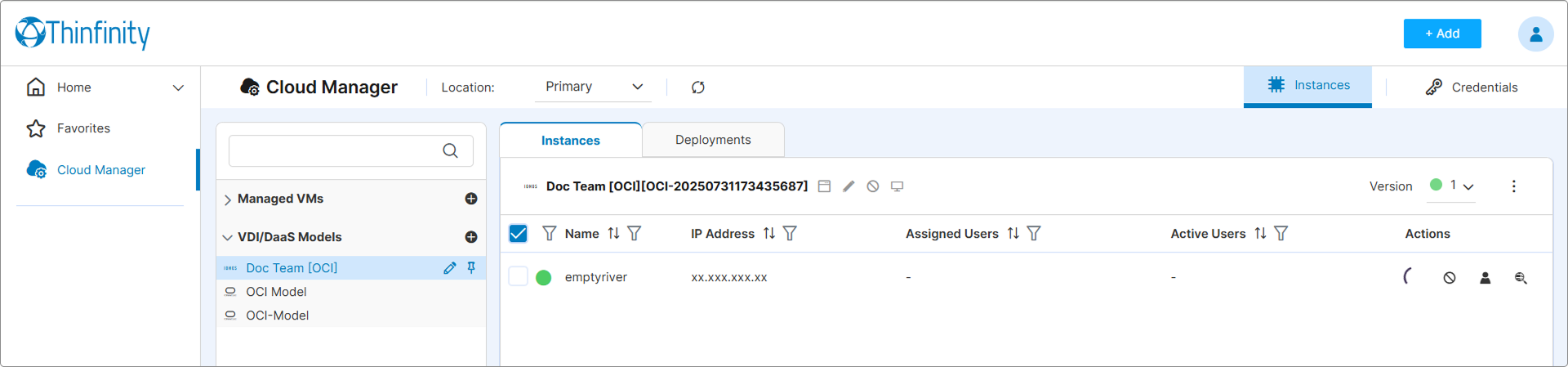
Open the Manage Users Dialog
In the row’s Actions column, click the Manage Users icon. The dialog opens, listing the Workspace users currently bound to this instance.
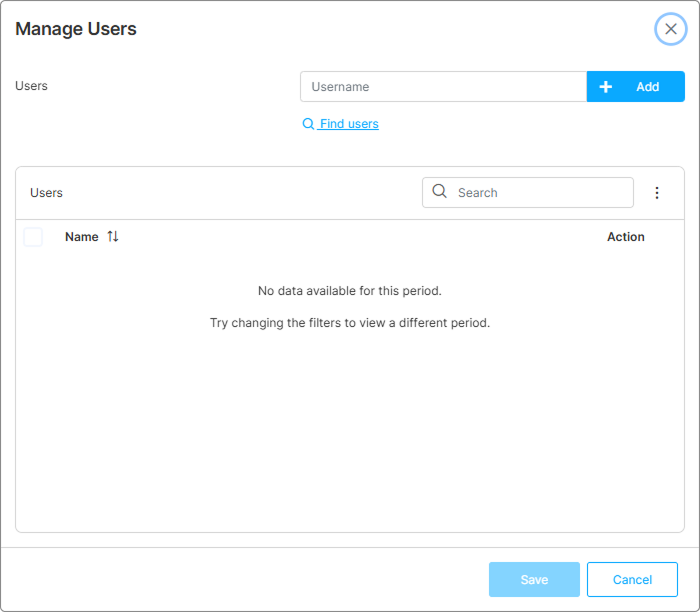
Add Users
Use the search input at the top to find Workspace users by name, username, or directory attribute. Each user you select is added to the table below; the dialog accumulates users as you add them.
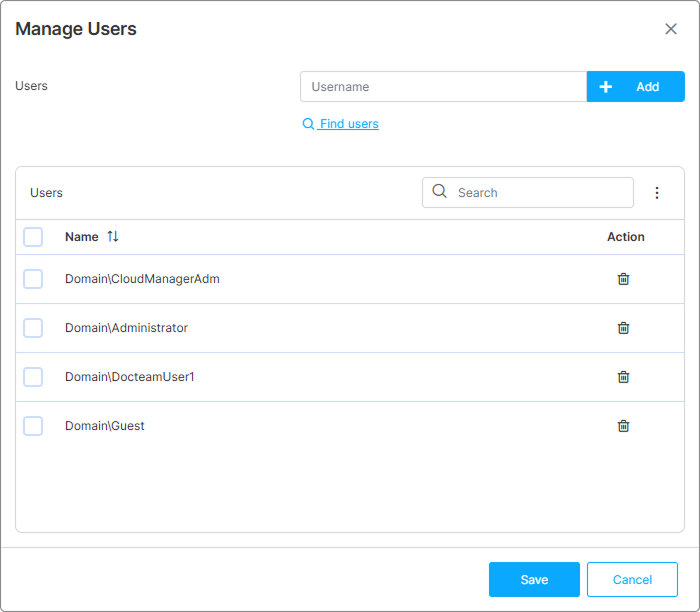
Remove or Replace Users
To remove a single user from the assignment list, click the trash icon at the end of that user’s row.
To remove several users at once, select their rows using the row checkboxes and click the bulk actions kebab (⋮) in the dialog header — choose Remove from the menu.
To replace a user, remove the previous one and add the new user.
Removing an assigned user from an instance does not delete their data. The local VM disk retains all user data. If the new user must not have access to the previous user’s data, detach the instance and provision a fresh one before adding the new user, or wipe the local data manually.
Save
Click Save to apply. The Assigned Users column on the Instances tab updates to show the bound users. From this point forward, when one of those users connects through an Access Profile that targets this instance’s source, the broker routes the session to this instance.
What Happens When an Assigned User Connects
- The user opens Thinfinity® Workspace and selects an Access Profile that targets a model or Managed VMs connection.
- The broker checks which instance(s) the user is bound to.
- If a bound instance is available and the configuration permits, the broker routes the session there.
- If the bound instance is powered off, the broker powers it on (when on-demand provisioning is allowed).
- If the bound instance is Disabled (Record State), the user receives an “access disabled” error and the broker does not fall back to another instance.
- If the bound instance is in an Error state or unreachable, the connection attempt fails when the broker tries to reach the VM. See Access Profile Errors.
- If the bound instance has been Detached (record removed), the user’s binding is cleared automatically and routing falls back to the model’s pool or dynamic assignment configuration — the user is treated as unbound for that session.
What’s Next
- Connect to an Instance — End-user connection experience
- Manage Deployed Instances — Day-to-day instance management
- Instance States and Lifecycle — State transitions and what they mean
See Also
- Provisioning and Pooling Options — Pool mode and dynamic assignment switches
- Pooling Strategies — Conceptual overview
- Create an Access Profile for a VDI/DaaS Model