
Provisioning and Pooling Options
Provisioning and pooling settings control three related but distinct aspects of how Cloud Manager manages instances for a model: how users connect to them, how the instance pool is sized and replenished over time, and whether each user is consistently routed to the same instance.
The full set of settings lives in the model editor’s General tab (connection and pool routing) and Deploy tab (deployment trigger and instance counts). The model creation wizard captures the subset of these settings required to create a working model, in its Access and Deploy steps. Any setting not surfaced by the wizard takes its default value at creation and can be adjusted afterwards in the editor.
For a conceptual overview of how pooling strategies affect user experience and cost, see Pooling Strategies.
Connection Mode
Connection Mode determines how the Thinfinity® Workspace broker reaches an instance when brokering a user session.
| Option | Description |
|---|---|
| Public IP | The broker connects to the VM’s public IP address directly. Suitable for cloud-hosted instances where internet-facing access is acceptable. Requires each instance to have a public IP assigned. |
| Private IP | The broker connects via the VM’s private IP address, within the same virtual network or through VPN/private peering. Recommended for environments with strict network perimeter controls. |
| Agent Id | Connections are routed through the Thinfinity® Workspace Virtualization Agent registered on the host. Does not require direct IP routing between the broker and the instance. |
The Agent Id mode is the most flexible option for on-premises hypervisors and mixed cloud/on-premises environments. For cloud providers behind NAT or without a public IP, Agent Id is also the recommended mode.
Allow Pool Mode
The Allow Pool Mode switch determines whether the model behaves as a session-based shared pool or as a 1:1 dedicated deployment.
| Option | Description |
|---|---|
| Off (default) | Each instance is assigned to a specific user. There is no pool distribution; Pool Mode, Max Instances Count, and Max users per instance are hidden, and the Staged Power On/Off section is hidden in the Power tab. Use this for dedicated 1:1 desktop scenarios. |
| On | The model operates as a session-based pool. The Pool Mode dropdown appears (defaulting to Breadth First) along with Max Instances Count and Max users per instance. Staged Power On/Off becomes available in the Power tab. |
In the wizard’s Access step, the same setting is exposed as a single Pool Mode dropdown — the None value is equivalent to Allow Pool Mode off; Breadth First or Depth First are equivalent to Allow Pool Mode on with the corresponding Pool Mode selected.
If the switch appears disabled and the model editor shows the In use banner, the model still has instances. A model counts as in use while any of its instances exists — including instances that are powered off or disabled; only deleting them clears the flag. See Editing Provisioning and Pooling Settings After Creation for the settings this affects and the available options.
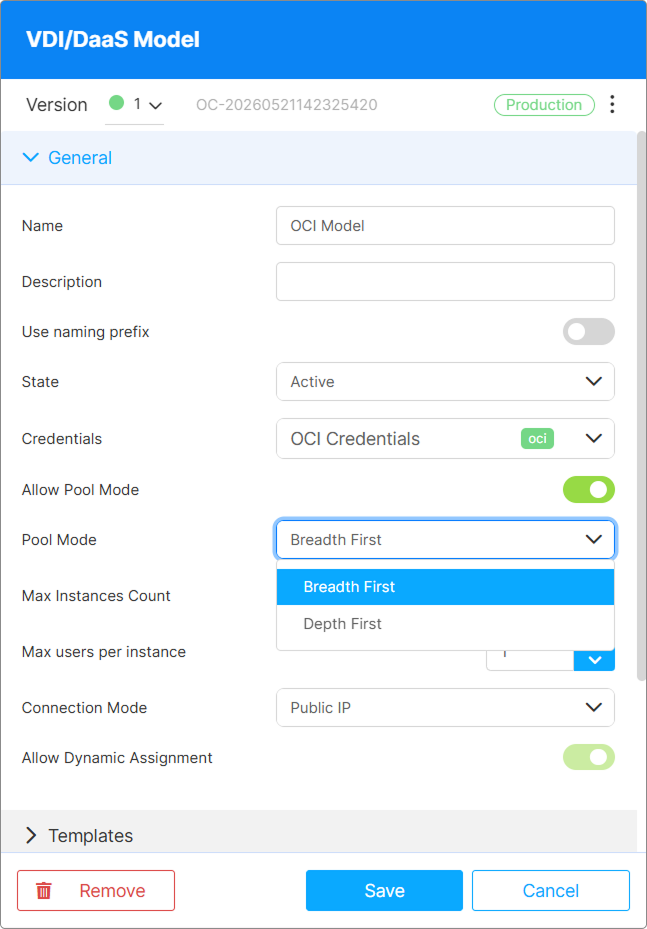
Pool Mode
Pool Mode is visible only when Allow Pool Mode is enabled. It controls how incoming connections are distributed across the running instances in the pool.
| Option | Description |
|---|---|
| Breadth First (default) | New connections are distributed evenly across all available instances. Each new session goes to the instance with the fewest active sessions. Maximizes the number of active instances and spreads load. |
| Depth First | New connections fill each instance to capacity before moving to the next. Minimizes the number of running instances at any given time, reducing provider costs in session-based scenarios. |
Use Depth First with Staged Power On/Off: instances that are never filled remain off, reducing cloud costs automatically.
Instance Naming Prefix
The naming prefix controls how instances provisioned from this model are automatically named. Optional, but recommended for environments with multiple models.
| Field | Default | Description |
|---|---|---|
| Use naming prefix | Off | Switch that enables or disables the prefix-based naming scheme. When off, Cloud Manager assigns a default generated name. |
| Prefix | (empty) | A text string prepended to every instance name (for example: DESK, VDI-, LAB). |
| Digits | 1 |
Number of zero-padded digits appended after the prefix (for example: 3 digits → DESK001, DESK002, DESK003). |
| Start Index | 1 |
The numeric value used for the first generated name. Setting a higher value lets new model versions or merged pools continue from an existing index series. |
Deployment Trigger
The deployment trigger determines when Cloud Manager provisions new instances for this model. It is configured in the editor’s Deploy tab (or the wizard’s Deploy step).
| Option | Description |
|---|---|
| On Demand | An instance is provisioned when a user connects through an Access Profile and no available unassigned running instance exists in the pool. |
| Scheduled | Instances are provisioned in advance, at a configured creation time, before user demand arrives. Use this to ensure instances are warm and ready at the start of business hours or before a scheduled event. |
When Scheduled is selected, additional fields appear to configure the schedule and counts:
- Create At — date and time at which the scheduled provisioning happens.
- Initial Instances, Lazy Instances, Max Instances — see Instance Count Settings below.
Schedule times are interpreted in the time zone of the administrator who configures them. At runtime, Cloud Manager converts the scheduled times to each end user’s local time zone, so a window configured as 8:00 AM applies as 8:00 AM in the user’s own time zone.
Instance Count Settings
Two near-identically-named fields control instance counts at different scopes — Max Instances in the Deploy tab and Max Instances Count in the General tab. They coexist as independent limits.
| Field | Tab | Description |
|---|---|---|
| Initial Instances | Deploy | Number of instances provisioned when the model is first activated or a scheduled deployment fires. Setting this to a value greater than zero ensures a warm pool is available before the first user connects. |
| Lazy Instances | Deploy | Number of additional instances to keep provisioned and running, but unassigned — a warm buffer available for the next connecting user. Reduces the wait time compared to provisioning on first request. |
| Max Instances | Deploy | The per-schedule cap. Bounds how many instances a single scheduled deployment can create. |
| Max Instances Count | General (only when Allow Pool Mode is enabled) | The pool-wide cap. Bounds how many running instances Cloud Manager maintains via the pool — including all automated growth from Staged Power On/Off. |
| Max users per instance | General (only when Allow Pool Mode is enabled) | The maximum number of concurrent user sessions a single instance accepts before pool routing skips it. Also the ceiling that Occupancy Threshold in Staged Power On/Off must sit below. |
Note that Max Instances and Max Instances Count are different fields. Max Instances (Deploy tab) bounds a single scheduled deployment. Max Instances Count (General tab, visible only when Allow Pool Mode is enabled) bounds the running pool size including all automated power-cycling. When a scheduled deployment runs, the monitor creates at most min(Max Instances, Max Instances Count − currently active), so the lower of the two effectively wins.
Note that Lazy Instances greater than zero incurs provider costs for the warm VMs even when no users are connected.
Allow Dynamic Assignment
The Allow Dynamic Assignment switch in the model editor’s General tab controls how a user is matched to an instance when they connect. This setting is editor-only — the wizard does not capture it; new models take the default and can be adjusted afterwards.
| Option | Description |
|---|---|
| On | The broker matches the user to any free instance at session time. The instance assignment is temporary — on the next login, a different instance may be picked. This is the default for shared session-based pools and the more resource-efficient option. |
| Off | No automated matching occurs. A user is routed to a specific instance only if an administrator has explicitly bound them to it via the Manage Users dialog. The user always connects to that instance. |
The switch is automatically disabled when Allow Pool Mode is enabled — the pool’s distribution logic (Breadth First or Depth First) takes over routing and is not compatible with strict per-user pinning.
For the per-instance pinning procedure, see Manually Assign an Instance to a User.
Editing Provisioning and Pooling Settings After Creation
To open the model editor, click the edit icon on the model in the left tree.
Settings Locked While the Model Is in Use
While the model has instances, the editor shows the In use banner and the following settings become read-only: the Model Name, Use naming prefix (with Prefix, Digits, and Start Index), Allow Pool Mode, and Allow Dynamic Assignment. These settings define the identity and routing strategy of the pool, so they cannot change while instances built under the current configuration exist.
A model counts as in use while any of its instances exists, whatever its power state — running, stopped, and disabled instances all count. Powering instances off is not enough to unlock the settings.
To change a locked setting, either:
- Remove all instances from the model — delete them from the instances view (or let the Destroy settings remove them). Once the last instance is gone, the settings unlock.
- Create a new model or model version with the desired configuration and migrate users to it, leaving the existing deployment untouched.
How Changes Take Effect
The new settings take effect immediately, with behavior depending on which fields changed:
- Connection Mode, Max users per instance, and Naming Prefix — apply to instances created from this point forward. Already-deployed instances keep their original connection routing and names.
- Pool Mode and Allow Dynamic Assignment — apply to the next user who connects. Existing sessions are not interrupted, but the new routing behavior governs every new connection.
- Deployment Trigger changes — apply at the next scheduled window (when switching to Scheduled) or at the next user request (when switching to On Demand). Switching from Scheduled to On Demand does not destroy instances already created by the prior schedule — they remain in the pool until removed by the Destroy settings, manual deletion, or model deletion.
- Initial / Lazy / Max Instances — apply to the next provisioning evaluation. Existing instances that exceed the new Max Instances ceiling are not removed automatically; lower the count and detach the excess manually if needed.
What’s Next
- Power and Scheduling Settings — Define when instances power on and off, and configure Staged Power On/Off for session-based pools
- Deploy an Instance — Start provisioning instances from this model
- Manually Assign an Instance to a User — Pin specific users to specific instances
See Also
- Model Settings Reference
- Pooling Strategies — Conceptual overview of session-based vs. 1:1 strategies
- Create a Model Using a Built-in Blueprint
- Instance States and Lifecycle