
VM Actions Reference
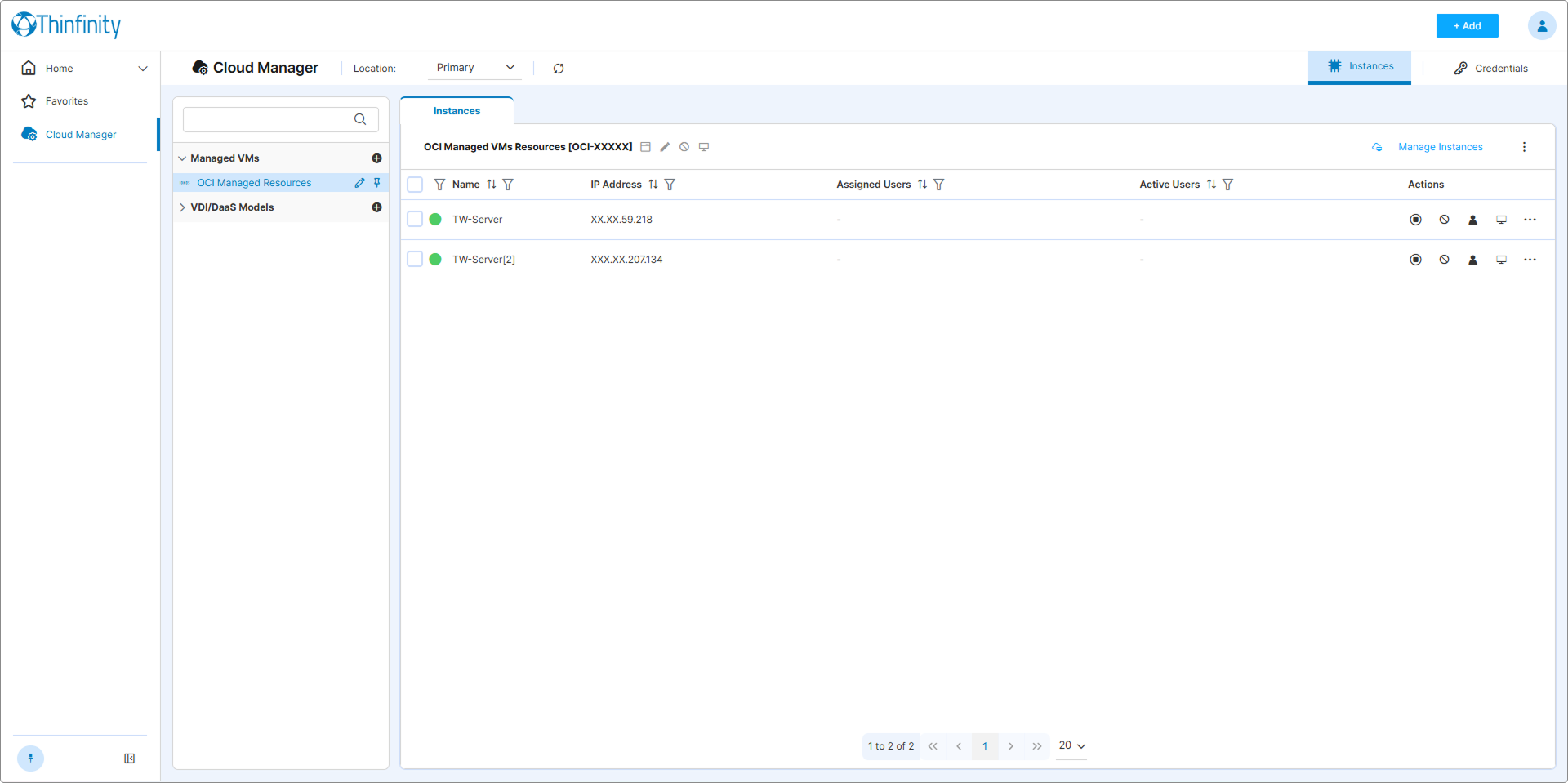
The Instances tab in Thinfinity® Cloud Manager is the central control hub for all virtual machines registered as Managed VMs. From here, administrators can monitor VM status, control power and availability, manage user access, and apply individual or bulk actions.
Status Indicators
Each VM in the Instances tab displays a real-time status indicator. The most common values for Managed VMs are listed below; for the full enum (including transient states) see Instance States and Lifecycle.
| Indicator | Status | Meaning |
|---|---|---|
| 🟢 | On | The VM is running and fully operational. |
| 🔴 | Off | The VM is powered off and not in use. |
| 🔄 | (transient) | A loading indicator appears in the Status column while the VM is powering on or off. The label is not displayed inline. |
| 🚫 | Disabled | The VM is administratively disabled and unavailable for use. It cannot be started or connected to until re-enabled. |
| ⚠️ | Error | The last operation against this VM failed. Click the status icon to open the View Log dialog and inspect the error. |
Available Actions
Per-row actions for each VM appear as icons in the row’s Actions column. The set of icons is state-aware — only actions valid for the current VM state are shown. When more actions exist than fit in the inline slots, the remaining ones appear in the row’s kebab menu (⋮). Some actions prompt for confirmation.
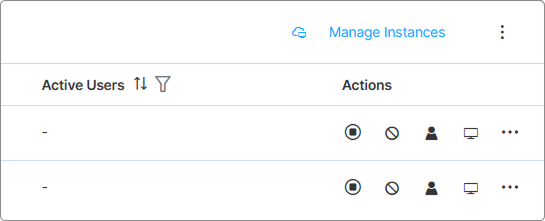
| Action | Description |
|---|---|
| Start | Powers on a VM that is in Off status. |
| Stop | Shuts down a VM that is On. Issues the provider’s stop or deallocate operation. |
| Enable | Makes the VM available for user access. Reverses a previous Disable action. |
| Disable | Removes the VM from availability without powering it off. |
| View Log | Opens the event log for the VM, showing a timestamped history of status changes and administrative actions. The status icon in the row also opens this dialog. |
| Manage Users | Opens the Manage Users dialog, allowing you to add, remove, or modify which users have access to this VM. See Manually Assign an Instance to a User. |
| New Profile | Creates an Access Profile scoped to the selected VM. The profile does not require a user assignment and can be used for administrative access, troubleshooting, or kiosk-style configurations. |
| Detach | Removes the VM from Cloud Manager management. The VM is not deleted from the provider; only its Cloud Manager registration is removed. Offered when the VM is in an Error state. |
Power and Availability
A Managed VM has two independent state dimensions: its power state (On / Off), changed by Start and Stop, and its availability state (Enabled / Disabled), changed by Enable and Disable. The dimensions are orthogonal — a VM can be On and Disabled at the same time, or Off and Enabled.
Power — Start and Stop. A starting VM shows a transient loading indicator in the Status column while it boots, then becomes On once the operating system is up. Stop issues the provider’s stop or deallocate operation — on Azure, POST .../deallocate, which releases compute resources and pauses compute billing; on AWS, GCP, OCI, and the on-premises hypervisors, the equivalent native stop. There is no choice of mode — the provider’s standard stop semantics apply, and where the OS supports ACPI it shuts down in an orderly way before power-off. Stop does not suspend the VM; suspension is an API-only operation (see Suspend and Resume below).
Note that Stop does not warn connected users. Active sessions are terminated when the VM stops — notify users before stopping VMs during active hours.
Availability — Enable and Disable. Enable restores a VM to availability; if the VM is already On, it becomes immediately accessible to assigned users and through applicable Access Profiles. Enable does not start a VM that is Off — start it separately. Disable removes a VM from availability without powering it off: existing sessions are not terminated, but no new connections are brokered, and the VM keeps running in the provider infrastructure until it is stopped.
A disabled VM continues to consume cloud resources while it is On. To halt consumption, use Stop after Disable.
Bulk Actions
Select multiple VMs with the row checkboxes, then choose an action from the ⋮ menu in the top-right corner of the Instances tab. The available bulk actions are Start, Stop, Enable, Disable, and Detach; actions invalid for the current selection are disabled (for example, Start is unavailable when no selected VM is Off).

Bulk actions are applied immediately, with no confirmation prompt. Verify your selection before running a bulk Stop in production.
Suspend and Resume (API Only)
Explicit Suspend and Resume actions are not exposed in the Web Manager UI; they are available only via the REST API (POST /instances/{id}/suspend and POST /instances/{id}/resume). On Azure, Suspend invokes hibernate-deallocate (POST .../deallocate?hibernate=True), preserving RAM contents; on providers that support a native suspend, the equivalent operation is used. Day-to-day, administrators interact with the lifecycle through Start, Stop, Enable, and Disable.
Granting User Access
To allow end users to connect to a Managed VM, you must create an Access Profile. VM actions alone do not grant user access.
See Also
- Snapshots and Cloud Manager — Capture and restore VM state from the provider console
- Connect to an Instance Through an Access Profile
- Power and Scheduling Settings — Configure automatic power schedules