
Enable Cloud Manager
Thinfinity® Cloud Manager is installed as part of Thinfinity® Workspace and runs as a service by default. Full administrators see Cloud Manager in the UI automatically; no setup is required for them. For all other users — including limited admins and operators — access must be granted explicitly before Cloud Manager becomes visible.
This article describes how a full administrator grants Cloud Manager access to specific users or groups.
Prerequisites
Before granting access, make sure your environment meets the requirements described in Prerequisites.
Grant Access to Cloud Manager
Access can be granted from either the Configuration Manager desktop application or the Web Manager. Both methods are equivalent; use whichever fits your workflow.
Option A — From Configuration Manager
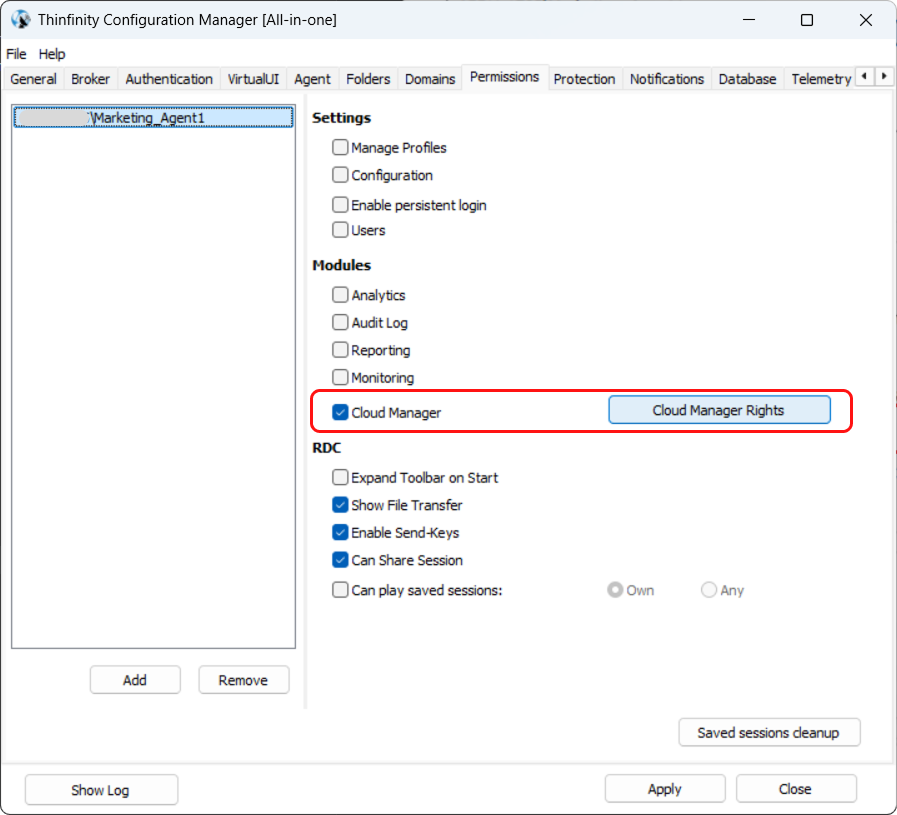
- In the Configuration Manager, go to the Permissions tab.
- Add the users or groups that should have access to Cloud Manager.
- Select the user or group you want to grant permission and enable the Cloud Manager checkbox.
- Click Apply to save the changes.
Option B — From Web Manager
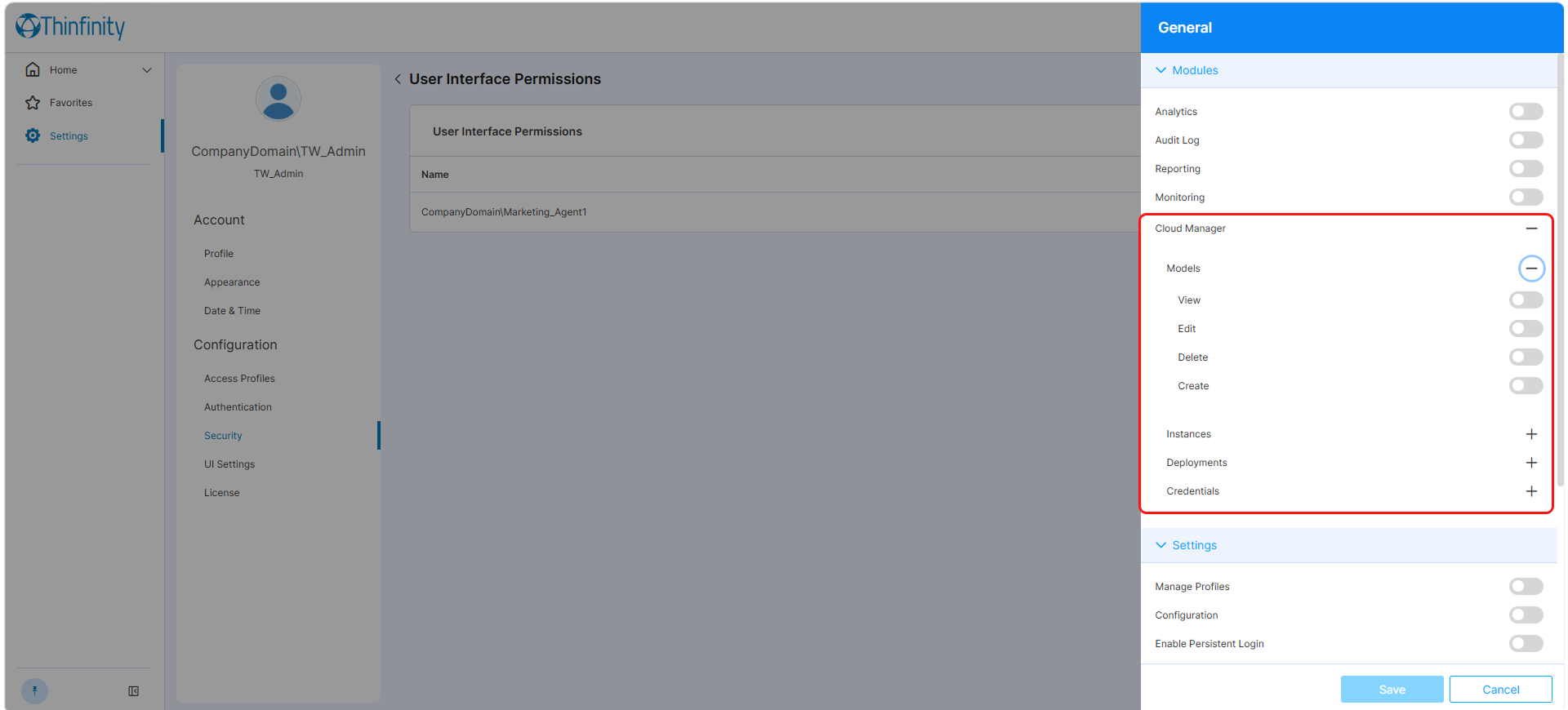
- Open the Web Manager and navigate to Configuration > Security > User Interface Permissions.
- Click +Add to add new users or groups, or open the edit panel from the actions column.
- Locate the Cloud Manager module in the Permissions list and enable it.
- Save the changes.
For a full reference on User Interface Permissions, see the Thinfinity Workspace product manual.
Allowing Users to Create Access Profiles
If users with Cloud Manager access also need to create Access Profiles for the Managed VMs connections or VDI/DaaS models they manage, enable the Manage Profiles permission for them. It is configured in the same Permissions tab of Configuration Manager (or the same User Interface Permissions screen in Web Manager) — tick the Manage Profiles checkbox alongside Cloud Manager for the relevant user or group.
Manage Profiles is a Thinfinity® Workspace permission, not a Cloud Manager permission. Granting it has effects beyond Cloud Manager. For background on Access Profiles and how they integrate with Cloud Manager, see Access Profiles and Cloud Manager.
What’s Next
With Cloud Manager access granted, you can proceed to:
- Credentials — Add and configure cloud provider or hypervisor credentials.
- Cloud Manager Permissions — Configure granular RBAC permissions for Cloud Manager entities (Models, Instances, Deployments, Credentials).