
Kubernetes Models
A Kubernetes Model is a VDI/DaaS Model type that brokers user sessions to pods on a Kubernetes cluster instead of to virtual machines. Where a VM-based model provisions instances and manages them on the Instances tab, a Kubernetes Model creates a pod on demand when a user connects and exposes those pods on a dedicated Pods tab. Kubernetes Models are created and listed under VDI/DaaS Models, alongside VM-based models.
The built-in Kubernetes models deliver Remote Browser Isolation — secure, containerized browsing where the browser runs in a pod and only a streamed representation reaches the user. For the concept, architecture, and session features, see Remote Browser Isolation (RBI). For how the three compute paths compare, see Choosing a Compute Path.
Prerequisites
- A Kubernetes credential configured in Cloud Manager for the target cluster. See Kubernetes Credentials.
- The Create on Models permission to create the model. The actions on the Pods tab are governed separately, by the rights on the Deployments entity: View for View Log and View State, Delete for removing a pod. For details, see Cloud Manager Permissions.
Create a Kubernetes Model
Cloud Manager ships with three built-in Kubernetes models, each pre-configured with its own pod definition, so you can create a working model without authoring any Kubernetes manifest:
- Chrome RBI — the dedicated browser-isolation model, with the full set of RBI session features (clipboard, audio, file transfer, quality, and high DPI).
- Chrome noVNC — the lightest model: browser-based access to Chrome with text-only clipboard and none of the advanced session features.
- Chrome RDC — a Linux desktop running Chrome, reached over Remote Desktop Connection (RDC) access; the richest in capabilities, for use cases that need a full desktop rather than a single browser.
All three support dynamic resource allocation and destroy idle sessions automatically after 10 minutes by default to free cluster resources. For how the models differ and which to choose, see Remote Browser Isolation (RBI).
Open the model wizard
Expand VDI/DaaS Models in the left tree and click the + button, or use + Add > VDI/DaaS Model.
Select the K8S provider
Choose K8S as the model provider.
Choose a built-in model
In the Model Selector step, select Chrome RBI, Chrome noVNC, or Chrome RDC under Built-in Models.
Select the credential
In the Credentials step, select the Kubernetes credential that points to your cluster. You can also switch this step to New and fill in the credential fields here, without leaving the wizard — see Kubernetes Credentials for what each field expects.
Review the K8S parameters
The K8S Parameters step opens a YAML editor holding the configuration the model will use. For a built-in model the wizard normally skips this step, since the configuration is already complete; some built-in models allow editing it here. For Use custom configuration, this step is where you author the definition — see Custom Configuration.
Name and finish
Set a Name and Description, complete the wizard, and Save. The model appears under VDI/DaaS Models in the left tree under the name you give it.
To build a Kubernetes Model from your own pod manifest instead of a built-in model, choose Use custom configuration in the Model Selector. See Custom Configuration below.
Custom Configuration
Choosing Use custom configuration in the Model Selector lets you define the pod yourself instead of starting from a built-in model. The manifest lives in the model editor’s K8S Configuration section, in the Pod YAML Config field: a standard Kubernetes Pod manifest (apiVersion: v1, kind: Pod) that Cloud Manager schedules for each user session. The cluster connection (API URL and token) comes from the selected Kubernetes credential, not from the manifest; the target namespace is part of the pod definition.
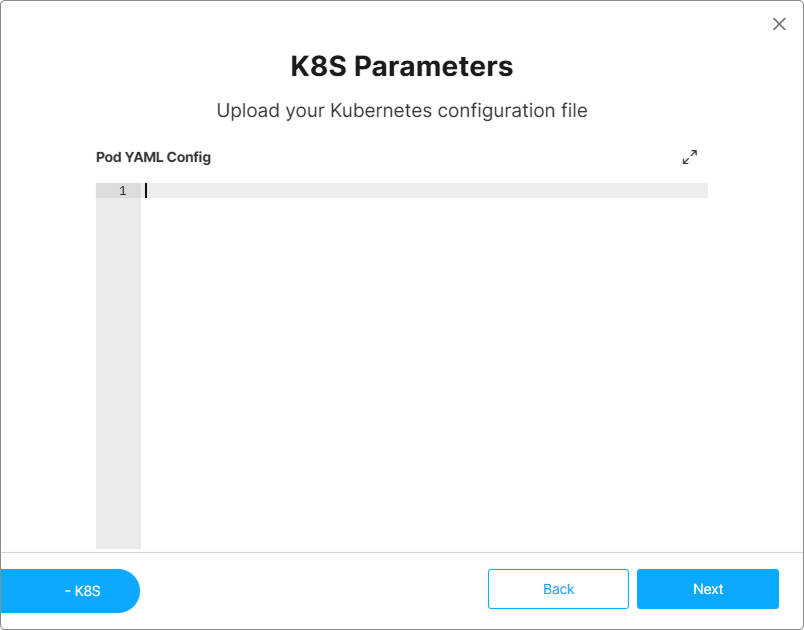
A custom manifest combines two parts: a registration container that connects outbound to the Gateway and registers the pod for the session, and a workload container that delivers the desktop or application. The registration container differs by built-in model, so the reliable starting point is to open a built-in model’s Pod YAML Config and adapt it: copy its registration container unchanged — name, image, pull secret, and environment — and author only the workload container. A custom manifest follows this minimal shape:
apiVersion: v1
kind: Pod
metadata:
  name: $podName            # substituted with the per-session pod name
  namespace: <namespace>    # the namespace your credential's RBAC role covers
spec:
  restartPolicy: Never
  containers:
    # Registration container — connects outbound to the Gateway and registers
    # the pod for the session. Copy it as-is (name, image, pull secret, and
    # env) from a built-in model's Pod YAML Config; it already uses the
    # substitution placeholders below.
    - name: <registration container, copied from a built-in model>
      # image, env, and pull secret copied unchanged
    # Workload container — the desktop or application you deliver.
    - name: workload
      image: <your-workload-image>
      env:
        - name: VIRTUAL_PATH
          value: $virtualPath
Add whatever standard pod fields your cluster requires — resources, and imagePullSecrets for images pulled from a private registry. For manifest syntax and the full field reference, see the Kubernetes Pod documentation.
Only one manifest is allowed per model. Validate the YAML before you save.
Adding a Service
The configuration a model stores is not only the pod: it holds the pod definition under a pod key, and it may hold a Service definition under an optional service key alongside it. The presence of that service definition is what selects how sessions reach the pod — see How the Pod Connects. A built-in model defines no Service, so it uses the outbound path; add one only when your environment requires reaching the pod through a NodePort.
Placeholders
Cloud Manager substitutes the following placeholders in the manifest when it creates a pod for a session:
| Token | Replaced with |
|---|---|
$sessionId |
The generated session identifier (<model>-<hashed username>). |
$podName |
The name of the pod created for the session. |
$agentId |
The Virtualization Agent identifier for the session. |
$networkId |
The network identifier for the session. |
$gatewayList |
The list of gateways for the session. |
$virtualPath |
The virtual path assigned to the session. |
How the Pod Connects
By default, Cloud Manager reaches the pod through outbound registration, not an inbound service. The registration container connects out to the Thinfinity® Workspace Gateway and registers the pod for the session; in this mode you do not define a Service, Ingress, LoadBalancer, or NodePort, and the pod needs no inbound ports, public IP, or per-pod firewall rule. This outbound-only path is the default for the built-in models and keeps the pod off the inbound network surface.
A custom configuration may instead expose the pod through a Service: when the configuration includes one, Cloud Manager creates it and reaches the pod over a NodePort, via the node’s public IP. This is why the credential’s RBAC role includes permission to manage services — see Kubernetes Credentials. Which of the two paths a model uses is decided by the presence of the service definition, not by a setting in the model editor. Unless your environment specifically requires a Service-based connection, prefer the outbound path.
Chrome Profile Persistence
The Chrome RBI built-in model can retain each user’s Chrome profile — passwords, extensions, themes, cookies, history, and settings — across pod recreations. Because pods are per-session and short-lived, persistence is an opt-in capability you configure at the cluster and manifest level: you provision a persistent volume on the cluster and point the model’s pod at it. The other two built-in models deliver a fresh browser each session.
Persistence works through a stable identifier. Cloud Manager resolves $sessionId to the model’s name followed by a hash of the Thinfinity Workspace user — for a model named novnc, something like novnc-1a2b3c4d5e — so the same user connecting through the same model always maps to the same folder inside the volume. Access Profiles that target the same model share that folder; a different model keeps a folder of its own. Chrome runs against that folder as its user-data directory, so whatever the volume holds is what Chrome loads on the next session.
Configuring it has two parts: a PersistentVolumeClaim on the cluster, and the volume fields in the Chrome RBI model’s Pod YAML Config.
Provision a PersistentVolumeClaim on the cluster
On the cluster, create a PersistentVolumeClaim in the namespace where the pods launch, and give it a name (for example, profiles-data-pvc). The name is arbitrary but must match the claimName you set in the manifest.
The claim must use the ReadWriteMany (RWX) access mode. Many pods mount the same volume at the same time — one per active user session — and only RWX allows that concurrent access. RWX requires a storage backend that supports it, such as NFS, CephFS, or Azure Files. A ReadWriteOnce claim mounts from a single node only and breaks concurrent access across pods. Size the claim and choose the StorageClass to suit your user population.
The PersistentVolumeClaim must already exist in the namespace where the pods launch. If it does not, the pod stays in Pending and never starts.
Reference the volume in the model’s Pod YAML Config
Open the Chrome RBI model, and in K8S Configuration → Pod YAML Config add the volume fields to the manifest. The recommended form uses subPath so each pod mounts only its own user’s folder rather than the whole volume:
spec:
  containers:
    - name: <Chrome RBI workload container>   # leave the built-in container as-is
      env:
        - name: VOLUME_PATH
          value: /profile                     # must equal mountPath below
      volumeMounts:
        - name: profile
          mountPath: /profile                 # the container sees its folder here
          subPath: users/$sessionId/chrome    # per-user folder inside the volume
  volumes:
    - name: profile                           # internal pod name; matches volumeMounts
      persistentVolumeClaim:
        claimName: profiles-data-pvc          # the PVC created on the cluster
VOLUME_PATH tells Chrome where to keep the user’s data. Its value must sit at or below the volume’s mountPath — anything outside the mounted path is written to the pod’s ephemeral disk and is lost when the pod is recreated — and it must carry the stable per-user identifier so each user reuses the same folder. $sessionId provides that identifier; the surrounding path (users/, /chrome) is organizational only.
With subPath, each pod sees only users/$sessionId/chrome and none of the other users’ folders. If you omit subPath and mount the whole volume instead (for example, mountPath: /data with VOLUME_PATH: /data/users/$sessionId/chrome), persistence still works, but every pod can see every user’s profile directory. Prefer subPath unless you have a reason not to.
Model Settings
Open a Kubernetes Model from the left tree to review or edit its settings. The model editor has two sections.
The General section holds the model Name and Description, its State, and the Credentials the model uses to reach the cluster. Two pod-cleanup controls also live here:
- Destroy after idle: when enabled, Cloud Manager removes a pod after its session has been idle for the configured period. Turning it off means the model never removes its pods automatically — they keep consuming cluster resources until an administrator deletes them from the Pods tab.
- Destroy after: the idle period, in minutes, before an idle pod is removed. The built-in models default to 10 minutes.
A pod that is still serving an active user is not removed by the idle timer: the idle countdown starts only once the pod has no active users.
The K8S Configuration section holds the Pod YAML Config — the Kubernetes manifest that defines the pod Cloud Manager schedules for each session. For a built-in model this manifest is pre-populated; you edit it only when working with a custom configuration or when adding volume fields for Chrome profile persistence.
Manage Pods
Select the Kubernetes Model in the left tree (under VDI/DaaS Models) to open its Pods tab. Kubernetes Models use a Pods tab in place of the Instances, Images, and Deployments tabs that VM-based models have: pods are created automatically when a user connects and removed automatically when idle (see Pod Session Lifecycle), so the tab is for monitoring and manual cleanup rather than provisioning. Because those tabs do not apply, neither do the workflows built on them — Golden Images and script deployments are features of VM-based models only.
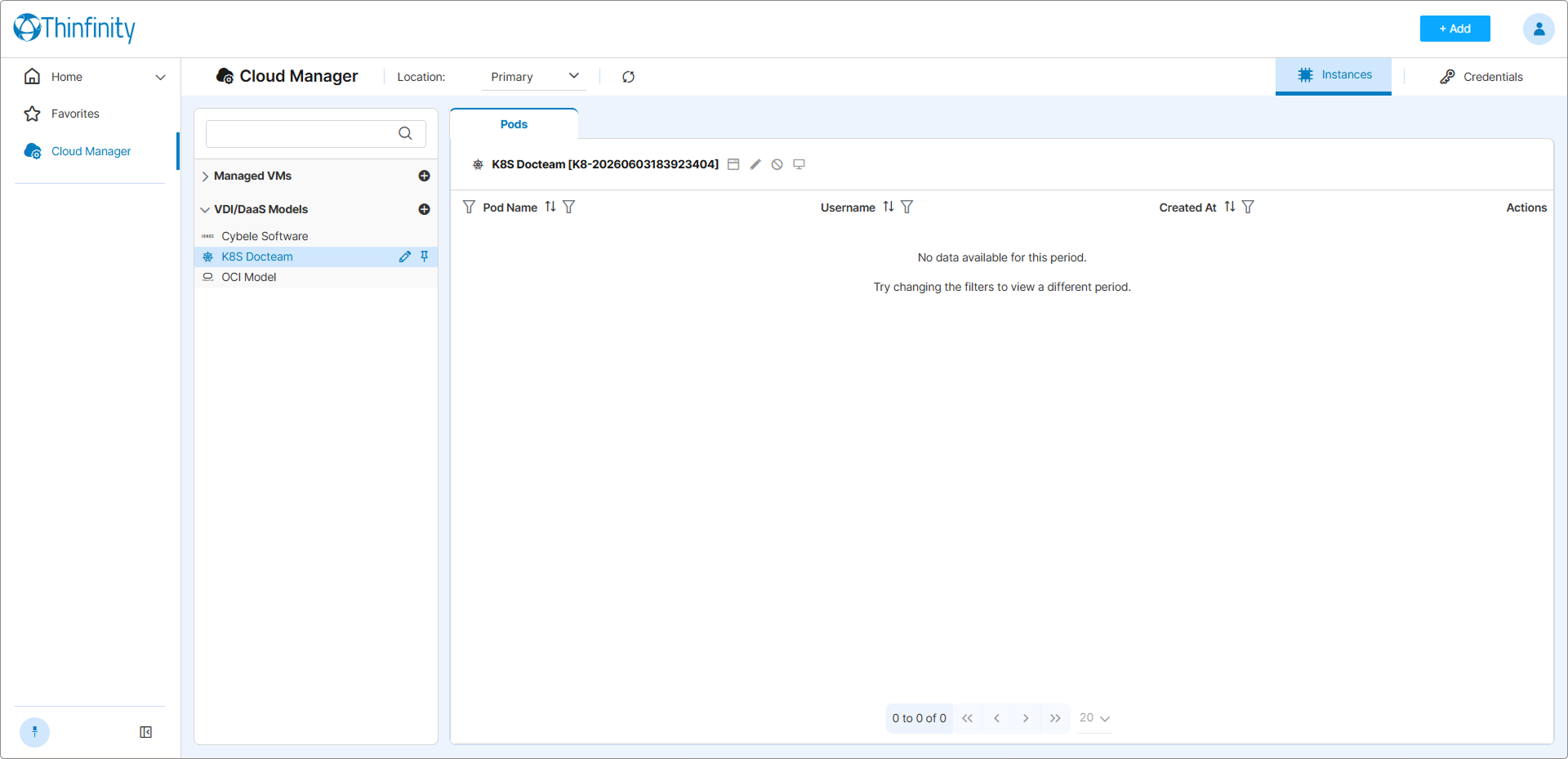
The Pods Table
| Column | Description |
|---|---|
| Status | A colored dot reporting the pod’s phase on the cluster. Hover over it to read the phase name. |
| Pod Name | The name of the pod created for the session. |
| Username | The Thinfinity® Workspace user the pod’s session belongs to. |
| Created At | When the pod was created. |
Use Search by name above the table to filter by pod name, the Status column filter to narrow the list to a single phase, and the column picker to adjust the visible columns. The table refreshes automatically; the Refresh button in the top bar forces an immediate update.
Pod Phases
Most of what the Status column reports is the pod’s phase as Kubernetes itself defines it, plus two states Cloud Manager derives on its own:
| Status | Meaning |
|---|---|
| Pending | The pod has been accepted by the cluster but is not running yet — images are being pulled, or the scheduler has not placed it on a node. |
| Running | The pod is bound to a node and its containers are running. This is the normal state of an active session. |
| Succeeded | All containers exited successfully and will not be restarted. |
| Failed | All containers have terminated and at least one exited with an error. |
| Unknown | The cluster could not report the pod’s state — typically a node that stopped responding. |
| Terminating | The pod is being deleted, either by the idle timer or manually. |
| Error | Cloud Manager could not read the pod’s state from the cluster, and reports the error instead of a phase. |
| Terminated | A container exited while the pod never reached Running — the session never started. |
Only Running is shown in green; every other status uses the same alert color, so a pod that is merely starting (Pending) or being cleaned up normally (Terminating) looks exactly like one that failed. Read the status from the tooltip before concluding that a session is broken.
The column filter offers the six Kubernetes phases only — Error and Terminated appear in the column and its tooltip, but cannot be filtered for.
Pod Actions
| Action | Effect |
|---|---|
| View Log | Opens the Pod Log dialog for the pod — see The Pod Log Dialog below. |
| View State | Opens the Pod State dialog showing the pod’s current status. |
| Delete | Deletes the pod after confirmation. |
The Pod Log Dialog
The Pod Log dialog streams the logs of the selected pod. A pod runs the workload alongside the container that registers it with the Gateway, and the Container selector at the top chooses which one’s logs to show: the registration container’s logs show Gateway registration events, while the workload container’s logs surface rendering, audio, and clipboard activity. When troubleshooting a session, check both. A Refresh button reloads the output on demand, and the Settings (gear) control exposes:
| Control | Description |
|---|---|
| Tail (lines) | Limits output to the last N lines. |
| Since (seconds) | Shows only entries from the last N seconds. |
| Auto-refresh | Continuously reloads the log while enabled. |
| Interval (s) | Appears once Auto-refresh is on: how often the log reloads, in seconds. Defaults to 5, and accepts 1 to 3600. |
For what the built-in models deliver, see Remote Browser Isolation (RBI).
Pod Session Lifecycle
When a user connects through an Access Profile that targets the Kubernetes Model, Cloud Manager creates the pod on demand. The pod appears in the Pods tab as Pending while the cluster schedules it and its registration container connects outbound to the Gateway, and moves to Running once it is ready to serve the session. A pod that never leaves Pending, or that reaches Failed, Error, or Terminated, indicates the session could not start.
When a session fails or behaves unexpectedly, use View State and View Log on its pod: the message shown when pod creation fails is generic, but View State returns the pod’s raw status from the cluster, where the specific reason — an image that cannot be pulled, a container crash loop, an unschedulable pod — is reported in the standard Kubernetes conditions and container-state fields.
Because pods are per-session and short-lived, the Pods tab typically reflects only currently active or recently created sessions.
See Also
- Remote Browser Isolation (RBI) — What the built-in models deliver, and how a session works end to end.
- Choosing a Compute Path — Where Kubernetes Models fit among the three paths.
- Kubernetes Credentials
- Manage Deployed Instances — The equivalent workflow for VM-based models.