
Rules
In the Rules tab you will find the following parameters:
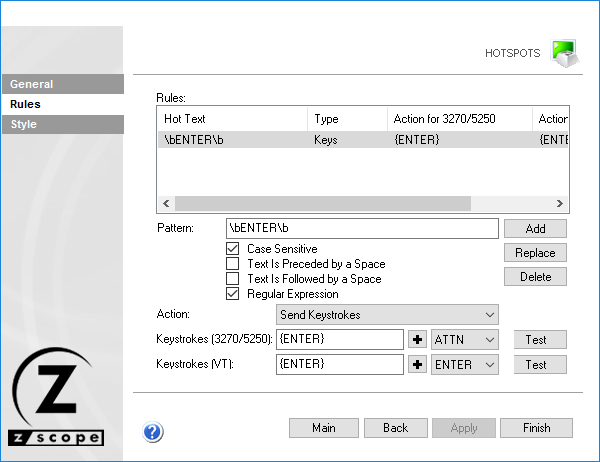
The following table describes the available options.
| Option | Description |
|---|---|
| Rules Grid | Contains the currently defined rules for the selected hotspot. |
| Pattern | A Regular Expression to match the screen string to turn into a hotspot. See Appendix B. |
| Case Sensitive | Considers the case when matching the hot text. |
| Text is Followed/Preceded by a Space | Matches the pattern only if preceded and/or followed by a blank character. |
| Regular Expression | Enables regular expressions in the Pattern field. |
| Action | Action to perform when the hotspot is activated: Send keystrokes or Start a Macro. |
| Keystrokes | Text to send as keystrokes. Select a key from the list and select + to add it. Keys must be enclosed in brackets (e.g., {ENTER}). Only available when Send keystrokes is selected. |
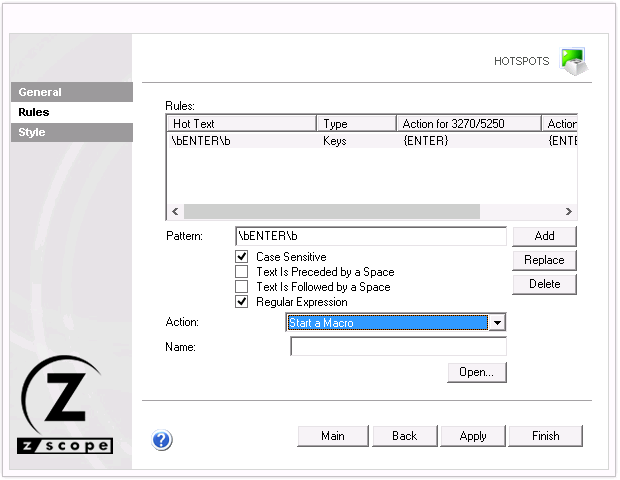
When the Start a Macro action is selected, the tab changes to show the following option:
| Option | Description |
|---|---|
| Name | Name of the macro to start when the hotspot is activated. Use the Open button to select a macro from the configuration directory. Only available when Start a Macro is selected. |
Adding a Rule
- In the Pattern field, enter a Regular Expression to match the string to turn into a hotspot, along with the case and blank options.
- Select the action: Send Keystrokes or Start a Macro.
- Enter the keystrokes or macro name according to the selected action. To add a key, select it from the key list and select Add. Keys can also be entered manually by enclosing them in brackets (e.g.,
{ENTER}). - Select Add.
The new rule appears in the Rules grid.
Modifying a Rule
- Select the rule from the Rules grid.
- Modify the Pattern and Action parameters as desired.
- Select Replace to apply the changes.
Deleting a Rule
- Select the rule from the Rules grid.
- Select Delete.
Testing a Rule
- Select Test. The Test HotSpot Rule dialog is displayed.
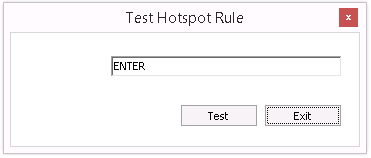
- In the Text string field, type the screen text simulation to evaluate.
- Select Test. If the string matches the current rule, a message informs the action to be performed.
- Select Exit to close the dialog and return to the Rules tab.
Info
Testing is only available when Send Keystrokes is selected in the Action field.