
Downloading
A download from the host to your web browser should be done in two steps, as shown on the image below:
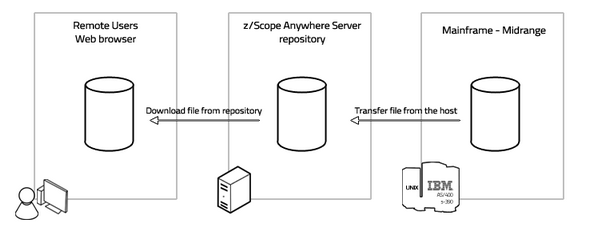
Download the File from the Host
-
Open an existing connection on the Start Page.
-
Select the File Transfer context menu item.
| Action | Description | |
|---|---|---|
 |
File Transfer | Select File Transfer in the connection menu and the File Transfer Manager will be presented |
-
On the Queue tab, select Add to create a new job. Set the direction to Receive. Set up all the other parameters.
-
Select the created job and select Run. The progress dialog will be shown:
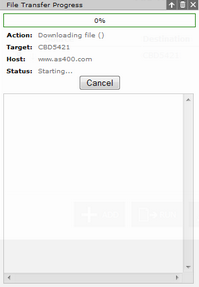
- Once the File Transfer has finished, you will be redirected to the History tab, where this job’s status will be shown.
Download the File from z/Scope Anywhere Server
-
If the file reception was successful, you can download it from the server to your web browser.
-
Go to the Files tab and select the file just received from the host.
-
Select Download and the file will be downloaded to your local device.