Connection View Menu
On the top right corner of the Connection Views you will find its menu:
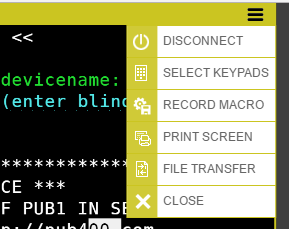
The Connection View menu includes the following options.
| Action | Description | |
|---|---|---|
 |
Disconnect | Disconnects the session. |
 |
Select Keypads | Select to see all keypads enabled for this connection. This option won’t be shown if no keypads are enabled for the connection. |
 |
Record Macro / Save Macro | Select to record a new macro sequence. When you’re done, select Save Macro in its place. Read more: Creating a Macro. |
 |
Manage Macros | Select the Macros icon to see the existing macros. It’s shown only when there are macros for the current connection. You can rename and delete the existing macros. |
 |
Print Screen | Send a screenshot of the session to the printer. You can choose 4 different printing modes. |
 |
File Transfer | Open the File Transfer Manager to upload or download files from the host. |
 |
Close | Closes the session. |
The macros recorded for this session will be shown in the Connection View menu:
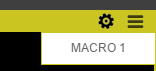
Select the macro to run it.
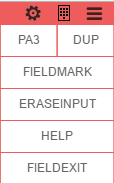
Keypads enabled for this connection will also be shown in the Connection View menu: