Running the Example Application
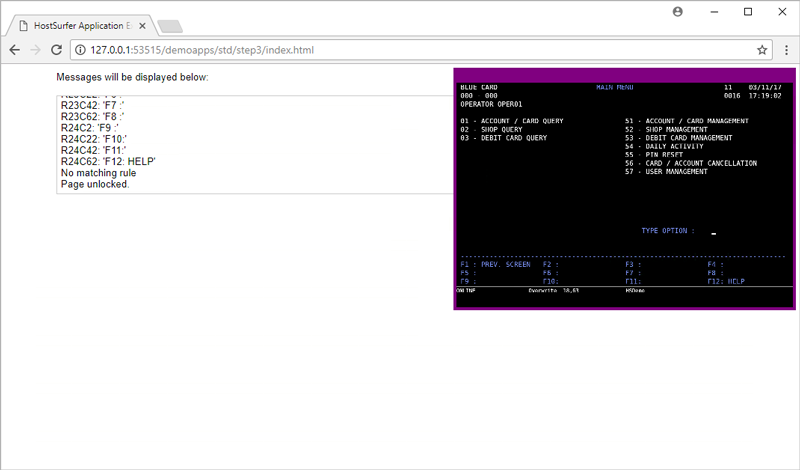
After running the application, you should see something like this:
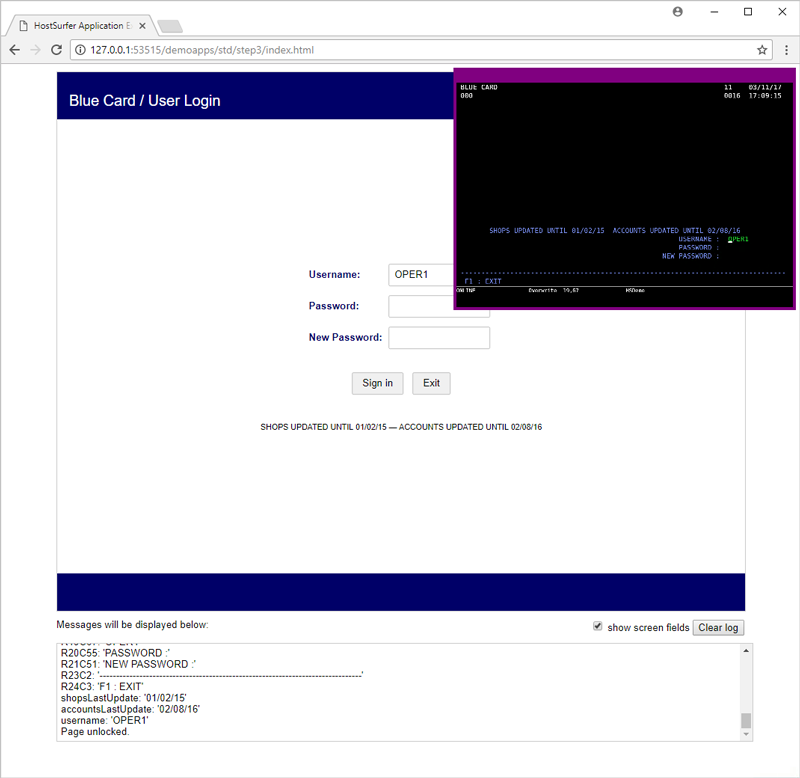
Let’s go through the “log” content to see what happened:
Once the connection is established, these will be the first message you will see:
Ready!
Page unlocked.
Now, HostSurfer receives the screen content and checks if one or more rules identification criteria match with the current screen content. HostSurfer applies a score to each matching rule and it will always select the rule that best fits the current screen. In this case, the CICS word at the beginning of the fifth row is sufficient enough to match with the cisc rule.
R1C2: 'CSSN=SIGUE'
R5C1: 'CICS'
R5C12: 'BLUE CARD - TEST'
R5C64: 'TERMINAL TCLD1006'
R18C21: 'USERNAME'
R18C30: '=>'
R18C33: 'OPER1'
R18C44: 'PASSWORD'
R18C53: '=>'
R20C44: 'NEW PASSWORD'
R20C57: '=>'
R23C1: '--------------------------------------------------------------------------------'
R24C21: 'PF3 ->'
R24C28: 'EXIT'
Rule selected: cics
Page unlocked.
As the cics rule has a “handler” function, HostSurfer executes this callback function which sends the ENTER key.
As a result, the host computer sends a new screen that matches the bluecardLogin rule.
Page locked.
Page locked.
R1C2: 'BLUE CARD'
R1C66: '11'
R1C72: '03/11/17'
R2C2: '000'
R2C66: '0016 17:09:15'
R18C9: 'SHOPS UPDATED UNTIL 01/02/15'
R18C39: 'ACCOUNTS UPDATED UNTIL'
R18C62: '02/08/16'
R19C55: 'USERNAME :'
R19C67: 'OPER1'
R20C55: 'PASSWORD :'
R21C51: 'NEW PASSWORD :'
R23C2: '-------------------------------------------------------------------------------'
R24C3: 'F1 : EXIT'
shopsLastUpdate: '01/02/15'
accountsLastUpdate: '02/08/16'
username: 'OPER1'
Rule selected: bluecardLogin
Page unlocked.
Please note that the shopsLastUpdate user-field is the last part of the R18C9 dynamic field. Also, remember we are filtering the empty fields so this log doesn’t show them.
Now we can test the current application’s behavior. If you type the username in the input element, the typed content will appear as “mirrored” on the correlating field in the terminal emulation screen.
Below you will see what happens if you press the Sign in or Exit buttons:
If you press the Exit button the application returns to the first screen (this will be recognized as cics). Though this time, as this is not the first screen in the screens array, the “handler” won’t do anything.
Now, the web application will look like this:
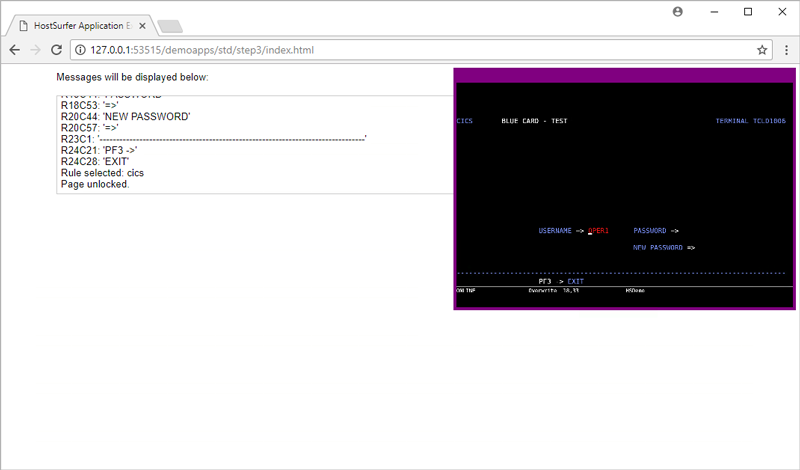
The current rule doesn’t have any template assigned for its screen.
You can expect a similar behavior if you navigate from the sign-in page by pressing the Sign in button when on this screen: