
Custom
In the Custom tab you will find the following parameters:
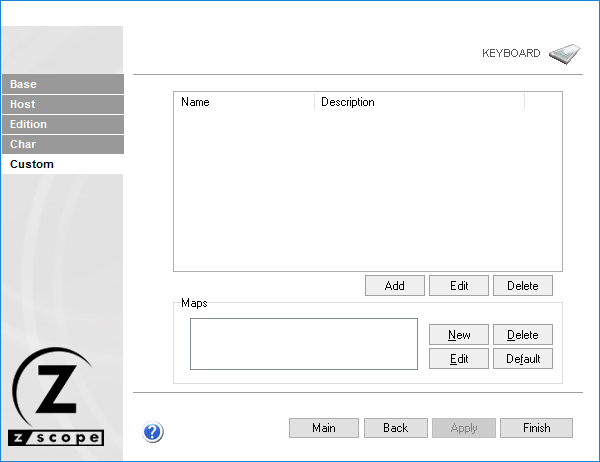
The following table describes the available options.
| Option | Description |
|---|---|
| Add | Select this button to add a new custom function. It will display the Keyboard Function dialog, which is explained below. |
| Edit | Select a function from the list and select this button to change any of the options for the function except its name. |
| Delete | Select a function from the list and select this button to delete it from the custom functions list. |
Maps
The following table describes the available options.
| Option | Description |
|---|---|
| New | Select a function from the list and select this button to add a map for the selected function. It will display the Input Layout dialog box where you can easily choose a key combination. |
| Delete | Select a function from the list and then a map for the selected function and select this button to delete the map. |
| Edit | Select a function from the list and then a map for the selected function and select this button to change the map for a different one. The Input Layout dialog box will display and the map you select will replace the previous one. |
| Default | Select a function from the list and then a map for the selected function and select this button to change the map for the default one. In the Custom tab, the default map for all the functions is none, so pressing this button will delete all maps for the selected function. |
When adding a new map, the Input Layout dialog is displayed:
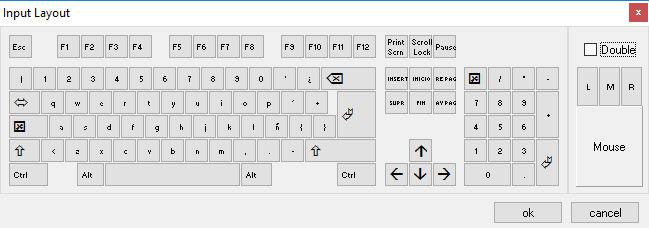
Select OK when done. The selected key/s will be added to the list.
Keyboard Function Dialog
This dialog box is invoked by the Add or Edit buttons in the Custom tab. If invoked from the Add button, all the fields will appear blank and you can use it to add a new custom function. If invoked from the Edit button, the fields will be completed with the information of the selected function and you can use it to change this information.
You will find the following parameters:
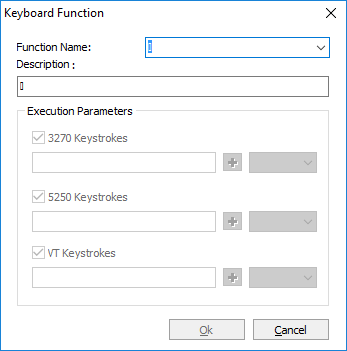
The following table describes the available options.
| Option | Description |
|---|---|
| Function Name | Enter here the function name. You can type a new name, or choose existing functions from the combobox. |
| Description | Enter a description for the custom function. |
| Execution Parameters | Mark the hosts for which you want this function activated (3270, 5250, VT). Under each of them, type the series of keystrokes you want the system to send for each one. The combobox in the right holds a list of common keyboard functions, that you can add using the ‘+’ button. |
| Ok | Select this button to Add the new function or confirm changes to the edition of an existing function. |
| Cancel | Select this button to discard the whole procedure. |