
A CA Certificate
In order to use this option you will have to get a certificate from a known Certificate Authority (CA). Some CA examples are GoDaddy, VeriSign, Thawte, GeoTrust and Network Solutions.
The CA will ask you for a “certificate request”. Create one following the next steps:
-
Go to the z/Scope Anywhere Configuration Manager, select Server Settings, and then go to the Communication tab. Select Manage Certificate.
-
Select Create a certificate request.
-
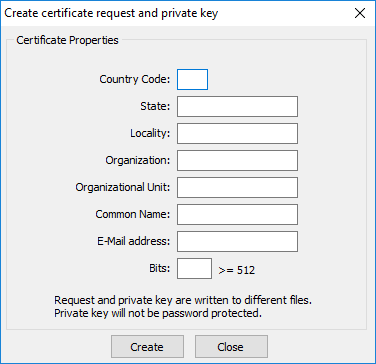
Fill in the form below with your organization data:
-
The Common Name field should be filled with the server+domain that will be used to access the z/Scope Anywhere server (zscopeanywhere.mycompany.com).
-
Select Create and the application will generate two files.
-
The first window will ask you a location to keep the private key file: “Where do you want the private key file to be stored”.
a. Inform a name for your private key.
b. Select a place to keep it safe.
c. Select Save.
- The second window will ask you for a location to keep the request file.
a. Enter a name for the request file.
b. Select a directory where you can find the file later to send to the CA.
c. Select Save.
-
The first file is the certificate private key. It should always be kept safe with you.
-
Send only the request file to the CA.
After the CA validation process, place the certificate they sent to you on ThinVNC cert directory and inform the path to the files on ThinVNC Manage Certificateoption (Certificate file, CA file and Private Key).