Extending the Example Application
Having completed the minimal set of required conditions to get a running example, this is how the application will look like:
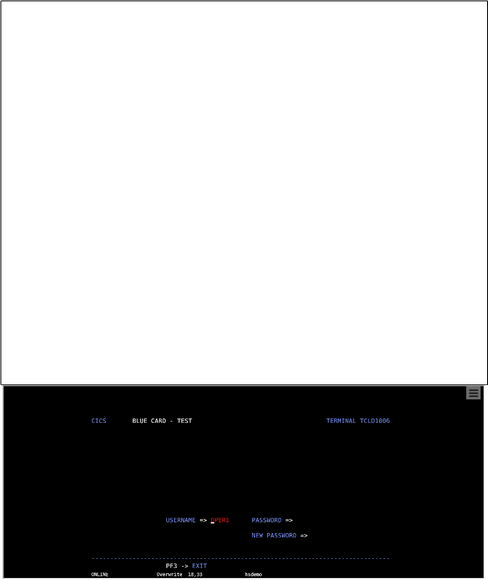
- When the application is started, there is no matching screen yet, therefore only the terminal emulator iFrame is shown. This behavior is just for demonstration purposes and can be changed so that there is a matching rule for the first screen, as described in the last paragraph.
- After pressing the
key on the current field of the terminal emulator, the next terminal screen matches the rule criterion and the signinpage is displayed.
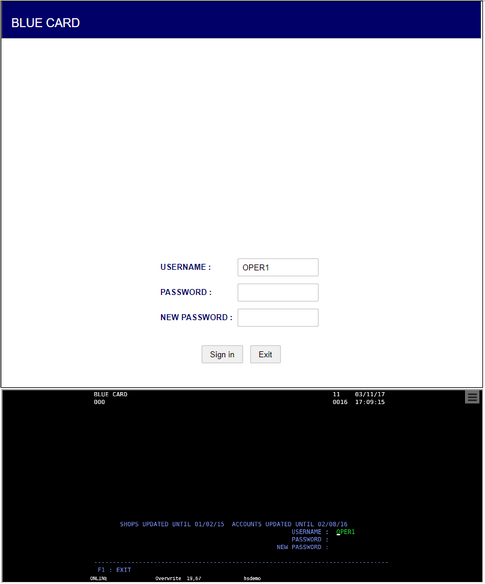
When pressing the Exit button, the action Exit is invoked. As this action sends a PF1 keystroke to the screen, the terminal emulator returns to the previous screen. Given that this screen does not match the only HostSurfer rule defined, the application navigates to the default page (please refer to defaultPage property).
On the other hand, when pressing the Sign In button, the action main is called, which sends an
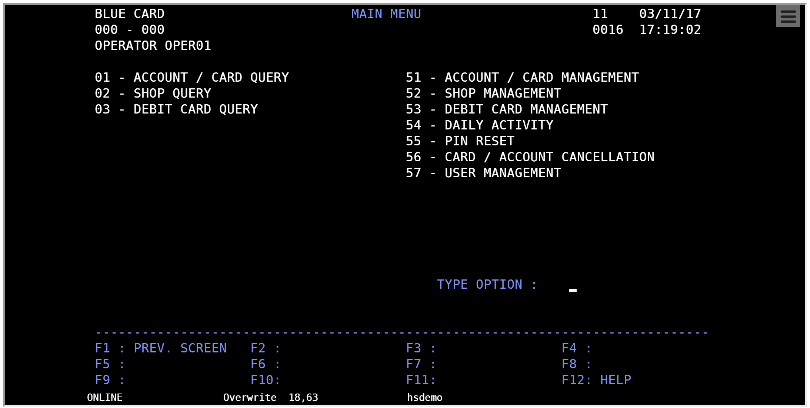
As there is not a matching HostSurfer rule for this screen (when it is shown), our web application is redirected to the page that was set for defaultPage.
However, our example application will be intended to access only the ACCOUNT / CARD QUERY,in fact, there is no need for an explicit user input. The intended navigation flow of our example application will be useful to demonstrate a special case where there is no web page associated to an emulator screen (because no user interaction is required), and the application behaves like a Macro, by:
-
Automatically sending a “01” input and an
keystroke to select the “01 - ACCOUNT / CARD QUERY” menu option. -
Doing this action through a call to
mainthat ischainedfrom the previous web page (where a call tomainwas executed as a response to the user selecting the Sign In button). For more details on ‘chained actions’, please refer to go and navigate member methods of the HostSurfer class.
Then, we need to complete the example application by:
Adding additional HostSurfer Rules, the first one to detect the MAIN MENU screen and automatically select and accept the “01” option.
Adding a new Web Application Page, to manage the ACCOUNT / CARD QUERY screen information, resulting of selecting the “01” option.
Once the HostSurfer Example Application has been completed according to the steps detailed in the preceding topics, we can navigate to the CARDS / ACCOUNTS INQUIRY screen, displaying the web page added for such purpose, as represented in the following screen capture:
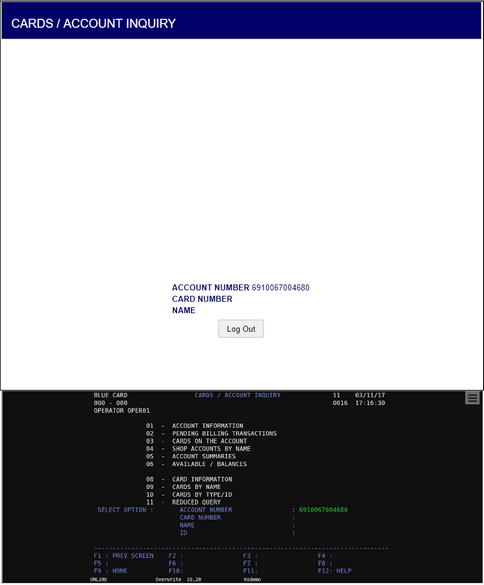
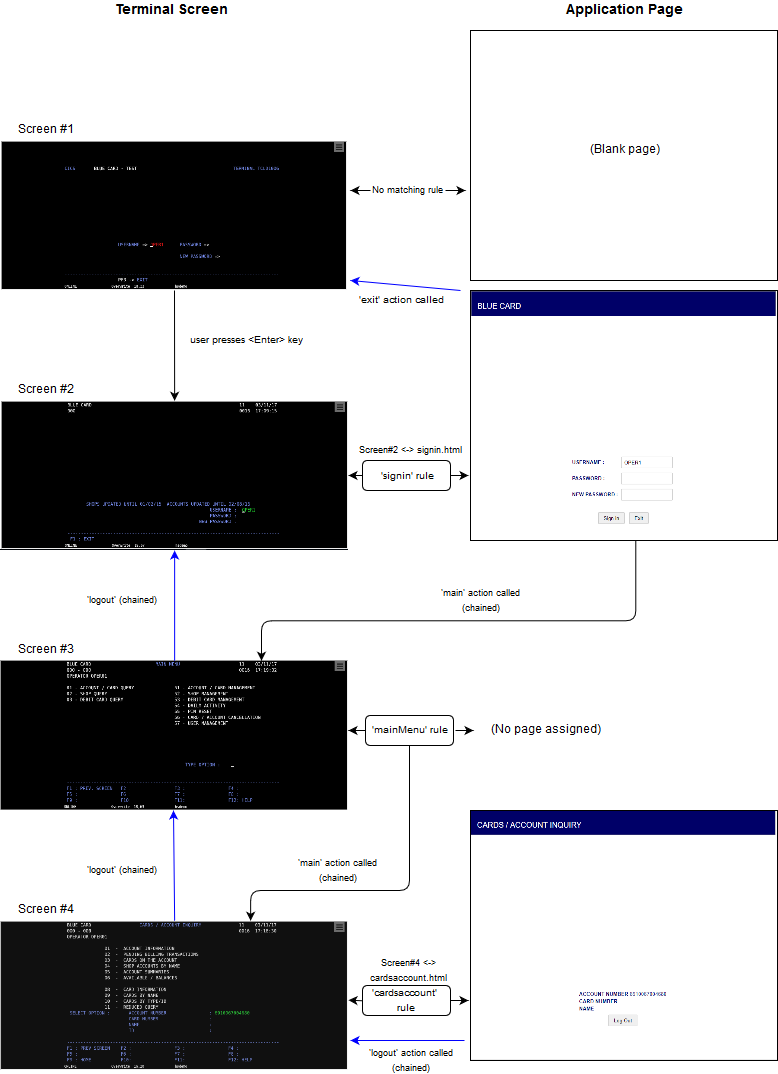
Let’s take an overview of the navigation flow through the following diagram: