
Adding Additional Host Surfer Rules
In this topic we will define two rules, the first one to detect the screen below, and a second to detect and process the ACCOUNT / CARD QUERY.
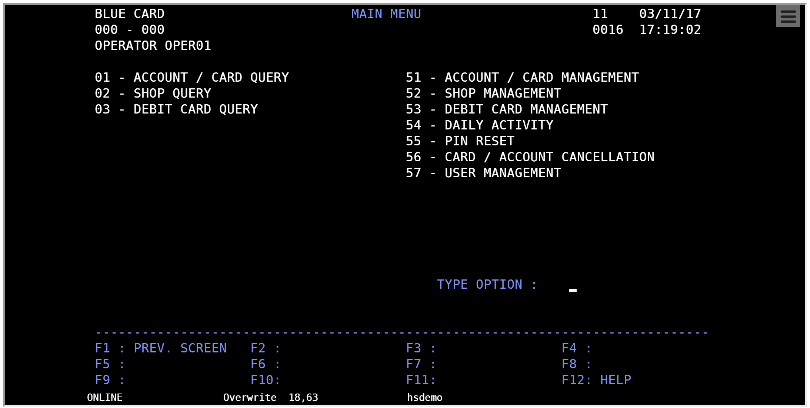
Please note that the first step is to decide the text or pattern to compare with. This will be set in the match property of the new HostSurfer rule for this screen. In this case we will use the text MAIN MENU that uniquely identifies this screen (BLUE CARD, for example, is not a suitable identifying pattern because previous screen has the same literal text in the same position of the screen).
Therefore, one possible proper match property is:
match : [{ 'text': 'MAIN MENU', 'row': 1, 'col': 35 }],
Next, we will proceed to define the apply property of the new rule.
There is only one field required in the fields property. This is the menu “option” entry field and its label is TYPE OPTION (as mentioned previously, all screen fields are retrieved and made available by HostSurfer automatically with a default name, but in this example application we want to use an explicitly named field).
As a result, our fields property will look as follows:
fields : [
{ name : 'option', row : 18, col : 63, len : 2 }
]
Finally, we need to define the actions property of apply. Just two actions are needed: main and logout. Both of these actions serve to the purpose of “bypassing” this screen.
The main action will be called implicitly as a result of a chained navigation from the signin web page. The other one, logout, will also be called implicitly by a chained navigation from the next web page (the one we will define on the next topic).
The actions property will be declared as follows:
actions : {
  main : function (hs) {
    hs.data.option = "01";
    hs.send.enter();
  },
  logout : function (hs) {
    hs.send.pf1();
  }
}
Please note that the main action function value will:
-
Assign a “01” value to the
optionfield (as if the user typed “01”) -
Send an
keystroke, as if the user accepted the typed option.
In a similar way, the logout action will send a PF1 keystroke, as if the user had pressed the PF1 key. If you look at the screen capture at the beginning of this topic, the F1 key is assigned as the command to return to the previous screen.
The following code snippet shows the entire HostSurfer rule, as it was defined:
(function () {
  var _mainmenu = {
    id: 'mainMenu',
    match : [{ 'text': 'MAIN MENU', 'row': 1, 'col': 35 }],
    apply : {
      fields : [
      { name : 'option', row : 18, col : 63, len : 2 }
      ],
      actions : {
        main : function (hs) {
          hs.data.option = "01";
          hs.send.enter();
        },
        logout : function (hs) {
          hs.send.pf1();
        }
      }
    }
  };
  zScope.hostSurfer.register(_mainmenu);
})();
Now, we need to define a new HostSurfer rule, this time to show a web page that will correspond to the terminal screen that is shown below and results from accepting the “01” option in the MAIN MENU screen.
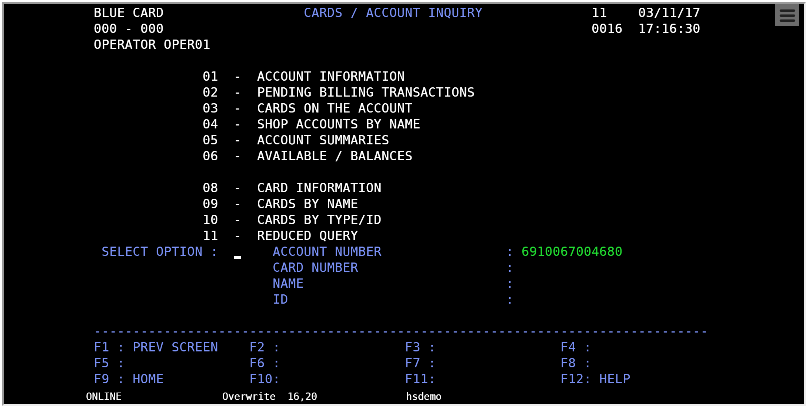
The match condition will be based on screen title CARDS / ACCOUNT INQUIRY, therefore we will express the match condition as follows:
match: [{ text: 'CARDS / ACCOUNT INQUIRY', row: 1, col: 29 }],
We will also define a set of named fields, as follows:
{ name: 'option', row : 16, col : 20, len : 2 },
{ name: 'accountNumber', row : 16, col : 57, len : 22 },
{ name: 'cardNumber', row : 17, col : 57, len : 22 },
{ name: 'name', row : 18, col : 57, len : 22 },
{ name: 'idNumber', row : 19, col : 72, len : 8 }]
Finally, we will define just one actions property, logout, as shown in the following code snippet:
actions: {
  logout: function (hs) {
    hs.send.pf9();
  }
}
The page declaration will be:
page: '#!cardsaccount',
The whole HostSurfer rule is declared as follows:
(function () {
  var _cardsaccount = {
    id: 'cardsAccount',
    match: [{ text: '   CARDS / ACCOUNT INQUIRY', row: 1, col: 26 }],
    apply: {
      fields: [
      { name: 'option', row: 16, col: 20, len: 2 },
      { name: 'accountNumber', row: 16, col: 57, len: 22 },
      { name: 'cardNumber', row: 17, col: 57, len: 22 },
      { name: 'name', row: 18, col: 57, len: 22 },
      { name: 'idNumber', row: 19, col: 72, len: 8 }],
      page: '#!cardsaccount',
      actions: {
        logout: function (hs) {
          hs.send.pf9();
        }
      }
    }
  };
  zScope.hostSurfer.register(_cardsaccount);
})();
Once the rules are defined, the file hsangular.js must be modified, so that:
-
The HostSurfer instance can load the rules files in run time.
-
The AngularJS route provider is aware of the page for each route.
The following listing shows the contents of hsangular.js, for the existing set of rules:
var hs = zScope.hostSurfer;
hs.init("rules/", ["signin","mainmenu","cardsaccount"]);
var app = angular.module('hs', ['ngRoute']);
app.controller('hscontroller', function ($scope) {
  $scope.hs = hs.data;
  hs.on('fldupdate', function () {
    $scope.$apply(function () {
      $scope.hs = hs.data;
    });
  });
});
hs.on('ready', function () {
  hs.defaultPage = "#!";
  angular.bootstrap(document, ['hs']);
});
app.config(function ($routeProvider) {
  $routeProvider
  .when("/signin", { templateUrl: 'signin.html', controller: 'hscontroller' })
  .when("/cardsaccount", { templateUrl: 'cardsaccount.html', controller: 'hscontroller' })
  .otherwise({ redirectTo: '/' });
})
A detail that deserves attention is that, while all rules are registered to the instance of HostSurfer, it is not so when configuring $routeProvider routes (as there is not a template page associated with mainmenu).
Please note that the web page that corresponds to this screen is not intended to expose any useful functionality, but just to demonstrate how HostSurfer manages page navigation.
The cardsaccount.html web page will be defined in the next topic, Adding a new Web Application Page .