
Editing Macros
In the Macros Management dialog, you will find a list of the existing connections.
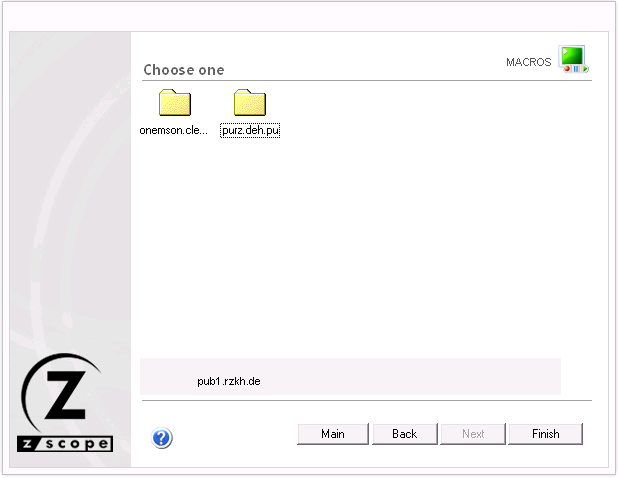
Select a connection and then select Next to see all Macros defined for that particular connection.
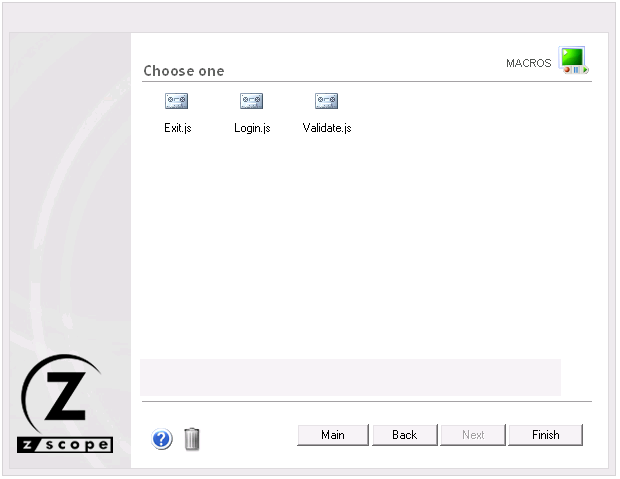
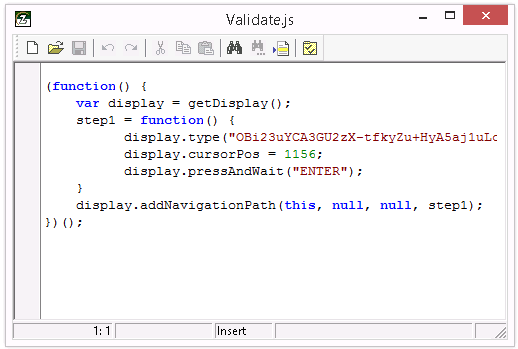
If you want to modify a previously created Macro, select it and then select Next. You will see the Active Script window which you can use to modify the Macro’s code.
| Action | Description | |
|---|---|---|
 |
New Macro | Use this button to code a new macro from scratch. |
 |
Open Macro | Use this button to open an existing macro file (.zsm). |
 |
Save Macro | Use this button to save the changes you have made to the macro code. If you are creating a new macro, you will be prompted for a name for the macro file to be saved. |
 |
Undo Changes | Use this button to rollback the last changes you have made to the macro code. |
 |
Redo Changes | Use this button to recover changes previously discarded with the Undo button. |
 |
Cut | Use this button to cut the selected text-area. |
 |
Copy | Use this button to copy the selected text-area into the clipboard buffer. |
 |
Paste | Use this button to paste text from the clipboard into the screen at the cursor position. |
 |
Find Text | Use this button to open the Find Text window to search for a particular text string in your code. |
 |
Find Next | Use this button after the first matching string of your search has been found to find subsequent matching strings in your code. |
 |
Go To Line Number | Use this button to go to a specific line number in your code. |
 |
Properties | This button opens the Properties window where you can customize several aspects of the Macro Editor. |