
Starting the Application
The application will be available under different menus, depending on the installation mode you have selected:
Desktop Mode
The desktop mode installation starts the application automatically every time Windows starts. Look for the z/Scope icon on the tray icon bar.
Tray Icon Menu
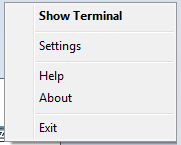
The following table describes the available options.
| Option | Description |
|---|---|
| Show Terminal | Opens the z/Scope Anywhere web user interface on the machine’s default web browser. Another possible way to open the web interface is by opening a web browser and typing in the z/Scope Anywhere address. |
| Settings | It will open the Configuration Manager, accessing most of the application features and settings. |
| Help | Opens the online z/Scope Anywhere documentation. |
| About | z/Scope Anywhere full version number. |
| Exit | Closes the application. To open the application again, go to the Start Menu and select the z/Scope Anywhere menu item. |
Server Mode
The server mode installation also starts the application automatically, in the machine where the server was installed. To use the web application you should open a browser and type in the server address.
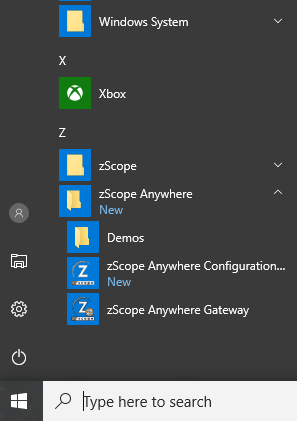
The Configuration Manager can be opened through the Start Menu as well:
Read More: