
Log & Statistics
The Log & Statistics tab allows assigned users to view historical data regarding Sessions and Connections established within a period of time.
Logins
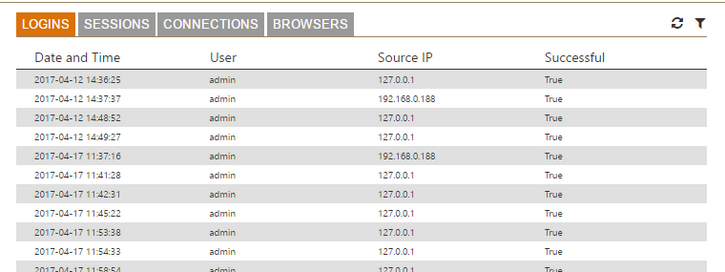
The Logins view mode shows all the sessions logins to the application within a determined period of time (default filter: Last hour).
The table shows: Date and Time (date that the session started), User (user that started the new session), Source IP (IP address from which the session was started), Successful (true if the connection was established).
Sessions
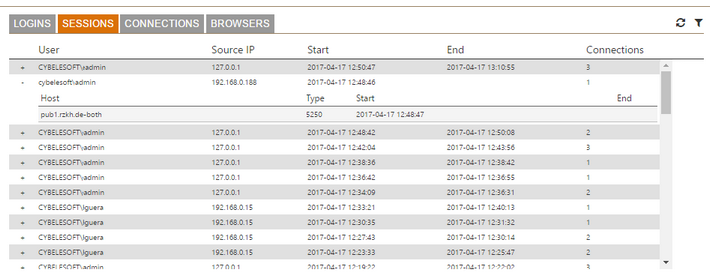
The Sessions view mode shows all the sessions established within a determined period of time (default filter: Last hour).
The table shows: User (user that started the new session), Source IP (IP address from which the session was started), Start (date and time that the session started), End (date and time that the session ended) and Connections (counter for connections established within the Session).
Connections
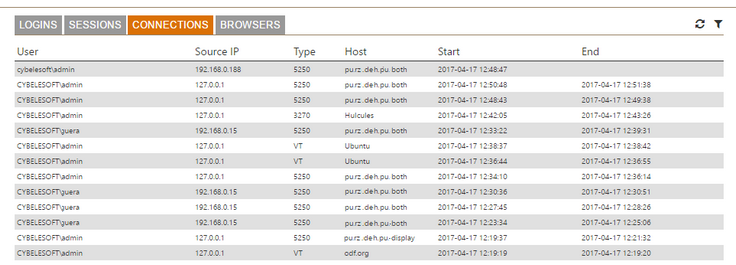
The Connection view mode shows all the connections established within a determined period of time (default filter: Last hour).
The table shows: User (user that established the connection), Source IP (IP address from which the connection was established), Type (host type), Host (host name), Start (date that the connection started) and End (date that the connection ended).
Browsers
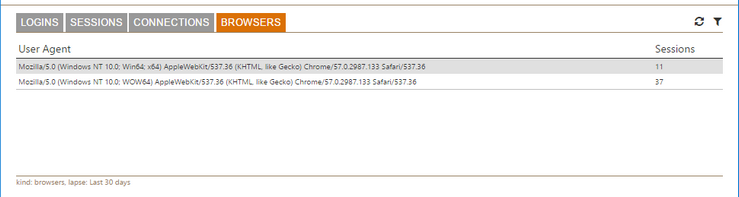
The Browser view mode presents all the browsers used to connect to z/Scope Anywhere. The last column is a counter that shows how many sessions were established within the same browser model.
Managing Statistics
The user assigned to manage connections will be able to disconnect and delete active sessions.
| Icon | Description |
|---|---|
 |
Refresh Refreshes the screen with updated connection data. |
 |
Filters Opens the Filters dialog. |
Filters
This dialog allows you to filter the historical data. You can select the data filtering by user, host and date range.
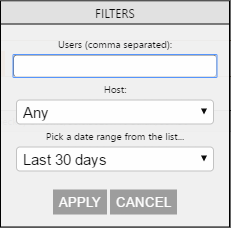
The following table describes the available options.
| Option | Description |
|---|---|
| Users | Type in the usernames of the users you want filter, separated by commas. |
| Host | Select one of the listed hosts to have the results filtered for this host. |
| Pick a Date Range from the List | Select one of the date range options, or select Custom Range to inform the exact period you want to use to filter the data. |
| Apply | Once you have entered the user and/or selected the host and date range, select Apply and the sessions will be selected using the specified parameters. |