
Installing z/Scope Anywhere
z/Scope Anywhere can be installed very easily:
- Download the installer from the download page:
https://www.cybelesoft.com/download/
-
Execute the installer on the target machine.
-
Select the setup type:
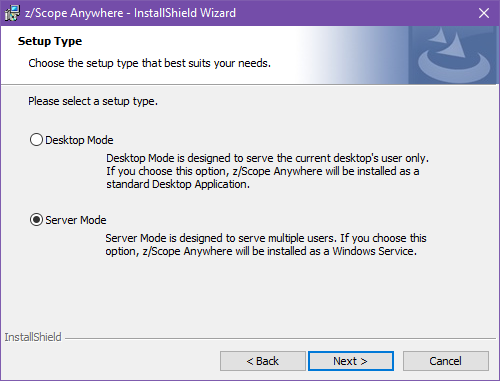
Desktop Mode
Designed for serving the current desktop user only. If you choose this mode, z/Scope Anywhere will be installed as a standalone application. On this mode, there will be only one personal preferences setting corresponding to the logged in user.
Server Mode
Designed for serving remote users. If you choose this mode, z/Scope Anywhere will be installed as a Windows service and will manage remote users accessing their connections. This mode supports multiple authentication schemes, anonymous connections and Load Balancing. The users preferences are saved separately, allowing every user to have their own environment.
If you choose Server Mode, you will be presented with the following screen:
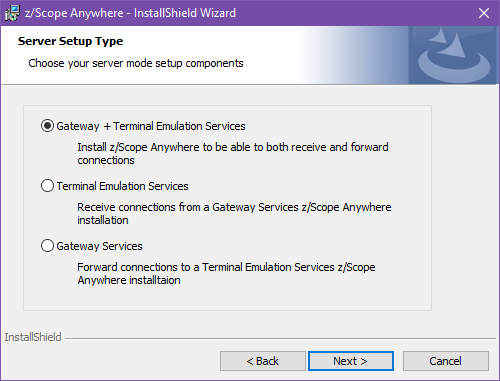
Gateway + Terminal Emulation Services
Choose this option for a server mode standalone installation. Both a Gateway and a Server are installed in the same computer. Also this installation can work together with other z/Scope Anywhere Terminal Emulation Services and Gateway installations in a Load Balancing architecture.
Terminal Emulation Services
The Terminal Emulation Services installation is only used when you have a Load Balancing architecture.
Gateway Services
The Gateway Services installation is only used when you have a Load Balancing architecture.
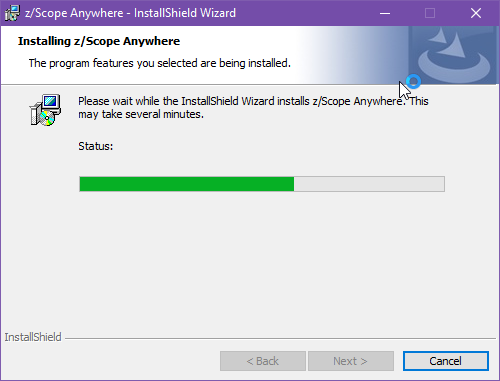
- Select Next and wait for the installation process to finish. When it’s done, select Finish.
Next Steps
Learn how to Start the Application for both of the installation modes.