
Managing Macros
You can rename and delete a macro from the Connection view Menu.
Renaming a Macro
| Action | Description | |
|---|---|---|
 |
Open the Settings | Select the Settings button and a menu will be presented. |
 |
Manage | Select the Manage button to open the Macro Management Screen. The screen below will be presented to you: |
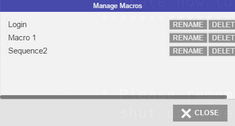
- Change the Macro’s name.
- Select the Rename button.
- Select OK on the message.
- Select the Close button.
Deleting a Macro
| Action | Description | |
|---|---|---|
|
Open the Settings | Select the Settings button and a menu will be presented. |
|
Manage | Select the Manage button to open the Macro Management Screen. The screen below will be presented to you: |
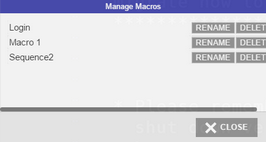
- Select the Delete button.
- Select Yes on the message.
- Select the Close button.
To learn how to use and create macros, read the next topics:
Editing a Macro
In most cases you can create, manage and use macros directly following the instructions above. On occasion, however, you might want to edit the macro’s code. Learn all about the advanced configuration in the following topic: