
Configuring Monitoring in a Distributed Environment
This guide walks you through configuring the Monitoring feature in a distributed deployment with multiple Brokers — for example, a High Availability deployment. Once configured, you can view real-time and historical resource consumption metrics — CPU, memory, sessions, and connections — from the Thinfinity® Workspace Web Manager.
For the field-level reference of the settings used here, see Telemetry Tab. For an overview of the Monitoring feature, see Monitoring Architecture.
Architecture Overview
In a distributed deployment you designate one of the Primary Brokers as the Principal Broker — the metrics host. Every Broker runs a local OTLP collector that gathers operating-system metrics (CPU, RAM, disk, network). The Principal Broker runs its OTLP Metrics DB in Local mode and stores all metrics in its own embedded VictoriaMetrics database, which listens on TCP port 8428; each of the other Brokers sets its OTLP Metrics DB to Remote and forwards its metrics to the Principal Broker over the network. The Dashboard queries the Principal Broker’s VictoriaMetrics database to render charts and tables.
Don’t read Principal as a synonym for Primary. Primary and Secondary are the HA roles; the Principal Broker is the one you designate as the metrics host. It must be a Primary Broker, and even with several Primary Brokers in the deployment, only one is the Principal.
The diagram traces the cross-Broker forwarding path; the Principal Broker also runs a local collector that writes to its own VictoriaMetrics database.
Port 8428 is reserved for VictoriaMetrics, not the local OTLP collector. The local OTLP collector listens internally on 127.0.0.1 (gRPC 4319, HTTP 4320) and doesn’t require external firewall rules. Only port 8428 on the Principal Broker must be open to the other Brokers in the cluster.
Prerequisites
Verify that the following conditions are met before you start.
- The Brokers in the cluster are defined, and you have designated one of the Primary Brokers as the Principal Broker — the metrics host. Choose the most stable one (for example, BK1).
- Network connectivity between all Brokers is confirmed.
- The Telemetry Service is enabled. In Thinfinity Workspace Configuration Manager, go to the Services tab and verify that Telemetry Service is active. If Monitoring doesn’t appear in the Dashboard add-ons menu, check this first.
- You have access to Thinfinity Workspace Configuration Manager and Windows Defender Firewall on every Broker machine, and you can restart the
ThinfinitySvcMgrservice.
Configuration
Complete the following steps in order. Step 1 and Step 3 run only on the Principal Broker, Step 2 runs on every Broker, and Step 4 runs on the other Brokers.
Open the Firewall on the Principal Broker
The Principal Broker must accept inbound connections on TCP port 8428 so that the other Brokers can forward their metrics.
On the Principal Broker machine, create an inbound firewall rule with these settings:
| Setting | Value |
|---|---|
| Rule type | Port |
| Protocol | TCP |
| Port | 8428 |
| Action | Allow the connection |
| Scope | Restrict the source IPs to the addresses or subnet of your other Brokers (recommended) |
To verify connectivity from another Broker before you continue, run the following in PowerShell:
Test-NetConnection -ComputerName <PRINCIPAL_BROKER_IP> -Port 8428
A successful result shows TcpTestSucceeded: True.
Configure the OTLP Gateway on Every Broker
This step is identical for every Broker — the Principal Broker and all the others alike.
- Open Thinfinity Workspace Configuration Manager.
- Go to the Telemetry tab.
- In the OTLP Gateway section, set Type to Local.
When Type is Local, the Server, HTTP Port, and gRPC Port fields are populated automatically (127.0.0.1, 4320, 4319) and disabled.
In this configuration, the OTLP Gateway is always Local on every Broker — each Broker’s collector listens on 127.0.0.1 (gRPC 4319, HTTP 4320). This is a local-only process, so it needs no external firewall rule.
Configure the Principal Broker Metrics Database
Perform this step only on the Principal Broker machine.
- Open Thinfinity Workspace Configuration Manager.
- Go to the Telemetry tab.
- In the OTLP Metrics DB section, set the following values:
| Setting | Value |
|---|---|
| Type | Local |
| Data Retention | 1 year, recommended for production environments |
| URL | http://127.0.0.1:8428 |
When Type is Local, Protocol is set automatically to OTLP/HTTP.
The Principal Broker stores metrics in its own embedded VictoriaMetrics instance, so its OTLP Metrics DB URL stays at the local default http://127.0.0.1:8428. The other Brokers reach the same instance over the network using the Principal Broker’s actual IP address (see the next step), which is why port 8428 must be open on the Principal Broker.
- Select Apply.
- Restart the
ThinfinitySvcMgrservice. - Wait one to two minutes before you verify data in the Dashboard.
Configure the Other Brokers’ Metrics Database
Perform this step on the other Brokers — the remaining Primary Brokers and all Secondary Brokers (BK2, BK3, and so on).
- Open Thinfinity Workspace Configuration Manager.
- Go to the Telemetry tab.
- In the OTLP Metrics DB section, set the following values:
| Setting | Value |
|---|---|
| Type | Remote |
| URL | http://<PRINCIPAL_BROKER_IP>:8428 |
| Protocol | OTLP/HTTP |
Type: Remote means this Broker doesn’t store metrics locally — it forwards all data to the Principal Broker’s VictoriaMetrics instance. Set the URL to the Principal Broker’s actual IP address or fully qualified domain name — the same address you allowed through the firewall in Step 1 — never localhost or 127.0.0.1, or this Broker can’t reach the Principal. With Type: Remote, Data Retention is disabled, since retention is governed by the Principal Broker.
- Select Apply.
- Restart the
ThinfinitySvcMgrservice. - Wait one to two minutes before you verify data in the Dashboard.
Validating the Configuration
- Open the Thinfinity Workspace Dashboard by navigating to the gateway URL.
- Log in with an account that has the monitoring permission.
- Select the user menu in the top-right corner, then select Add-ons and Monitoring.
The Monitoring interface opens. Check the following:
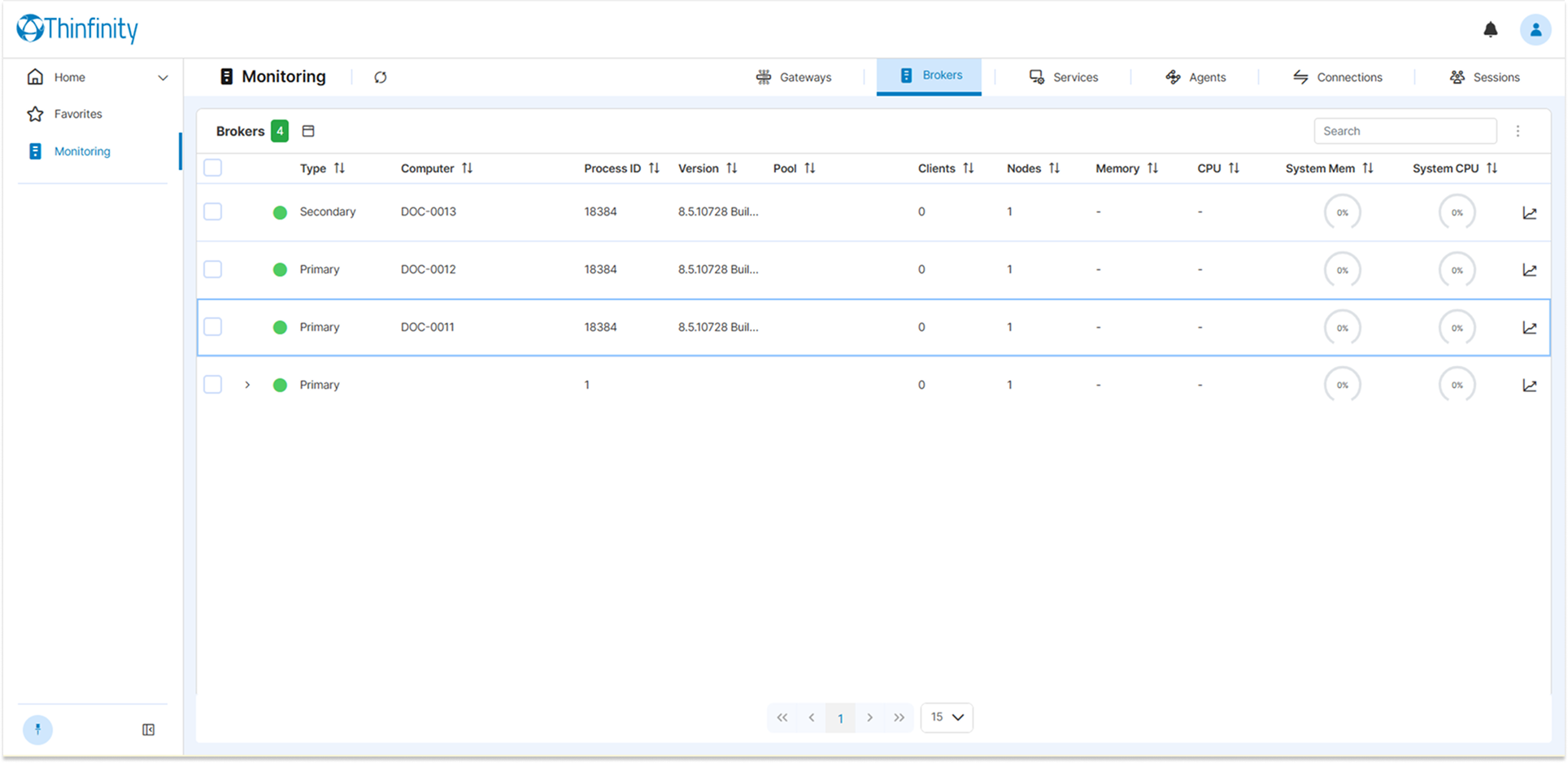
- The Brokers tab displays all configured Brokers — the Principal Broker and the others — with their CPU and RAM metrics.
- The Gateways tab shows the gateways with their process and host metrics.
- Select the stats icon on any row to open the metrics dashboard for that component, and confirm that the historical graphs are populated.
Data can take one to two minutes to appear after you restart the ThinfinitySvcMgr service. If a tab shows “No data”, wait one full collection cycle before you start troubleshooting.
Troubleshooting
| Symptom | Possible cause | Resolution |
|---|---|---|
| Monitoring doesn’t appear in the add-ons menu | The Telemetry Service is disabled | Enable it in Configuration Manager on the Services tab. |
| No data in any tab | The ThinfinitySvcMgr service wasn’t restarted after configuration |
Restart the service on all Brokers and wait one to two minutes. |
| Only the Principal Broker’s data is visible | The firewall is blocking TCP port 8428 on the Principal Broker | Verify the inbound rule is active, then run Test-NetConnection -ComputerName <PRINCIPAL_BROKER_IP> -Port 8428 from each other Broker. |
| Only the Principal Broker’s data is visible | Another Broker is misconfigured | Confirm Type is Remote, URL is http://<PRINCIPAL_BROKER_IP>:8428, and Protocol is OTLP/HTTP on the other Brokers. |
| The Dashboard shows “No data” | VictoriaMetrics hasn’t completed a full collection cycle | Wait at least one minute after you restart the service. |
| Hostnames appear truncated in graphs | Expected behavior | The OTLP collector normalizes hostnames to uppercase and truncates them to 15 characters. |