
Configuration from the Web Manager
In Thinfinity Workspace, the Configuration section within the Web Manager serves as a specialized administrative hub for managing authentication, branding, and advanced system configurations. While the Configuration Manager handles the core Windows service logic, the Configuration section in Web Manager - accessible by selecting Settings from the user menu - focuses more on the portal experience and external integrations.
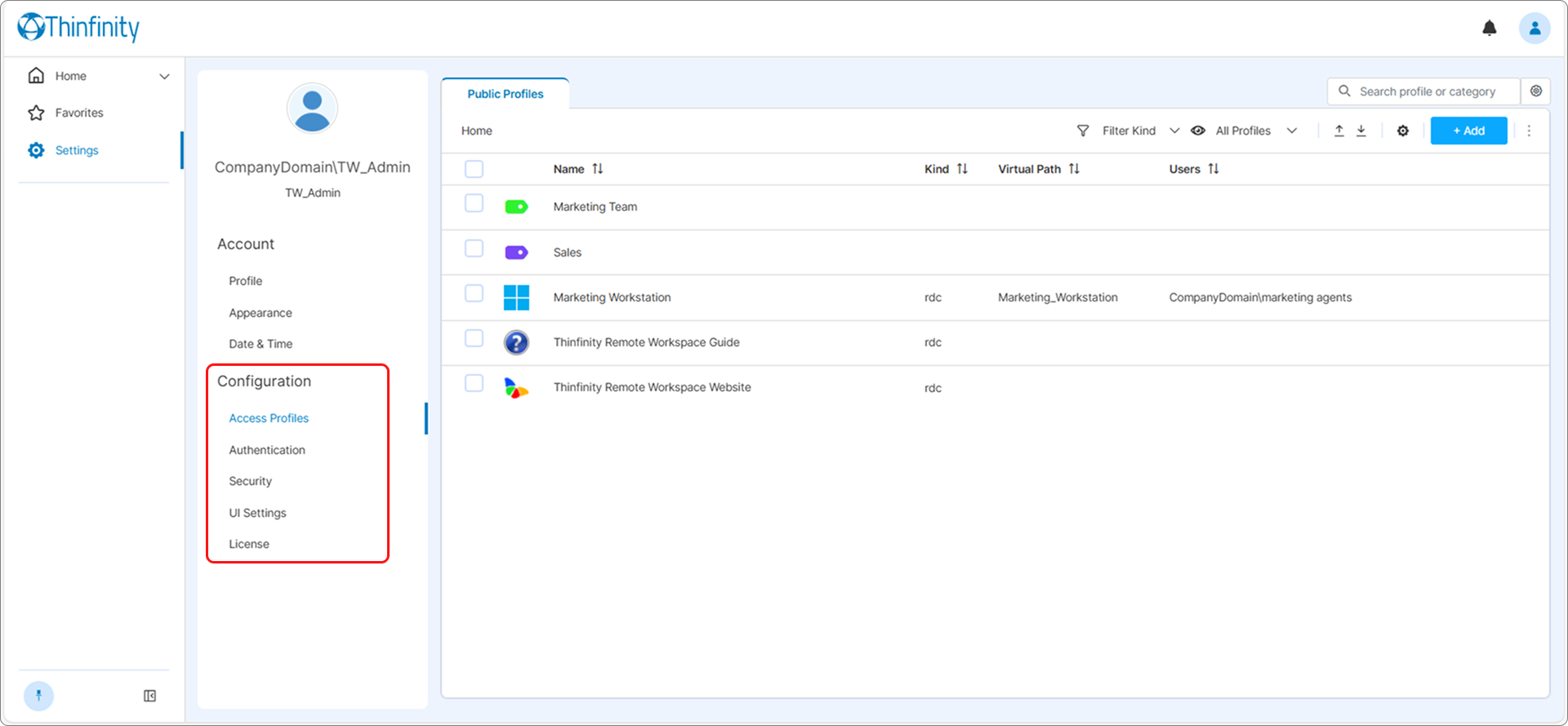
Access Profile and Resource Management
The Web Manager offers a centralized view for managing how users interact with remote resources.
- Access Profiles global settings: whether OTURL, Anonymous access profiles or Private Profiles are enabled in the current installation.
- Global and Granular Permissions: Admins can define Labels to establish unified permission policies across multiple resources simultaneously. At the same time, within the Access Profile editor in the Web Manager, admins can manually add or remove users and groups to control who can see and launch specific connections.
- Feature Toggles for a specific Access profile: You can enable the Allow anonymous access setting to make specific resources publicly available without individual login requirements, restrict use of specific file extensions, user experience settings such as use of GFX, Send Keys: For transmitting specific command sequences and Saved Sessions: Allowing users to play back recorded sessions.
Authentication and Identity Mapping
The Web Manager is the primary interface for bridging external identities with your local environment.
- Identity Provider Integration: Administrators can configure and manage modern authentication standards such as OAuth 2.0, SAML, RADIUS, and Passkeys (WebAuthn).
- Mapping Rules: You can define Regex rules to translate external claims (like an email address) into a format recognized by your Windows host (e.g.,
DOMAIN\username). - Association Parameter: This is where you set the “handshake” logic — choosing between Inherited, Ask for Credentials, Associate Existing, or Dynamic Provisioning (Create and Associate).
- MFA/2FA Enforcement: You can enable additional security layers like TOTP-based apps (Google/Microsoft Authenticator) or native DUO security directly within these settings.
Security Settings
In the Security section of the Settings, administrators can manage the global application of user rights and defensive policies. These categories define the functional scope of the web interface and ensure alignment with Zero Trust security models.
- UI Permissions: This category regulates access to management tools and end-user session features. Settings include toggles for high-level add-ons like Analytics and Cloud Manager, as well as session-specific utilities like File Transfer and Persistent Login.
- Permission Groups for Resource Reservation: These settings define time-sensitive and request-based roles for managing temporary access. It enables the creation of specific groups for Reservation Managers, Temporary Requesters, and Automated Guests to oversee resource calendars and approval workflows.
- Threat Prevention: This category focuses on enforcing rigid security boundaries and context-aware access. It includes parameters for Multi-Factor Authentication (MFA), IP Filtering, and the configuration of Labels to act as logical filters for resource visibility.
General Portal Customization
- Labels and Hierarchy: You can organize Access Profiles under Labels to create logical groupings and implement top-down permission inheritance.
- UI Settings: Ability to customize the portal’s visual elements (logos, colors, backgrounds): Theme selection and customization, access profile editing from the home page, home page layout options.