
The Dashboard or Home Page
The layout, theme and various other parameters of the home page can be configured from the UI Settings section of the Settings menu, for details see UI Settings.
After an Admin user has defined Access Profiles and Labels, the Thinfinity® Workspace home page is displayed as in the following image:
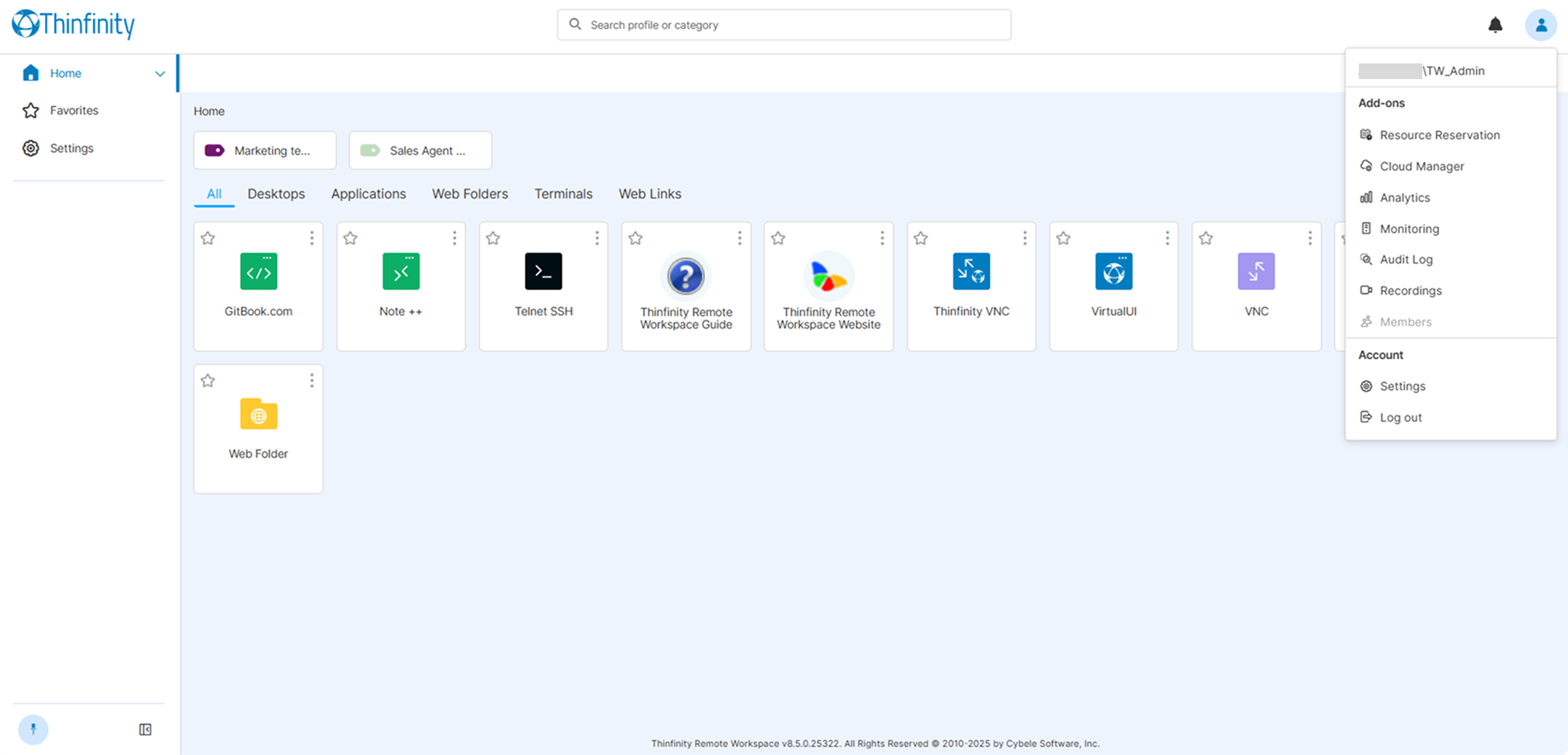
The central part of the screen displays the available Labels and Access Profiles. An Access Profile is a custom configuration created by an administrator to determine how users connect to and interact with remote resources (remote desktops, applications, terminals, folders). An Access Profile specifies the connection protocol, sets up access credentials, and allows customizing the user experience and access control parameters.
The links at the top of the tiles (Desktops, Applications, etc.) will become available as you add different types of Access Profiles and work as filters allowing you to display only the Access Profiles from the selected category. By default, Access Profiles are ordered alphabetically in ascending order. Drag-and-drop an Access Profile to change its position on the home page; to return the tiles to alphabetical order after arranging them manually, select the Sort button in the toolbar at the top right. For fuller organization — grouping Access Profiles into Labels, and selecting and dragging several at once — use Settings > Configuration > Access Profiles (see Access Profiles).
Additional display and filtering options are available in the toolbar at the top right of the screen; you can also hide the toolbar to give the profile area more room. For details, see Dashboard Organization and Filtering Options.
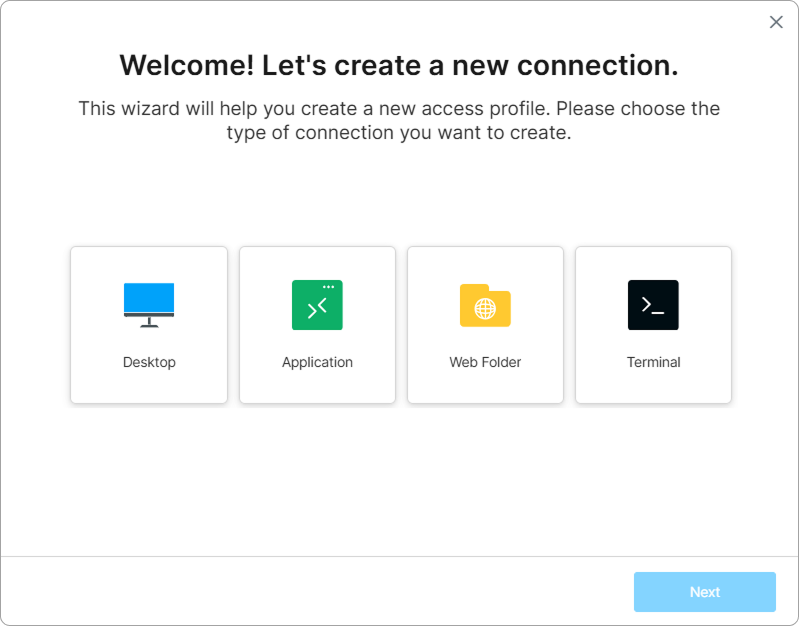
The New Profile button in the top-right launches the Access Profile creation wizard, allowing the creation of new profiles.
The New Profile button will only be available if Allow managing public profiles in the home page is enabled. For details, see UI Settings.
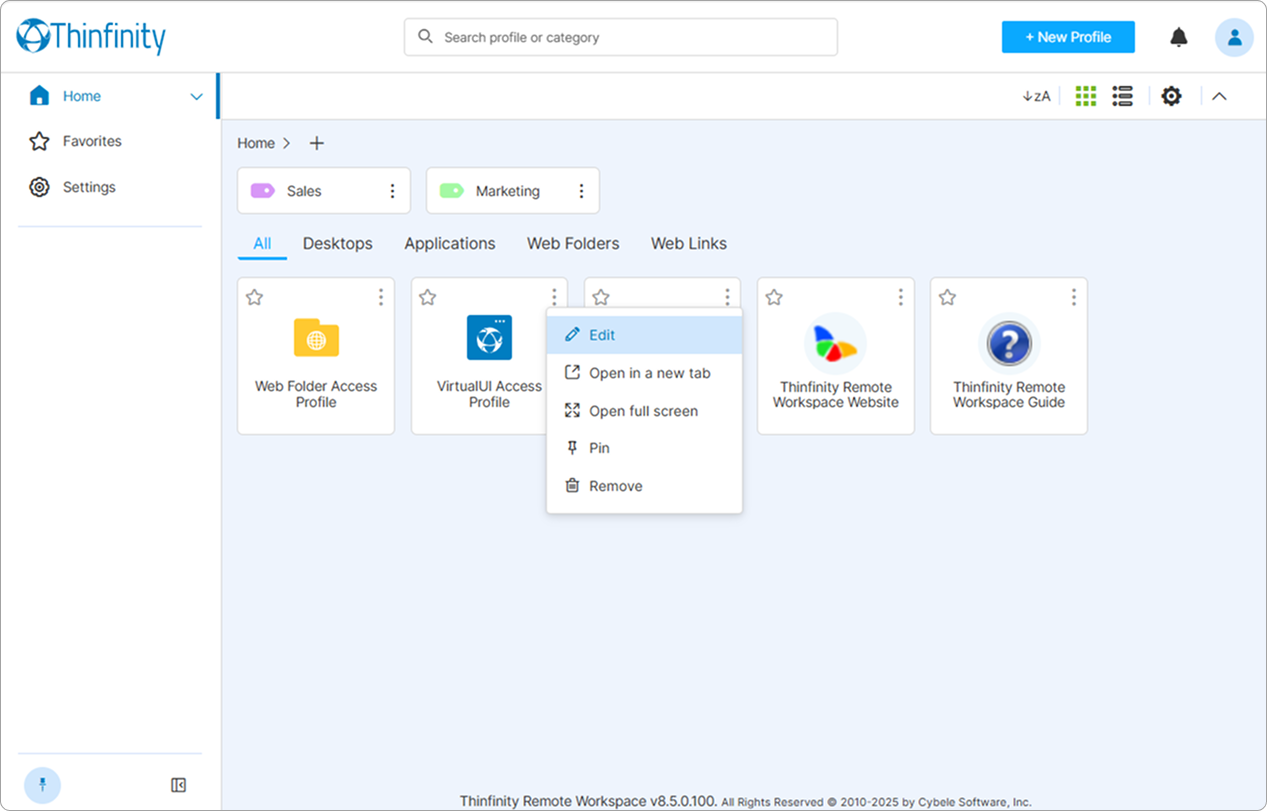
Once an Access Profile is created, and if Allow managing public profiles in the home page has been enabled, the associated parameters can be edited by selecting the three-dot button and accessing the associated Settings menu.
Access Profiles and Labels can also be created and managed from Settings > Configuration > Access Profiles, reached through the Settings option in the user menu. For how to create an Access Profile, see The Access Profile Wizard; for a full description of this section and the settings available for every Access Profile, see Access Profiles.
Labels allow you to organize Access Profiles into groups and collectively manage the permissions settings for several Access Profiles at the same time. Also, Labels can be organized into nested structures according to the specific needs of each company. Select a Label in the home page to display its contents: At the top of the screen a breadcrumb trail will indicate the current location within the Label hierarchy. Select the + button next to the Home label at the top left of the dashboard to create a new Label.
The left side of the screen displays the sidebar. From here users can jump to the Home view, open a dedicated Favorites page listing the Access Profiles they have starred, and quickly launch any profiles they have pinned. The sidebar also shows Access Profiles currently connected. A Collapse sidebar button at the bottom-left collapses the sidebar to give the profile area more room; select it again to expand the panel.
For how starring, pinning, and drag-and-drop reordering work, see Thinfinity Workspace Web Manager.
Selecting the user profile icon — top right of the home page — will present the user menu with the list of add-ons (optional modules) that have been enabled for the current user.
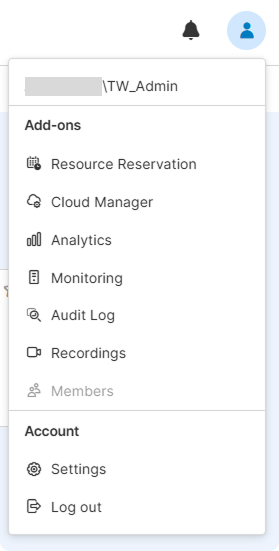
The Settings option in the user menu opens two areas: Account, for each user’s own preferences, and Configuration, available only to Admin users.
Under Account, each user manages their Profile (name, email, keyboard layout, password, and associated credentials), workspace Appearance (system presets and built-in or custom themes), and Date & Time formatting. See Account.
The Configuration area holds settings that apply to the entire Thinfinity Workspace installation: Access Profiles for creating and organizing Access Profiles and Labels (see Access Profiles); Authentication for authentication methods, two-factor authentication, and identity mappings (see Authentication Methods); Security for user interface permissions, permission groups, and threat prevention (see Security); UI Settings for installation-wide interface and theme options — icon style, label grouping, whether users can manage profiles from the home view, and the default and system themes (see UI Settings); and License for license status and activation.