
RDC Core Settings
For an RDC profile, the core settings available in the Thinfinity® Workspace Web Manager are available in the following tabs:
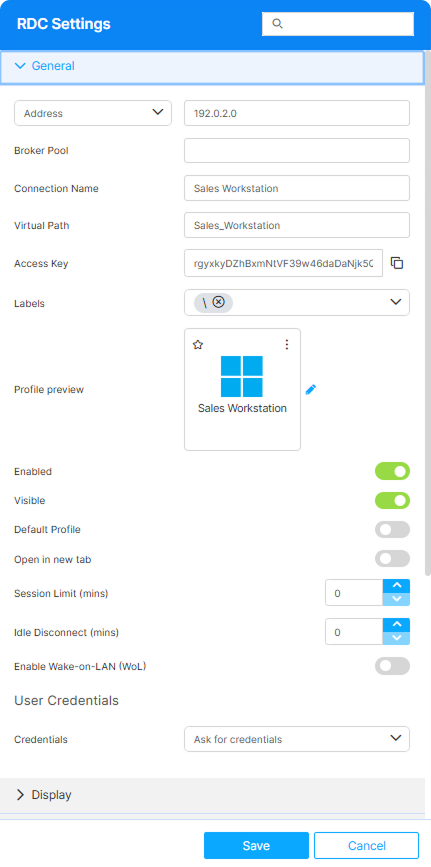
| Option | Description |
|---|---|
| Search field | The search field at the top of the Settings menu allows searching a specific parameter by its name. |
| Address | The IP address or hostname of the resource. Alternatively, you can select one of the following options: Agent ID, Agent Pool, Managed VMs or VDI/DaaS Models. For details on these last two options, see the Cloud Manager Product Manual. |
| Broker Pool | The broker pool that handles connections for this Access Profile. Leave blank to use the default pool (MAIN_POOL unless a different name is configured on the Broker tab). |
| Use Instance | This option is only available if the Managed VMs option is selected in the Address field. By default, it is not enabled, and it means that the current Access Profile will connect to any of the available VMs. If you enable this option, the Available instances field will become available, and you will be able to select a specific VM instance where to connect the Access Profile. |
| Use staging | This option is only available if the VDI/DaaS option is selected in the Address field. It enables the use of different versions of the selected VDI/DaaS model. For details on working with VDI/DaaS models and staging, see the Cloud Manager Manual. |
| Available instances | This field is only available if you enable the Use Instance option. It displays a list of VM instances available in the selected Managed VM. |
| Stop after disconnect | This field is only available if the Managed VMs option is selected from the Address field. It allows turning off the VM after the Access Profile is closed. Enter the number of minutes after which the VM is stopped. |
| Connection Name | The friendly name shown on the Access Profile’s card in the home-page list and on the browser tab when the profile is open. |
| Virtual path | By default, Thinfinity creates a unique URL address for the current access profile. If you want to customize it, make sure your address is unique and web compatible and that it has the following format: http(s)://ThinfinityDomain:port/VirtualPath/. You can then create a web shortcut for this specific access profile and bypass the Thinfinity Workspace web interface. |
| Access Key | A unique, read-only identifier that the Thinfinity Workspace REST API and external integrations use to reference this Access Profile. It is generated automatically when the profile is created and is not a password or authentication secret. Use the copy button to copy it. |
| Labels | Access profiles can be organized into groups (labels) for which you can collectively manage the permissions settings. This field shows the names of the groups (or labels) that the current profile is a part of. For details, see Label. |
| Profile Preview | Use this button to customize the appearance of your Access Profile by choosing an image. Selecting the image will open the Customize Profile dialog window where you can select one of the available images or upload one from your computer. |
| Enabled | When on (default), the Access Profile is available. When off, direct URLs no longer route to it and the profile disappears from the home-page card list. |
| Visible | When on (default), the Access Profile appears on the home-page card list for users who have permission to it. When off, the card is hidden, but users with the direct URL can still open the profile. |
| Default Profile | When on, users who have this Access Profile log in and connect directly to it, skipping the home page. |
| Open in new tab | When on, launching this Access Profile opens it in a new browser tab. When off (default), it opens in the current tab. |
| Session Limit (mins) | Maximum session duration in minutes of total connected time (regardless of activity). Users see a warning banner during the last 5 minutes; when the limit is reached, the session is hard-disconnected. Set to 0 to disable (default). Only available when the target is set to Address, Agent ID, or Agent Pool. |
| Idle Disconnect (mins) | Disconnects the session after the specified number of minutes without user activity (keyboard or mouse), showing a warning shortly before disconnecting. The timer resets on each interaction, and 0 disables the inactivity cut-off. Unlike Session Limit, which limits total connected time regardless of activity, this applies only to inactivity. Only available when the target is set to Address, Agent ID, or Agent Pool. |
| Enable Wake-on-LAN (WoL) | Sends a Wake-on-LAN magic packet to the target computer before connecting, so a computer that is powered off or asleep can be started for the session. Only available when the target is set to Address; it is not shown for the Agent ID, Agent Pool, Managed VMs, or VDI/DaaS Models target types. Disabled by default. |
| MAC Address | The hardware (MAC) address of the target computer’s network adapter, used to address the Wake-on-LAN magic packet. Only available when Enable Wake-on-LAN (WoL) is enabled. If left empty, Thinfinity Workspace uses the MAC address it cached from a previous successful connection; entering it explicitly is recommended so wake-up works on the first connection. Use the format XX-XX-XX-XX-XX-XX; several addresses can be separated by semicolons. |
| User Credentials | Allows selecting the set of credentials that the current Access Profile will use to log into the specified remote computer: • Use authenticated credentials: Use the credentials entered in Thinfinity Workspace to log in. The user will connect automatically after selecting the Access Profile or after authenticating for Thinfinity Workspace. • Ask for new credentials: Prompt the user to enter new login credentials for the computer. • Use these credentials: Enter specific credentials to access the computer. The user will connect automatically after selecting the Access Profile or authenticating for Thinfinity Workspace. |
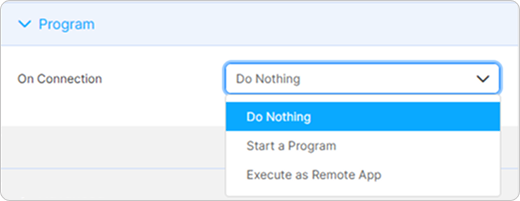
| Option | Description |
|---|---|
| Do nothing | This option is selected by default. It shows the whole remote desktop. |
| Start a Program | Automatically starts a full desktop session and an application in a remote environment without displaying the desktop or environment to the user. The session will end when the user closes the application. |
| Execute as Remote App | Run an application in a remote environment without launching a full desktop, optimizing performance and integrating it into the local environment as if it were a native application. |
Start a Program
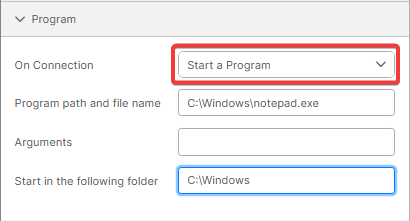
| Option | Description |
|---|---|
| Program path and file name | Specify the complete path to access the application to start with the connection. After the path, enter the application arguments if applicable. |
| Arguments | Used to customize the behavior of a program. |
| Start in the following folder | Enter a context directory for the program set in the field Program path and file name. |
Execute as Remote App
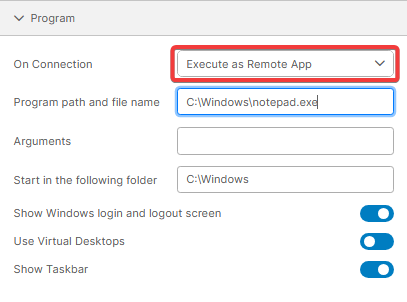
| Option | Description |
|---|---|
| Show Windows Login and Logout Screen | Toggles the visibility of the Windows login and logout screens, which are shown during connection to a desktop or a remote application and shows, for example, the username that’s being logged in or out. |
| Use Virtual Desktops | Enables the use of a virtual remote desktop from the profile created. |
| Show Taskbar | This option enables the taskbar and other controls. |
Wake-on-LAN Requirements and Troubleshooting
Wake-on-LAN sends a broadcast “magic packet” to the target from the Thinfinity Workspace server that establishes the connection — not from the user’s browser. For a target to wake successfully:
- Enable Wake-on-LAN on the target. Turn it on in the computer’s BIOS/UEFI firmware and in its network adapter settings.
- Keep the target on the same subnet. The target must share a local subnet with the Thinfinity Workspace server that connects to it. Magic packets are broadcast and are not routed across subnets by default.
- Provide the MAC address. Set the target’s MAC address, or leave it empty only if the machine has already connected once (so its address is cached).
After sending the packet, Thinfinity Workspace re-sends it periodically and waits for the machine to finish booting before starting the session, so the first connection after a wake can take longer.
Virtual machines do not use Wake-on-LAN — the option is not shown for Managed VMs or VDI/DaaS Models. Those are powered on and off by Cloud Manager through the provider’s start/stop mechanism; use Stop after disconnect to control their power state.
For details, see User Experience Settings and Access Control Settings.