
User Interface Permissions
The User Interface Permissions section defines who can access the Thinfinity® Workspace installation and the different add-ons and functionalities it offers.
The same permissions can also be set in the Configuration Manager Permissions tab. See Permissions Tab.
To open it, on the main Thinfinity Workspace page select your user profile to open the user menu, select Settings, then navigate to Configuration > Security > User Interface Permissions.
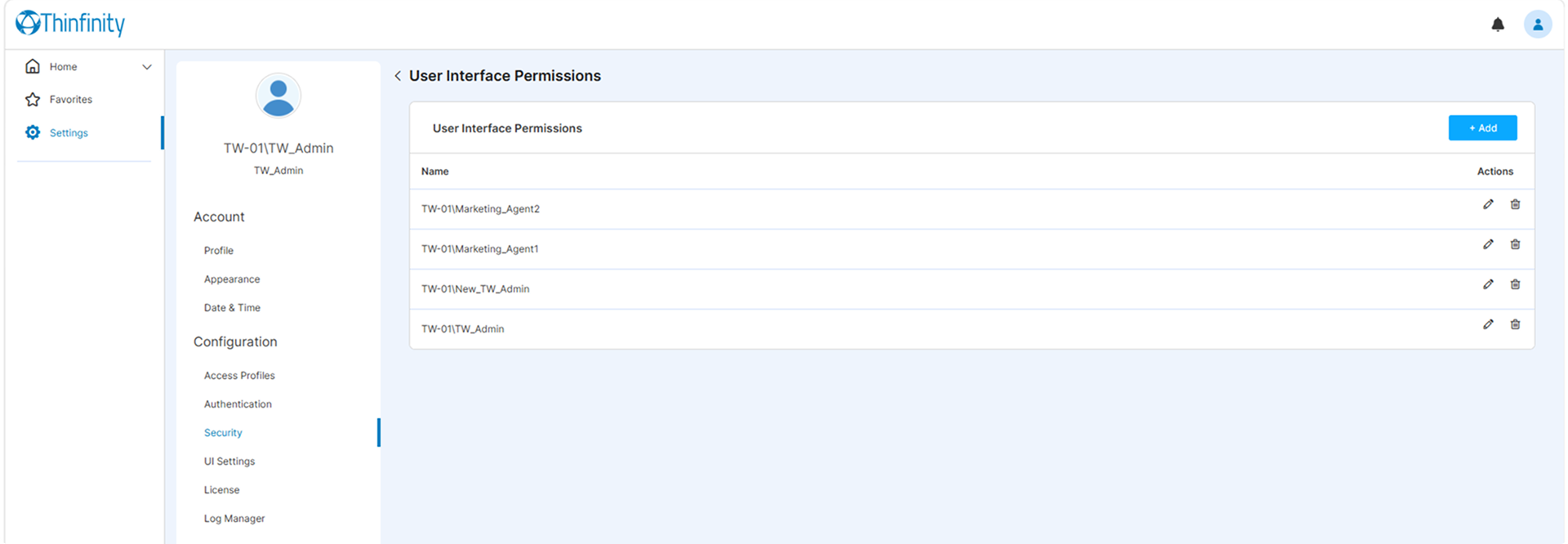
The page lists the users and groups that have been granted user-interface permissions. Select Edit to the right of an entry to view or change its permissions, or select Add to grant permissions to a new user or group.
The edit panel organizes permissions into Modules, Settings, and RDC, described below.
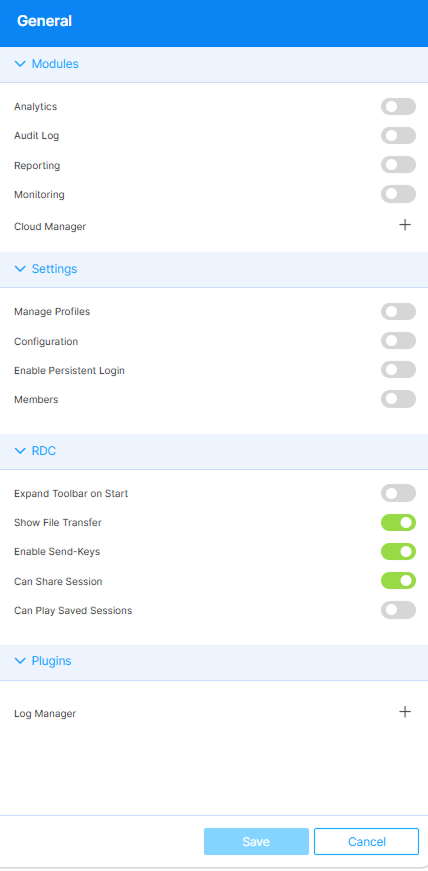
Modules
| Option | Description |
|---|---|
| Analytics | Grants the selected user or group access to the Analytics feature. |
| Audit Log | Grants access to the Audit Log feature, which tracks user logins, sessions, and connections. |
| Reporting | Grants the selected user or group access to the Reporting feature. |
| Monitoring | Grants access to the Monitoring add-on, including real-time metrics and the list of active sessions. Viewing sessions requires only this permission; ending (killing) an active session also requires the Manage Profiles permission (see below). |
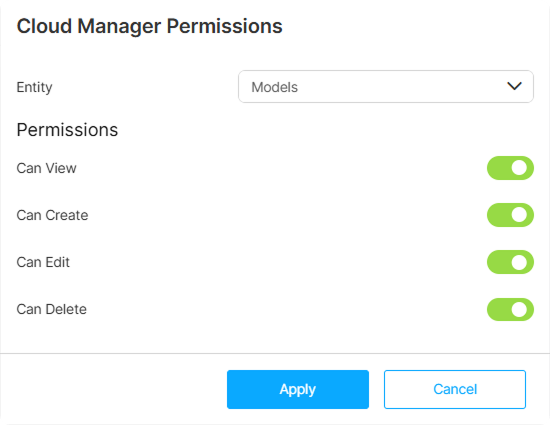
| Cloud Manager | Enables the Cloud Manager feature for managing VMs and virtual desktops. When selected, it expands inline to its per-area permissions (see below). |
Selecting Cloud Manager expands inline to its permission areas — Models, Instances, Deployments, and Credentials — each of which expands to set its own access rights, such as View, Edit, Delete, and Create. By default, the selected user has full rights to all Cloud Manager areas. For the complete per-area permission model, see Cloud Manager.
Settings
| Option | Description |
|---|---|
| Manage Profiles | Enables Access Profile creation and management for the selected user or group. When enabled, an Add button becomes available in the Access Profiles tab of the Web Manager. For details, see Access Profiles. Together with Monitoring, this permission is also required to end (kill) active sessions from the Monitoring add-on. |
| Configuration | Grants the selected user or group access to the Configuration Manager. |
| Enable Persistent Login | Allows the browser to remember the user and log them in automatically for the interval set in the associated Days field. Note: This requires the user’s browser to allow persistent cookies and local storage for the Thinfinity Workspace URL. Browsers set to clear data on exit, or running in private/incognito mode, bypass this setting. |
| Members | In the context of the Local Thinfinity IdP, grants the selected user the right to manage users and groups. See the Members add-on for the corresponding UI. |
RDC
| Option | Description |
|---|---|
| Expand Toolbar on Start | Determines whether the connection toolbar starts expanded or collapsed for the selected user. |
| Show File Transfer | Selected by default. Grants the selected user access to the File Transfer feature. For details, see How to transfer files using Drag and Drop in our online Knowledge Base. |
| Enable Send-Keys | Selected by default. Uncheck to remove the Send Keys option from the Thinfinity Workspace toolbar. |
| Can Share Session | Selected by default. Enables the Session sharing feature for the selected user. For details, see Session Sharing in our online Knowledge Base. |
| Can Play Saved Sessions | Enables saved-session playback for the selected user or group, allowing access to recordings of user interactions with remote resources. The Recordings add-on becomes available in the Web Manager. For details, see Session Recording. |
| Own / Any | Available only when Can Play Saved Sessions is selected. Choose whether the user can play any recorded session or only those they recorded themselves. |
Adding a user or group
Selecting Add on the User Interface Permissions page lets you add a new user or group to the list.
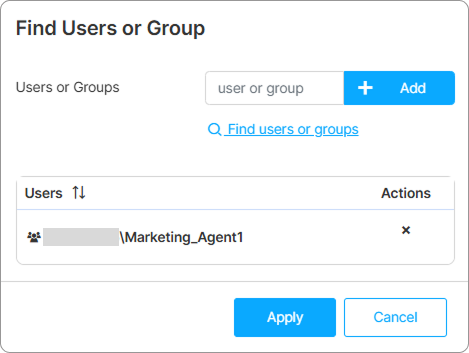
In the User or Group field, enter the name of the user or group for whom you want to define access rights, then select Add.
Find Users and Groups
Selecting Find users and groups displays the following dialog window.
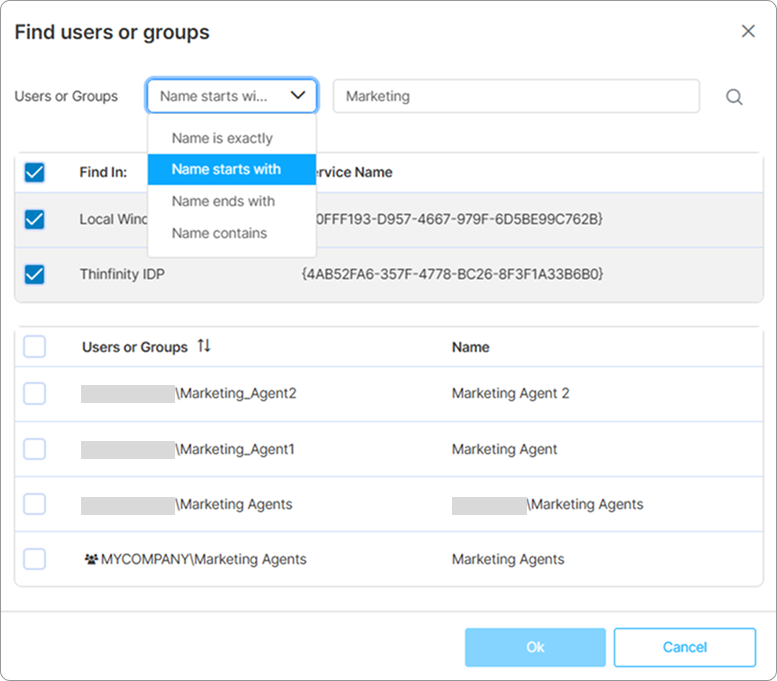
Use the search criteria associated with the Users or Groups field to refine your search. Below it, the Directory Services currently defined in your Thinfinity Workspace installation are listed; use that list to set the scope of the search. The users and groups matching the search criteria are then presented.
Who Can Search the Directory
Searching and listing directory users and groups — this dialog, and every other account picker in the platform — discloses account existence, display names, and e-mail addresses across the configured Directory Services. To prevent user enumeration, these lookups require the caller to hold a permission that legitimately needs the account picker. Directory searches are available only to users or groups holding at least one of:
- Manage Profiles (Settings)
- Members (Settings)
- Configuration (Settings)
- Any Cloud Manager per-area permission (Models, Deployments, Instances, or Credentials at any level above None)
- The reservations organizer role — a user allowed to book on behalf of others — while the Reservations feature is enabled
A signed-in user without any of these receives the same unauthorized response an anonymous caller gets, so the refusal itself reveals nothing about the directory.
This covers the directory search surface. What each user can do with the results is still governed by the individual permissions in the tables above.